
Steps to Add Your New Employee to QuickBooks Payroll Easily
May 25, 2026
Admin |
Estimated Read Time : 5 MIN
Hiring a new team member is an exciting step for any business—but making sure they’re set up correctly in your payroll system is just as important. If you’re using QuickBooks, the process is designed to be simple, efficient, and compliant with tax regulations. In this guide, we’ll walk you through how to add your new employee to QuickBooks Payroll so you can pay them accurately, stay organized, and focus on growing your business without administrative stress.
Whether you’re onboarding your very first employee or expanding a growing team, understanding how to add your new employee to QuickBooks Payroll will help streamline your workflow and keep your records up to date.
Residential address, phone number, and email address
Social Security number and birth date
Employment start date
Here’s How You Can Add Your New Employee to QuickBooks Payroll
Adding a new employee to QuickBooks Payroll is a straightforward process that helps you keep your payroll organized and compliant. By entering accurate employee details from the start, you can ensure smooth payment processing and proper tax calculations moving forward.
Note: Not sure which payroll service you’re using? Here’s how to identify it.
QuickBooks Online Payroll Core
You can enter all your employees’ details yourself or input some information and invite your employees to complete the remaining fields.
There are two ways to add an employee in QuickBooks Online Payroll: Onboard (recommended) and Quick Add. The steps differ slightly depending on your subscription: QuickBooks Online Payroll Core, QuickBooks Online Payroll Premium, or QuickBooks Online Payroll Elite.
Onboard (Recommended)
The onboarding process guides you through entering all necessary employee details in a single, streamlined flow.
Open all apps, then Payroll, and select Employees.
Click Add employee.
Provide the employee’s first name, last name, and email address.
Choose Continue to onboard.
Follow the onboarding steps:
Review and fill in Personal and Work details.
Enter Payroll information, such as pay type and standard working hours.
Add any extra pay types if needed.
If relevant, select a benefit class and review available benefits.
Grant Workforce access and, if required, opt to run a background check.
Click Finish onboarding.
Quick add
Use the Quick Add option to enter only the employee’s name first, then fill in payroll details directly in their profile.
Navigate to All apps, then Payroll, and choose Employees.
Click on Add employee.
Enter the employee’s first name and last name.
Disable the option Let them enter their own info, then select Quick add.
Click Finish payroll info, and proceed to complete the remaining payroll and employee details directly in the employee’s profile.
QuickBooks Online Payroll Premium and Elite — New hire
Premium and Elite plans offer extra features like HR workflows, document management, and background checks during onboarding.
Onboard (Recommended)
Navigate to All apps, then Payroll, and select Employees.
Click Add employee.
Enter the employee’s first name, last name, and email address.
Select Continue to onboard.
Proceed through the onboarding steps:
Fill in payroll details, including pay type and default working hours.
Add any additional pay types as needed.
Upload or remove any documents the employee needs to complete.
Add or remove any documents for the employee to complete.
Choose whether to include HR workflows.
If applicable, select a benefit class and preview eligible benefits.
Set up Workforce access and, if required, opt to run a background check.
Click Finish onboarding.
Quick add
Navigate to All apps, then Payroll, and open Employees.
Click on Add employee.
Input the employee’s first name and last name.
Switch off the option Let them enter their own info, then choose Quick add.
Select Finish payroll info, then fill in the remaining payroll and employee details directly within the employee profile.
QuickBooks Online Payroll Premium and Elite — Rehire
Use the Rehire option when you are adding a former employee who is already stored in your system.
Go to All apps, then Payroll, and select Employees.
Click Add employee.
Switch to Rehire, then select the employee you want to bring back.
If needed, add or update the employee’s email address.
Choose Continue to onboard.
Complete the onboarding process:
Review and update Personal info and Work info.
Enter Payroll details, including pay type and default working hours.
Add any additional pay types if required.
Add or remove documents the employee must complete.
Optionally include HR workflows.
If applicable, select a benefit class and review eligible benefits.
Configure Workforce access and, if needed, run a background check.
Click on Finish onboarding.
QuickBooks Desktop Payroll
Adding an employee in QuickBooks Desktop Payroll includes two optional but efficient steps configuring employee defaults first, then entering each employee’s specific details.
a. Set up employee defaults
Employee defaults allow you to automatically fill in fields that apply to most or all employees—such as pay schedule, sick or vacation policies, state taxes, and earnings or deductions. These defaults appear when adding a new employee, helping reduce manual entry.
You need to be signed in as the QuickBooks Admin to access these settings.
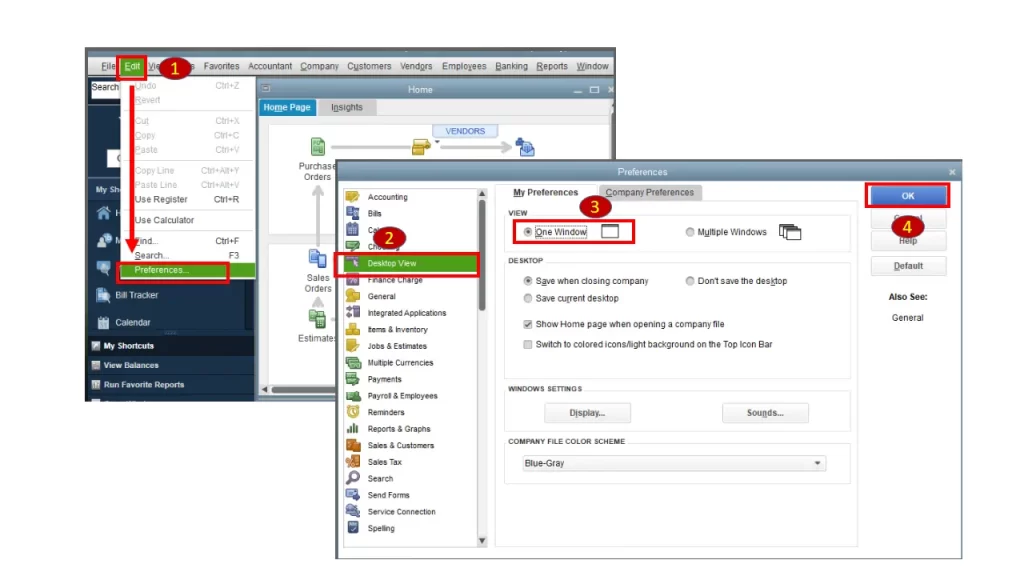
Select Edit, then Preferences.
Choose Payroll and Employees, then go to Company Preferences.
Click Employee Defaults, then enter the desired changes.
Select OK twice to save your updates.
b. Add your employee to payroll
Navigate to Employees and choose Employee Center.
Click New Employee and fill in the employee’s details.
Select OK.
The available fields and tabs may differ based on your payroll service. Refer to the appropriate tab guide below.
i. If you see the Required Info tab:
Required info – First and last name, Social Security number, date of birth, home address, primary phone number, and main email
Personal info – No mandatory fields
Additional info – No required fields
Payroll info – To process employee pay, include a pay schedule or frequency, pay type and rate, W-4 details, federal and state taxes, along with any deductions, sick or vacation policies, and direct deposit if applicable
Employment info – Hire date
Workers’ compensation (for QuickBooks Desktop Payroll Assisted and QuickBooks Desktop Payroll Enhanced only) – Assign a workers’ compensation code if you want to track it within QuickBooks
ii. If you don’t see the Required Info tab:
Personal – First and last name, Social Security number, and date of birth
Address and Contact – Home address, primary phone number, and main email
Additional info – No mandatory fields
Payroll info – To pay the employee, include a pay schedule or frequency, pay type and rate, W-4 details, federal and state taxes, as well as any deductions, sick or vacation policies, and direct deposit if applicable
Employment info – Hire date
Workers’ compensation (for QuickBooks Desktop Payroll Assisted and QuickBooks Desktop Payroll Enhanced only) – Assign a workers’ compensation code if you want to monitor this within QuickBooks
Results
After completing the steps above, your new employee will show up in the Employees list and be ready to be included in your next payroll run. If you used the Onboard workflow, the employee might also receive an invitation to fill out or review their own details.
Conclusion
When you add your employee to QuickBooks payroll, you streamline payroll management, ensure accurate tax calculations, and maintain compliance with ease. With the detailed information above, you can confidently add your employee to QuickBooks payroll and keep your payroll operations running smoothly without errors.
Frequently Asked Questions
Why is my new employee not showing up in payroll in QuickBooks Desktop?
New employees often fail to appear in QuickBooks Desktop payroll because they are not assigned to the active pay schedule, lack a necessary hire date, or have an inactive status. Other causes include incomplete setup in the Employee Center or filtering that hides them.
How do I add a new person to QuickBooks?
To add a new user to QuickBooks Online, navigate to Settings > Manage users, click Add user, and enter their name and email. Assign a role (e.g., Company admin, Standard user) and select Send invitation.
Is it true that newly added employees to QuickBooks Online payroll are automatically invited to QuickBooks Workforce?
No, newly added employees are not automatically invited to QuickBooks Workforce in QuickBooks Online Payroll. While adding a new employee, you must actively select the option to send an invitation email or use the “Invite to Workforce” button in the Payroll/Employees menu to grant them access to paystubs and W-2s.
How do I onboard a new employee in QuickBooks?
To onboard a new employee in QuickBooks Online Payroll, navigate to Payroll > Employees, click Add an employee, and enter their name/email. You can choose to enter details yourself or select “Employee self-onboard” to send an email invite via QuickBooks Workforce for them to securely fill out personal, tax, and banking information.
About The Author
Lana Creston is an experienced technical and accounting writer with a total of 9 years of experience. She currently works on QuickBooks accounting and technical guides at QuickBookSupportNet. Lana has a passion for reading and writing about various technical topics, especially exploring new accounting methods and software, while continuously expanding her expertise in the ever-evolving field of finance and technology.
Effortlessly handle data tasks or get expert assistance with:
Data Automation
Conversion & Migration
Integration
Tax Filing & Compliance
QuickBooks Desktop 2023 is ending — Upgrade QuickBooks Desktop 2023 to 2024 for continued performance and support.