How to Download QuickBooks Desktop for Windows and Mac?
Jan 20, 2026
Admin |
Estimated Read Time : 5 MIN
Download QuickBooks Desktop is a simple process, but it takes a different turn when you are working on either Windows or a Mac. At a time in Windows, downloading and installing is easy, but for Mac, it is challenging, and you need to follow the steps shared in this blog.
In addition to this, we have shared the details of the data that you can convert, and that would not be converted.We have shared the system requirements you should know for Windows and Mac to run QuickBooks.
Knowing the system requirements is important before you use the QuickBooks Desktop program. Now, you can check if your system is fulfilling the required space, RAM, and more.
QuickBooks Desktop 2025 Download All Versions
You can download any version in the table, ranging from the old to the new version. To make this easy for you, we simplified the confusion and turned it into a table.
Convert a QuickBooks for Windows file to QuickBooks for Mac
Steps to Convert a QuickBooks for Windows File to a QuickBooks for Macintosh-compatible file
Looking to move from QB Desktop Windows to QB Desktop Mac?
If yes, apply the steps. Also, note that you can only move a QuickBooks company file from Desktop Pro, Premier, or Enterprise Accountant editions.
Step 1: On your Windows PC
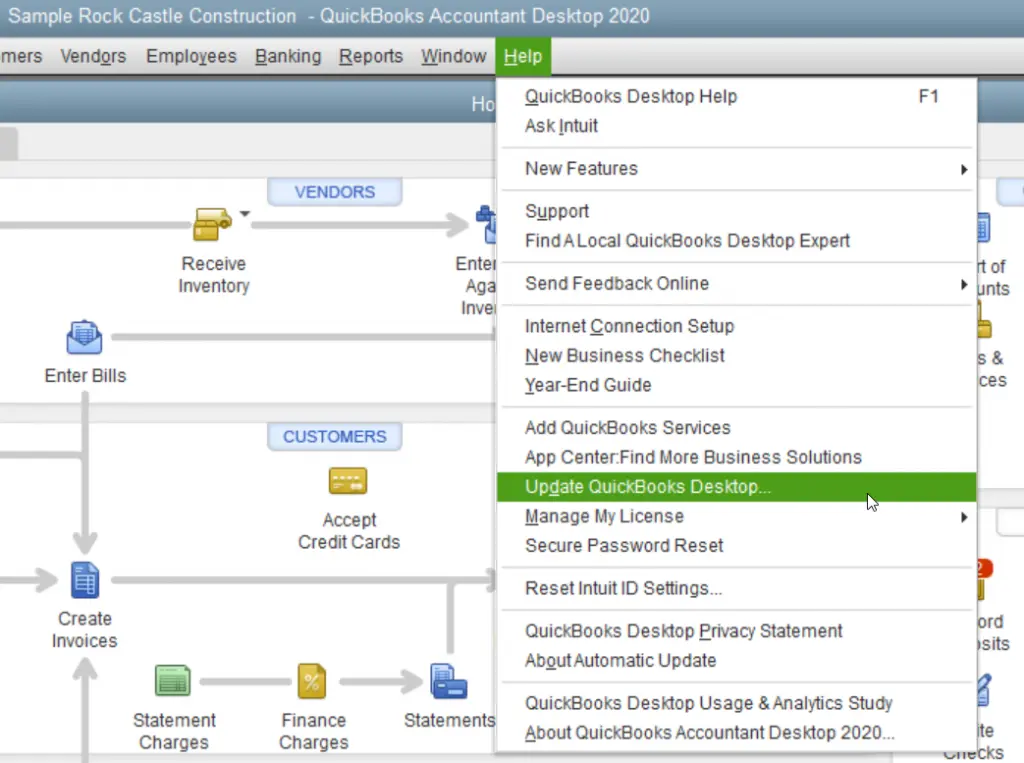
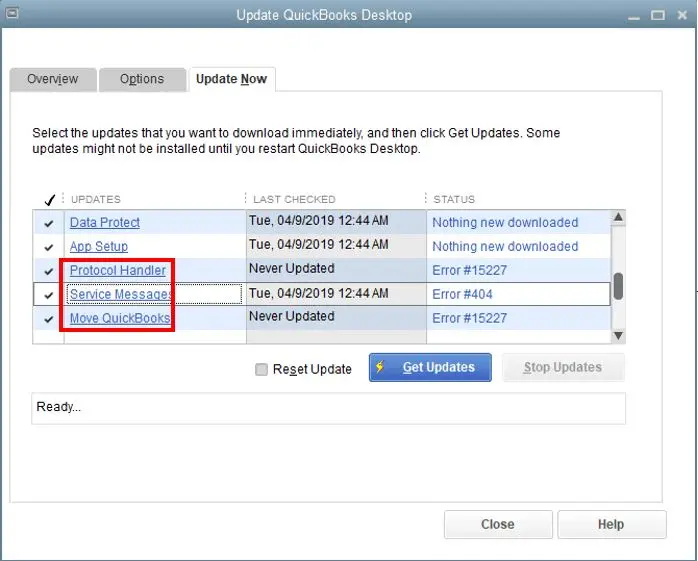
Update to the latest version of QB Desktop for Windows.
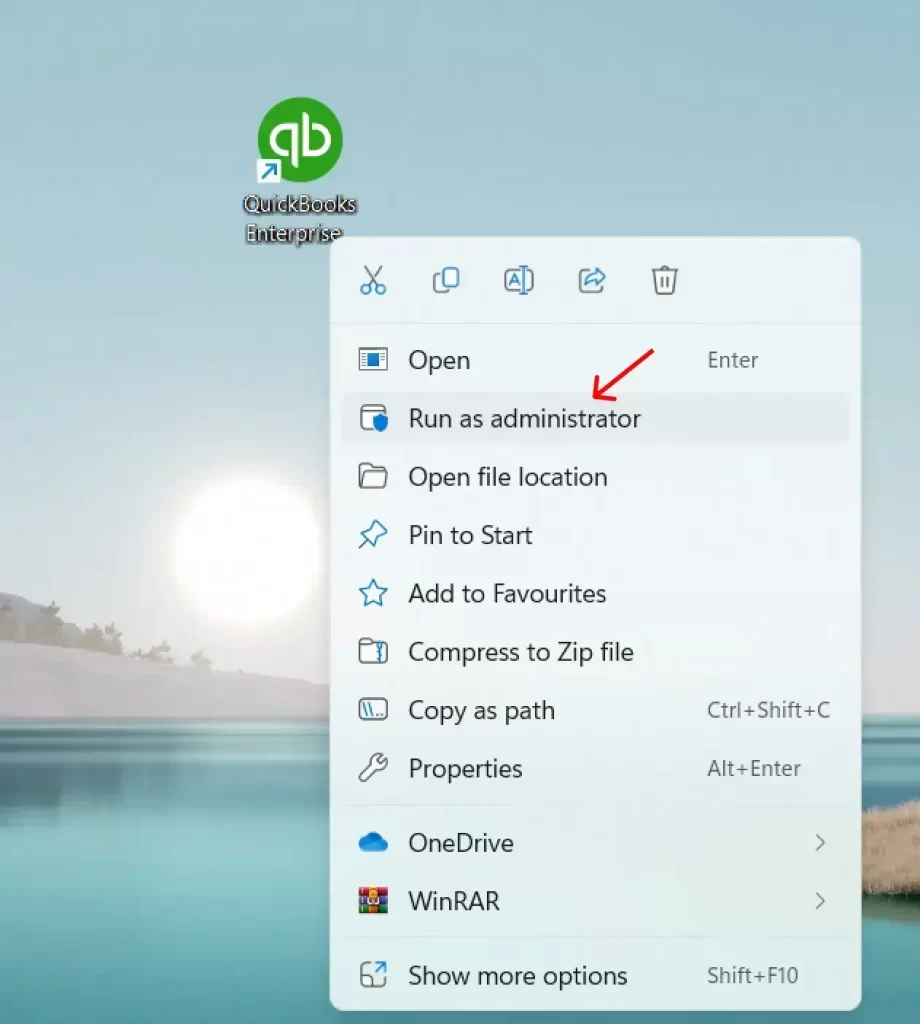
Open the file as admin.
Go to the File menu.
Select Utilities.
Click on Copy Company File for QuickBooks Mac and follow the on-screen instructions.
QuickBooks will create a backup file with the name MAC.qbb.
A message will pop up, “QuickBooks for Windows might be a better fit for your company”.
Note: You are required to check the data list that will not be converted from Windows to Mac. We have shared the data list for both that will get and not be converted.
Click on Yes if you want to continue.
Click on Save and name the file in the folder.
Note: – Use of special characters is not recommended. Now, you need to move the concerned files to your Mac system. You can use any storage device to do so, such as a USB flash drive.
Step 2: Restore the MAC.qbb backup on your Mac system
For your awareness, let us inform you that the MAC.qbb file is a copy of a QuickBooks Desktop company file. You can restore it in QuickBooks for your Mac system.
History of QuickBooks versions used with the data file
Income and expense tracking by class (available in QuickBooks for Mac using Profit & Loss by Class reports)
Item list
Job costing data (available in QuickBooks Desktop Mac using Job Profitability reports)
Job types list
Links between pay items and other items
Memorized transactions
Multiple estimates per job
Notes
Other names list (without notes)
Payment method list
Payment terms list
Vendor list (notes will not be converted)
Shipping via list
Vendor type list
To do list (alerts will not be converted)
Preferences
Company name and address
Which features are enabled
Reconcile
Reminders (alerts will not be converted)
Shipping via list
Time and activity records
To do list (alerts will not be converted)
Transaction statistics
Transactions and their links:
Bills
Deposits
Invoices
Payments
Transfers
Vehicle list
Vendor list (notes will not be converted)
Vendor type list
Data that would not be converted from QuickBooks Desktop 2026 Windows to QuickBooks Desktop for Mac
Important: QuickBooks for Mac does not support multiple currencies. It is because accounts and balances are affected by the multiple and home currency settings.
These settings cannot be changed in QuickBooks for Windows once they have been set.
It has been noticed that if any user has used multiple currencies in the Windows company file, then the user will not be able to convert their data to QuickBooks for Mac.
From Windows to Mac, some features and data won’t be converted, including (but not limited to) the following:
If you have used multiple currencies in QuickBooks for Windows, please provide any data.
Intuit integrated payroll and payroll list items.
For QB Desktop Mac, Online banking transactions that have not been accepted into a register would not be converted. However, the transactions that have been accepted will appear as payments, deposits, and transfers with associated links.
Online banking aliases
Data that would not be converted includes customized settings for forms, including statements, invoices, estimates, and purchase orders.
It would not transfer multi-user data, such as usernames.
User passwords (QuickBooks for Mac supports administrator password)
Memorized reports
Data that will not convert includes business planning, expert analysis, and business optimization tools.
Customized price levels
Integration with third-party applications, including Microsoft Word, Outlook, and ACT
Merchant account services (you’ll need to set this up again in QuickBooks for Mac)
Sales order and back order tracking (available in Premier versions of QuickBooks for Windows)
Assembly items (available only in Premier versions of QuickBooks for Windows) will be converted into non-inventory part items.
Budgets created without an associated account
Transaction type “EFP payroll” (will convert into a payroll liability check)
Workers comp list
Fixed asset item list
Multiple “ship to” addresses, Preferred Send method, and payment information for Customer: Jobs.
User-added columns to lists
QuickBooks Desktop Enterprise
QuickBooks Desktop Enterprise is an on-premise desktop-based accounting software that handles a large volume of data and complex business needs. The enterprise helps in managing all areas of business, from sales and purchasing to payroll and inventory.
For Windows 10, Microsoft will stop providing free software updates from Windows Update, security fixes, and technical assistance from October 14, 2025. You are recommended to use Windows 11.
Conclusion
Thanks for being with us! We are excited to know that you must have set up your QuickBooks accounting application. Now, you are all set to boost your business growth. We would like to inform you that if you need any further help, contact a QuickBooks expert at Call Us : +1(866)500-0076. Also, a quick reminder, you can bookmark this blog on Download QuickBooks Desktop.
1. What should I do if my system does not meet the minimum requirements?
If your system fails to meet the requirements of the QuickBooks Desktop 2024, you can upgrade your PC. In case you do not have an option to upgrade your PC, you can move to QuickBooks Online.
2. How to download QuickBooks Desktop 2024?
Go to download and Updates.
Select your country, product, and version in the boxes.
Click on Download.
Save the file to the folder.
Locate the download file.
Open the setup.
Keep your license and product number handy.
Select Express Install or Custom and Network Options.
Click on Install and launch QuickBooks.
3. How to download QuickBooks Desktop 2024 to a new computer?
Finally, follow the instructions and choose a USB flash drive.
Let the files be copied.
4. Can I put my QuickBooks Desktop Pro 2024 on my laptop?
Yes, you are just required to install QuickBooks Desktop on your laptop and restore your company file as a backup.
5. How can I activate QuickBooks Desktop?
Download and launch QuickBooks
Click on the Help menu
Click on Activate QuickBooks
Follow the on-screen instructions and verify your details.
About The Author
Lana Creston is an experienced technical and accounting writer with a total of 9 years of experience. She currently works on QuickBooks accounting and technical guides at QuickBookSupportNet. Lana has a passion for reading and writing about various technical topics, especially exploring new accounting methods and software, while continuously expanding her expertise in the ever-evolving field of finance and technology.
Effortlessly handle data tasks or get expert assistance with:
Data Automation
Conversion & Migration
Integration
Tax Filing & Compliance
QuickBooks Desktop 2023 is ending — Upgrade QuickBooks Desktop 2023 to 2024 for continued performance and support.