Is Your QuickBooks Email Not Working? Try These Steps
Feb 12, 2026
Admin |
Estimated Read Time : 5 MIN
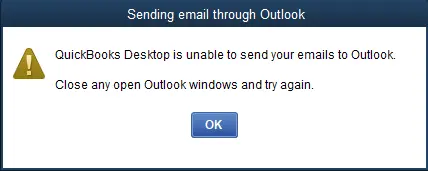
If the QuickBooks email is not working, you may fail to send invoices, receipts, or other forms directly from the application. You may also see a warning message on your screen,
“Error: QuickBooks is unable to send your email to Outlook.”
There is a workaround: save documents as PDFs and send them manually. You will also need to troubleshoot QuickBooks or email settings, ensure your email provider is working, and check for interference from security software or a corrupted installation, as discussed in this detailed guide.
Here are several potential reasons why QuickBooks email is not working properly. Let’s take a closer look at each one:
Not having the proper admin privileges
Incorrect email preferences in QuickBooks
Incorrect email preferences in Internet Explorer
MAPI32.DLL is corrupt or the wrong version
Incorrect installation of damaged program files
What to Do If QuickBooks is Unable to Send Your Email to Outlook?
QuickBooks is unable to send your email to Outlook due to the above reasons, but it can also involve issues with your email settings, network, or system permissions. Here’s a detailed list of steps you can take to fix the problem:
1. Edit the admin privileges
Make sure your QuickBooks Desktop doesn’t automatically run as an administrator.
Exit QuickBooks Desktop.
Launch the Windows Start menu.
In the search field, type QuickBooks.
Now, right-click on the QuickBooks icon and select Open file location.
In the QB file folder, right-click on the QuickBooks.exe file and choose Properties.
Go to the Compatibility tab.
Remove the checkmark in the Run this program as Administrator option. If this option is grayed out, click on Show Settings for All Users. This will make the option visible.
Finally, select Apply and then OK.
Open QuickBooks and try to send an email or transaction again. If you notice QuickBooks email not working, move on to Step 2.
2. Edit your email preferences in QuickBooks
Let’s update the email preferences in your QuickBooks Desktop with the steps below:
In QuickBooks, go to the Edit menu.
Choose Preferences. If you use Microsoft Outlook with Microsoft Exchange Server, open and sign in to Outlook before moving on.
Click on Send Forms.
Move to the My Preferences tab.
Choose Outlook as your email option and click OK.
Try sending a test email from QuickBooks. If you still see an error, you must toggle the email preferences.
Go to the Edit menu.
Select Preferences and Send Forms.
Move to the My Preferences tab.
Now, choose QuickBooks E-mail or Webmail as your email option and click OK. This will toggle your preferences off.
Repeat the same steps to toggle the preference on.
Return to the My Preferences tab and select Outlook. Then select OK.
Exit QuickBooks and all the open programs.
Restart your computer.
Open QuickBooks and send a test email if the ‘QuickBooks email not working’ issue is fixed. If not, continue moving to the next step.
3. Check your Internet Explorer email preferences
QuickBooks uses Internet Explorer as its default browser to run the web services in the background. You might need to reset the preferences there to send an email without an error.
Exit QuickBooks.
Launch Internet Explorer.
Go to the Tools menu.
Select Settings and then Internet Options.
Move to the Programs tab, then Set Programs.
Choose Set your default programs and then use the email services you want to use.
Select Apply and click OK.
Exit Internet Explorer.
Open QuickBooks and send a test email or transaction. If you still see an error, move on to Step 4.
4. Repair your MAPI32.dll
These steps are a bit challenging. Only perform these if you are confident or have some technical expertise. We recommend you contact the IT support or dial TFN.
First, narrow down the issue with the following test:
Restart your computer.
Launch Microsoft Word and create a new document.
Go to the File menu, then Send.
Now, click on Email as PDF Attachment.
Send a test email. If you fail to do so from Microsoft Word, contact Microsoft Help and Support. It indicates the issues with your Outlook or Office Suite.
If Word can send emails but QuickBooks cannot, follow these steps to fix your MAPI32.dll:
Exit all the open programs.
Launch the Windows Start menu.
In the search, type File Explorer and press Enter to open it.
Again, type C:\Windows\System32 into the search.
In the folder, look for Fixmapi.exe and open it.
Follow the steps on your screen to run a quick repair.
When done, restart your computer.
Open QuickBooks Desktop and try sending an email or transaction. If you experience QuickBooks email not working, move to Solution 5.
5. Install QuickBooks Desktop again
Reinstalling QuickBooks Desktop involves uninstalling QuickBooks to remove all existing program files and folders and installing the software again to replace the corrupted or missing components of the software. These files do not involve your company files or other financial data. We recommend that you back up your company files to prevent data loss and ensure a smooth transition after the re-installation is complete.
Conclusion
QuickBooks allows you to email invoices, reports, and other documents to your employees or customers. However, QuickBooks email not working can make it challenging. Following the above steps will help you resolve the problem and email your documents seamlessly.
If you need further assistance, we recommend consulting QuickBookSupportNet. Dial +1(866)500-0076 to talk to an expert now!
Frequently Asked Questions
Why am I not receiving emails in QuickBooks Desktop?
You may not be receiving emails from QuickBooks because of incorrect email settings, a blocked or incorrect email address, or an issue with your email provider’s security settings. Other reasons could include problems with your computer’s connection, software updates, or your email client.
How do I set up my email in QuickBooks?
To set up your email in QuickBooks, you can either connect or set up an Outlook integration. For Outlook, go to Edit > Preferences > Send Forms and choose Outlook as your email option in the Company Preferences tab.
How do I check if my email client works with QuickBooks?
To check if your email client works with QuickBooks, configure it in the QuickBooks preferences under Edit > Preferences > Send Forms. If using Outlook, simply select it from the options and click OK. If using webmail, select the “Web Mail” option, click “Add,” and enter your email provider’s specific server, port, and security settings
About The Author
Lana Creston is an experienced technical and accounting writer with a total of 9 years of experience. She currently works on QuickBooks accounting and technical guides at QuickBookSupportNet. Lana has a passion for reading and writing about various technical topics, especially exploring new accounting methods and software, while continuously expanding her expertise in the ever-evolving field of finance and technology.
Effortlessly handle data tasks or get expert assistance with: