Troubleshooting Guide for QuickBooks Bank Error 102 and 105

Mar 11, 2026

Admin |

Estimated Read Time : 5 MIN

Connecting your bank to QuickBooks automatically downloads bank transactions into the software, enabling automated bookkeeping, real-time processing, and enhanced security while reducing manual effort. However, this process can sometimes be disrupted by QuickBooks Error 102 and 105.

These errors usually indicate that there is a notification, alert, or update on the bank’s website that requires your attention. In some cases, general browser-related issues may also interrupt the connection process.

In this detailed guide, we will discuss the common reasons for error codes 102 and 105 and provide step-by-step troubleshooting steps to resolve them.

What Causes Banking Error 102 and 105 in QuickBooks?

Let’s understand why these baking errors 102 and 105 in QuickBooks appear and how they affect your bank connection:

  • The bank connection may be temporarily interrupted with QuickBooks
  • There may be messages, alerts, or notifications on the bank’s website
  • Intuit might not be listed as a trusted site in the browser
  • An outdated or unsupported browser might be used for access
  • The browser cache or history may conflict with the bank website
  • Bank feed errors, broken connections, or syncing problems may occur

Best 6 Solutions to Fix QuickBooks Bank Error 102 and 105 Instantly 

Below are six proven solutions that can help you fix QuickBooks bank error 102 and 105 and reconnect your bank account without delays: 

1. Manually update your bank connection

Let’s update the bank connection to sync the bank account without any errors. Proceed with the steps below based on your product: 

a. For QuickBooks Online

b. For QuickBooks Self-Employed

  • Navigate to Settings. 
  • Choose Manage accounts
  • Click on Refresh all.

Note: If you still get an error, wait for 2 to 3 hours and try again. 

2. Check your bank or credit card’s website 

To find out more about the errors you may encounter, visit your bank’s website: 

  • Sign in to your bank’s website. 

Note: If you can’t sign in, reach out to the bank for assistance. 

  • Review the website for any messages, notifications, or alerts to see if there’s an issue.
  • Review the account pages, history, and transactions. If you can’t see these, you might have a bank connection issue.

3. Disconnect and reconnect your bank 

If you’re experiencing issues, try disconnecting and reconnecting your bank account:

a. Disconnect your bank 

When you disconnect to resolve the banking issues, you will no longer be able to see the transactions that need to be categorised in the Pending tab. If the transactions are older than 90 days, you won’t be able to download them from your bank when reconnecting. In such a case, you can choose to upload your transactions manually. 

Important: As you are getting bank error 102 and 105, don’t disconnect the account until you fix the online banking errors. If you disconnect it due to errors, QuickBooks might download duplicate transactions when you reconnect it. 

Learn how you can disconnect your account from online banking:

To ensure your customer’s account is secure, share the sign-in link to direct them before continuing. If they failed to sign in, help them recover their Intuit account. 

Note: For your customers, copy the direct sign-in link and share it if required.  

Note: If QuickBooks is currently fetching new transactions, this option will not appear. Wait a few minutes for the update to complete, then try again.

  • Click on Save
  • You can reconnect the account to resume downloading transactions.

b. Reconnect the bank 

In QuickBooks Desktop, look for the transaction that was categorized recently.
Note down the transaction date.

  • Follow the steps on your screen to import your QuickBooks data.
    Note: Be sure to finish this step before connecting your bank account. If you skip it, information from your Desktop version could replace the bank transactions that have already been imported into QuickBooks Online.
  • The transactions you categorized will be copied from the Desktop to Online. Uncategorized transactions won’t copy over.
  • To link your bank account with QuickBooks Online, follow the instructions in this article. To prevent duplicate entries, download transactions starting only after the date mentioned in Step 2. You can set this by adjusting the transaction start date when connecting your bank.

If you accidentally download duplicate transactions, you can simply exclude them during the review process so they won’t be added to your books.

If the problem persists, try signing in to QuickBooks in an incognito/private window or using other browser troubleshooting steps.

4. Add Intuit as a trusted site

Another way to fix QuickBooks bank error 102 and 105 is by adding Intuit as a trusted site in your browser:

a. Add Intuit: Google Chrome

  • Go to the Customize and control Google Chrome ⋮ icon. 
  • Choose Settings.
  • In the left menu bar, choose Privacy and security, and then Site settings.
  • Click on Third-party cookies.
  • Scroll down to the “Allowed to use third-party cookies” section and click Add.
  • Now, type *.intuit.com, then click Add to save.

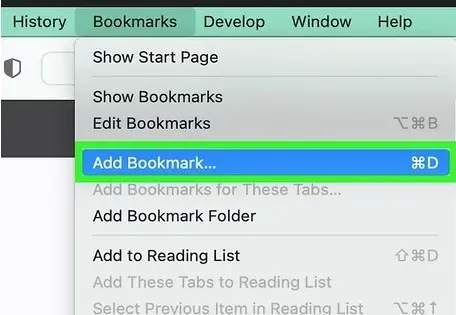
b. Add Intuit: Safari

  • Open the Safari browser. 
  • Type *.intuit.com.
  • Press the Enter key.
  • Choose Bookmarks, then click Add Bookmark…
Add bookmark
  • Under the Add this page to: dropdown, choose Favourites.
  • Finally, click on Add.

c. Add Intuit: Microsoft Edge

  • Go to the menu… icon. 
  • Choose Settings.
  • In the left menu bar, choose Cookies and site permissions, then click on Manage and delete cookies and site data.
  • Select Add under the Allow section. 
  • Now, type *.intuit.com, then select Add to save.

5. Use a supported, up-to-date browser

QuickBooks only supports the current and the two previous versions of your browser. Intuit doesn’t always support the older versions. 

Check the following browsers that are supported for both web and mobile devices: 

Note: QuickBooks doesn’t support Internet Explorer as a browser.

  1. Supported browsers 
  • Google Chrome: Version 78 or newer
  • Mozilla Firefox: Version 76 or newer.

Note: You will also require the Firefox PDF plugin to preview and print forms on Mac OS. 

  • Microsoft Edge: version 75 or newer
  • Safari: version 12 or newer (Mac only)
  1. Mobile browsers

iPhone / iPad

  • OS 11.1 or newer
  • Safari browser.

Note: Keep the Private Mode disabled to allow cookies.

  • Other browsers, such as Google Chrome and Dolphin, might work but aren’t supported officially. 

Android smartphones and tablets

  • Nougat 7.1.1 or newer
  • Chrome browser
  • Browsers like Firefox and Opera might still work, but they aren’t officially supported.

Microsoft Surface

  • Microsoft Edge

6. Try using a private or incognito browser

If the issue continues, try opening QuickBooks in a private or incognito browser window: 

  • Google Chrome: Ctrl + Shift + N
  • Safari 11 or newer: ⌘ + Shift + N
  • Mozilla Firefox: Shift + Ctrl + P
  • Microsoft Edge: Ctrl + Shift + N

Conclusion 

Finally, we conclude this blog by covering the essential details on QuickBooks bank errors 102 and 105, why they occur, and the key troubleshooting steps. Updating the bank connection, resolving browser issues, and reconnecting your bank can help restore the banking connection.

For further assistance, we recommend consulting QuickBooks professionals at +1 (866) 500-0076. Talk to a QuickBooks ProAdvisor now!

Frequently Asked Questions 

What does error 102 or 105 mean in QuickBooks?

QuickBooks errors 102 and 105 are related to bank connectivity. This means that QuickBooks couldn’t connect to your financial institution’s server to download your transactions.

What causes QuickBooks Online bank account error 102?

Generally, it happens when the bank feed is not up to date, when internet connectivity is poor, or when you have unread messages, notifications, or alerts from your bank. However, an outdated or unsupported browser, cookies, and caches, or browser history may hamper QuickBooks’ connection to the bank’s server.  

How do I fix a bank error in QuickBooks?

To fix a bank error in QuickBooks, refresh the bank connection from the Banking menu or update your sign-in information. If the error persists or you still see an error code, make sure to use a supported, up-to-date browser, clear the browser’s cookies and cache, check the bank’s website for information or website maintenance, or reconnect to the account.

How do I fix the bank connection in QuickBooks Online?

To fix bank connection errors in QuickBooks Online, first click Update in the Banking menu to refresh the connection. If errors persist, try updating your login credentials, clearing browser cache, or disconnecting and reconnecting the account. For persistent issues, manually upload transactions via CSV or QBO files.

How to fix a corrupted QuickBooks file?

To fix a corrupted QuickBooks file, run the QuickBooks File Doctor and use the Verify and Rebuild Data utility. These tools will verify the company file for potential data damage, corruption, or network connectivity issues, and then help us quickly repair them.

About The Author

Lana Creston

Lana Creston is an experienced technical and accounting writer with a total of 9 years of experience. She currently works on QuickBooks accounting and technical guides at QuickBookSupportNet. Lana has a passion for reading and writing about various technical topics, especially exploring new accounting methods and software, while continuously expanding her expertise in the ever-evolving field of finance and technology.

Quick, clear, and hassle-free QuickBooks assistance.

Get a Free Consultation with Our QB Tax Experts
Connect with Our Certified QuickBooks Professionals - Dial Tollfree: +1(866)500-0076