Learn to Create an Invoice in QuickBooks Desktop

Dec 18, 2025

Admin |

Estimated Read Time : 5 MIN

An invoice is a crucial aspect of any business, as it formally details transactions for both customers and the business itself. If you are a QuickBooks user and looking for steps to create an invoice in QuickBooks Desktop, follow this guide till the end.

Create an Invoice in QuickBooks

In this up-to-date guide, we will cover how to create an invoice in QuickBooks Desktop from scratch, an invoice for a Sales order, an invoice for Estimates, and more. We have carefully outlined each step to ensure you can complete your invoice.

Steps to Create an Invoice in QuickBooks

Create an invoice from scratch

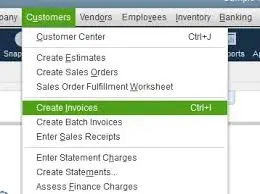
  • Click on Create Invoices on the Home screen or the Customers menu.
Create Invoices tab
  • Choose a customer or customer job from the Customer in the Job drop-down.
  • Click on Add New if the customer or job is not on the list yet.
  • Fill in the required details at the top of the form. For example, Date Invoice, Bill to/Sold to, and Terms.
  • Choose the item/s in the detail area.

Note: The description and amount are automatically updated when you choose or add an item. The update is based on the description and unit cost entered. You can delete or modify this setting when you require it while creating invoices.

  • If you are looking to place a discount on any item, you should create a discount item.
  • Navigate to the Lists menu on the Home screen.
  • Click on the Item list.
  • Right-click on the empty space and click on New.
  • Click on the Type drop-down and then Discount.
  • Fill in the Item number/Number and a brief Description.
  • In the Amount or % field, mention the discount amount or the discount percentage. If your amount varies, consider leaving the Amount or % field blank and entering the amount directly on your sales forms.
  • Select the income account that you would like to use to track discounts from the Account drop-down.
  • Click on the concerned Tax Code for the item and select OK.

Create an invoice for a Sales Order

You must be looking to create an invoice for a sales order. Follow the steps below:

  • From the Sales Orders window.
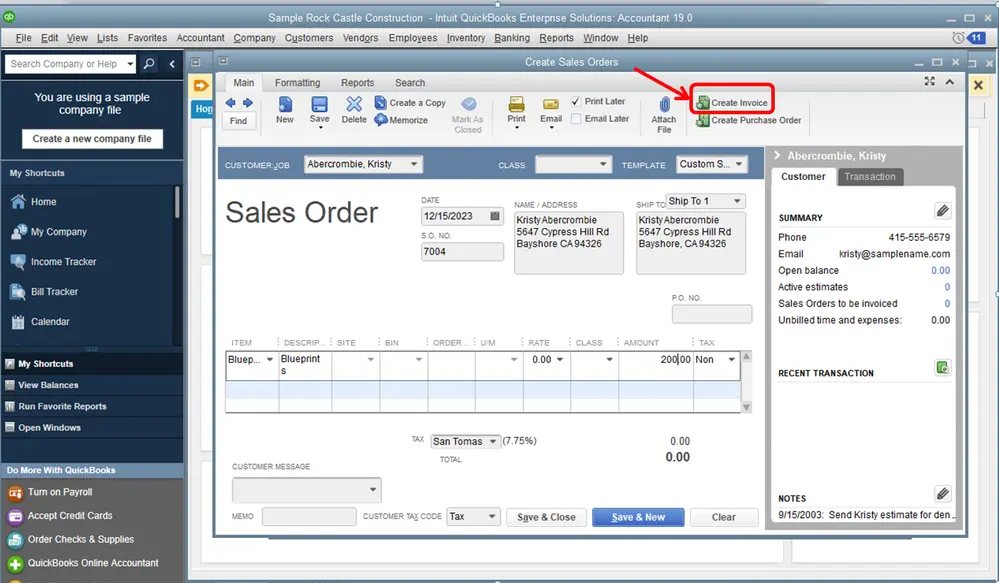
  • Click on the Create Invoice option on the Sales Orders main tab.
Create Invoice option
  • On your screen prompt, choose:
  • Choose Create invoice for all the sales order(s). Doing so, you would be able to add all items from the sales order to the invoice.
  • Choose Create invoice for selected items. You can do so if you have made your selection.
  • You can make the required changes in your invoice.

Note:- For each item, you can enter a quantity of the product in the To Invoice column. In case you do not want to invoice any product in the listed item, enter zero as its

  • Click on Save & Close.

From the Invoice Windows

  • Click on Create Invoices on the Home screen or the Customers menu.
  • Choose a customer or customer job from the Customer in the Job drop-down.
Choose a customer or customer job
  • The available Sales Order window would appear.
  • You can now select one or more sales orders that have items included in the invoice.
  • You can make the necessary changes in the invoice.

Note:- In the list of items, you need to mention the quantity in the To Invoice column for each item. In case you do not want any specific product in the listed items, enter zero as its quantity.

  • Finally, click on Save & Close.

Create an invoice for an Estimate

  • Open the correct estimate.
  • At the top of the Estimate form, click on Create Invoice.
  • If you have progress invoicing switched on, you will receive an instruction asking you to specify which items and their quantities to include on the invoice. Specify what must be included as instructed.
  • When the invoice appeared, edit the information as needed.
  • Click on Save & Close.

From the Invoice Windows

  • Click on Create Invoices on the Home screen or the Customers menu.
  • Choose a customer or customer job from the Customer in the Job drop-down.
Customer Information
  • The concerned Estimates window will appear.
  • Choose the estimate you would like to include in your invoice. You must note that the QuickBooks application would allow you to choose one estimate to invoice.
  • Once the invoice appears, you can edit the information as per your requirements.
  • Finally, click on Save & Close.

Conclusion

Having walked through this blog, you can now create an invoice tailored to your business requirements. The blog on “How to create an invoice in QuickBooks Desktop” has covered everything required to create an invoice from scratch for your Sales order. We would like to thank you for trusting us!

For more information, contact our senior QuickBookSupportNet at Call Us : +1(866)500-0076. You can bookmark this guide for further use.

Frequently Asked Questions

What is an invoice?

An invoice is a slip that contains payment details for goods or services. The invoice is considered a legal record of the transaction, including details on what was given, the cost, and the payment terms and conditions.

How can I learn to create an invoice in QuickBooks?

You can create an invoice depending on the category and requirements.
To create an invoice in QuickBooks Desktop:

  • Click on Create Invoices on the Home screen or the Customers menu.
  • Choose a customer or customer job from the Customer in the Job drop-down.
  • Click on Add New if the customer or job is not on the list yet.
  • Fill in the required details at the top of the form. For example, Date Invoice, Bill to/Sold to, and Terms.
  • Choose the item/s in the detail area.

What are the steps to create an invoice from the invoice windows?

Follow the steps below to create an invoice from the invoice window:

  • Click on Create Invoices on the Home screen or the Customers menu. 
  • Choose a customer or customer job from the Customer in the Job drop-down.
  • The concerned Estimates window will appear.
  • Choose the estimate you would like to include in your invoice. You must note that the QuickBooks application would allow you to choose one estimate to invoice.
  • Once the invoice appears, you can edit the information according to your needs.
  • Finally, click on Save & Close.

About The Author

Lana Creston

Lana Creston is an experienced technical and accounting writer with a total of 9 years of experience. She currently works on QuickBooks accounting and technical guides at QuickBookSupportNet. Lana has a passion for reading and writing about various technical topics, especially exploring new accounting methods and software, while continuously expanding her expertise in the ever-evolving field of finance and technology.

Quick, clear, and hassle-free QuickBooks assistance.

Get a Free Consultation with Our QB Tax Experts
Connnect with Our Certified QuickBooks Professionals - Dial Tollfree: +1(866)500-0076