Top 9 Fixes for QuickBooks Error 2107 When Sending Payroll

Feb 10, 2026

Admin |

Estimated Read Time : 5 MIN

Whether it’s direct deposit or other payroll data, sending it to Intuit servers is crucial for further processing. But have you experienced issues and found yourself wondering why you “cannot send payroll,” only to encounter QuickBooks error 2107?

This error usually occurs due to server outages, unstable internet connections, or interruptions in communication between QuickBooks Desktop and Intuit’s payroll servers. When an error appears, payroll data fails to transmit, which can delay employee payments and disrupt your workflow.

In this blog, we’ll break down what error code 2107 means, its common causes, and step-by-step solutions to help you restore payroll connectivity and get everything back on track smoothly.

What Causes QuickBooks Payroll Error 2107? 

QuickBooks Payroll error 2107 usually pops up when something blocks or breaks the payroll update process. Common causes include:

  • General internet connectivity issues 
  • Using an outdated version of Windows OS
  • Incorrect date and time on your computer 
  • Outdated QuickBooks Desktop or payroll services
  • Sending the payroll data in multi-user mode 
  • Internet security and personal firewall software settings
  • A network time-out prevents QuickBooks Desktop from accessing the server
  • Invalid security certificate

Troubleshooting QuickBooks Error 2107: Cannot Send Payroll 

Here’s a clear and practical approach to troubleshooting QuickBooks Error 2107: Cannot Send Payroll, designed to help you resolve the issue efficiently and restore normal payroll operations:

1. Restart your computer 

Restarting a computer fixes QuickBooks error 2107 by clearing temporary memory, stopping stuck background services, and resetting QuickBooks components. It refreshes Windows processes, reloads damaged system resources, and reapplies proper permissions. This clean start often resolves conflicts caused by incomplete updates, corrupted cache files, or interrupted QuickBooks payroll services.

2. Update Windows OS 

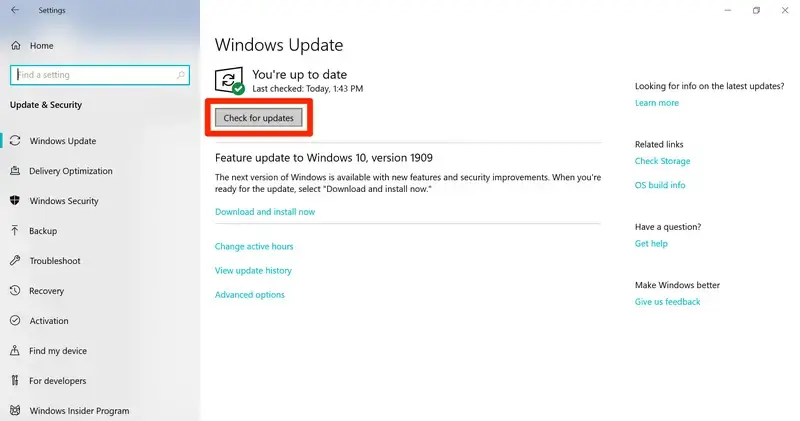
An up-to-date and compatible Windows OS is necessary to make sure you can run the software and its processes seamlessly. Learn how you can install the latest Windows OS: 

  • Open the Windows Start menu. 
  • Type Settings in the search field and press Enter
  • In the left pane, select Windows Update.  
Windows update
  • Click on Check for Updates
  • If the updates are available, select Download & Install. This will automatically download and install the Windows update. 
  • When done, reboot your computer. 

3. Correct the date and time on your computer 

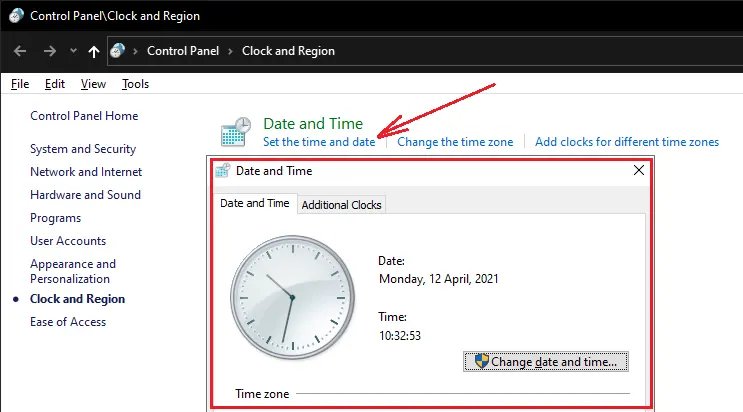
Make sure your system’s date and time are accurate to verify licenses, security certificates, and secure connections when sending payroll data or direct deposit. 

  • Launch the Windows Start menu by pressing the Windows logo key. 
  • Go to Settings in the left pane. 
  • Select Time & language  > Date & time.
Check data and time settings
  • In the prompted Time & language > Date & time window:
    • If you want the system to update the date and time on its own, turn Set time automatically on.
    • If you prefer to adjust the date and time yourself, turn Set time automatically off, then click Change next to Set the date and time. In the window that appears, enter the correct date and time and confirm by selecting Change.

4. Download the payroll tax table update 

An up-to-date payroll tax table means current tax rates, accurate tax calculation, and payroll processing won’t be interfered with, and compliance ensured. Here’s how to get the latest payroll tax table

  1. Go to Employees in the top menu bar. 
  2. Choose Get Payroll Updates.
  • To know which tax table version you use: 
    • See the number next to You are using tax table version:.
    • To make sure it is the correct version, see the latest payroll news and updates on Intuit. 
    • To get more details about the tax table version, choose Payroll Update Info.
  • To get the latest payroll tax table update: 
    • Click on Download Entire Update.
    • Choose Update. An informational window will appear on your screen when the download is finished. 

5. Update QuickBooks Desktop 

Make sure you use the most recent version of QuickBooks Desktop so that outdated features or missing security patches don’t disrupt software operations, such as payroll, and help prevent issues like QuickBooks error 2107 during updates or processing.

6. Try sending data in single-user mode 

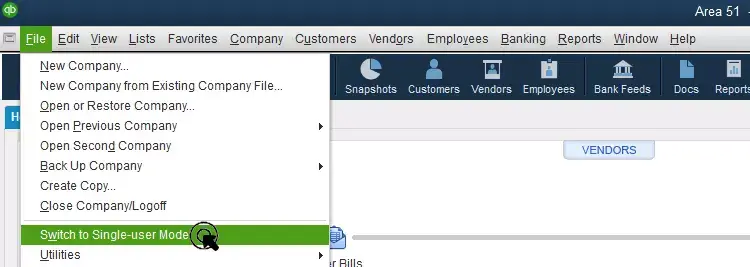
Avoid conflicts caused by network issues, user permissions, or file locking by sending payroll data in single-user mode and resolving error code 2107. 

  • Go to File at the top. 
  • Select Switch to single-user mode 
Switch-to-Single-user-Mode
  • Now, try again to send your payroll data. 

7. Run the SFC scan 

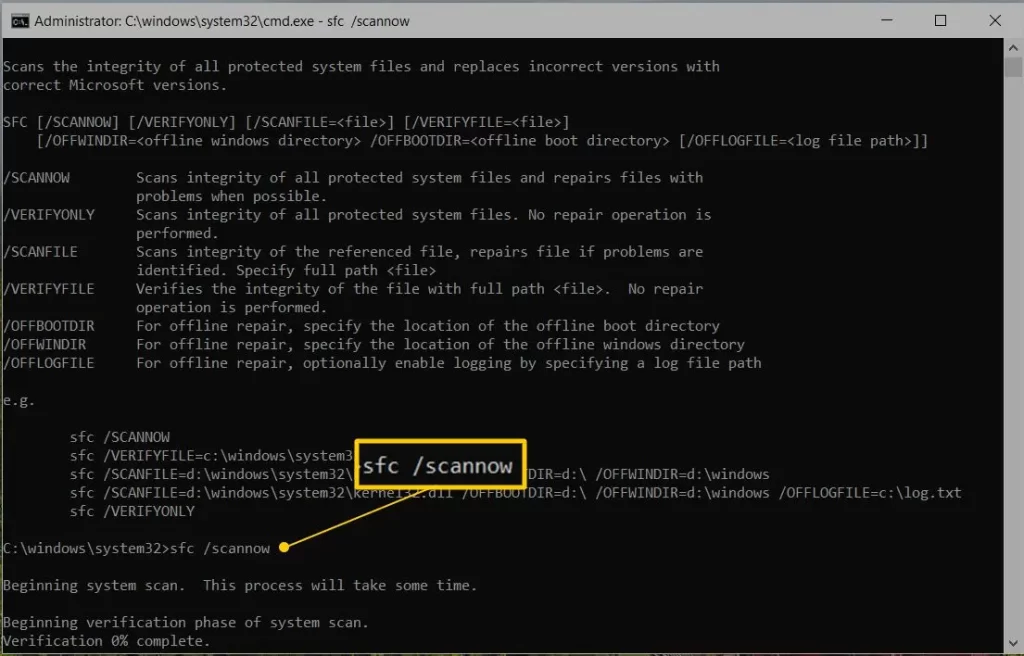
The SFC scan verifies the Windows files and folders for possible damage or corruption and then runs a quick repair on them. This lets you resolve the common operating system issues that might be hampering the general software processes.

  • Launch the Quick Link menu by pressing the Windows + X keys. 
  • Now, choose Command Prompt (Admin) from the menu. 

Note: You can also run System File Checker (SFC) from the Windows PowerShell (Admin). 

  • On the User Account Control, click Yes
  • In the Command Prompt, type SFC/Scannow and then press Enter
sfc scannow
  • The SFC tools verify the integrity of Windows OS files and folders and then run a quick repair if any issues. 
  • When done, restart your computer. 

8. Install the digital signature security certificate 

Let’s re-register the DSC, update the emSigner utility, or update the token driver by installing the Digital Signature Certificate security software:

  • Navigate to C:\Program Files\Intuit\QuickBooks.
  • Locate the QuickBooks program file QBW32.exe
  • Choose Properties.
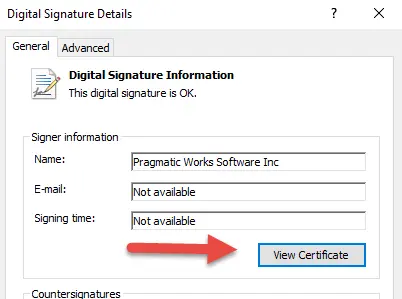
  • Select Digital Signature and make sure Intuit is selected in the signature list. 
  • Click on Details.
  • Choose View Certificate in the Digital Signature Details window.
Digital Signature Certificate
  • Select Install Certificate in the Certificate window. 
  • Click Next until you see Finish on your screen, then select Finish
  • Restart your computer.
  • Launch QuickBooks Desktop and try to send your payroll again. 

9. Configure the Windows Firewall settings

Windows Firewall is a system security application that controls the ports on your computer for incoming and outgoing data and verifies the source and the data for viruses or malware. If anything is wrong, it will block that source and all the related operations. To resolve this, configure Windows Firewall settings for QuickBooks Desktop and ensure it’s not blocking payroll processing. 

10. Reinstall QuickBooks Desktop 

Reinstalling QuickBooks Desktop will remove the existing program files and folders and then reinstall them. This will clear the associated issues and errors that might be causing error code 2107 and other errors that hamper payroll processing or the sending of payroll data in QuickBooks. 

Conclusion 

Finally, we are ending this blog here, covering why you may fail to send the payroll data and encounter QuickBooks error 2107, and the detailed troubleshooting steps for seamless processing. We hope this has helped you resolve the error promptly.

If the error persists or requires professional assistance, we recommend that you consult QuickBookSupportNet. Dial  +1(866)500-0076 to talk to a certified expert!

Frequently Asked Questions 

What is QuickBooks error 2107? 

QuickBooks Error 2107 is a payroll transmission issue that occurs when users cannot send employee direct deposits to Intuit’s servers. It often indicates a disruption between QuickBooks Desktop and the bank, typically caused by internet connection issues, outdated software, improper firewall settings, or incorrect system date/time. 

How to repair a corrupt QuickBooks file?

To repair a corrupt QuickBooks company file (.QBW), use the built-in Verify and Rebuild Data utilities to detect and fix data damage. Start by creating a backup, run the “Verify Data” tool to identify issues, and then use the “Rebuild Data” tool to repair them. 

How do I download the latest payroll tax table update in QuickBooks? 

To download the latest payroll tax table in QuickBooks Desktop, go to the Employees menu, select Get Payroll Updates, check Download Entire Update, and click Update.

How can I fix QuickBooks Desktop payroll not working?

To fix QuickBooks Desktop payroll, ensure your subscription is active, update the software to the latest release, and download the latest tax table. Run the QuickBooks Tool Hub to repair program errors, verify that your computer’s date and time are correct, and switch to single-user mode to resolve connection or server errors.

About The Author

Lana Creston

Lana Creston is an experienced technical and accounting writer with a total of 9 years of experience. She currently works on QuickBooks accounting and technical guides at QuickBookSupportNet. Lana has a passion for reading and writing about various technical topics, especially exploring new accounting methods and software, while continuously expanding her expertise in the ever-evolving field of finance and technology.

Quick, clear, and hassle-free QuickBooks assistance.

Get a Free Consultation with Our QB Tax Experts
Connect with Our Certified QuickBooks Professionals - Dial Tollfree: +1(866)500-0076