
Learn How to Zero Out Payroll Liabilities in QuickBooks Desktop
Apr 24, 2026
Admin |
Estimated Read Time : 5 MIN
Managing payroll in QuickBooks Online is usually straightforward—until your payroll liabilities don’t match what you expect. Whether it’s due to prior setup errors, duplicate entries, or adjustments that were never recorded properly, lingering payroll liabilities can create confusion in your books and even impact your financial reporting. That’s where “zeroing out” payroll liabilities comes in.
Zeroing out payroll liabilities isn’t about deleting history—it’s about making precise adjustments so your records accurately reflect what’s owed—or no longer owed. When you understand how to zero out payroll liabilities in QuickBooks, you ensure your payroll accounts stay clean, your financial reports remain reliable, and your business stays compliant with tax and reporting requirements.
In this guide, we’ll walk through why payroll liabilities can become inaccurate, when it makes sense to reset them, and how to zero them out step-by-step without disrupting your accounting records.
Adjust Payroll Liabilities in QuickBooks Desktop Payroll
If you’ve identified discrepancies in your payroll reports, you’ll need to adjust your payroll liabilities to ensure your records and tax filings stay accurate. Follow the steps below to locate and learn how to zero out payroll liabilities:
Step 1: Find payroll discrepancies
Perform a payroll checkup (available in QuickBooks Desktop Basic, Standard, and Enhanced Payroll). If you need to review a prior year, set your computer’s date to the final day of that year before running the checkup.
Generate a payroll summary report for the specific month or quarter you’re reviewing, and note which payroll items and amounts need correction.
Step 2: Adjust your payroll liabilities
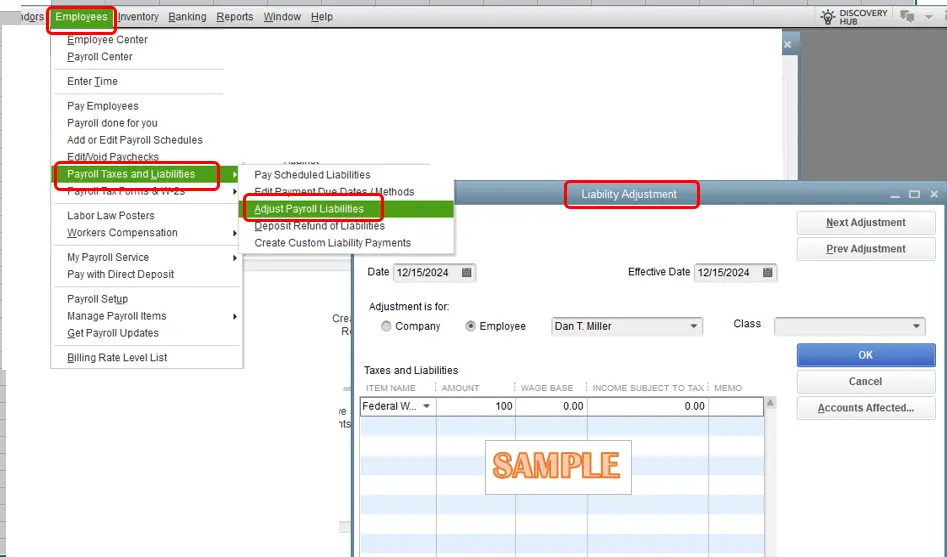
Navigate to Employees, then Payroll Taxes and Liabilities.
Click on Adjust Payroll Liabilities.
Choose your last paycheck date of the affected month or quarter in the Date and Effective Date fields.
In the Adjustment is for section, choose Employee Adjustment to update the employee’s year-to-date (YTD) details, and then select the employee’s name. This applies even if you’re adjusting a company-paid item.
In the Item Name column, pick the payroll item you need to modify.
Enter the adjustment amount:
Use a positive value if the item was under-withheld (to increase it).
Use a negative value if the item was over-withheld (to reduce it).
If you need to adjust the wage base, input the amount in the Income Subject to Tax column.
Add a brief explanation in the Memo field for future reference.
Click Accounts Affected, then choose:
Do not affect accounts to keep liability and expense account balances unchanged (only YTD payroll reports will update).
Affect liability and expense accounts to reflect the adjustment in those accounts.
Click OK to close the Affect Accounts window.
If you need to make more adjustments for other employees, select Next Adjustment; otherwise, click OK to save your changes.
Fix a Discrepancy on Payroll Liability Balances Report in QuickBooks Desktop Payroll
To begin resolving discrepancies in your payroll liability balances, first verify that each payroll item is mapped to the correct account in your Chart of Accounts. This ensures that all payroll transactions are recorded accurately and reflected properly in your liability reports.
Scenario 1: The payroll item was posted to the wrong account in your Chart of Accounts
Payroll liabilities should be recorded in a liability account within your Chart of Accounts.
Go to Reports, then Employees and Payroll, and choose Payroll Item Listing.
Check each payroll item to confirm it’s linked to the correct account. If not, double-click the account name to open it for editing, then click Next.
In the Liability Account dropdown, select Payroll Liabilities.
Continue clicking Next until you reach the Finish screen.
Click Finish.
When the Update transactions with new account window appears, choose Update all existing transactions to use this new account, then click OK.
Scenario 2: A liability check or a paycheck was voided after the liability was paid
Another common cause of discrepancies is voiding transactions after liabilities have been settled, which can throw off the Payroll Liability Balances report:
QuickBooks Desktop Payroll Basic, Standard, and Enhanced
A paycheck is voided
If you accidentally void a paycheck after you have paid the liabilities, negative balances will show on your Payroll Liability report. Recreate the voided paycheck to correct the amount in your Payroll Liability Balances.
A liability check is voided
If a liability check is voided, Payroll Liability Balances will show a positive balance. Recreate the voided liability check to correct it.
QuickBooks Desktop Payroll Assisted
A paycheck is voided
Recreate the voided paycheck if it’s in the same quarter.
If a voided paycheck is from a prior quarter or year, amendments will be required. Contact us for help.
Review the Quick Report to verify whether all liability checks are recorded.
Contact us to recreate the missing or voided liability check.
Scenario 3: Write a check or bill payment to record the payment instead of a liability check
Use a liability check—not a regular check—when paying payroll liabilities, since only liability checks are recognized by QuickBooks as valid payments for these obligations.
Go to Banking, then select Use Register.
Choose the appropriate bank account from the dropdown, then click OK.
Locate the original regular check used for the liability payment. Note down its details, then select Delete to remove it.
Click Save & Close.
Re-enter the payment correctly using Create Custom Liability Payments or Pay Scheduled Liabilities.
Conclusion
Zeroing out payroll liabilities in QuickBooks is necessary to ensure accurate financial reporting, reconcile tax payments with accrued amounts, and prevent incorrect tax filings. This detailed guide covers how to zero out payroll liabilities in QuickBooks and, if you encounter any, reconcile discrepancies.
If you need further assistance, we recommend consulting QuickBooks ProAdvisors available at (866) 500-0076. Consult your issues with certified experts now!
Frequently Asked Questions
What does “zeroing out payroll liabilities” mean in QuickBooks?
It means correcting your payroll records so that all tax and payroll liability balances show as zero when they’ve been fully paid or properly adjusted.
Why do my payroll liabilities show a balance even after payment?
This usually happens due to:
Incorrect payroll posting
Voided or deleted paychecks or liability checks
Manual payments entered instead of liability checks
Payroll item setup errors
Where do I go to adjust payroll liabilities in QuickBooks Desktop?
To adjust payroll liabilities in QuickBooks Desktop, go to the Employees menu, select Payroll Taxes and Liabilities, and then select Adjust Payroll Liabilities. This tool allows you to correct tax amounts, benefits, or deductions by choosing an effective date, selecting the employee or agency, and entering the adjustment amount.
Can I manually adjust payroll liabilities in QuickBooks?
Yes, you can manually adjust payroll liabilities in QuickBooks Desktop to correct tax amounts, benefits, or wages, typically by navigating to Employees > Payroll Taxes and Liabilities > Adjust Payroll Liabilities. This tool allows you to update, increase, or decrease liability balances for specific employees or agencies.
About The Author
Lana Creston is an experienced technical and accounting writer with a total of 9 years of experience. She currently works on QuickBooks accounting and technical guides at QuickBookSupportNet. Lana has a passion for reading and writing about various technical topics, especially exploring new accounting methods and software, while continuously expanding her expertise in the ever-evolving field of finance and technology.
Effortlessly handle data tasks or get expert assistance with:
Data Automation
Conversion & Migration
Integration
Tax Filing & Compliance
QuickBooks Desktop 2023 is ending — Upgrade QuickBooks Desktop 2023 to 2024 for continued performance and support.