
Fix QuickBooks Error PS060 | Install the Payroll Updates Easily 

Jul 28, 2026

Admin |

Estimated Read Time : 5 MIN

Payroll updates are crucial for accurate tax calculations, keeping tax rates and rules up to date as federal/state laws change, maintaining legal compliance, and preventing penalties.

However, these crucial updates can be hampered by various factors, issues, such as outdated QuickBooks Desktop, an inactive payroll subscription, or being blocked by an antivirus or a firewall. Such interruptions often trigger QuickBooks error PS060 and other PSXXX series errors with a warning message that reads,

“The QuickBooks enhanced Payroll for unlimited employees service is not currently available. Please try again later. [PS060]”

To help you understand the error and the steps to resolve it promptly, we will walk you through a detailed guide that identifies the possible reasons and ensures payroll updates run seamlessly. 

What Causes Payroll Update Error PS060 in QuickBooks?

Understanding the reasons behind payroll update error PS060 in QuickBooks Desktop is important for pinpointing the issue and maintaining seamless payroll operations:

  • An inactive QuickBooks payroll subscription
  • The QuickBooks payroll tax table may be outdated
  • The CPS folder could be damaged or corrupted
  • QuickBooks Desktop may be unregistered
  • Damaged or unresponsive QuickBooks background processes
  • Restrictions from User Account Control (UAC)
  • Windows Firewall or antivirus software may be blocking QuickBooks Desktop
  • QuickBooks File Copy Service (FCS) may be disabled or improperly configured
  • An incorrect or outdated service key
  • Problems with internet connectivity or network issues 

Methods to Troubleshoot QuickBooks Error PS060 When Updating Payroll 

Once you are aware of the possible factors behind QuickBooks error PS060 during payroll updates, it will be easier to follow the step-by-step instructions to resolve the error promptly. Be sure to be careful when performing these technical factors:

1. Check the payroll service subscription

Making sure your payroll subscription is active and correctly set up in QuickBooks Desktop is an essential first step toward restoring smooth payroll updates.

  • Open QuickBooks Desktop Payroll by double-clicking the QuickBooks icon on your system.
  • Log in to your company file as the Primary Admin or Payroll Admin.
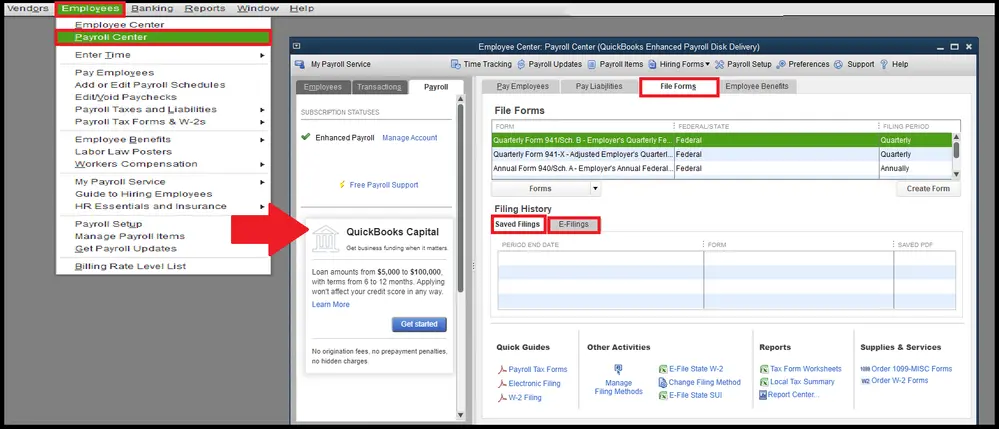
  • Navigate to the Employees menu and select Payroll Center.
Select Payroll Center and click on File Forms
  • Go to the Payroll tab, then click Manage My Account under Subscription Status. You will then be able to view your payroll service and version in the Product Information section.

2. Register and update QuickBooks Desktop

Keeping your software up-to-date with the latest features and security fixes is important for maintaining a smooth workflow. Use the steps below to verify whether your software is properly registered:

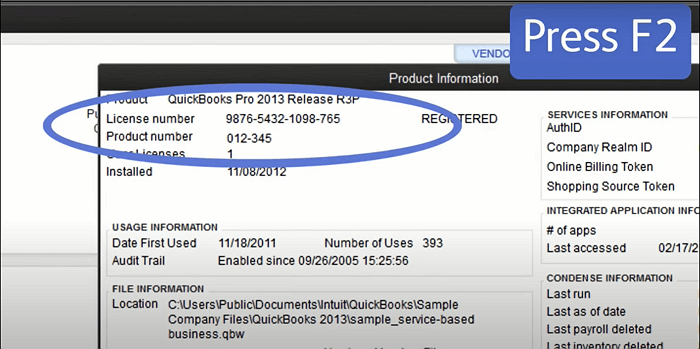
  • Press F2 to open the Product Information window.
  • Check the license number section and confirm that the status shows “Activated.”
License Information and a product key

Note: If the status does not appear as “Activated,” you will need to register your QuickBooks Desktop.

To complete the registration, follow these steps:

  • Open QuickBooks Desktop on your computer.
  • Navigate to the Help menu, then click Activate QuickBooks Desktop.

Follow the prompts on the screen to confirm your product details. Once the registration is complete, update both QuickBooks and payroll to the latest release

3. Rename the CPS folder

Renaming the CPS folder in QuickBooks Desktop can refresh payroll update files and fix issues caused by damaged or corrupted components associated with QuickBooks error PS060.

  • Press the Windows + E keys together to open File Explorer.
  • Navigate to This PC.
  • Open the Local Disk (C:).
  • Go to Program Files (x86) and then open the Intuit folder.
  • Locate and open the QuickBooks Desktop folder for your specific version.
  • Click on the Components folder, then open the Payroll folder.
  • Right-click the CPS folder, then select Rename. Type a new name and press Enter to complete the process.

4. Disable User Account Control (UAC) temporarily

Learn how you can change User Account Control (UAC) settings on a Windows 10 PC:

  • Open the Run window by pressing Windows + R.
  • Enter Control Panel in the box and press Enter.
  • Click on User Accounts, then select User Accounts once again.
  • Choose Change User Account Control settings from the options.
    Note: If a permission prompt appears, select Yes to continue.
  • Use the slider to adjust the setting:
    • Move it to Never Notify and click OK to switch UAC off
    • Move it to Always Notify and click OK to switch UAC on (confirm with Yes if prompted)
  • Reboot your computer to save and apply the new settings.

5. Enable QuickBooks File Copy Service (FCS)

Enabling the QuickBooks File Copy Service (FCS) in QuickBooks Desktop can help ensure payroll update files are transmitted properly, minimizing issues like PS060 and improving overall data flow.

Follow these steps to turn on the service:

  • Press Windows + R to open the Run dialog box.
  • Type COMPMGMT.MSC into the field and click OK.
  • The Computer Management window will appear.
  • Expand Services and Applications.
  • Click on Services.
  • Scroll through the list to locate Intuit QuickBooks FCS, then double-click it.
  • In the Startup type dropdown, select Manual
  • Click Apply, then OK to save the changes.

Once this is completed, you should refresh your payroll service key to re-establish the connection.

To update the payroll service key:

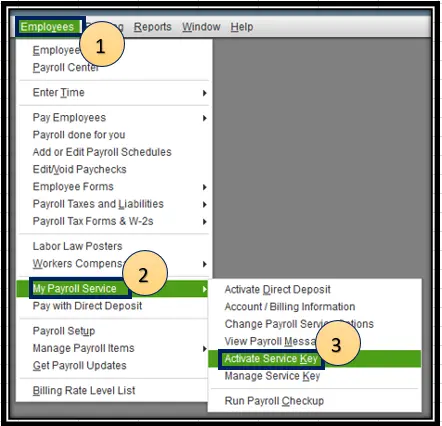
  • Go to the Employees menu at the top.
  • Select My Payroll Service.
My Payroll Service and activate service key
  • Click Activate Service Key.
  • In the Service Keys window, choose your current payroll subscription and click Edit.
  • Continue clicking Next until the process is finished.

6. Repair QuickBooks Desktop 

Learn how you can utilize different tools and utilities to repair damaged program files or correct the installation of QuickBooks Desktop. To access these utilities, you must download and install QuickBooks Tool Hub in the most recent version available (1.6.0.8). 

a. Run Quick Fix my Program

  • Open the QuickBooks Tool Hub.
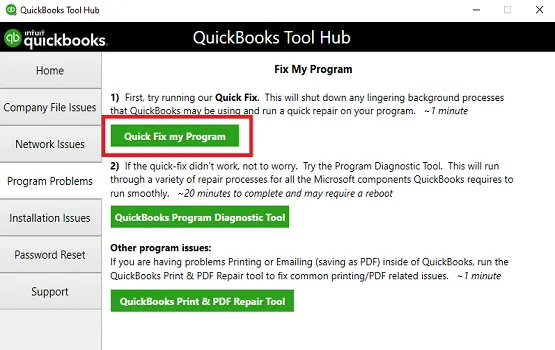
  • From the left panel, select Program Problems.
  • Click on Quick Fix my Program.
Quick Fix my Program
  • Once the process completes, open QuickBooks Desktop and access your company file.

b. Run the QuickBooks Install Diagnostic tool 

If QuickBooks didn’t install properly, it may lead to errors during use. The Install Diagnostic Tool helps resolve common installation issues.

  • Launch the QuickBooks Tool Hub and go to Installation Issues.
  • Click QuickBooks Install Diagnostic Tool, then allow it to run (this may take up to 20 minutes).
  • After it finishes, restart your computer.
  • Open QuickBooks Desktop and reload your company file.
  • Make sure QuickBooks is up to date to benefit from recent fixes and security updates.

Conclusion 

When payroll subscription issues arise, they can interrupt your ability to run payroll smoothly, update tax tables, and stay compliant with current regulations. Delays like these not only affect employee payments but can also create complications in maintaining accurate financial records. With this guide, you should now have a clear understanding of why QuickBooks error PS06 occurs and the steps to fix it effectively.

If the issue continues or you require expert guidance, it is best to reach out to QuickBooks professionals at 866-500-0076. Dial the toll-free number to connect with certified specialists and get immediate assistance in resolving the error.

Frequently Asked Questions 

What is QuickBooks error PS060?

QuickBooks error PS060 is a payroll update issue that occurs when the software cannot access or read payroll tax table files, often due to a damaged CPS folder, outdated tax tables, or an inactive subscription. Users typically experience this when downloading updates, which prevents them from completing payroll. 

Why does QuickBooks say “Can’t Read Your Payroll Setup Files”?

QuickBooks says “Can’t read your payroll setup files” (often associated with error PS060) primarily because the CPS (Current Payroll Solutions) folder is damaged or corrupted. It also occurs if your payroll subscription is inactive, tax tables are outdated, or the Employer Identification Number (EIN) is invalid. 

How do I fix QuickBooks error PS060 quickly?

To fix QuickBooks error PS060 quickly, rename the CPS folder to force a download refresh, verify your payroll subscription is active, and update your tax table. This error typically stems from damaged payroll files or outdated tax tables, which can be resolved by replacing the corrupted CPS folder and ensuring QuickBooks is up to date. 

Does QuickBooks error PS060 mean my payroll subscription has expired?

No, QuickBooks error PS060 does not only mean your payroll subscription has expired. It primarily indicates that QuickBooks cannot read your payroll setup files, which is often caused by damaged or missing CPS (Client Payroll Service) folders. 

What is the CPS folder in QuickBooks and why does it cause PS060?

The CPS (Client Payroll Service) folder in QuickBooks Desktop stores critical payroll tax tables and update files. Error PS060 occurs primarily when these files are corrupted, damaged, or cannot be read during a payroll update, often triggered by outdated QuickBooks versions, broken company file data, or, in many cases, a damaged CPS folder. 

Can QuickBooks Tool Hub fix error PS060?

QuickBooks error PS060 typically means the software cannot read payroll setup files, often due to a corrupted CPS folder or outdated tax tables, rather than just an expired subscription.

About The Author

Lana Creston

Lana Creston is an experienced technical and accounting writer with a total of 9 years of experience. She currently works on QuickBooks accounting and technical guides at QuickBookSupportNet. Lana has a passion for reading and writing about various technical topics, especially exploring new accounting methods and software, while continuously expanding her expertise in the ever-evolving field of finance and technology.

QuickBooks Desktop 2023 is ending — Upgrade QuickBooks Desktop 2023 to 2024 for continued performance and support.

Get a Free Consultation with Our QB Tax Experts