Mar 20, 2026
Admin |
Estimated Read Time : 5 MIN
Running payroll doesn’t have to be complicated or time-consuming. With direct deposit in QuickBooks, you can pay your team faster, reduce errors, and keep everything organized in one place. When you set up your company payroll for direct deposit, you streamline payments, improve employee satisfaction, and eliminate the hassle of printing checks.
Whether you’re a small business owner or scaling fast, QuickBooks makes the process simple, secure, and compliant—so you can focus less on payroll logistics and more on growing your business.
Table of Contents
ToggleSetting up direct deposit for your company allows you to pay your employees, vendors, or customers directly into their accounts without the hassle of paper checks.
This not only ensures accuracy and reduces the risk of errors, but also avoids the risk of losing paper checks and the administrative delays that can result. It saves time and costs associated with printing and distributing paper checks while improving security by minimising fraud and theft.
Direct deposit also boosts employee satisfaction by providing convenient, reliable access to wages—often faster than traditional methods—and supports better cash flow management and record-keeping for the business.
Setting up your company’s direct deposit requires connecting your primary bank account, which you will use to pay your employees or vendors, and verifying and configuring the required settings. Learn how you can do so with the steps below:
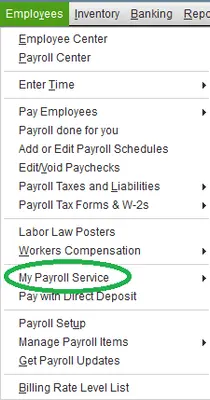
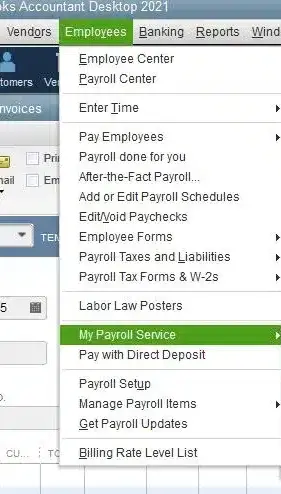
Let’s connect your bank account to QuickBooks Desktop to process direct deposits:
QuickBooks Online Payroll
If you’re new to payroll:
Note: After updating your bank details, you may be asked to enter a verification code sent to your phone to confirm the changes.
QuickBooks Desktop Payroll

Once submitted, a confirmation message will appear. If your bank account is connected immediately, you can move on to the next step. If not, you’ll need to complete bank verification before continuing.
If you’re unable to link your bank account right away, Intuit will deposit a small test charge (under $1.00) into your account. This usually appears within two business days. After the deposit shows up, you’ll need to enter the exact amount in QuickBooks to approve your account for payroll use.
For step-by-step help, refer to the guide on verifying your bank account.
Within 2–3 business days of adding your bank account in QuickBooks Online Payroll or QuickBooks Desktop Payroll, a test deposit of less than $1.00 will appear on your bank statement. You can check your statement or contact your bank to confirm the amount.
Once you have the amount, sign in to QuickBooks Payroll as a Primary Admin or Master Admin. Enter the test amount exactly as shown, without including the decimal point. Any user with Admin access can complete this step to enable direct deposit and e-pay/e-file features.
QuickBooks Online Payroll
If you don’t see the New payroll tasks option, here’s another way to verify the test transaction:
QuickBooks Desktop Payroll

Follow the steps below if you don’t see the Activate Direct Deposit option:
Once your company bank account is set up and verified, you can add your employees’ and contractors’ bank info.
Now, set up direct deposit so employees start receiving payments automatically, avoiding paper checks and administrative hassle.
QuickBooks Online Payroll
Invite your contractors so they can add their own W-9 and bank details, or add it yourself.
QuickBooks Desktop Payroll
Once these steps are finished, you’ll be set up to pay your team via direct deposit.
Even though QuickBooks makes direct deposit setup fairly straightforward, users can still run into a few hiccups. Below are the most frequent problems and what causes them.
Issue: The test deposit doesn’t appear within the expected 2–3 business days.
Why does it happen:
Tip: Double-check bank details and contact the bank if the test deposit hasn’t appeared after three business days.
Issue: Payroll cannot be processed due to an invalid or forgotten PIN.
Why does it happen:
Tip: Reset the Direct Deposit PIN through your Intuit account if needed.
Issue: Direct deposit remains “Pending” or “Not approved.”
Why does it happen:
Tip: Ensure all required business details and the principal officer’s SSN are accurate and complete.
In conclusion, the direct deposit feature eliminates manual check printing, reduces fraud risks, automatically updates books, and allows employees to view pay stubs online. With this detailed you must have learned how you can set up direct deposit for your company in QuickBooks Desktop.
In case the setup fails or you require professional assistance with something else, contact QuickBookSupportNet professionals at (866) 500-0076. Talk to a ProAdvisor now!
How to set up payroll direct deposit?
Setting up payroll direct deposit requires submitting a completed authorization form and a voided check or bank letter to your employer. You’ll provide your account type, bank name, routing number, and account number, which your employer will enter into their payroll system to start electronic deposits.
What is the best way to pay employees in a small business?
The best way to pay employees in a small business is to use automated, cloud-based payroll software to facilitate direct deposits, which 93% of employers prefer for efficiency and security.
How to set up direct deposit in QuickBooks Desktop payroll?
Setting up direct deposit in QuickBooks Desktop Payroll involves activating the service, setting up the company bank account, and entering employee bank details. Activate via Employees > My Payroll Service > Activate Direct Deposit. Then, enter employee bank info in the Employee Center, select the Payroll Info tab, and check Use Direct Deposit.
How do I pay my employees using QuickBooks Online?
To pay employees in QuickBooks Online, go to Payroll, select Employees, and click Run payroll. Verify the pay period and check date, enter hours for hourly staff, review net pay, and click Submit payroll.
Lana Creston is an experienced technical and accounting writer with a total of 9 years of experience. She currently works on QuickBooks accounting and technical guides at QuickBookSupportNet. Lana has a passion for reading and writing about various technical topics, especially exploring new accounting methods and software, while continuously expanding her expertise in the ever-evolving field of finance and technology.
Quick, clear, and hassle-free QuickBooks assistance.
Learn How to Merge Vendors in QuickBooks Desktop
Mar 19, 2026