Intuit Data Protect Has Stopped Working? Here’s What to Do

Jun 5, 2026

Admin |

Estimated Read Time : 5 MIN

A company file backup is necessary for businesses to protect their data from sudden technical issues, possible damage, system failures, or software crashes. Intuit understands such situations and has introduced Intuit Data Protect, which allows you to schedule daily automatic backups or manually back up the company file whenever you wish.

However, many users have reported that Intuit Data Protect has stopped working when attempting to create a backup copy of their company file. If you are also facing the same issue and wondering what to do, don’t worry—we are here to help. In this guide, you will learn about the error, its possible causes, and detailed step-by-step instructions to resolve it promptly.

Why is QuickBooks Unable to Back Up with Intuit Data Protect? 

QuickBooks may be unable to back up with Intuit Data Protect for several reasons, which we are discussing below. Let’s explore these possibilities one by one:

  • Windows Firewall might be blocking Intuit Data Protect when backing up.
  • You might be running Windows without admin permissions.
  • IBuEngHost.exe isn’t running as a Windows user.
  • Using an outdated version of QuickBooks or IDP .
  • Possible software or installation issues might be hampering the process.
  • Intuit Data Protect might not have enough space to run your current backup.
  • Possible data damage or network connectivity might be causing issues.

Try These Steps When Intuit Data Protect Has Stopped Working

In this section, we will walk you through different troubleshooting methods to address some of the most common reasons Intuit Data Protect may stop working. Proceed with the steps below carefully: 

1. Make sure the Windows firewall isn’t blocking Intuit Data Protect

Intuit Data Protect needs access to the Windows Firewall. As the Firewall is a security system on your computer, it allows or blocks the data/processes depending on the source and authenticity. Let’s check the Windows Firewall and ensure that Intuit Data Protect is allowed.

Add important files to the Windows Firewall

  • Press the Windows logo key on your keyboard. 
  • In the Windows search, type Windows Firewall and press Enter
  • Click on Allow an app through Windows Firewall, then Allow another app.
  • Click on Browse.
  • Now, go to Program Files(x86)\Common Files\Intuit\Data Protect.
  • Choose QBIDPservice.exe, then Open.
  • Select Network types and mark the checkbox for Private. Then, click Add.
  • Follow steps 4 and 5 again for the files IBUenghost.exe and IntuitDataProtect.exe. If you see a notification indicating that the files already exist, no further action is needed.

Note: Antivirus programs from third-party vendors may prevent these files from running properly. Ensure that both files are added to the software’s allowlist or exceptions list. If you’re unsure how to do this, contact the antivirus provider for guidance.

2. Make sure IBuEngHost.exe isn’t running as a Windows user

IBuEngHost.exe is a process that belongs to Intuit Data Protect (IDP), a cloud-based backup and recovery solution integrated with QuickBooks Desktop. Its primary role is to operate in the background and manage the secure backup of company data and files.

For Intuit Data Protect to function correctly, IBuEngHost.exe must run under the System account, as this level of access is required to perform backup operations reliably and securely.

a. Check to see if the file is running as System

  • Right-click on the Windows Taskbar at the bottom. 
  • Choose Start Task Manager.
  • Move to the Details tab. 
  • Now, find IBuEngHost.exe. Ensure that it has System as the User name next to it and the Status is running.

b. If IBuEngHost.exe isn’t running as System, follow these steps

  • Get the installer of the same version as QuickBooks Desktop. 

Note: Save the downloaded file in an easily accessible location. 

  • Locate the downloaded installer. 
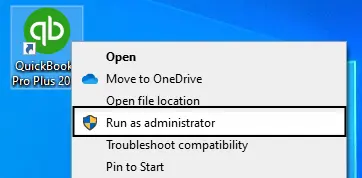
  • Right-click on the installer, then choose Run as Administrator.
Run as Administrator
  • Now, proceed with the re-installation.
  • When done, look for IBuEngHost.exe in Task Manager again, and verify the status is running, and the User name is System.
  • Finally, try to back up using Intuit Data Protect again. If it’s still not working, proceed with the below steps. 

3. Check the update versions 

Regularly updating both QuickBooks Desktop and Intuit Data Protect (IDP) is essential to ensure optimal performance, secure authentication, and overall system stability.

Since IDP updates are typically included with QuickBooks Desktop updates, it is important to keep QuickBooks current to ensure that all backup and recovery features continue to function correctly, especially during setup and sign-in processes.

You can verify your current IDP version and confirm whether you are running the latest release, version 1.70.21.5009.

a. Critical functionality and authentication

  • Chromium Embedded Framework (CEF) Support: The latest IDP version (1.70.21.5009) is required to support the newer Chromium Embedded Framework (CEF) browser technology.
  • Internet Explorer End-of-Life Compliance: Older IDP releases depend on the now-retired Microsoft Internet Explorer (IE) browser engine to display setup, sign-in, and authentication pages.
  • Prevent Setup and Access Issues: Running an outdated version of IDP can lead to authentication failures, installation problems, and setup errors, preventing the service from functioning properly and leaving company data without reliable backup protection.

b. General troubleshooting and maintenance

  • Fixes Common Backup Errors: Many issues, including messages such as “IDP has stopped working” or “Backup Incomplete,” can be resolved by updating to the latest version.
  • Ensures Compatibility: Keeping IDP updated helps maintain compatibility with the QuickBooks Desktop version being used, reducing the likelihood of backup-related issues.
  • Enhanced Security and Reliability: Newer releases include important security updates, bug fixes, and performance improvements that help ensure stable and dependable automatic backups.

4. Use the Intuit Data Protect Diagnostic tool

The Intuit Data Protect (IDP) Diagnostic Tool can help identify and resolve common issues that may prevent backups from running correctly. The tool checks important system requirements, including available memory, disk space, Windows components such as the .NET Framework, and the installed IDP version. It also verifies connectivity to the Intuit backup servers.

To run the diagnostic tool:

  • Locate the Intuit Data Protect icon in the system tray (it appears as a green padlock).
    Right-click the icon and select About Intuit Data Protect.
  • Press Ctrl + F2 on your keyboard to launch the IDP Diagnostic Tool.
    If this shortcut does not work, try Fn + Ctrl + F2.
  • Alternatively, use the On-Screen Keyboard to enter the key combination.
  • Select Run Diagnostics to begin the scan.
  • If any issues are detected, the tool will display an error message along with detailed information and recommended troubleshooting steps. Refer to the provided guidance to address the identified problem.

If the issue remains unresolved, select Create Zip File to generate a diagnostic package, and then contact support for further assistance.

5. Free up space in Intuit Data Protect

If you have reached the storage limit in Intuit Data Protect, learn how to clean up backup space in Intuit Data Protect in the below steps: 

a. Check your Intuit Data Protect version

First, let’s ensure that you use an up-to-date version of Intuit Data Protect. 

Download the latest update for Intuit Data Protect

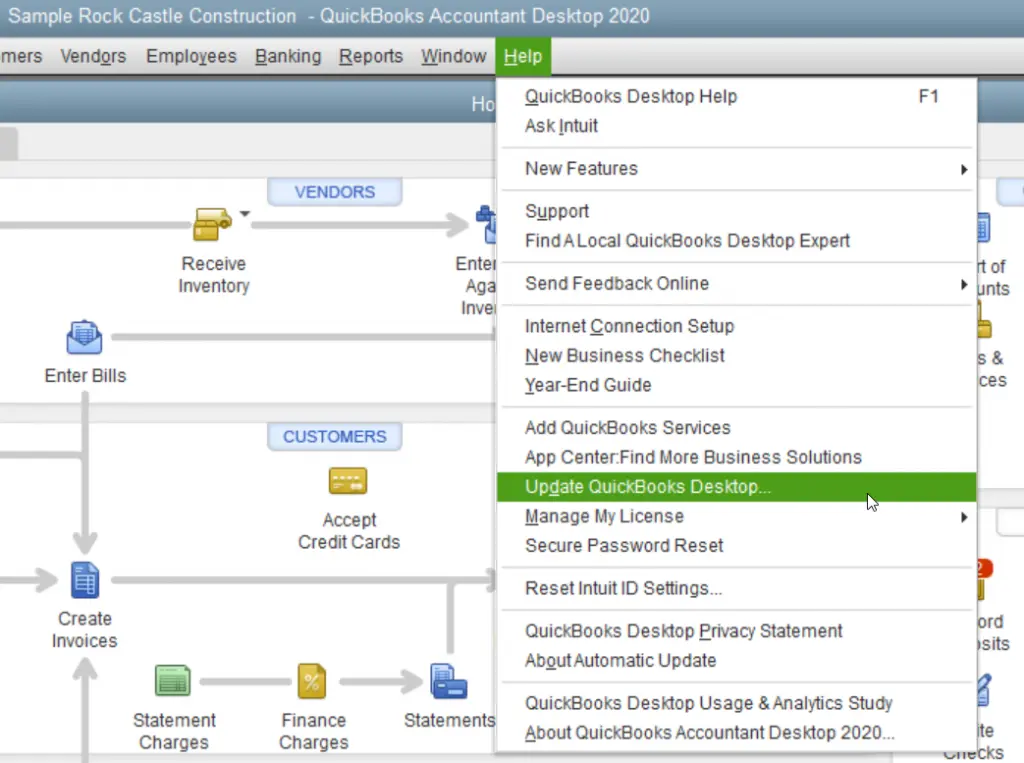
Update QuickBooks Desktop
  • Click the Update Now tab.
  • From the available update options, make sure Data Protect is selected.
  • Select Get Updates to download the latest IDP update.

Install the update

  • Click the up arrow (^) in the Windows system tray, typically located in the lower-right corner of the screen near the clock.
  • Locate the Intuit Data Protect icon (displayed as a green padlock).
  • Right-click the icon and select About Intuit Data Protect.
  • Click Update to begin the installation process.
  • Once the update is complete, select OK to finish.

After the installation is complete, verify that Intuit Data Protect is running the latest version to ensure optimal performance, security, and compatibility with QuickBooks Desktop.

b. Delete backup folders

Important: Once a backup is deleted from Intuit Data Protect, it cannot be recovered. Before proceeding, it is recommended that you download any backup files you may need in the future. Deleting backups through Intuit Data Protect does not modify your original data or make any changes to your computer.

  • In the Windows system tray at the bottom-right corner of your screen, right-click the Intuit Data Protect icon.
  • Select Open Intuit Data Protect.
  • Press Ctrl + R on your keyboard to open the backup removal window.
  • Wait while Intuit Data Protect calculates the size of the backed-up folders.
  • Once the scan is complete, select Delete.
  • When prompted, select Yes to confirm that you want to permanently remove the selected backup folder.
  • Select OK to complete the process.

After the deletion is finished, the backup data will be permanently removed from Intuit Data Protect and will no longer be available for restoration.

c. Reduce backup file size

If you are approaching Intuit Data Protect’s storage limit, you can free up backup space by excluding files and folders that no longer need to be backed up.

  • In the Windows system tray at the bottom-right corner of your desktop, right-click the Intuit Data Protect icon.
  • Select Open Intuit Data Protect.
  • Click Change Backup Settings.
  • Review the list of selected files and folders, then clear the checkboxes for any items that do not need to be included in future backups.
  • Select Continue and follow the prompts until you exit the Backup Settings wizard.
  • Once the changes are saved, run the backup again.

6. Use QuickBooks File Doctor

The QuickBooks File Doctor verifies the company file for possible data damages and the network connectivity issues, and then runs a quick repair to them. Data damages might be interrupting IDP when creating a backup copy of your company file. 

Important Note: Download and install QuickBooks Tool Hub in the most recent version (1.6.0.8) available to ensure you use the latest fixes and the features.

  • Launch QuickBooks Tool Hub on your computer. 
  • Go to Company File Issues in the left pane.
  • Click on Run QuickBooks File Doctor.

Note: The tool may take a minute or more to open. If the File Doctor doesn’t open, serach for QuickBooks Desktop File Doc in the Windows to open it manually. 

  • Now, go through the prompt on your screen and click OK
  • Choose your company file from the drop-down menu. If you don’t see the file, click on Browse and locate to your data file.
  • Select Check your network, then click Continue.

Notes:

  • If this option is disabled, log in with an administrator account.
  • If you lack admin permissions, contact your support team for assistance.
  • Follow the stepwise download process on your screen.
  • Now, choose whether you use a workstation or a server.
  • Wait until the scan finishes and then review the results. 

Summing Up

Intuit Data Protect, a cloud-based backup service, ensures that your data is safe and protected by allowing you to automate company file backups daily or at frequent intervals. However, encountering the “Intuit Data Protect has stopped working” error can be quite challenging. In such a case, following this detailed guide and the step-by-step troubleshooting methods will help you overcome the issue and ensure secure backups.

If you get stuck at any point or require professional assistance, you should consult QuickBooks professionals to avoid potential technical difficulties.

Frequently Asked Questions

How do I fix Intuit Data Protect has stopped working?

To fix “Intuit Data Protect has stopped working,” first verify that your program is updated and running as a System user. If it fails, use the Intuit Data Protect Diagnostics Tool to repair firewall permissions and internet connections. 

What if QuickBooks Intuit Data Protect has stopped working?

When Intuit Data Protect (IDP) stops working, it is usually due to blocked ports, outdated software, or interrupted background services. To quickly restore your data, run the IDP Diagnostic tool, ensure that background services are running and verify the available updates and install them. 

Why can’t I backup with Intuit data protect?

You may fail to back up with Intuit Data Protect (IDP) when IDP doesn’t have access to Windows Firewall, is using outdated software, or has insufficient disk space. Troubleshooting these common bottlenecks will typically resolve the issue.

Why do I need to disable Intuit Data Protect?

You should consider disabling Intuit Data Protect (IDP) if you are experiencing system performance issues, want to prevent your company data from being stored on Intuit’s cloud servers, or are utilising a different backup system.

About The Author

Lana Creston

Lana Creston is an experienced technical and accounting writer with a total of 9 years of experience. She currently works on QuickBooks accounting and technical guides at QuickBookSupportNet. Lana has a passion for reading and writing about various technical topics, especially exploring new accounting methods and software, while continuously expanding her expertise in the ever-evolving field of finance and technology.

QuickBooks Desktop 2023 is ending — Upgrade QuickBooks Desktop 2023 to 2024 for continued performance and support.

Get a Free Consultation with Our QB Tax Experts