How to Backup QuickBooks Company File in Easy Steps?
Jan 16, 2026
Admin |
Estimated Read Time : 5 MIN
Whether you run a small business or a large enterprise, a company file is a crucial component of any business, as it holds all your accounting, financial, and payroll data. In such cases, data security should be your first concern, as it truly matters. If you are wondering how to protect your company’s files from data damage, corruption, or sudden crashes, creating a backup copy is the best option, which you can recover later when needed.
This detailed guide discusses step-by-step instructions on how to backup a QuickBooks company file on the local computer for better data security. Let’s walk you through this guide so you can protect your data seamlessly.
Let’s Create a Backup of the Company File in QuickBooks Desktop
In this section, we will explore the two main methods that enable you to back up a QuickBooks company file, ensuring the data is safe from potential damage, corruption, or sudden loss.
Step 1: Create a backup company file
Proceed below to learn how to create a company file backup automatically as well as manually:
a. Schedule automatic backups
Forgot to create a backup file? Automatically backup QuickBooks company file by following these steps:
Launch QuickBooks Desktop.
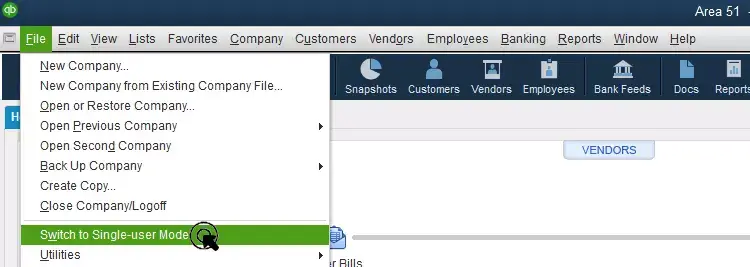
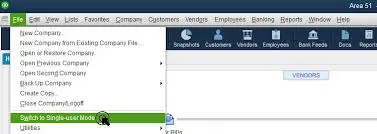
Go to File > Switch to Single-user Mode.
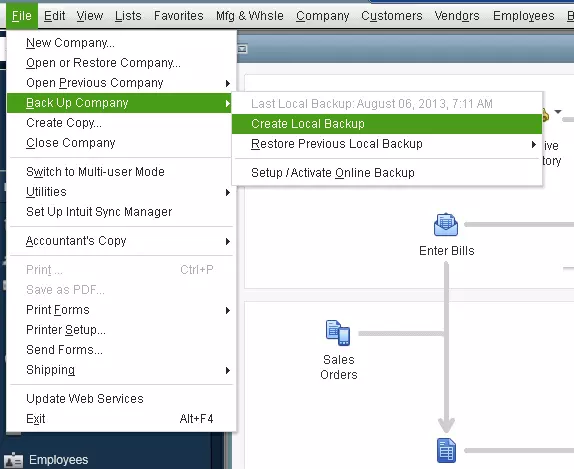
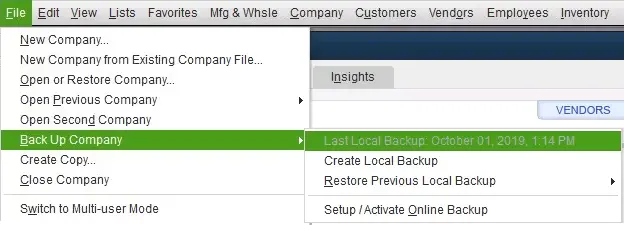
Go to File again > Back up Company > Create Local Backup.
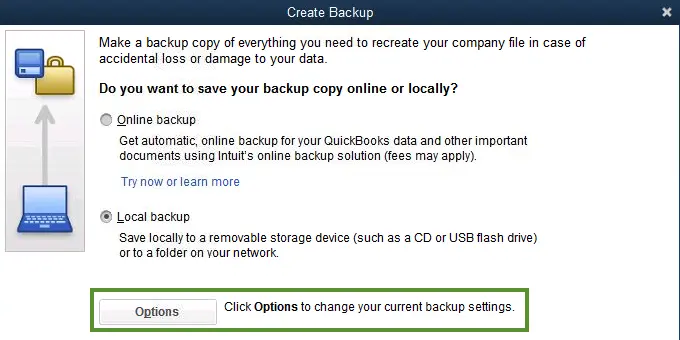
Choose Local Backup in the window and click Next.
Click Browse in the Local Backup Only section and select the location where you want to save the file.
Set the number of backup copies you want to keep. (optional)
Tip: You don’t need to mark it in the calendar. Mark the options in the Online and Local Backup section to set backup reminders.
Select Complete verification in the Online and Local Backup section.
This runs a test to ensure the backup file is in good shape before saving.
When all is set, hit OK.
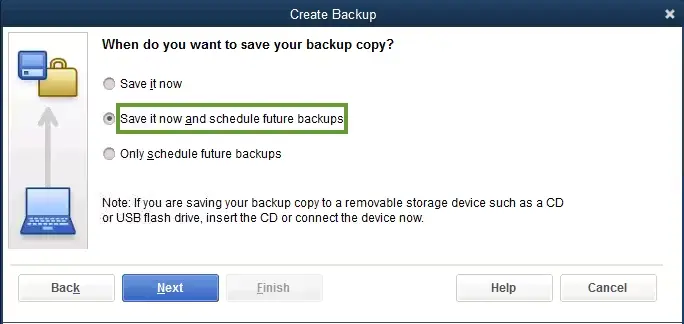
Click Save it now and schedule future backups > Next. Alternatively, select ‘Only schedule future backups‘ if you don’t want to save a backup now.
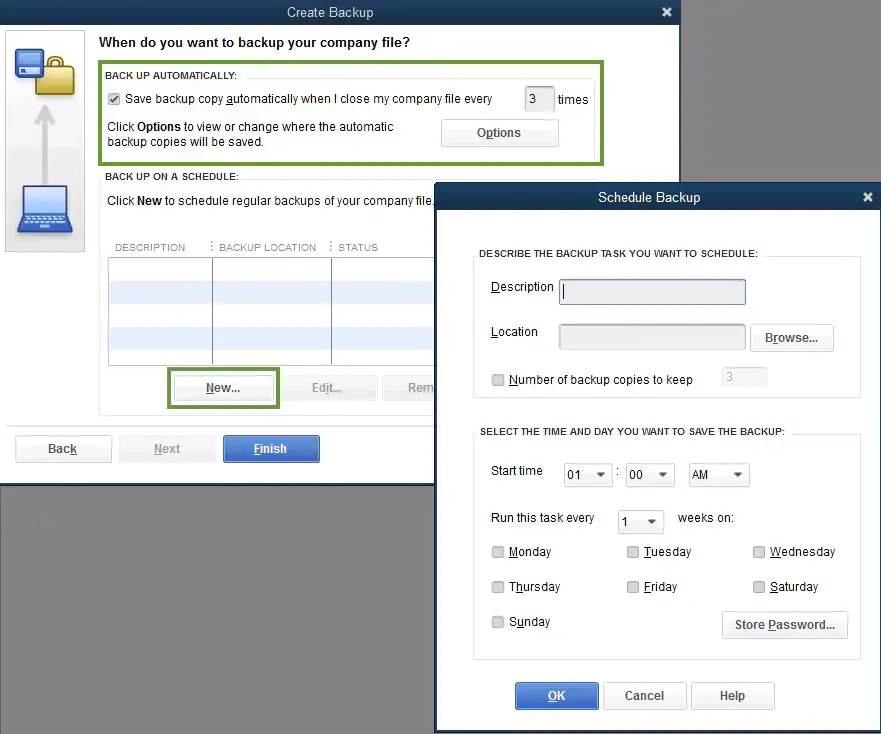
Mark the Save backup copy automatically when I close my company file checkbox. Then, set the number of times between each backup.
Click New to create a schedule.
Complete the data fields to establish a backup schedule, specifying a particular time or day of the week.
Once you set up the schedule, click OK. QuickBooks will ask you to enter the Windows sign-in password. This will allow the permissions to run the scheduled backup to QuickBooks.
When all is set to create a backup, click Finish.
QuickBooks automatically creates backups and schedules future backups simultaneously. When done, you will receive a confirmation message.
b. Back up your company file manually
If automatic backup doesn’t work, or you prefer to have a backup copy of your company file yourself at any time.
Open QuickBooks Desktop.
Go to File and select Switch to Single-user Mode.
Go to File again.
Hover over Back up Company > Create Local Backup.
Select Local Backup > Next.
Click Browse in the Local Backup Only section.
Choose the location to save the backup company file.
Set the number of backup copies you want. (This is optional.)
Tip: Skip jotting it down. Use the Online and Local Backup options to set backup reminders.
It runs a test to ensure the backup file is in good condition before saving it.
When ready, click OK.
Click Save it now > Next.
QuickBooks will create a single backup company file.
When done, you will receive a confirmation message.
Step 2: Adjust your backup settings
To check the last backup of your company file, navigate to the File menu and hover over Back up Company. The date and time of the latest backup will appear at the top of the menu.
Change or modify the backup preferences:
Go to File and hover over Back up Company.
Select Create Local Backup.
Hit Options.
Make the required changes > OK.
Conclusion
A backup copy of your company file protects your data from sudden damage or corruption, or from a sudden crash, so you might not lose the data forever. With this detailed guide, you can securely backup QuickBooks company file to protect your data.
If you get stuck somewhere or require professional assistance, we recommend reaching out to QuickBookSupportNet. Dial +1(866)500-0076 to connect with a ProAdvisor now!
Frequently Asked Questions
How do I backup my QuickBooks company file?
Go to File > Back Up Company > Create Local Backup. Select Local Backup, choose your backup options, and follow the on-screen instructions. You can also schedule automatic backups before clicking Finish.
How do I restore an irreplaceable company file in QuickBooks?
Go to File > Open or Restore Company, choose Restore a backup copy, select Local Backup, find your .qbb file, choose a new save location (to avoid overwriting), and follow the prompts to save and open the restored file.
What is the difference between .QBW and .QBB files?
The main difference is function: .QBW files are your live, daily working company files for QuickBooks, containing all current financial data, while .QBB files are compressed backup copies of your .QBW file, used for data recovery in case the original is lost or damaged, not for daily work.
Which menu contains the option to create a backup of your company file in QuickBooks?
You can create a backup copy of your company file from the File menu. Open QB, go to File at the top > Back up Company > Create Local Backup. By following the steps on your screen, you can complete the QB company file backup.
About The Author
Lana Creston is an experienced technical and accounting writer with a total of 9 years of experience. She currently works on QuickBooks accounting and technical guides at QuickBookSupportNet. Lana has a passion for reading and writing about various technical topics, especially exploring new accounting methods and software, while continuously expanding her expertise in the ever-evolving field of finance and technology.
Effortlessly handle data tasks or get expert assistance with: