Fix QuickBooks Error QBWC1085 | A Web Connector Error
Feb 20, 2026
Admin |
Estimated Read Time : 5 MIN
Web Connector allows you connect web-based third-party applications to QuickBooks. This allows you to import your data seamlessly and manage it all in one system. You can manage it all in QuickBooks Enterprise Solutions, but did you end up with QuickBooks error QBWC1085 with some warning messages on your screen?
This error occurs when the QWCLOG.TXT file used by the Web Connector program becomes damaged or cannot be accessed.
Renaming the file might help you resolve the error and ensure an uninterrupted collaboration with other apps. Explore what can trigger, including appropriate troubleshooting steps, as well as steps to rename the QWCLOG.TXT file.
QuickBooks Error QBWC1085 typically occurs when there is an issue with the QuickBooks Web Connector log file. This error prevents the application from writing to or accessing the log file, although QuickBooks may still open and function in a limited capacity.
Users may encounter one of the following error messages:
“QBWC1085: QuickBooks was unable to write to the log file. QuickBooks will open without writing to the log file.” “QBWC1085: There was a problem with the log file. QuickBooks Web Connector will continue without the log file.” “Exception TypeError: Unknown name.”
These messages indicate that the QuickBooks Web Connector cannot properly access or update its log file, which is essential for recording communication between QuickBooks Desktop and third-party web-based applications. Move further to explore all the possible causes and what you can do to fix the error.
What Causes QuickBooks Web Connector Error QBWC1085?
QBWC1085 is primarily caused by the following underlying issues within QuickBooks Web Connector’s logging and file access system:
Incorrect QuickBooks Web Connector setup
Damaged or corrupted QWCLOG.TXT
Incorrect or insufficient user permissions
Incorrect QuickBooks installation or damaged program files
Fix QuickBooks Error QBWC1085 When Opening QB Enterprise Solutions
The troubleshooting steps below focus on repairing the log file, correcting permissions to resolve QuickBooks error code QBWC1085, and ensuring the Web Connector functions properly.
1. Verify the QuickBooks Web Connector setup
Let’s ensure the QuickBooks Web Connector setup is correct:
a. Install QuickBooks Web Connector
Learn how you can install QuickBooks Web Connector:
Exit the QuickBooks Desktop completely.
Visit the Intuit Developer site and download the latest version of Web Connector.
Right-click on the downloaded zip file QBWebConnector2_R30_xxxxx zip file, then choose Extract All.
In the extracted folder, right-click on the QBWebConnectorInstaller.exe file, then choose Run as Administrator.
Follow the instructions on your screen to finish the installation.
Choose Allow devices to make changes to your computer, then click Next.
On the prompted LicenseAgreement page, select I accept the terms in the license agreement, then click Next.
Select Install in the Ready to Install Program page.
Select Finish.
Note: If you fail to install the latest version, you download the older version listed on the page.
b. Set up Web Connector
To connect your.QWC file from a third-party web app to QuickBooks:
Launch QuickBooks and log in as an admin using your Intuit account.
Navigate to File, then App Management, and choose Manage Web Apps.
Click Setup next to the app you wish to connect. This will direct you to the app’s website, where you can log in.
On the app website, click Connect to QuickBooks.
Return to QuickBooks Desktop and click Done on the Access Confirmation screen to finalize the setup.
2. Reinstall the QuickBooks Web Connector
Reinstalling the QuickBooks Web Connector (QBWC) fixes error QBWC1085 by replacing corrupted log files (QWCLOG.TXT), refreshing corrupted application installation files, and user permissions as well.
To uninstall and reinstall the Web Connector:
Press Windows+R on your keyboard.
In the Run window, type Control Panel and click OK.
Choose Uninstall a program.
Locate and select Web Connector, then click Uninstall. If you can’t find it, delete the QBWebConnector folder from these locations:
Right-click the QuickBooks Web Connector icon in the system tray (bottom left of your screen).
Select Exit, then open Windows File Manager and navigate to C:\ProgramData\Intuit\QBWebConnector\log.
Right-click the QWCLOG.TXT file and choose Rename.
Rename the file to QWCLOGOLD.TXT and save it.
Restart the Web Connector application.
Finally, reboot your computer and launch QuickBooks.
4. Repair QuickBooks Desktop for Windows
Let’s repair the QuickBooks installation files or folders using different tools in the QuickBooks Tool Hub to make sure nothing hampers the integration with Web Connector.
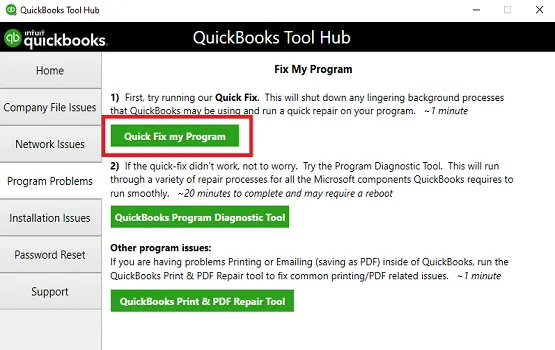
a. Run Quick Fix my Program
The Quick Fix tool will close any open background processes QuickBooks uses and perform a quick repair on your program, helping resolve common issues.
Launch the QuickBooks Tool Hub.
Select the option labeled Program Problems.
From the list of options, click on Quick Fix my Program.
This will shut down QuickBooks-related background processes and perform a quick repair on your program.
After the repair completes, start QuickBooks Desktop again and open your data file to check if the issue is resolved.
b. Run the QuickBooks Install Diagnostic tool
If something went wrong during the QuickBooks installation, it could cause problems when launching or using the software. The QuickBooks Install Diagnostic Tool helps resolve common installation-related issues.
Open the QuickBooks Tool Hub and select the Installation Issues tab.
From the available tools, click on QuickBooks Install Diagnostic Tool.
The tool will begin running. Note that it might take up to 20 minutes to complete, depending on your system.
Once the diagnostic tool has finished, restart your computer to ensure all changes take effect.
After restarting, open QuickBooks Desktop and load your data file to verify if the issues have been fixed.
5. Use another user with admin rights or create a new one
To add or modify an administrator account:
Open the Control Panel and select Accounts.
Go to Family and Other Users and click Add Other User.
Choose Add Account.
In the Account Type field, select Administrator.
Click OK.
To give admin rights to an existing user, select the user account and change the account type to Administrator. Alternatively, create a new account with admin rights.
Save your changes, log out, and then log back in with the updated or newly created account.
Conclusion
The Web Connector enables seamless integration between third-party applications and QuickBooks Desktop, but encountering QuickBooks error QBWC1085 can disrupt that connectivity. By carefully following the steps outlined in this guide, you can identify the underlying causes and resolve them systematically.
If the issue persists or you prefer expert assistance, consider consulting a certified QuickBooks ProAdvisor for personalized support. Dial the +1(866)500-0076 to connect with a qualified professional now!
Frequently Asked Questions
What is QuickBooks Web Connector error QBWC1085?
QuickBooks Web Connector error QBWC1085 is a technical issue that occurs when the QuickBooks Web Connector (an application that syncs QuickBooks Desktop with third-party web apps) cannot write to or access its log file, typically named QWCLOG.TXT
Where is the web connector in QuickBooks Desktop?
The QuickBooks Web Connector (QBWC) is a separate Windows application that allows web-based applications to exchange data with QuickBooks Desktop. It is not generally embedded within the main QuickBooks interface but is installed alongside it.
Why is my QBWC1085 log file not working?
The QBWC1085 error occurs when the QuickBooks Web Connector cannot access or write to its log file (QWCLOG.TXT), usually caused by a corrupted log file, file permission issues, or an interrupted connection. This prevents third-party apps from syncing with QuickBooks Desktop.
How do I disable the Web Connector server in QuickBooks 2023?
To disable the QuickBooks Web Connector (QBWC) in QuickBooks 2023, you can remove associated apps via File > App Management > Manage Web Apps, uncheck “Auto-Run” in the Web Connector tool, or remove it from the Windows Startup folder.
Can I uninstall QuickBooks Web Connector?
Yes, you can easily uninstall QuickBooks Web Connector from the Windows Control Panel. If you don’t see the application there, you can delete the QBWebconnector folder located in C:\Program Files(x86)\Common Files\Intuit\QuickBooks\ or C:\Program Files\Common Files\Intuit\QuickBooks\.
About The Author
Lana Creston is an experienced technical and accounting writer with a total of 9 years of experience. She currently works on QuickBooks accounting and technical guides at QuickBookSupportNet. Lana has a passion for reading and writing about various technical topics, especially exploring new accounting methods and software, while continuously expanding her expertise in the ever-evolving field of finance and technology.
Effortlessly handle data tasks or get expert assistance with: