
How to Restore QuickBooks Backup Files?

Nov 16, 2022

Admin |

Estimated Read Time : 5 MIN

The QuickBooks company file contains important company data up to the date the backup was made. You need to restore the most recent QuickBooks Backup Files to ensure that your data is safe. Restoring the backup file will help you in times of any problem, and if you are willing to learn how to restore the backup, this blog is your friend. You can use a CD, a local hard drive, a USB flash drive or a network folder for restoring the backup. When you are backing up the company file using the QuickBooks Online backup services, restore it by using the same service only. If you want an expert’s guidance in restoring the QuickBooks backup file.

restore backup files in quickbooks

Restore a Backup of QuickBooks Company File

When you restore the backup file, QuickBooks will use (.QBB) backup company file to create (.QBW) new company file. If your backup file is on the external device, you will have to move it to the local hard drive and proceed further. You need to confirm the location where you want to save the downloaded file when the pop-up arises. Follow these steps to restore the QuickBooks backup files:


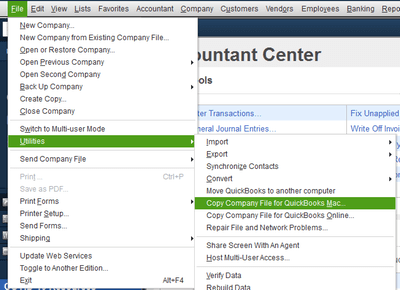
  • You need to click on the File menu > Open or Restore Company for opening the restore wizard.
  • Click on the Restore a backup copy (.qbb) and then click the Next button.
  • Now you have to select the local backup and then hit on the Next option to open the backup copy window.
  • You need to browse the location where you have saved the backup file.
  • Select the backup file and then click on open and next options.
  • Next, you have to save in drop-down arrow and go to the location to restore your backup file.
  • In the end, select the backup file and then save it by clicking on the save option.

Make sure to give your file a different name because if there is a company file of the same name, it will erase the existing file when you click on Replace option in the prompt box. If you face any issue while restoring the QuickBooks Backup files, you can reach out to QuickBooks support number to speak with tech experts. Your queries will be answered here, and the support team makes sure that your error is entirely resolved.

Read More : QuickBooks Error Code 1712

About The Author

Lana Creston

Lana Creston is an experienced technical and accounting writer with a total of 9 years of experience. She currently works on QuickBooks accounting and technical guides at QuickBookSupportNet. Lana has a passion for reading and writing about various technical topics, especially exploring new accounting methods and software, while continuously expanding her expertise in the ever-evolving field of finance and technology.

QuickBooks Desktop 2023 is ending — Upgrade QuickBooks Desktop 2023 to 2024 for continued performance and support.

Get a Free Consultation with Our QB Tax Experts
!-->