
Stepwise Instructions to Merge Two Accounts in QuickBooks Online
Apr 13, 2026
Admin |
Estimated Read Time : 5 MIN
For simple, accurate financial reporting, ensure your chart of accounts does not contain duplicate accounts, transactions, vendors, or customers to prevent duplication or incorrect entries. In such a case, you are required to merge accounts in QuickBooks Online.
Such situations arise when users create similar accounts or when importing data from another system results in redundant entries. In this detailed guide, you will learn how to merge two accounts in QuickBooks to make it easier to track income or expenses, avoid confusion, and generate clearer financial statements. Let’s get started…
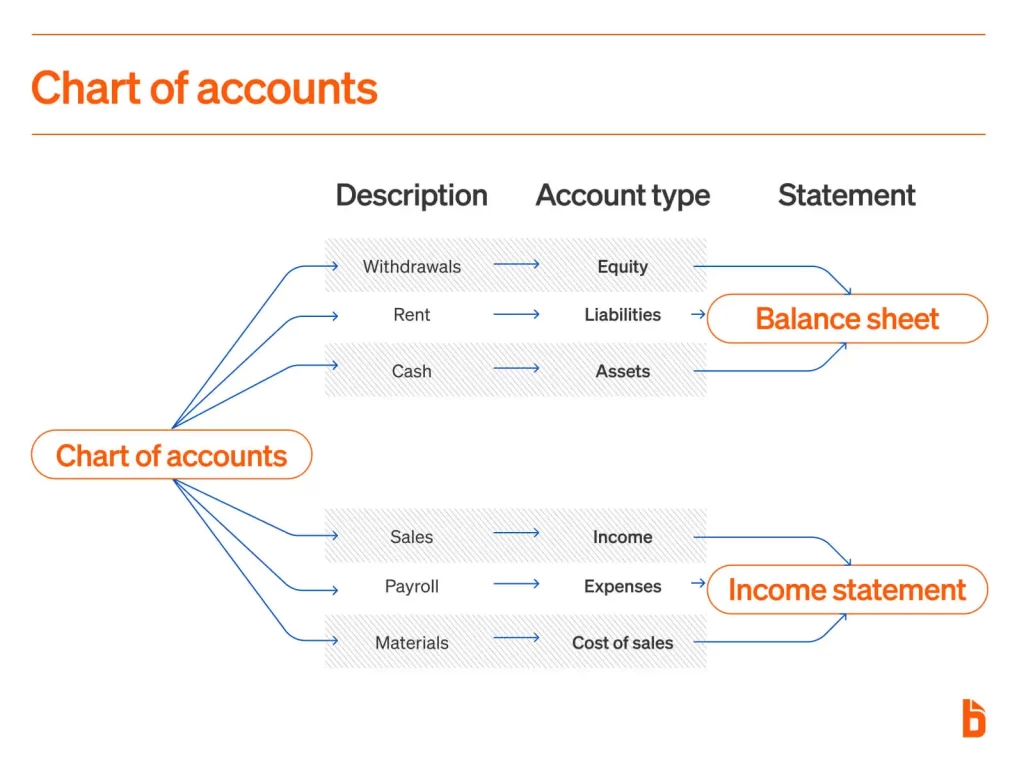
Merging two accounts in QuickBooks Online typically simplifies and cleans up your chart of accounts by eliminating duplicates and ensuring more accurate financial reporting. This situation often arises when multiple users create similar accounts (e.g., “Office Supplies” and “Office Expenses”) or when importing data from another system results in redundant entries.
By merging these accounts, all transactions are consolidated into a single account, making it easier to track income or expenses, avoid confusion, and generate clearer financial statements. It also helps maintain consistency in bookkeeping, reduces errors, and improves overall efficiency when managing your business finances.
Learn How to Merge Two Duplicate Accounts in QuickBooks Online
If you’ve discovered duplicate accounts in your books, cleaning them up not only improves accuracy but also keeps your financial reports clear and easy to manage.
Below, we will cover the prerequisites, then provide detailed steps for merging accounts.
Things to keep in mind before merging accounts:
Online banking: Do not merge accounts that are linked to online banking or automatically created by QuickBooks (such as a direct deposit funding account). Reach out to support if merging is necessary.
Reconciliation reports: The account you merge will no longer retain its reconciliation history, so make sure to save those reports beforehand. All transactions will carry over and remain reconciled in the combined account.
Opening balances: If both accounts include an opening balance equity entry, remove the newer one before merging. The older entry will serve as the opening balance afterward.
For accountants: If you’re an accountant, follow the dedicated process for merging client lists instead of using the standard method.
Step 1: Identify the account you want to keep
Both accounts must have identical names, account types, and detail categories for the merge to succeed.
Navigate to All apps.
Choose Accounting, then Chart of Accounts.
Look for the account you wish to keep.
Select Edit under the dropdown in the Action column.
Note down your Account Name, Account Type, and Detail Type.
Determine whether the account is a main (parent) account or a subaccount; subaccounts are shown as indented entries in the list.
If it is a subaccount, identify the parent account it belongs to.
Step 2: Merge the duplicate account
Once you have the details of the primary account, update the duplicate to match.
Return to your Chart of Accounts.
Find the duplicate account you wish to remove and click Edit in the dropdown under the Action column.
Now, change the Account name and Detail Type to match the account you want to keep.
If you are merging a subaccount and a parent account, set the Account Type to match the parent account.
If combining two subaccounts, ensure they share the same parent account.
If combining two parent accounts, ensure neither has any subaccounts.
Select Save, then choose Yes, merge accounts.
Conclusion
Merging two accounts allows you to remove duplicate entries, transactions, or other data in your charts of accounts and ensures accuracy. With this detailed guide, you must have learned how you can merge two accounts in QuickBooks Online. If you encounter any errors or issues, we recommend consulting QuickBooks ProAdvisors.
The QuickBooks team of professionals is available 24/7 to provide the best possible service. Dial (866) 500-0076 now!
Frequently Asked Questions
Can I merge two accounts on QuickBooks?
Yes, you can merge duplicate accounts in QuickBooks Online and Desktop to clean up your chart of accounts. The process involves renaming the duplicate account to exactly match the target account’s name and type, which triggers a merge prompt. This action is permanent and cannot be undone.
How can I merge two Intuit accounts?
Intuit generally does not allow merging two separate Intuit accounts or user IDs into one due to security and data integrity reasons. To consolidate, you must pick one account to keep, move data manually if necessary, and render the other inactive.
How to merge two linked accounts?
To merge two LinkedIn accounts, log in to the account you want to keep, go to Settings & Privacy > Account Preferences > Account Management > Merge accounts. You must have access to both accounts, know their email addresses, and close the duplicate account during the process
How to link two QuickBooks accounts?
To link two QuickBooks Online accounts under one user ID, invite your primary email address as a user in the second company, or change the email/user ID of the second account to match the first. Once linked, you can switch between companies using the Settings menu.
About The Author
Lana Creston is an experienced technical and accounting writer with a total of 9 years of experience. She currently works on QuickBooks accounting and technical guides at QuickBookSupportNet. Lana has a passion for reading and writing about various technical topics, especially exploring new accounting methods and software, while continuously expanding her expertise in the ever-evolving field of finance and technology.
Effortlessly handle data tasks or get expert assistance with:
Data Automation
Conversion & Migration
Integration
Tax Filing & Compliance
QuickBooks Desktop 2023 is ending — Upgrade QuickBooks Desktop 2023 to 2024 for continued performance and support.