Download QuickBooks Desktop 2023 with Installation and Activation Steps
Sep 19, 2025
Admin |
Estimated Read Time : 5 MIN
Looking to download QuickBooks Desktop 2023? You are on the right page if you want to download, install, and activate your QuickBooks Desktop. Even if you have purchased the QuickBooks Desktop 2024 version, you can follow this guide.
This guide provides you with a complete roadmap that also involves creating a folder for your company file, whether on a single computer, a dedicated server, or workstations.
Before you Proceed:
Confirm your system requirements.
Keep handy the License and Product numbers to install the application.
Confirm the edition you want to purchase.
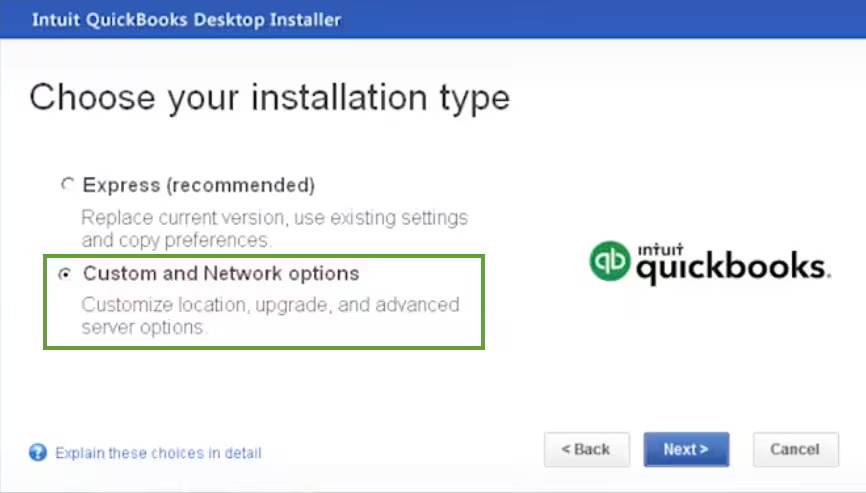
Ensure the installation type is Express or CustomandNetwork.
Call a QuickBooks Specialist:
If you want a quick installation and activation of the QuickBooks Desktop.
In case you already have a previous version installed and are not sure about the preferences.
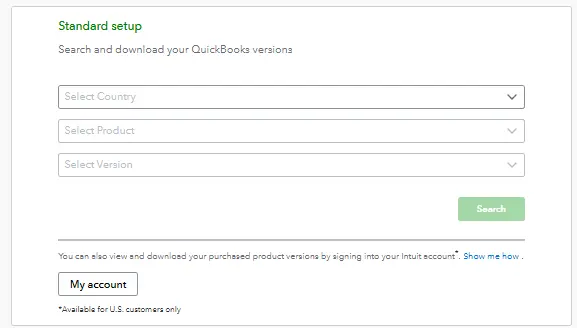
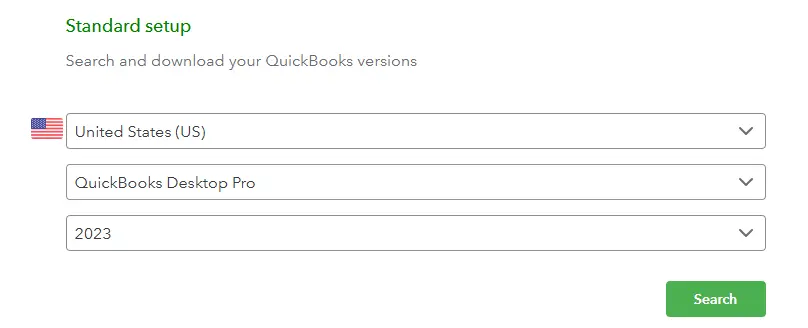
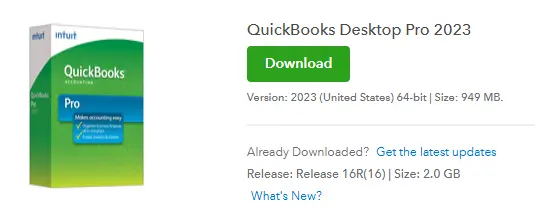
You will get the option to download the QuickBooks version as shown in the image.
Click on Download.
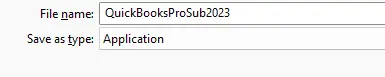
Now, save your downloaded file (QuickBooksProSub2023) in an easy-to-reach folder.
Step 2: Install QuickBooks Desktop 2023
Keep your license and product code handy.
Double-click on the (QuickBooks.exe) download file to install the QuickBooks Desktop 2023.
Select any of the following as per your requirement.
Express Install:- This option will install a completely new version of QuickBooks and keep your prior version active. However, you need to select your preferences for the new version.
Custom and Network Option:- This option will install a completely new version of QuickBooks and keep your prior version active. However, you need to select your preferences for the new version.
Click on Next and select Install.
Once finished, launch the QuickBooks.
Note:- If you are looking to install QuickBooks on a dedicated server or workstations, ensure to install the QuickBooks database server manager on your server computer.
Step 3: Activate your QuickBooks Desktop for Windows
Launch QuickBooks.
Click on Help.
Click on ActivateQuickBooks Desktop.
Follow the on-screen instructions to verify your info.
Step 4: Open your company file
Now, we will create a folder for you to store your QuickBooks company file. In case your data is shared on a server, you are required to set up a shared folder. For this, you are required to have the admin rights to the server that has the company file(s) or to the workstations to create shared folders.
Create a completely new company file.
Launch QuickBooks Desktop.
Click on Create A New Company.
Or, navigate to File and select New Company.
Now, click on Express Start.
Finally, follow the instructions as per the prompts.
On a network with multiple computers
Set up a folder that could hold your company files.
Install QuickBooks on each workstation.
You need to set up multi-user hosting.
On the Server, turn on multi-user mode.
Launch QuickBooks Desktop on the server computer.
Navigate to File and click on Utilities.
In the drop-down, click on Stop Hosting Multi-User Access.
You may be required to scan your company files, in case you have only the QuickBooks Database Server Manager installed.
Configure your internet security and firewallsettings.
On your server, you are required to map a network drive to the shared folder.
Finally, launch QuickBooks.
Conclusion
Thank you for being with us so far! We hope that you have successfully download QuickBooks Desktop 2023 and installed it on your computer. This guide was made to resolve all the possible queries and steps while setting up your QuickBooks application.
If you have any further questions related to QuickBooks Desktop or QuickBooks Online, talk to a Official QuickBooks proadvisor at +1(866)500-0076.
Frequently Asked Questions
How do I find my license and product numbers?
To get your license and product numbers, log in to your Customer Account Management Portal. In the portal, click on View details, and you have all your license and product details.
How to Install QuickBooks Desktop?
To install QuickBooks Desktop, you need to follow this guide on QuickBooksupportnet that provides you with all the steps, including activation of QuickBooks Desktop and creating your company file folder for one computer and on a dedicated server or workstations.
Where should I contact if I am unable to install the QuickBooks Desktop version?
If you have tried everything and are still unable to install QuickBooks, contact a QuickBooks specialist at +1(866)500-0076.
Can I download a free version of QuickBooks Desktop?
Yes, you can download a 30-day free trial version of QuickBooks Desktop from Intuit’s official website.
Is QuickBooks compatible with a Mac workstation?
Yes, QuickBooks has a version for Mac as well and is free with a QuickBooks Online subscription.
About The Author
Lana Creston is an experienced technical and accounting writer with a total of 9 years of experience. She currently works on QuickBooks accounting and technical guides at QuickBookSupportNet. Lana has a passion for reading and writing about various technical topics, especially exploring new accounting methods and software, while continuously expanding her expertise in the ever-evolving field of finance and technology.
Effortlessly handle data tasks or get expert assistance with: