QuickBooks Auto Import of Statements is Not Working

Dec 5, 2025

Admin |

Estimated Read Time : 5 MIN

Whether you’re using QuickBooks Desktop or Online, the auto-import feature for bank statements can save you time by automating the bank reconciliation process. This helps improve efficiency, accuracy, and reduces the risk of data loss or uploading the wrong file type.

However, if your bank feed connection is interrupted or if you encounter common software or browser issues, the QuickBooks auto import of statements is not working. In such cases, it’s essential to identify the cause of the QuickBooks import error and resolve it quickly to ensure smooth, uninterrupted auto-import functionality. Let’s walk you through this detailed guide.

Find Out Why QuickBooks Automatic Import of Statements is Not Working

Here’s a list of different reasons why auto import of statements is not working in QuickBooks Desktop or Online: 

In QuickBooks Desktop 

  • Possible data damage and corruption  
  • The Bank Feed might not be updated 
  • The QuickBooks and Bank Feed connection might be interrupted  

In QuickBooks Online 

  • Common browser problems 
  • Excessively stored cookies and caches 
  • An interrupted connection between QuickBooks and the bank feed

Fix QuickBooks Auto Import of Statements is Not Working in the Desktop Version

The instructions provided are only relevant if the auto import of statements is not working in QuickBooks Desktop.

1. Verify and rebuild the company file data

a. Verify the company file data 

  • Navigate to Window and click on Close All
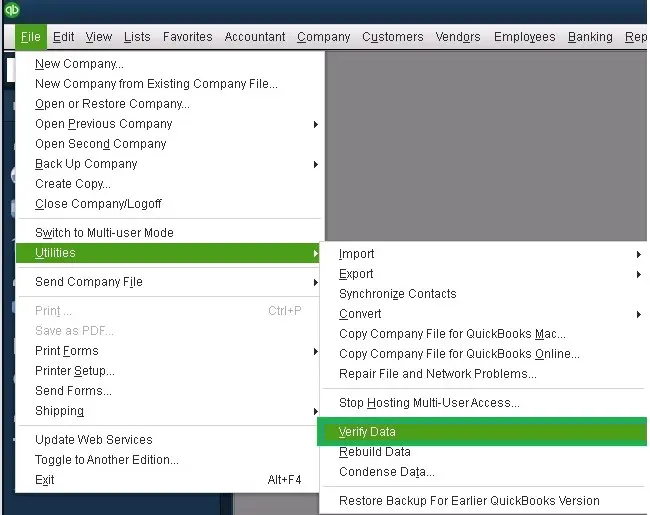
  • Go to File at the top and select Utilities
verify and rebuild company file data
  • Click on Verify Data. If you see: 
    • QuickBooks detected no problems with your data—your data is clean, no issues are detected. 
    • An error message—manually search for the error on our site and check our resources to fix the error. 
    • Your data has lost integrity—Data damage is detected in the file. Rebuild data to fix the issues. 

Note: If you use Assisted Payroll, reach out to us before rebuilding the data. 

b. Rebuild the data damages 

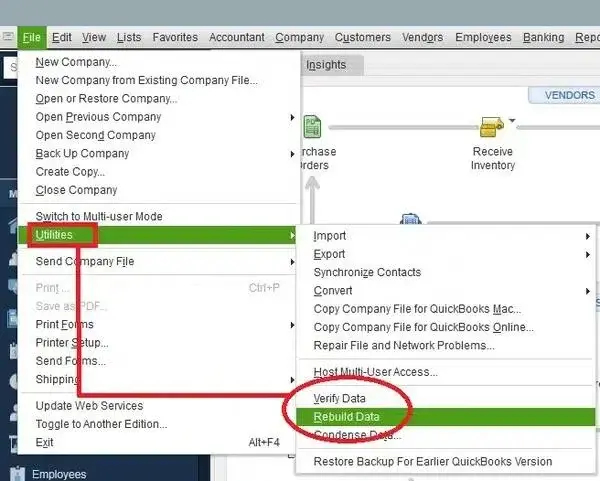
  • Go to File > Utilities, then click Rebuild Data
Rebuild Data
  • Now, you will be asked to create a backup copy of your company file before rebuilding. Click OK, as a backup file is required to ensure data security before rebuilding. 
  • Choose the location where you want to save the backup, then click OK. Make sure not to replace the existing company file. Type a new name in the File name and click Save
  • When you see a message that says “Rebuild has completed,” click OK
  • Go to the File menu again. 
  • Select Utilities > Verify Data to check for additional damage. 
    • If the verify finds more damage, you’ll need to fix it manually. Search for the error(s) in the qbwin.log on the QuickBooks Desktop support site for how to fix them.
    • If your error can’t be found, you can restore a recent backup. Go to File, then select Open or Restore Company.

Note: Make sure not to replace the existing company file. Enter a new name and info into your company file again since the backup was created. 

2. Update the bank 

  • Go to Banking in the left menu bar. 
  • Now, click on Update. 
  • QuickBooks will start updating your bank account automatically. 

If this doesn’t work to resolve QuickBooks bank statements not importing, disconnecting and reconnecting can also be helpful to fix the issue. 

3. Disconnect or Reconnect the Bank Account 

a. Disconnect the account for bank feed 

Let’s learn how to disconnect the Bank Feeds account in QuickBooks: 

QuickBooks Desktop for Windows

  • Go to Lists and select Chart of Accounts.
  • Right-click on the account that you want to turn off and click on Edit Account
  • Navigate to Bank Settings
  • Choose Deactivate all online services and click OK.
  • Finally, click Save & Close.

QuickBooks for Mac

  • Go to Lists and select Chart of Accounts.
  • Now, highlight the account you wish to turn off and select pencil to edit. 
  • Click on Online Settings.
  • Choose Download Transactions, then Not enabled.
  • Click OK twice for confirmation. 

b. Reconnect the bank feed account with QB Desktop 

To use this method to reconnect with the bank, you will need a PIN or password. Once you set up the account, you will be able to download the electronic statements to your Bank Feeds.

Before starting, look for your bank to see if the services are free or if there are any fees. 

  • Bank provided credentials Your bank provides the Customer ID and password (or PIN) for online banking setup. 
  • You may also require the following: 
    • Account Number: The number your FI assigns to your account when it isis created, and it also appears on the bank statement. If you cannot find it, reach out to your FI.
    • Routing Number: FIs have a 9-digit number called a Routing number, which you will usually find on a check for your account. If you can’t find it, reach out to your FI.
    • Account type: You must know how your financial institution classifies your account, not how QuickBooks does.
    • Account Type at FI Account Type in QB Checking Bank Savings Bank Money Market Bank Line of credit Bank Credit card Credit card Line of credit Other current liability 
  • Go to Banking and select Bank Feeds
  • For your account, choose Set up Bank Feeds.
  • Type your bank name and select it in the Enter your Bank’s name field.

After enrollment:

  • Click Continue
  • Enter the Online Banking credentials, such as User ID and Password
  • Select Connect to connect QuickBooks to the bank’s server. 
  • Choose the bank account you want to connect with your account in QuickBooks. 
  • Finally, click Finish once the connection finishes.

How to Fix Auto Import Bank Statements is Not Working in QuickBooks Online? 

If QuickBooks auto import of statements is not working in the Online version, proceed with the following to resolve the issue:

1. Try an incognito browser 

Often, using an incognito browser resolves the QuickBooks import not working issue: 

  • Google Chrome: Press Ctrl + Shift + N 
  • Mozilla Firefox and Microsoft Edge: Press Ctrl + Shift + P
  • Safari: Press Command + Shift + N

2. Disconnect and reconnect the online banking in QuickBooks Online 

a. Disconnect an account connected to online banking

Note: If QuickBooks is busy downloading new transactions, this option won’t be available. Wait until the update finishes, then try disconnecting again. 

  • Finally, click Save.

Connect your bank account to resume downloading transactions.  

b. Connect the bank feed for your account again 

i. Connect your bank or credit card account

The following steps apply to both QuickBooks Online and Sole Trader, with slight differences in menu labels. 

  • Follow this link to complete the steps in the product
  • Now, choose:
    • Connect account (QuickBooks Online), or
    • Link accounts (Sole Trader)
  • If your account is already connected, select Link account to add another.
  • Choose the bank and click Let’s go.
  • Go through the product’s terms & conditions and select Agree
  • Sign in using your online banking credentials, then follow the required steps.  
  • Choose the account you wish to connect (current, savings, or credit card).

Note: Prefer selecting an account type that matches your chart of accounts.

If you don’t see your right account type? Select + Add new and proceed below:

Bank account:

  • Account Type: Cash at bank and in hand
  • Detail Type: Savings
  • Account Type: Cash and cash equivalents
  • Detail Type: Savings

Credit card:

  • Account Type: Credit Card
  • Add a custom name if required, which you can rename later. 
  • Choose the date you want to start pulling in transactions. 

(Banks may offer 90 days to 24 months of historical data)

  • Finally, select Connect > Done

ii. Refresh and review transactions

Once done, the QuickBooks auto-import of statements is not working, and it starts importing your transactions daily. You can also refresh the transactions manually to get the updated ones.

To refresh your data

3. Use another supported browser 

Here’s a list of recommended browsers and their versions:

Note: QuickBooks no longer supports Internet Explorer. 

  • Google Chrome: version 78 or newer
  • Mozilla Firefox: version 76 or newer. 

Note:To preview and print forms on macOS, you must also install the Firefox PDF plugin.

  • Microsoft Edge: version 79 or newer
  • Safari: version 12 or newer (Mac only)
  • Opera: version 68 or newer
  • Samsung: version 10 or newer

4. Clear the browser’s cookies and caches 

If nothing works, try clearing the browser’s cookies and caches or consider getting in touch with QuickBooks professionals. 

a. Firefox

  • Open the Windows Start menu. 
  • Type Settings in the Windows search and press Enter.
  • Select Privacy & Security in the left pane.
  • Scroll down to the Cookies and Site Data section and click Clear Data…
  • You will see the Clear browsing data and cookies prompt.
  • Select Everything from the drop-down next to When: and select the Temporary cached files and pages checkbox.
  • Hit the Clear button. 
  • Close the Settings page. 
  • Now, all the changes will be saved automatically. 

b. Google Chrome

  • Launch Google Chrome on your computer. 
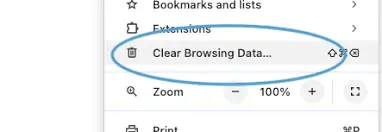
  • Select More at the top and choose Delete browsing data.
  • Select the time range to clear the cookies and caches, such as Last hour or All time.
  • Choose the information, such as cookies and caches, to remove.  
  • Finally, click Delete data.

c. Safari for Mac

  • Launch Safari on Mac. 
  • Go to the History menu. 
  • Select Clear History on the pop-up. 
  • Choose the specific time range for how long you wish to clear the browsing data.

d. Safari for iPad and iPhone

  • Navigate to the Settings menu. 
  • Go to Apps > Safari
  • Select Website Data under the Clear History section. 
  • Choose the time range for how long you want to clear the data and select Clear History. This won’t affect your AutoFill data. However, if the button is gray, it simply means there’s no data to clear, or you might need to review the web content settings under Screen Time

e. Microsoft Edge

  • Go to Settings and more > Settings, then Privacy, search, and services.
  • Select Clear browsing data.
click Delete Clear browsing data
  • Now, click on Choose what to clear Next to Clear browsing data now.
  • Choose a specific time range under the Time range drop-down.
  • Select the browsing data you want to clear. 

For instance, you may want to remove the browsing history and cookies while retaining password and form data. 

  • Finally, click on Clear now

Conclusion 

QuickBooks auto-import ensures all transactions are downloaded automatically, simplifying reconciliation. QuickBooks auto import of statements is not working, which hampers automation. However, with the detailed troubleshooting steps, you can resolve this.

Have further queries? Reach out to QuickBooks ProAdvisors at QuickBookSupportNet. Dial +1(866)500-0076 to talk to an expert now!

Frequently Asked Questions 

Why are my bank transactions not displaying in QuickBooks all of a sudden?

Your bank transactions may not be displaying in QuickBooks due to issues with the bank connection, such as an update or a security change, or problems with your account credentials

How to import statements in QuickBooks Online? 

To manually import bank statements in QuickBooks Online, download transactions from your bank in a supported format, such as CSV, QBO, or PDF. Now, go to the Banking or Transactions tab, select Upload from file or Link account and select the downloaded file. Now, follow the on-screen instructions to match columns, select the correct account, and approve the transactions for import.

Why is QuickBooks not importing all bank transactions? 

QuickBooks not importing bank transactions due to poor internet connectivity, bank feed connection errors, common browser issues with QBO, duplicate transactions, or an outdated bank feed.

How do I import missing bank transactions into QuickBooks Online?

First, refresh the bank feed to find the errors and resolve them manually. If the transactions are still missing, you will need to upload them manually. For this, download the transactions from your bank’s website in CSV or QBO format, and upload the file via the “Transactions” or “Bank Transactions” menu, then proceed with the remaining steps. Do not forget to verify the downloaded transactions. 

How to fix missing transactions in QuickBooks Desktop?

To fix the missing transactions in QuickBooks Desktop, refresh the bank feed and check the “For Review” and “Excluded” tabs. If the transactions are too old, download a CSV file from the bank and import it manually.

About The Author

Lana Creston is an experienced technical and accounting writer with a total of 9 years of experience. She currently works on QuickBooks accounting and technical guides at QuickBookSupportNet. Lana has a passion for reading and writing about various technical topics, especially exploring new accounting methods and software, while continuously expanding her expertise in the ever-evolving field of finance and technology.

Quick, clear, and hassle-free QuickBooks assistance.

Get a Free Consultation with Our QB Tax Experts
Connnect with Our Certified QuickBooks Professionals - Dial Tollfree: +1(866)500-0076