Top 7 Methods to Fix QuickBooks Error 557 Promptly 

Dec 19, 2025

Admin |

Estimated Read Time : 5 MIN

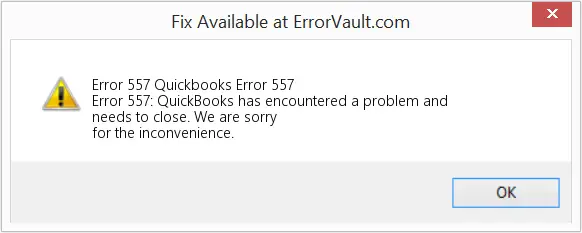
QuickBooks error 557 makes it difficult for users to keep the payroll tax table up to date, leading to interruptions during updates or when running payroll. You may also encounter a warning message that states,

QuickBooks has encountered a problem and needs to close.

QuickBooks-error-message -557

This may lead to incorrect tax calculations and delays in the direct deposit process, and other issues harming overall financial management. In this comprehensive guide, we will walk you through the possible causes and the steps to troubleshoot the error. Let’s proceed further carefully. 

What Causes Payroll Error 557 in QuickBooks?

Examine the different factors that can trigger error code 557 when trying to update the payroll services in QuickBooks: 

  • QuickBooks is not up-to-date 
  • Inactive QuickBooks payroll subscription 
  • Outdated payroll tax table updates in QuickBooks 
  • Inactivate the Direct Deposit agreement as an employee
  • Data damages or corruption to your company file 
  • Incorrect or outdated EIN 
  • Incorrect QuickBooks payroll service key

Resolve QuickBooks Error 557 When Trying to Update Payroll Services 

Below are several methods that can help you fix QuickBooks error 557 and run the payroll services and updates seamlessly: 

1. Update QuickBooks Desktop

Updating QuickBooks Desktop ensures you have the latest features, security patches, bug fixes, and compatibility for payroll services and Windows updates. Keeping QuickBooks Desktop up-to-date with the latest release helps resolve QuickBooks error 557.

2. Re-activate the payroll subscription 

There are two ways to get your payroll services back: either using the company file or the web version. Learn how to get your subscription back using either method in the steps below:

a. Through your company file

The best way to get your payroll subscription back is to use the QuickBooks Desktop company file directly:

  • Open your QuickBooks company file. 
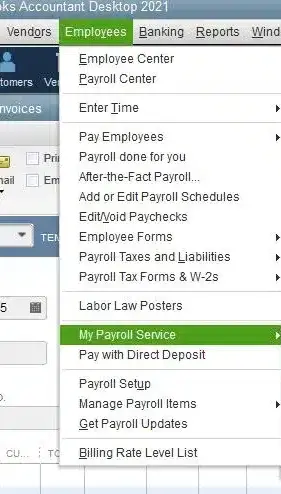
  • Navigate to Employees
  • Hit on My Payroll Service.
My payroll Service
  • Now, choose Account/Billing Info.
  • Sign in to your Intuit Account. This will open the QuickBooks Account page.
  • Select Resubscribe under Status
  • Follow the on-screen steps to reactivate your payroll service.

b. Through your Intuit account

You can also reactivate the payroll services using the Intuit web.

  • Sign in to your Intuit account using the admin credentials. 
  • Select Resubscribe under Status
  • Reactivate the payroll subscription by following the on-screen steps. 

Note: This process can take time up to 24 hours for the reactivation of your subscription to fully complete. It will show Activeas soon as reactivation is complete. 

3. Get the payroll tax table updates 

Be sure to use the latest version of the payroll tax table to avoid error code 557 in QuickBooks. 

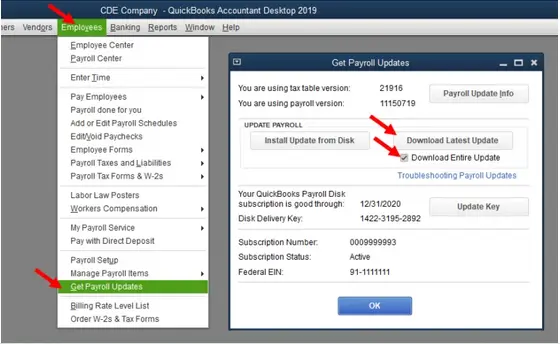
  • Go to Employees in QuickBooks Desktop. 
  • Hit on Get Payroll Updates.
Get payroll updates
  • To see which tax table version you use: 
    • Check the tax table version next to You are using tax table version:.
    • To see if it’s the correct version, check the latest payroll news and updates.
    • Select Payroll Update Info to find the more details about the tax table version. 
  • For the latest tax table:
    • Choose Download Entire Update.
    • Click on Update. An informational window appears when the download is complete.

4. Activate Direct Deposit agreement as an employee

To enjoy the convenience, speed, and security, be sure to activate the direct deposit agreement as an employee to fix QuickBooks error 557. 

a. Set up direct deposit 

First, make sure to set up the direct deposit for your company.

b. Get a direct deposit authorization form

Let’s get the Direct Deposit Authorization Form, enter the required information for further processing: 

QuickBooks Online Payroll

Have your employees complete, sign, and date the direct deposit authorization form. They must also provide a voided check from their bank account (not a deposit slip). This form is for record-keeping purposes only.

Follow this link to complete the steps in product.

  • Go to Fillings
  • Choose Employee Setup.
  • Next to Authorization for Direct Deposit, select Bank Verification.
  • Finally, click on View

QuickBooks Desktop Payroll

 Request the voided check or specific banking details, such as the account and routing numbers, directly from your employee.

c. Add direct deposit information for an employee

Once your company account is set up and you have the employee’s bank information, make sure to add it to your account. 

Proceed with the below steps for your Payroll account. 

QuickBooks Online Payroll 

To manually enter the employee’s direct deposit information, proceed with these steps: 

Follow this link to complete the steps in product 

  • Choose your employee. 
  • Click Start or Edit from the Payment method section. 
  • Under the Payment method drop-down, choose Direct Deposit
  • Select your preferred direct deposit method: 
    • Direct deposit to one account
    • Direct deposit to two accounts (split by dollar amount or percentage)
    • Direct deposit with balance as a check
  • Type the routing and account numbers from your employee’s voided check. 
  • Finally, click Save

QuickBooks Desktop Payroll 

  • Go to Employees at the top. 
  • Choose Employee Center.
  • Select your employee’s name. 
  • Move to the Payroll Info tab.
  • Hit on the Direct Deposit button.
  • In the prompted Direct Deposit window, mark the checkbox for Use Direct Deposit for [employee’s name].
  • Select if you wish to deposit the paycheck into one or two accounts.
  • Now, enter your employee’s financial institution information such as Bank Name, Routing No., Account No., and Account Type.  
  • In case you opt for two accounts, enter the amount or percentage for the first account. The remainder will move to the second account. 
  • Click OK to save.
  • Finally, enter the direct deposit PIN when prompted. 

5. Verify and Rebuild the company file data 

Identify data damage in your company file and rebuild them using the Verify and Rebuild Data utility. 

a. Verify the company file data 

  • Navigate to Window at the top. 
  • Select Close All
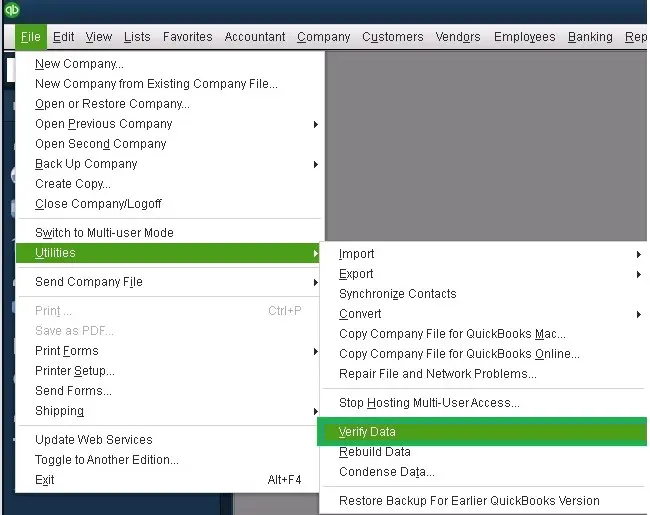
  • Go to the File menu. 
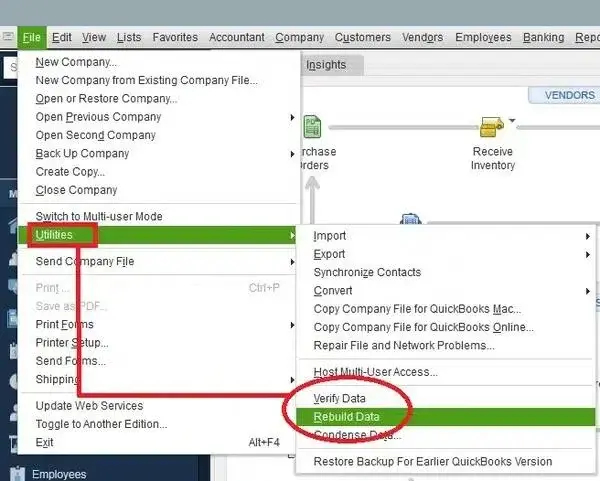
  • Select Utilities in the drop-down. 
verify and rebuild company file data
  • Hit on Verify Data. If you see:
    • QuickBooks detected no problems with your data—it means your data is clean and you don’t need to do anything else. 
    • An error message—visit our site for how to fix it.
    • Your data has lost integrity—data damage is detected in the file, you must rebuild it. 

Note: If you use Assisted Payroll, contact us to before rebuilding the data. 

b. Rebuild the data damages 

  • Go to the File menu. 
  • Select Utilities > Rebuild Data.
Rebuild Data
  • QuickBooks will ask you to create a backup copy before rebuilding the data. Click OK. A backup is necessary before rebuilding the data damages. 
  • Choose the location to save the backup copy and click OK. Make sure not to replace the already existing company file. Type a new name in the File name and click Save
  • Click OK when you receive the message Rebuild has completed.

6. Update EIN (Employer Identification Number)

QuickBooks Desktop Payroll Basic, QuickBooks Desktop Payroll Standard, and QuickBooks Desktop Payroll Enhanced

  • Go to Company at the top. 
  • Choose My Company
  • Click Edit from Company Information
  • In the left menu, select Company Identification.
  • Enter the new EIN in the Federal Employer Identification No. field and select OK.

7. Enter or edit your payroll service key

To enter or edit a service key, you must first receive one. Check your email address for it. If you haven’t received a service key, use the automated service key retrieval tool.

Sign in to your Intuit account to proceed. In case you fail in retrieving your service key using this tool, we recommend you connecting with us. Sometimes, the automatic tool may not work if: 

  • You have multiple payroll orders our system for your company. 
  • You might have bought the QuickBooks payroll product from a retail store, or
  • The business mobile number you provided did not match the one Intuit® has on file.

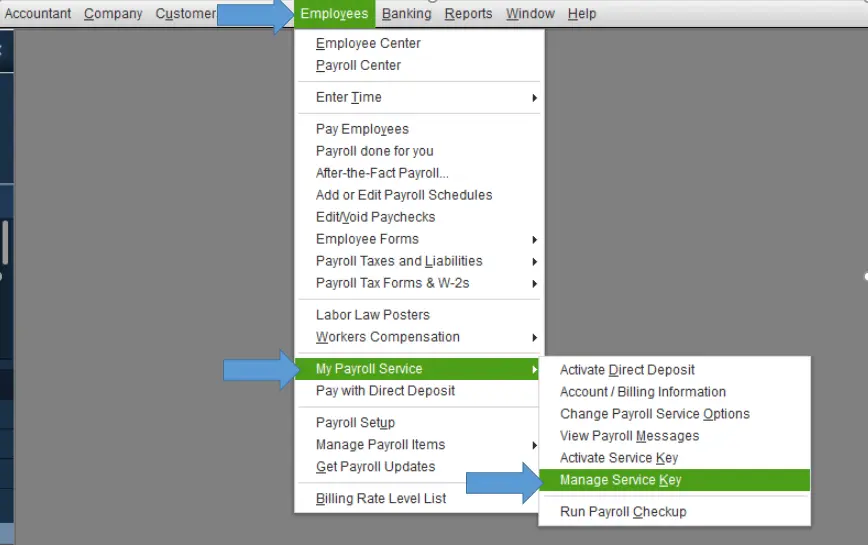
Launch the QuickBooks Service Keys window. Go to Employees > Payroll > Enter Payroll Service Key only if you do not see a payroll service on your company file. 

Go to Employees > My Payroll Service > Manage Payroll Service if you already have the a payroll service in your company file.

My payroll service

In the prompted QuickBooks Service Keys window:

  • Select Add, if there’s no payroll service is listed. 
  • Select Edit, if you there’s a listed payroll service.
  • Again, select Edit, if you see a payroll service is listed.
  • Hit kn Edit and note down the service key.
  • In your QuickBooks Desktop, remove the payroll service key. 
  • Select Next
  • When the Payroll Update message appears, click OK.
  • Make sure the Service Status shows as ACTIVE and then click OK

Conclusion 

Updating payroll services lets you calculate taxes by ensuring tax rates are up to date and that other features are working well, for a smoother experience. We hope this detailed guide has helped you resolve the payroll issues and troubleshoot QuickBooks error 557.

However, if you get stuck or require professional assistance, we recommend consulting QuickBooks ProAdvisors. Dial Call Us : +1(866)500-0076 to talk to an expert now!

Frequently Asked Questions 

How do I fix a QuickBooks registration error?

To fix a QuickBooks registration error, use the QuickBooks Tool Hub to run the Quick Fix my Program tool or register MSXML components manually using the regsvr32 commands in Command Prompt as an administrator. 

What causes QuickBooks Desktop error 557 or PS036? 

QuickBooks Desktop errors 557 and PS036 are caused by issues with your payroll service, such as an inactive or expired subscription, incorrect service key, or problems with the Direct Deposit agreement.

How do I install payroll updates in QuickBooks Desktop? 

To install a QuickBooks Desktop payroll update, go to Help and select Check for QuickBooks Updates, then choose Install and Relaunch when prompted. 

How do I check if my QuickBooks Desktop is missing updates? 

You can check for missing QuickBooks Desktop updates by opening the Product Information window by pressing F2 (or Ctrl+1) on your keyboard when QuickBooks is open. The current version and release will be displayed in this window, which you can compare to the latest available on the official QuickBooks website.

About The Author

Lana Creston

Lana Creston is an experienced technical and accounting writer with a total of 9 years of experience. She currently works on QuickBooks accounting and technical guides at QuickBookSupportNet. Lana has a passion for reading and writing about various technical topics, especially exploring new accounting methods and software, while continuously expanding her expertise in the ever-evolving field of finance and technology.

Quick, clear, and hassle-free QuickBooks assistance.

Get a Free Consultation with Our QB Tax Experts
Connnect with Our Certified QuickBooks Professionals - Dial Tollfree: +1(866)500-0076