How to Fix the QuickBooks Shipping Manager Not Working?

Dec 16, 2025

Admin |

Estimated Read Time : 5 MIN

QuickBooks Shipping Manager helps businesses streamline their shipping processes by allowing them to print shipping labels directly within the software. This eliminates the need to switch between platforms for a more efficient shipping experience.

However, if you haven’t updated to the latest version, it’s common to encounter issues with QuickBooks Shipping Manager not working. These issues typically arise due to outdated updates or other factors, which we’ll explore below. Learn how to troubleshoot and resolve these problems to ensure smooth and uninterrupted shipping.

Why is QuickBooks Shipping Manager Database Not Working?

Below are several reasons why QuickBooks Shipping Manager may not be working, along with potential database issues:

  • Outdated QuickBooks Desktop 
  • Using an unsupported version of Shipping Manager 
  • The ShipRush OCX file might not be registered 
  • Corrupted or damaged Shipping Manager files or folders 
  • Possible data damage or corruption 
  • Incorrect installation of QuickBooks Desktop 
  • QB background processes may have hampered the Shipping Manager 
  • Misconfigured connection settings or multi-user licensing issues

Let’s Fix QuickBooks Shipping Manager Not Working After the Update

The new Shipping Manager is introduced with enhanced features and a mandatory transition, which can often lead to issues when switching from the old version.

You may encounter problems with the Shipping Manager in QuickBooks Desktop due to various factors, as outlined above. Follow the troubleshooting steps below to ensure smooth shipment processing:

Important Note: If you haven’t already, download the new QuickBooks Shipping Manager for QuickBooks Desktop; otherwise, the old version may cause problems.

1. Update QuickBooks Desktop

An outdated version of QuickBooks Desktop causes incompatibility with the integrated apps or features, making it challenging to run the process. This could be why QuickBooks Shipping Manager not working. Make sure to update QuickBooks Desktop to the latest release for an uninterrupted workflow.  

2. Register the ShipRush OCX File

Registering the ShipRush OCX file makes the necessary software component (the OCX file) available to Windows and QuickBooks for better communication: 

  • Launch the Windows Start menu by pressing the Windows key. 
  • Choose All Programs and click on Accessories.
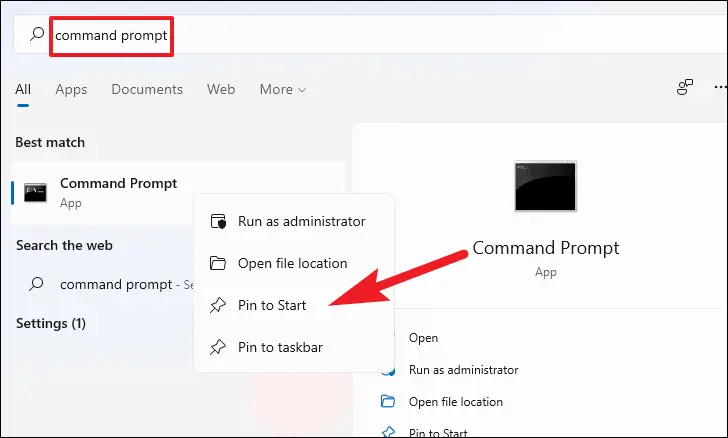
  • Right-click on Command Prompt and select Run as Administrator.
run as administrator
  • In the CMD window, type cd c:\Windows\syswow64 and press Enter to change the working directory.
  • Now, type regsvr32.exec:\Program Files (x86)\Common Files\Intuit\ShippingManager\ZRush_ShipRush9_QB.ocx” and press Enter to register the ShipRush file. 
  • Click OK when a message displays on the screen. 
  • Reboot your computer and try to set up the Shipping Manager again.

3. Rename all the Shipping Manager folders

Let’s rename the Shipping Manager folders to replace them with the new folders, resolving the QuickBooks Shipping Manager not working issue: 

  • Locate the following folders in the Windows File Explorer: 
    • C:\Program Files (x86)\Common Files\Intuit\ShippingManager
    • C:\Users\[WindowsUserName]\AppData\Roaming\Intuit\ShippingManager
  • Right-click on your folder and choose Rename
  • Add .OLD at the end of the name as ShippingManagerOLD.

4. Recreate Shipping Manager account

When you recreate the Shipping Manager account, it resets the corrupted settings, re-establishes carrier connections (UPS, FedEx), resolves authentication problems, and allows you to re-enter accurate account details and preferences: 

  • Go to the File menu.
  • Select Shipping > Shipping Options.
  • Select Settings and then Delete Account.

When done, proceed further to set up the new account. 

  • Open QuickBooks Desktop and sign in to your company file. 
  • Go to the File menu at the top. 
  • Select Shipping and choose Ship UPS Package.
  • Enter the required account information. 
  • Check the End User License Agreement, and then select I Agree to terms and conditions.
  • Click Next.
  • Now, configure the printer settings. 
  • Select Next and then Finish.

5. Verify and Rebuild company file data

The Verify and Rebuild Data utility verifies the company file data and runs a quick repair to resolve all the associated issues: 

a. Verify your company file 

  • Navigate to Window and click Close All
  • Go to File at the top.
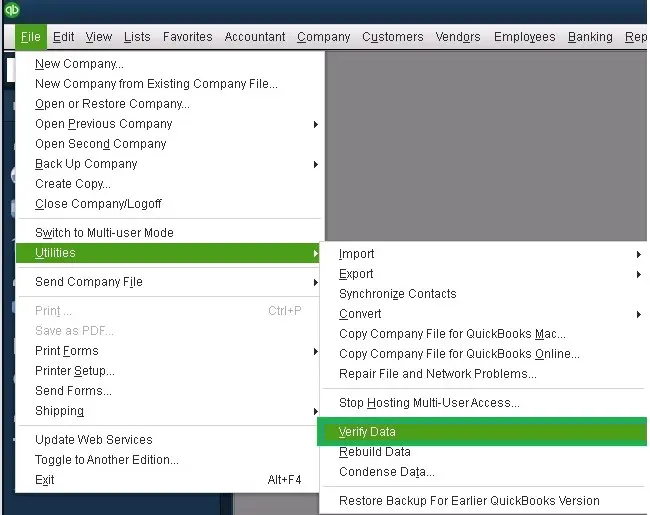
  • Choose Utilities > Verify Data
verify and rebuild company file data
  • Now, you will see: 
    • QuickBooks detected no problems with your data—your data is clean, and you don’t need to do anything else.
    • An error message—search for it on our QuickBooks Desktop support site for how to fix it.
    • Your data has lost integrity—Data damage was found in the file. Rebuild your data to fix it.

b. Rebuild the possible data damages 

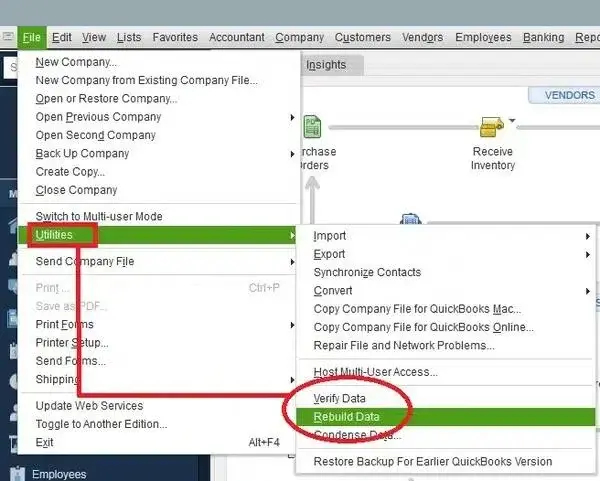
  • Go to File > Utilities, then click Rebuild Data.
Rebuild Data
  • Now, QuickBooks will ask you to create a company file backup to rebuild the damaged data. Click OK, as a backup is necessary before rebuilding the damaged data.
  • Select the location where you want to save the backup, then click OK. Make sure not to replace the already existing company file. Enter a new name in the File name and click Save.
  • Click OK when you see Rebuild has completed

6. Repair QuickBooks Desktop

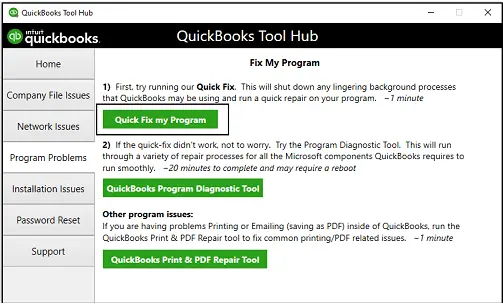
To clear background processes, use Quick Fix my Program to repair the QuickBooks installation as described below. If that doesn’t work, run the QB Install Diagnostic Tool.

a. Run Quick Fix my Program

The Quick Fix my Program closes the QuickBooks processes running in the background, then runs a quick repair to your program. 

Fix My program
  • Open QuickBooks Desktop and then the data file.

b. Run the QuickBooks Install Diagnostic tool 

If something went wrong during the software installation, it can cause issues when trying to run or use it. Run the QuickBooks Install Diagnostic tool to fix the common installation issues:

  • Open QuickBooks Tool Hub. 
  • Go to Installation Issues. 
  • Click on QuickBooks Install Diagnostic Tool. Let the tool run; it may even take up to 20 minutes to finish. 
QuickBooks Install Diagnostic Tool
  • When done, open QuickBooks Desktop, then open your company file. 
  • Update QuickBooks Desktop to the latest release to ensure that you use the most recent fixes and security patches. 

7. Reinstall QuickBooks Point of Sale (Only for POS users) 

Replace the corrupted program files, reset configurations, and resolve underlying installation errors by reinstalling QuickBooks POS: 

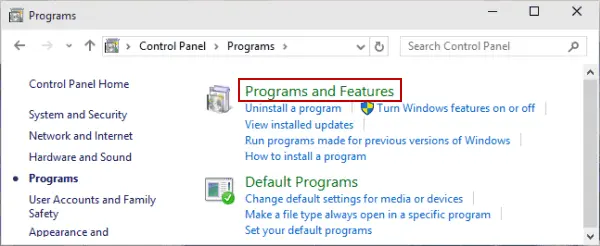
  • Launch the Windows Start menu. 
  • Type Control Panel and press Enter
  • Go to Programs and Features
Programs and Features
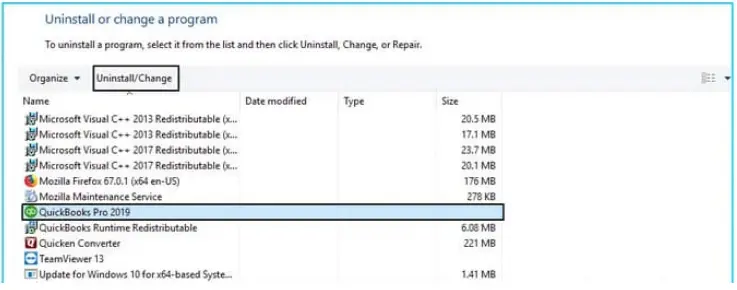
  • Choose the QuickBooks POS you wish to remove and right-click on it. 
  • Select Uninstall
uninstall or change a program
  • Follow the instructions on your screen to remove QuickBooks POS. 
  • When done, install QuickBooks Point of Sale again. 
  • Open QuickBooks and go to the File menu. 
  • Select Preferences and then Company
  • Go to the Sales menu and select Shipping
  • Clear the checkbox for Use QuickBooks Shipping Manager.
  • Now, click Save.
  • Move to the File menu again and select Preferences
  • Click on Company > Shipping
  • Mark the checkbox for Use QuickBooks Shipping Manager.
  • Open the Point of Sale menu and select Shipping Manager settings.
  • When done, enter the Shipping Manager account details.

8. QuickBooks Access Violation error within Shipping Module

Some users may get an access violation error when they go to the shipping module to create a UPS shipment. If you are using QuickBooks in multi-user mode, here is what you should do:

  • Open QuickBooks Desktop on the host computer. 
  • Go to the Help menu and select About QuickBooks
  • Verify that User Licenses in the green window have a value of 2 or more. It simply shows you have a QuickBooks license for at least two users. 
  • Note down the license number you see here and do not close QuickBooks.

Now, open QB Desktop on the workstation: 

  • Open Shipping Manager and go to Settings
  • Select Connection Settings
  • Mark the checkbox for Connect via Network and ensure that the Shipping Manager database is located at this location:
    • C:\Documents and Settings\All Users\Documents\Shipping Manager v4\Database.v4 (or a path other than the default). Note down the path where the QuickBooks Shipping Manager is located. 
  • Verify and ensure that your company file is located at this location: 
    • C:\Documents and Settings\All Users\Documents\Intuit\QuickBooks\Company Files (or a path other than the default). Note down the company file path.
  • Close QuickBooks Desktop on both the host computer and workstation. 
  • Open the Shipping Manager folder using the path below or the one you noted earlier if the Shipping Manager folder has a different path than the default:
    • C:\Documents and Settings\All Users\Documents\
  • Copy the Shipping Manager v4 folder.
  • Open the company file using the location below or use the path you noted above if the company file has a different path than the default one: 
    • C:\Documents and Settings\All Users\Documents\Intuit\QuickBooks\Company Files
  • Now, paste the Shipping Manager v4 folder.
  • Launch QuickBooks Desktop. 
  • Go to Shipping Manager Settings > Connection Settings > Connect Via Network“box,
  • Now, enter the following path: 
    • C:\Documents and Settings\All Users\Documents\Intuit\QuickBooks\Company Files\Shipping Manager v4\Database.v4\
  • Click OK to save. 
  • Move back to the home screen of QuickBooks and close it.
  • Now, open QuickBooks again on the workstation. 
  • Go to Shipping Manager Settings > Connection Settings > Connect Via Network
  • Enter the following: 
    • \\[host computer name or ip address]\SharedDocs\Intuit\QuickBooks\Company Files\Shipping Manager v4\Database.v4\
  • Click OK or Save
  • Now, return to the QB homescreen.

This should fix access violation errors within the shipping module in QuickBooks Desktop.

Conclusion 

Delays in shipping or the inability to generate and print shipping labels can significantly disrupt business operations. If your QuickBooks Shipping Manager not working as expected, it’s natural to seek quick solutions.

This guide has provided steps to help you identify potential issues and implement effective fixes to ensure smooth shipping processes.

For further assistance, consider reaching out to ProAdvisors at QuickBookSupportNet. Dial Call Us : +1(866)500-0076 to speak with an expert today!

Frequently Asked Questions 

How to set up shipping in QuickBooks?

To set up shipping in QuickBooks Online, enable the Shipping Manager feature in Account Settings or from the File menu if you use QBDT. Create Ship Via in the Lists menu and finally connect carrier accounts via the new Shipping Manager to rate shop and print labels directly from invoices or sales orders. 

How do I fix Shipping Manager in QuickBooks?

To fix Shipping Manager in QBDT, make sure you use the new QuickBooks Shipping Manager and not the discontinued one. If this does not fix the problem, update QuickBooks, run QuickBooks Tool Hub, and set the preferences again.

Why is my Shipping Manager database not working?

The Shipping Manager Database might not work due to corrupted files, network problems, outdated drivers/software, firewall conflicts, or incorrect settings, which are often resolved by restarting, checking configurations in Preferences, repairing the installation, or ensuring proper network path setup.

What is QuickBooks Shipping Manager Access?

QuickBooks Shipping Manager Access is a built-in feature and an integrated application in both QuickBooks Online and Desktop. This allows businesses to streamline the shipping, creating and printing labels all within the software, while keeping a track of the shipment.

What are the benefits of using FedEx Ship Manager?

Using FedEx Ship Manager with QuickBooks streamlines shipping by automating data entry, reducing errors, saving time, and improving efficiency through direct integration, allowing you to process labels, track shipments, and manage customer info all within QuickBooks for better financial control and customer service.

About The Author

Lana Creston

Lana Creston is an experienced technical and accounting writer with a total of 9 years of experience. She currently works on QuickBooks accounting and technical guides at QuickBookSupportNet. Lana has a passion for reading and writing about various technical topics, especially exploring new accounting methods and software, while continuously expanding her expertise in the ever-evolving field of finance and technology.

Quick, clear, and hassle-free QuickBooks assistance.

Get a Free Consultation with Our QB Tax Experts
Connnect with Our Certified QuickBooks Professionals - Dial Tollfree: +1(866)500-0076