Mar 13, 2025
Admin |
Estimated Read Time : 5 MIN
Software updates are essential to ensure you have the latest features and security patches, to ensure better performance and seamless work experience while managing your business accounting and finances.
As a payroll user, updating the payroll tax table is important to ensure your tax rates are up to date for accurate tax calculations and compliance. If you are also wondering how to update QuickBooks Desktop to latest release, this blog has you covered.
This article discusses the instructions to update QuickBooks Desktop in both Windows and Mac operating systems. Let’s start reading the article in detail.
Table of Contents
ToggleIf you are not sure whether you have the latest version of QuickBooks installed on your computer, you can always check it. This section will guide you through step-by-step instructions to check the current version and release in both Windows and Mac and how to update QuickBooks Desktop to latest release:
Here’s how to check the version or release of QuickBooks Desktop you use:

Here’s how to check the current version of your QuickBooks Desktop for mac:

Move to the next section to update QuickBooks Desktop to latest release. The below steps will walk you through the steps to download the updates.
Before you update QuickBooks Desktop, check if you are using a version older than QBDT. QBDT 2021 is retired; therefore, if you have this or an older version installed on your computer, you should consider upgrading.
This section will discuss step-by-step instructions to update QuickBooks Desktop to latest release.
Although the steps to update the program depend on whether you use a Windows or Mac operating system, we will cover both.
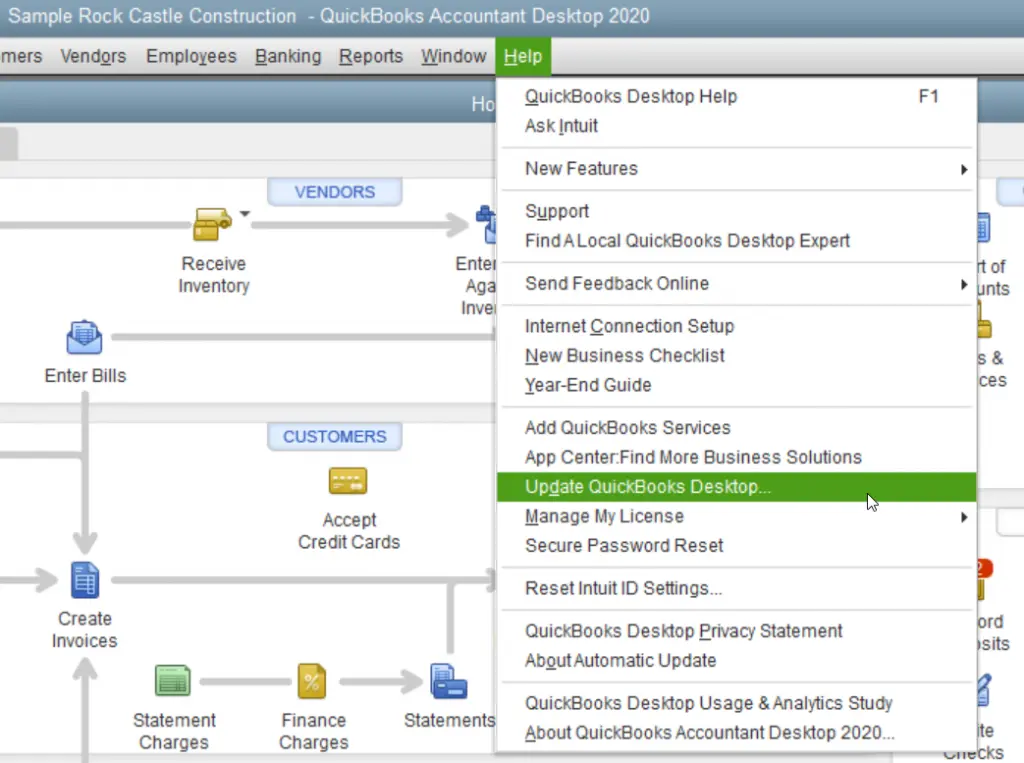
You can schedule automatic QuickBooks updates or get them manually from the software or the official Intuit website. After downloading, you just need to exit QuickBooks; this will install the updates. Let’s discuss these different ways to get updates:
You can enable the automatic updates feature in QuickBooks Desktop, so you don’t have to worry. Your updates will be downloaded automatically every time they become available.
Now, QuickBooks will automatically download the updates whenever they’re available. Once the update is downloaded, you will see Update available on the status bar at the top right corner of your screen. The next step is installing the downloaded updates. To do so, you just need to close QuickBooks and reopen it. You can also install the updates manually; here’s how:
If you also have a payroll subscription, get the latest payroll tax table update to process the payroll in QuickBooks Desktop.
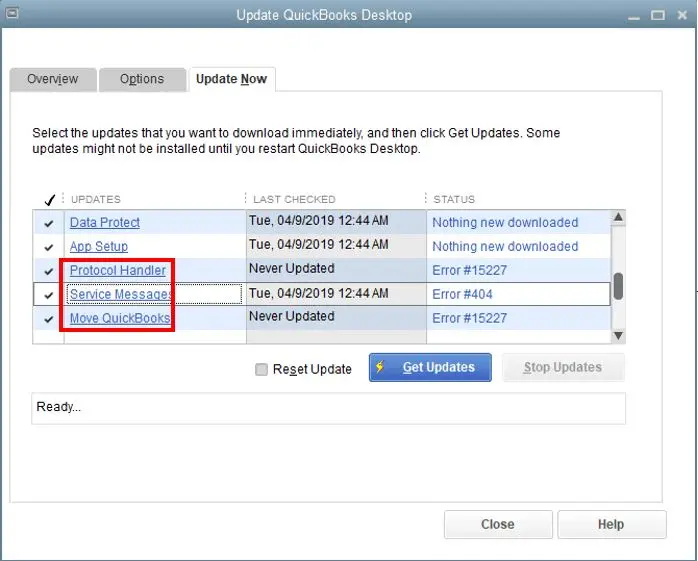
Let’s manually download the QuickBooks updates:


There’s another way to download the specific updates directly from the Intuit’s website.
Tip: Only get the critical fixes patch updates. The Ultra-light patches (ULIP) in QuickBooks let you download specific and minor important fixes instead of the entire update. The patch release process will continue as is. Select the important fix from the list when downloading the update.
When the download is finished, open the download file to install the update. Once done, restart your computer.
To manually install updates over the network, access the install file on your computer from another computer. Or, you can copy it to a flash drive and move it to the other computer.
Let’s take a look at the steps below to manually download QuickBooks updates from the program and website:

Note: Select Automatically download and install updates in the future to ensure updates are automatically installed in the future.
Sometimes, an update does not advance to the next release number. Or you may encounter an error like QuickBooks error 12045, QuickBooks error 15214, QuickBooks error 1304 and others while downloading or installing updates. Here is how you can fix these problems:
Your QuickBooks may fail to advance an update to the next release number, or you may encounter an error while downloading or installing. Follow the steps below to get the update:
If everything is fine, consider repeating the steps multiple times:
Processes running in the background may hamper the
If your QuickBooks update is stuck or you fail to run it, you need to identify and fix the problem. Follow the steps below and try again to get your updates:
Repeat the steps below several times as sometimes the update can get stuck even if everything works fine:
If your automatic update doesn’t work, try getting the update manually from Intuit’s site:
We all know how important it is to download the QuickBooks updates so that you can continue using advanced features without any interruptions and get the latest security patches. The above guide explores step-by-step instructions to update QuickBooks Desktop to latest release regardless of the operating system you use, Windows or Mac.
We have also covered some fixes in case your update gets stuck or won’t work. If you cannot get the updates or have any queries, connecting with QuickBooks professionals is recommended. Dial +1(866) 500-0076 and talk to a QuickBooks ProAdvisor now!
1. How to Update QuickBooks Desktop?
2. How to Update Payroll in QuickBooks Desktop
3. How to Update Credit Card in QuickBooks Desktop
To update stored credit card details:
For bank/credit card feeds:
4. How Do I Update My QuickBooks Desktop to 2024?
Steps to Upgrade to QuickBooks Desktop 2024:
5. How do I check for QuickBooks Desktop updates?
Open QuickBooks → Help > Update QuickBooks Desktop → Click Update Now to check and download available updates.
Lana Creston is an experienced technical and accounting writer with a total of 9 years of experience. She currently works on QuickBooks accounting and technical guides at QuickBookSupportNet. Lana has a passion for reading and writing about various technical topics, especially exploring new accounting methods and software, while continuously expanding her expertise in the ever-evolving field of finance and technology.
Quick, clear, and hassle-free QuickBooks assistance.