How to Fix QuickBooks Error 15222 When Updating QB or Payroll? 

Dec 17, 2025

Admin |

Estimated Read Time : 5 MIN

QuickBooks error 15222 typically occurs when updating QuickBooks or Payroll, preventing the software from downloading or installing the latest updates. This issue is often linked to conflicts with internet security settings, firewall configurations, or outdated components. While the exact cause may vary, troubleshooting this error can be straightforward with the right steps. 

In this guide, we’ll explore the common reasons behind error code 15222 and provide expert-recommended solutions to help you get back on track with your updates without any hassle. Let’s dive into the troubleshooting process and ensure a smooth QuickBooks experience.

What Causes Update Error 15222 in QuickBooks Desktop? 

Here’s a list of multiple reasons why you may see QuickBooks error 15222 when updating QB or the payroll services: 

  • Not having the proper admin rights 
  • The Shared Download drive isn’t mapped 
  • The QuickBooks File Copy service might be disabled
  • QuickBooks might failed to verify the digital signature certificate 
  • The QB program files might be damaged or corrupted 
  • Incorrect installation of QuickBooks Desktop

Top 7 Methods to Fix QuickBooks Error 15222 When Trying to Update 

In this section, we will explore methods to help you resolve QuickBooks update error code 1522. Make sure to carefully perform these or get in touch with professionals if it seems challenging. 

1. Download as an administrator 

Admin rights are necessary to make possible changes to your computer when updating the software or services. Here’s how to get QB updates with all admin rights: 

  • Exit your company files and QuickBooks.
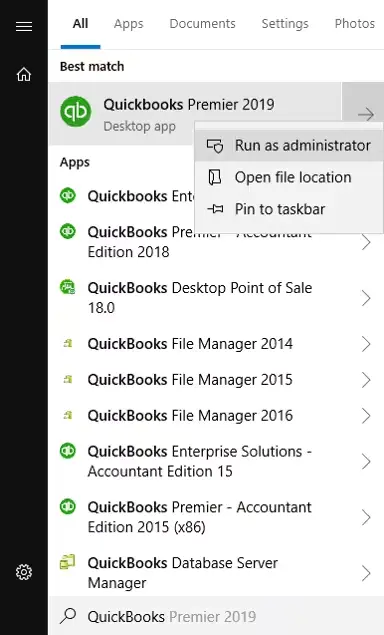
  • Right-click on the QB Desktop icon and choose Run as Administrator.
run as administrator
  • Click Yes on the prompt that says, “Do you want to allow this program to make changes to your computer?
  • Download the latest product updates of QuickBooks Desktop.
  • Get the latest payroll tax table update again. 

2. Map the Shared Download drive 

Mapping the shared download drive ensures consistent, reliable access to the shared files necessary for updates: 

  • Press the Windows logo icon on the keyboard.
  • In the search bar, type This PC and choose This PC from the search results. 
  • Choose More (…) and click on Map network drive.

Note: If you don’t see Map network drive as an option, right-click on This PC and choose Map network drive.

  • In Drive, choose a drive letter. 
  • Now, you can either: 
    • Enter the full folder path, or
    • Enter the computer’s path and browse to find the folder.
  • Click on Reconnect at sign-in to keep the drive mapped everytime you sign in to your computer.
  • Finally, click Finish.

3. Enable QuickBooks File Copy Service (FSC) 

QuickBooks FCS service must run in the background to install and run software updates; otherwise, you may see QuickBooks error 15222 and other errors. 

  • Press the Windows+R keys together on the keyboard. 
  • In the Run prompt, type COMPMGMT.MSC and click OK. The Computer Management Window will open. 
  • Now, select Services and Applications and tick on Services.
  • Scroll down until you see Intuit QuickBooks FSC and double-click on it. 
  • Select Startup type and click on Manual.
  • Select Apply and click OK
QuickBooks File Copy Service
  • When done, re-validate the payroll’s service key to refresh the connection. 

Here’s how:

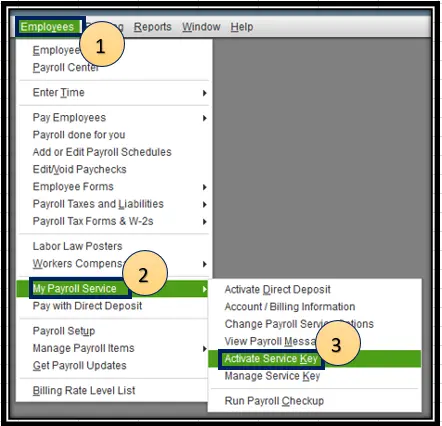
  • Navigate to Employees at the top. 
  • Select My Payroll Service and click on Activate Service Key
My Payroll Service and activate service key
  • Highlight the current payroll under the Service Keys and select Edit.
QuickBooks Service Keys
  • When the finish comes up, click Next.

4. Install a digital signature certificate

A digital signature certificate is necessary to verify the authenticity and reliability of a file or program running on the system. Let’s see how to get an install digital signature certificate for QuickBooks: 

  • Navigate to C:\Program Files\Intuit\QuickBooks.
  • Right-click on the QB program file, QBW32.exe 
  • Select Properties
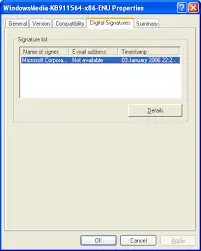
  • Choose Digital Signature and make sure Intuit is selected in the signature list.
Digital Signatures
  • Go to the Details tab. 
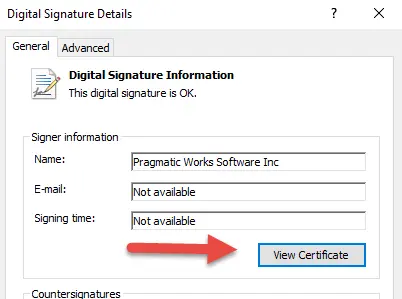
  • In the Digital Signature Details window, select View Certificate.
  • In the Certificate window, select Install Certificate.
Digital Signature Certificate
  • Click Next until you see Finish, then click Finish
  • Restart your computer.
  • Open QuickBooks and try to download the updates. 

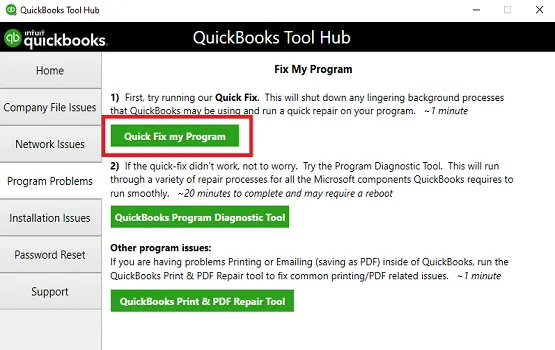
5. Run Quick Fix my Program 

The Quick Fix will shut down any lingering background processes QuickBooks may be using. It’ll run a quick repair on your program.

Note: Download and install QuickBooks Tool Hub (1.6.0.8) to the latest release. For the best experience, we recommend using Tool Hub on Windows 11 (64-bit).

  • In the QuickBooks Tools Hub, select Program Problems.
  • Select Quick Fix my Program.
Quick Fix my Program

6. Repair QuickBooks 

An incorrect or corrupted QuickBooks installation usually hampers all related operations, including software or payroll updates. To resolve this, consider running the QuickBooks Install Diagnostic tool, which also checks Windows components and helps ensure a smooth software update. 

QuickBooks Install Diagnostic Tool

7. Re-install QuickBooks Desktop

Reinstalling QuickBooks Desktop removes the existing software files and folders, allowing you to run a clean installation. This ensures the prior program files won’t cause problems when running the software or updating, letting you resolve error code 15222.

Conclusion 

Software updates are crucial, but QuickBooks error 15222 makes it quite challenging to get a newer version of the software or even keep the tax table up to date. With this detailed guide, you will learn what’s wrong and the expert-recommended steps to troubleshoot the error.

Got stuck somewhere or have any queries? Connect with certified ProAdvisors at QuickBookSupport to get help with the software update. Dial Call Us : +1(866)500-0076 now!

Frequently Asked Questions 

What causes QuickBooks update error 15222? 

QuickBooks Update Error 15222 occurs when your computer can’t verify or download updates, usually because security software blocks the connection, Internet Explorer settings are incorrect, digital signature certificates are missing or corrupt, or the system date/time is incorrect.

Why am I getting error codes when downloading tax table update?

Error codes when downloading tax table updates, common in software like QuickBooks, usually mean issues with your internet/security, outdated software, or corrupt files, often showing as 15xxx series errors due to connection problems, or expired digital certificates.

How do I update QuickBooks Desktop? 

You can update QuickBooks Desktop, go to Help > Update QuickBooks Desktop > Update Now and then click on Get Updates. Close and reopen QuickBooks, then click Yes to install the updates. 

What is QuickBooks error 15XXX when updating? 

QuickBooks error 15XXX occurs when you do not have sufficient admin rights, QuickBooks fails to verify the digital signature certificate, or there are damaged program files or an incorrect installation.

About The Author

Lana Creston

Lana Creston is an experienced technical and accounting writer with a total of 9 years of experience. She currently works on QuickBooks accounting and technical guides at QuickBookSupportNet. Lana has a passion for reading and writing about various technical topics, especially exploring new accounting methods and software, while continuously expanding her expertise in the ever-evolving field of finance and technology.

Quick, clear, and hassle-free QuickBooks assistance.

Get a Free Consultation with Our QB Tax Experts
Connnect with Our Certified QuickBooks Professionals - Dial Tollfree: +1(866)500-0076