Dec 15, 2025
Admin |
Estimated Read Time : 5 MIN
Reinstallation is required when QuickBooks unexpectedly freezes and crashes. Installing QuickBooks is a simple process, but it requires patience with the product and license numbers. Do not mistake the reinstallation process with the Clean Install of QuickBooks. Both processes are a bit different and give different results. Since we have to fulfil specific requirements for this blog, we head on towards the reinstallation process.
To Reinstall QuickBooks Desktop is simply an easy process. Additionally, in this blog, we have shared an important solution for transferring QuickBooks Desktop to another computer.
Table of Contents
ToggleThese nine reasons are the most common, which is why “QuickBooks Software needs to be reinstalled”. Now, let’s focus on the solution part that is easy to follow for QuickBooks reinstallation.


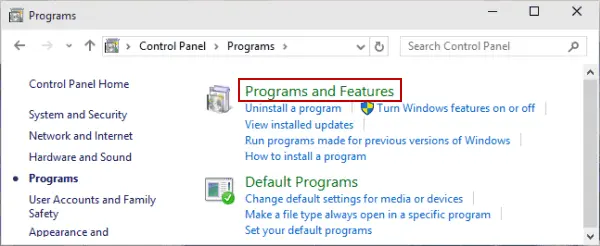
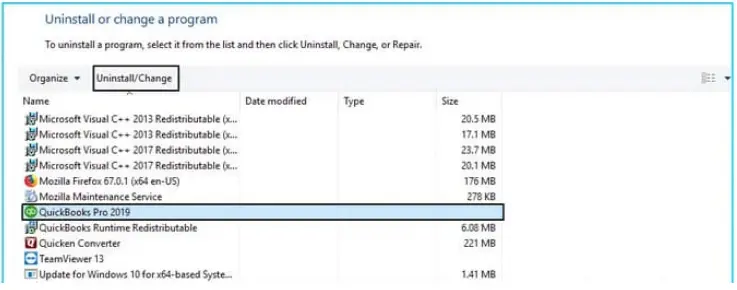
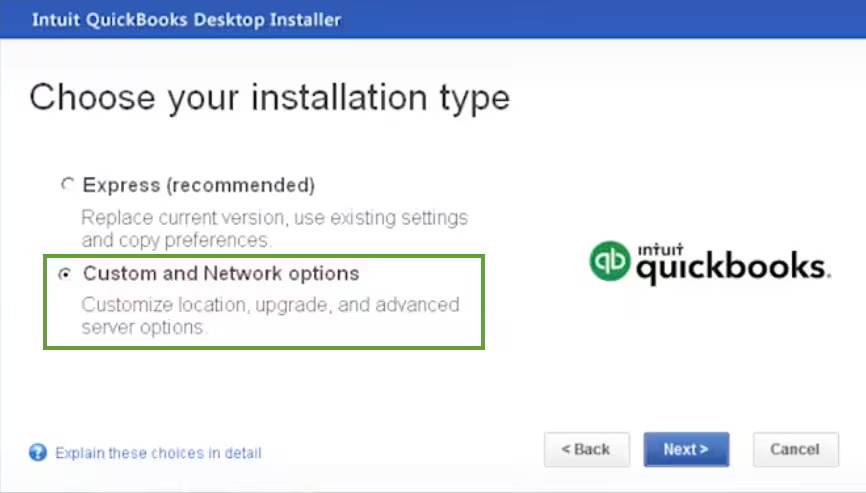
Now, you have uninstalled the QuickBooks application. Let’s proceed to step 2 and reinstall QuickBooks for Windows.

System Requirements for QuickBooks Premier 2024, Pro, and QB Enterprise 24.0
For QuickBooks Desktop 2024, you will require internet access and Google Chrome.
| Processor | 2.4 GHz minimum |
| RAM (workstation) | 8 GB minimum, 16 GB recommended |
| RAM (server) | • 1-5 Users: 8 GB • 10 Users: 12 GB • 15 Users: 16 GB • 20+ users: 20+ GB |
| Disk Space | • 2.5 GB of disk space (additional required for data files). Additional software: • Microsoft .NET 4.8 Runtime – 60 MB, provided with the installation files. • Intuit Data Protect in QuickBooks Connected Services offerings: • Requires a minimum of 4.0 GB RAM • Twice the size of the largest file set to back up + 100MB or twice the size to restore. The space is Only required from the work folder LocalApplicationData+”Intuit\Intuit Data Protect”. Note: For the best performance, store your QuickBooks data file on a solid-state drive (SSD). |
| Windows | • North American version of Windows. • Regional settings are supported when set to English. • Administrator rights are required for the server computer when hosting multi-user access. • Natively installed and doesn’t need to run in a virtual environment or emulation software. |
| Optical drive | A 4X DVD-ROM drive is required for physical CD installations. |
| Screen resolution | • Display optimized for 1280 x 1024 resolution or higher with up to 2 extended monitors. • Best optimized for the Default DPI setting for a given computer. |
| C:\ProgramData\Intuit\QuickBooks (year) |
| C:\Users\(current user)\AppData\Local\Intuit\QuickBooks (year) |
| C:\Program Files\Intuit\QuickBooks (year) |
| 64-bit version C:\Program Files (x86)\Intuit\QuickBooks (year) |

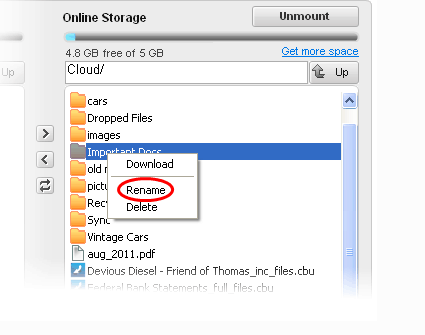
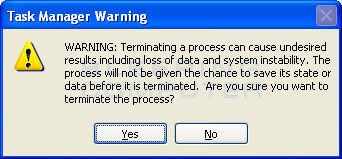
Error when Renaming the Folder, Close the Folder using Task Manager


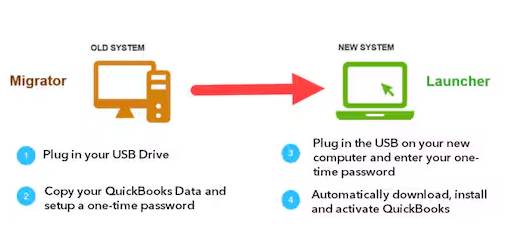
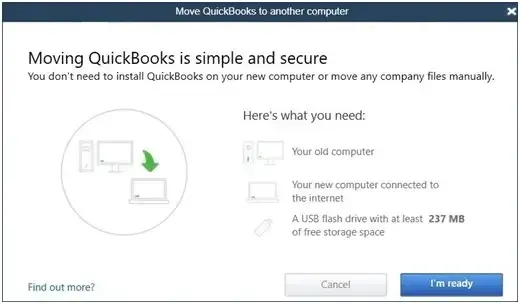
If you are looking to move QB Desktop, you need to use the “Migrator Tool”. Also, you must have “Company Admin Credentials”.


Note: It may happen that the “Migrator Tool” does not copy some of the information; you are required to apply further steps to complete the migration.
Note: We are sharing with you the file details that the Migrator tool certainly copies:
| QuickBooks Desktop details (version and other details) are needed to install QuickBooks Desktop on your new computer. |
| The three recent company files that you opened on the old computer. |
| Related files, custom templates & forms |
| QuickBooks letters and templates |
| Scheduled and memorized reports |
| Local attachments |
| Printer Setting (PrintEng.ini, wpr.ini, and QBPrint.qbp) |
| Spell Checker (spell.ini and UserDictionary.tlx) |
| Financial Statement Designer (FSD clients) |
| Financial Statement Designer (FSD data) |
| Cash Flow Projector (.cfp) |
| Business Planner (.bpw) |
| Loan Manager (.lmr) |
| Statement writer (for QuickBooks Accountant) |
| Advanced reports (for QuickBooks Enterprise) |
“Migrator Tool” do not copy:
| Multi-user configuration: The Migrator tool will not copy the configuration to your new computer. |
| Payroll & Payment setup: You are required to sign in again on your new computer to protect your data. |
| Intuit Data Protect: You need to uninstall the QuickBooks Desktop application from your old workstation. And, you are required to sign in to your new computer. Backups will be available for further use. |
| Older Company Files: The company files that you did not open recently will not be copied. QuickBooks is designed to copy the three most recently opened files. Other files will require manual work, or you can restore them from “Intuit Data Protect”. |
| Backup files: No manual backups created will be copied. |
Or, you can follow the “Solution 1 –Step 2” for installation.
Before uninstalling Desktop, ensure you have QuickBooks Desktop downloaded file or the installation CD with the license number.
Step 2: Remove QB PLIST files
You are required to remove PLIST files from both the folder User and System.
User PLIST
Note: XX is your current QuickBooks version.
System PLIST
Note: XX is your QuickBooks current version.
In case you do not see the Macintosh HD icon in Finder.
Step 3: Restart your PC.
Step 4: Reinstall QuickBooks
It is sometimes necessary to reinstall QuickBooks Desktop to fix a few application and system-related issues. We have tailored this blog so that users understand how “QuickBooks Software needs to reinstall” with easy steps. If you are looking for a QuickBooks expert for further queries, you can contact us at: +1(866)500-0076.
1. What are the system requirements for QuickBooks Desktop 2024?
If you do not want any issues with the compatibility for QB Desktop 2024, here are some system requirements:
2. What should I do if my system is not compatible with the QB Desktop application?
In case there is an incompatibility between the system and the QB Desktop application, we advise you to upgrade the system or go for “QuickBooks Online”.
3. Is it possible to migrate QuickBooks data from one system to another?
Yes, you can easily migrate the data from QuickBooks. We have provided an easy solution in this blog with simple steps. You can also bookmark this page for future use.
Lana Creston is an experienced technical and accounting writer with a total of 9 years of experience. She currently works on QuickBooks accounting and technical guides at QuickBookSupportNet. Lana has a passion for reading and writing about various technical topics, especially exploring new accounting methods and software, while continuously expanding her expertise in the ever-evolving field of finance and technology.
Quick, clear, and hassle-free QuickBooks assistance.