How to Migrate Data from QuickBooks Desktop to Online 

Dec 29, 2025

Admin |

Estimated Read Time : 5 MIN

Migrating data from QuickBooks desktop to Online is a simple but lengthy process. We all know migrating could be complex and requires keen efforts with a bit of patience. This guide will walk you through the process. 

If you are willing to learn how to migrate data from QuickBooks desktop to QuickBooks online, be with us till the end, and stay confident! 

Know things before you migrate:

  • QuickBooks Online is different from Desktop in functionality; some features may not transfer exactly the same. You may require some adjustments.
  • As far as Canada is concerned, QuickBooks Enterprise does not support direct migration.
  • You may find some trouble in cases of very large files or complex files in getting them converted.

Key Benefits of data migration from QuickBooks Desktop to Online

  • Accessibility & Mobility: Manage finances from anywhere, on any device using the web browser or app, perfect for remote teams.
  • Reduced IT Burden: No more expensive servers, manual backups, or dealing with software installations and updates; data is secure on world-class servers.
  • Ecosystem Integration: Seamlessly connects with many other business apps (Payroll, Payments, MailChimp, etc.).
I use QuickBooks Desktop to…Can be done in QuickBooks OnlineCan be done in QuickBooks Desktop
Access my company file and manage my data  
Back up my dataAll editionsAll editions*
Revert to prior version of my company fileAdvancedAll editions, with backups
Work with my accountantAll editionsAll editions
Access my company file remotelyAll editionsAll editions**
Allow multiple users to access my company fileEssentials, Plus, AdvancedAll editions
Maintain multiple company filesRequires additional subscriptionsAll editions
Work with multiple QuickBooks windows open at onceAll editionsAll editions
Work with my customers  
Create and manage invoices and bill customersAll editionsAll editions
Create and manage estimates, send to customers, convert to invoices, and use progress invoicingAll editions; progress invoicing in Plus and Advanced onlyAll editions
Track sales, accept payments, and calculate sales taxAll editions, with QuickBooks PaymentsNot available
Track sales and expenses in multiple currenciesEssentials, Plus, AdvancedAll editions
Track projects including time expenses, pending payments, unbilled workPlus, AdvancedAll editions
Invoice with batch invoicingNot availableAll editions
Prevent sales to customers with overdue invoicesNot availableNot available
Work with my suppliers  
Manage bills and pay my suppliersEssentials, Plus, AdvancedAll editions
Billable expensesPlus, AdvancedAll editions
Track and manage contractorsAll editionsAll editions
Manage employee data  
Track employee time, including billable hoursEssentials, Plus, AdvancedAll editions
Pay employees, e-file payroll taxes, and print and file T4sAll editions, with Enhanced PayrollAll editions, with Payroll subscription
Use online banking  
Connect to my bank, download transactions, and reconcileAll editionsAll editions
Undo previous bank reconciliationsBy an accountant, in QuickBooks Online AccountantAll editions
Manage inventory  
Use the FIFO method to track inventory quantities, sales revenue, and COGSPlus, AdvancedNot available
Use Average Costing method to track inventoryNot availableAll editions
Set and manage inventory reorder pointsAll editionsAll editions
Create and run reports  
Track income and expenses and organize according to tax categoriesAll editionsAll editions
Run custom, profit and loss, expense, and balance sheet reportsAll editionsAll editions
Forecast sales and expensesPlus, AdvancedPremier
Create custom reports with Intuit Statement WriterNot availableNot available
Use Advanced ReportingNot availableNot available

Preparation for Migration

  • Back up your company file.
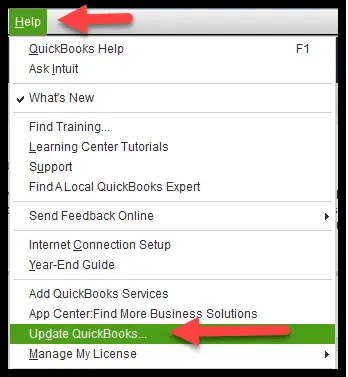
  • Update QuickBooks Desktop.
  • Check your Total Targets.
  • Remove Ministere du Revenu (companies that are outside of Quebec only).
  • Turn off payroll in the QuickBooks Desktop file.
  • Save your Liability report for your Sales Tax.
  • You need to export reports and lists.
  • Create a QuickBooks Online account.

How to migrate QuickBooks data from desktop to QuickBooks Online.

From QuickBooks Desktop Pro or Premier to QuickBooks Online 

  • Sign in as an admin to the company file that you want to import.
  • Click on the Company menu.
  • Select Export Company File to QuickBooks Online.
  • Click on Get started
  • Click on Select destination and sign in to your QuickBooks Online account.

QuickBooks Desktop Enterprise

  • Sign in to your company file as an admin.
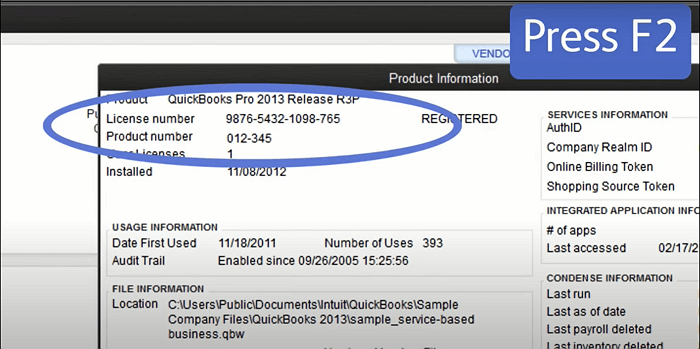
  • Press F2, and the product information window will open.
License Information and a product key
  • Now, press Ctrl + B + Q in the open window of product information. Click OK at the bottom of the page.

In case you are tracking an inventory in QuickBooks Desktop:

  • Click Yes and specify the starting date.
  • Now, click No if you are looking to set up new items in QuickBooks Online later.
  • You will receive an email from Intuit once the conversion is complete. 
  • Click on the complete your setup button in the email.
  • Log in to QuickBooks Online account.
  • Select the company file that you want to open.

Confirm Company Settings

  • Click on the Settings.
  • Now, select Account and Settings.
  • Enter your company and contact information on the Company tab.
  • In the company email, enter your email address to receive the monthly invoices for your QuickBooks Online subscription from Intuit
  • If you are not interested in using the company email address to contact your customers, you can enter the email in the Customer-facing email box.
  • Finally, click Save.
Account and Settings

Configure Sales Tax Settings 

You are required to set up QuickBooks Online with the right CRA Business Number that suits the filing frequency, too. If you have already registered for sales tax, you can skip the steps below:

  • Click on Set up sales tax.
  • You can choose the province or territory where you have your business and click Save.
  • Fill in the necessary information and click Next.
  • On the next screen, click OK.
  • Now, you can edit the settings at any time.

Connect bank and credit card accounts

For this, click on the link Connect bank and Credit Card accounts to get the complete details. 

Clean up bank reconciliations

  • Click on the Settings and select Reconcile
  • Select the concerned bank account from the drop-down menu.
  • Now, add the Ending Balance and Ending date.
  • Click on the Reconcile Now, and a list of transactions will display. 
  • Click on the top checkmark boxes to select all transactions in the list.
  • Ensure to select all transactions if the data is in two columns. 
  • Find the transactions that are still not cleared and uncheck them. If the difference is zero, it means you have successfully completed the reconciliation process.
  • Click on Finish Now.
  • Now, repeat the steps for each account that you have connected to QuickBooks Online

Link your payments and credits to open invoices

  • Click on the Settings and select Account and Settings.
  • Click on Automatically apply credits on the Advanced tab.
  • Finally, click on Save.

Review your accounts’ detail types

  • Search the Account list report and open it.
  • Review your accounts and then select the account name.
  • Now, edit the account’s detail type.
  • From the Detail Type drop-down, choose the correct detail type.
  • Click on Save and close.

Complete payroll setup

  • In the Paid in (Year) column, you need to make sure that each switched to Yes who received a pay cheque. 
  • Those employees will automatically be listed No who were not paid in the current year.
  • Click on the Complete payroll setup to enter or verify your year-to-date payroll totals and employee information.
  • To complete the setup, follow the on-screen instructions.
  • Use Run Payroll when you are ready to pay employees. 

During the process, you may be asked to match your payroll items. It is asked when you have your pay types from QuickBooks Desktop that were not linked with a Standard QuickBooks Online pay type. You can follow the steps to map your QuickBooks Desktop pay types with QuickBooks Online:

  • Click on the drop-down in the QB Online column.
  • Now, you need to select the pay type. Ensure it matches the items set up in your Desktop file.
  • Also, you are required to see that your items are set up.
  • After you complete the mapping, click on Save and close.
  • Now, use the same process for each item that needs mapping and then click Continue.

Link you Payments account

  • Click on the Settings and select Account and Settings.
  • Click on Payments and select Learn more in the QuickBooks Payments section.
  • Click on Set up Payments.
  • A sign-up window will open with three sections.
  • Click Start in the Business section and fill out the form. 
  • Now, click on Next.
  • Click Start in the Bank section and choose Add a new bank connection.
  • Now, you need to search for your related bank.
  • Choose the account to receive customer payments into. 

Add Users

  • Click on the Settings and then select Manager users.
  • Click on Add user and select the user type you want to create one. 
  • Depending on your user type, more options may display on the screen. 
  • Now, enter your fresh user name and email address and click on Save.
Add a new User

Invite an accountant

  • Enter your accountant’s email address.
  • Now, click on Invite.
  • Take your cursor to the Settings and click on Manager users.
  • Click on Accounting firms and select Invite.
  • Fill in the required details and click Save.
Accounting firms

Troubleshoot Migration Issues

Rebuild Company Data

Step 1: Verify your company data

  • In the QuickBooks Desktop, click on Window and then select Close All to close all the running program.
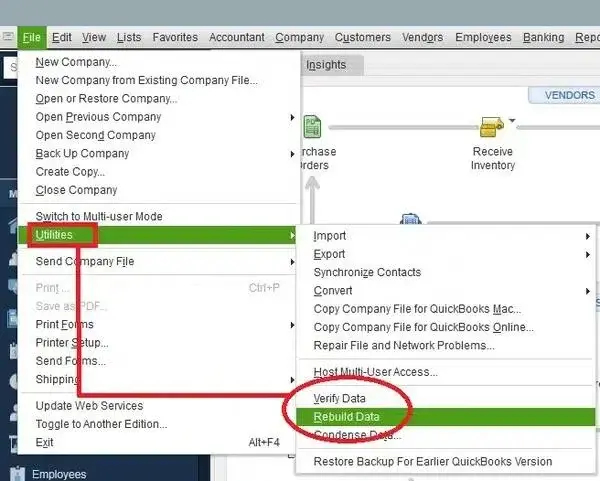
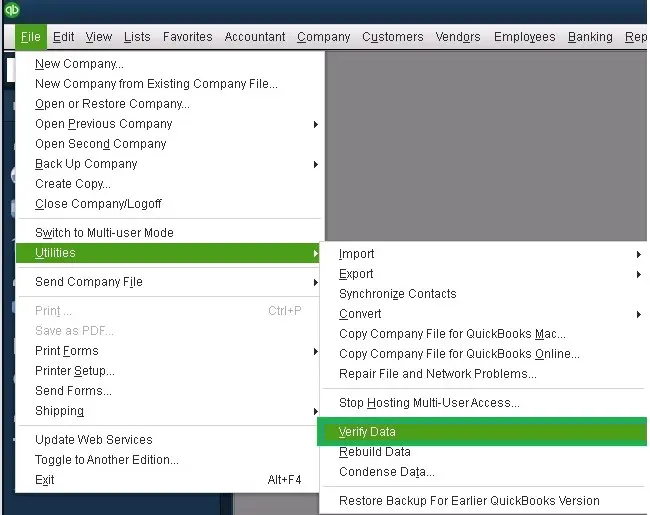
  • Now, select File and then click on Utilities.
  • Click on Verify Data.
verify and rebuild company file data

Post Conversion Issue

Issue 1: Customer balances are off in QuickBooks Online

The links between credits and invoices might break while importing if you have used journal entries to apply payments to invoices. 

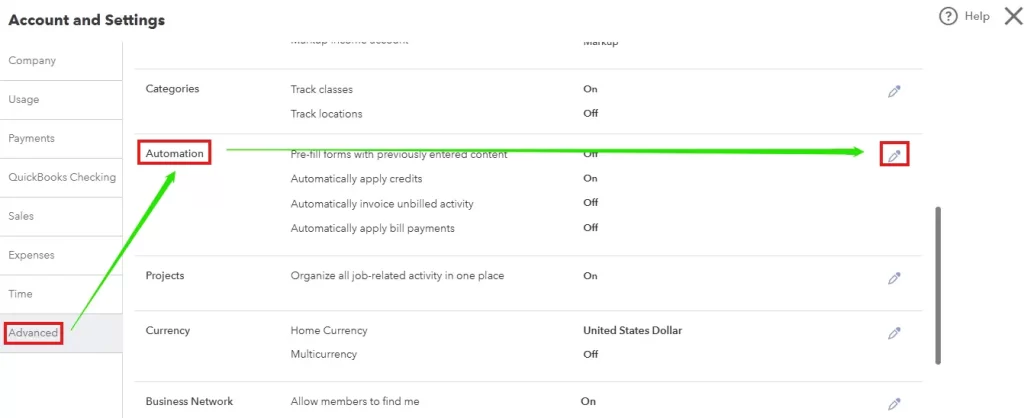
  • Click on Settings, and then click on Account and Settings.
  • Click on the Advanced tab and then select the Edit the Automation section.
Click on Advanced tab
  • Select the Automatically apply credits slider and then click on Save.
  • Finally, hit Done.

Issue 2: Invoices or sales transactions were converted to journal entries after importing to QuickBooks Online. 

Change the sales tax item rates, and prevent your sales transactions from turning into journal entries. If you have items with flat sales tax rates, change all of them to ensure that your transactions are imported correctly. 

Start using QuickBooks Online

Now, you can use QuickBooks online. Click on the link to get help for your QuickBooks Online journey. 

quickbooks online setup

Conclusion 

Thanks for being with us! We are glad to provide you with the best methods and hope for your successful data migration from QuickBooks Desktop to QuickBooks Online. Not to ignore, sometimes things can be complicated and may require external support. To get any help regarding migrating data from QuickBooks Online to the desktop, dial Call Us : +1(866)500-0076

Frequently Asked Questions

1. What are the main differences between QuickBooks Desktop and QuickBooks Online?

QuickBooks Desktop is installed on a computer and runs locally, while QuickBooks Online is cloud-based, meaning it can be accessed from anywhere with an internet connection. QBO also offers more real-time collaboration, automatic updates, and integration with other online tools, but Desktop has some features not available in QBO, such as certain reporting options and industry-specific tools.

2. Is the migration process complicated?

The migration process can be straightforward, but it depends on the complexity of your business. If you have a lot of historical data, custom reports, or complex payroll setups, you may need to plan extra time and effort to ensure a smooth transition. QuickBooks offers a migration tool that helps automate much of the process, but you may still need to do some manual setup or clean-up afterward.

3. What data can be migrated from QuickBooks Desktop to QuickBooks Online?

Generally, you can migrate:

  • Customer, vendor, and employee lists
  • Chart of accounts
  • Bank accounts and credit card accounts
  • Open invoices and bills
  • Transactions, including payments, deposits, and expenses
  • QuickBooks Desktop items, services, and products

However, some data may not transfer, such as attachments or certain custom reports, and some advanced features in QuickBooks Desktop, like job costing, industry-specific features, or certain reports, may not have an exact match in QuickBooks Online.

4. Can I migrate historical data from QuickBooks Desktop?

You can migrate up to 3 years of historical data depending on your QuickBooks Online subscription. However, the further back you go, the more complex the migration might be. If you need more than 3 years of data, you may need to manually enter it or hire a professional to help.

5. How do I migrate my data from QuickBooks Desktop to QuickBooks Online?

QuickBooks provides an Import Tool for this process:

  • Sign in to QuickBooks Online: Set up your QBO account.
  • Use the migration tool: From the QBO dashboard, go to the gear icon > Import Desktop Data.
  • Choose your QuickBooks Desktop file: Follow the on-screen instructions to upload your QuickBooks Desktop file.
  • Review and map data: The tool will guide you to ensure your data is mapped correctly.
  • Complete the process: Once the import is complete, review everything in QBO to confirm it is accurate.

6. Can I get help from QuickBook Support Net during the migration process?

Certainly, you will get quick support during the migration process of your QuickBooks data. You can call the support team directly, dial Call Us : +1(866)500-0076.

About The Author

Lana Creston

Lana Creston is an experienced technical and accounting writer with a total of 9 years of experience. She currently works on QuickBooks accounting and technical guides at QuickBookSupportNet. Lana has a passion for reading and writing about various technical topics, especially exploring new accounting methods and software, while continuously expanding her expertise in the ever-evolving field of finance and technology.

Quick, clear, and hassle-free QuickBooks assistance.

Get a Free Consultation with Our QB Tax Experts
Connnect with Our Certified QuickBooks Professionals - Dial Tollfree: +1(866)500-0076