Resolve QuickBooks Error 1723 with Easy Solutions

Mar 9, 2026

Admin |

Estimated Read Time : 5 MIN

When installing or uninstalling QuickBooks Desktop, some users may encounter an error message that stops the process midway. One common installation issue is QuickBooks error 1723, which usually appears with the message: 

Error 1723: There is a problem with this Windows Installer package.” 

Warning Message 1723

This error indicates that the Windows Installer required to complete the installation is not functioning properly or that certain system files are damaged or missing.

In this blog, we will explore the causes of QuickBooks Error 1723, its symptoms, and the most effective troubleshooting methods to help you resolve the issue and continue using QuickBooks without interruptions

What Causes QuickBooks Install Error 1723? 

Before attempting any fixes, it’s important to know what triggers QuickBooks error 1723. The following are the most common causes: 

  • Incorrect or restricted permissions in the Windows %temp% folder.
  • An outdated Windows operating system that has not been updated.
  • Damaged, missing, or improperly configured Microsoft .NET Framework.
  • The .NET Framework 4.5 (or later versions) is disabled in Windows Features.
  • The .NET Framework 3.5 SP1 is disabled or not enabled in Windows Features.
  • Corrupted or improperly configured Microsoft MSXML (Microsoft XML Core Services).
  • The MSXML6.dll file is not properly registered in the Windows system.
  • Issues with Windows components required for installing QuickBooks Desktop.

Learn How to Fix QuickBooks 1723 When Installing or Updating 

If you encounter QuickBooks Error 1723 while installing or updating, it’s usually due to specific Windows or system component issues. Understanding these causes will help you apply the right fixes quickly and effectively:

1. Edit the permissions in your Windows %temp% folder

Granting full control to your Windows %temp% folder lets QuickBooks access necessary files, preventing Error 1723 during installation or updates.

  • Press the Windows key on your keyboard to open the search bar.
  • Type %temp% and hit Enter to access the Windows TEMP folder.
  • Right-click inside the folder and select Properties.
  • In the Properties window, click the Security tab, then choose Edit.
  • Select your Windows user account name, and under the Allow column, check the box for Full Control.
  • Click OK two times to save the changes, then try reinstalling QuickBooks Desktop.

2. Update Windows 

Ensure that your Windows operating system is fully updated by following these steps:

  • Press the Windows logo key to open the Windows Start menu.
  • Type Settings in the search box and press Enter.
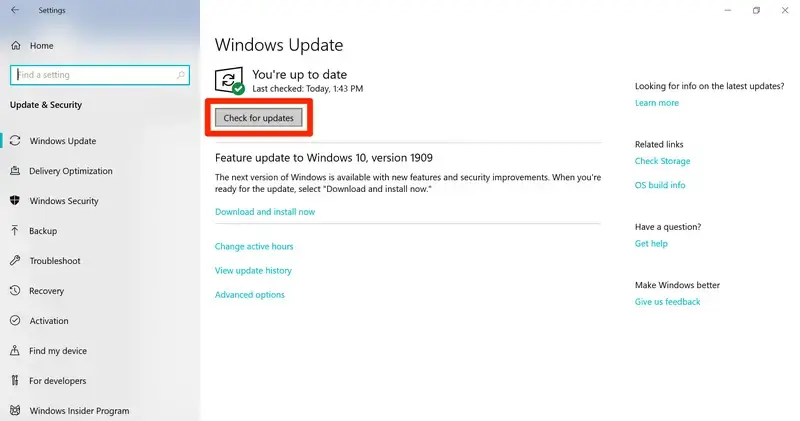
  • Select Windows Update from the available options.
Windows update
  • Click Check for updates to see if any updates are available.
  • If updates appear, click Download & Install. The system will automatically download and install the required updates.
  • Once the process is complete, restart your computer when prompted to apply the updates.

3. Manually fix Windows components

If running the QuickBooks Install Tool and installing updates didn’t resolve the issue, you may need to manually repair certain Windows components.

These steps are recommended only for IT professionals, experienced Windows users, or individuals working with guidance from Microsoft support specialists.

a. Repair or reinstall Microsoft .NET Framework

  • Ensure that all running applications are closed.
  • Open the Windows Start menu on your computer.
  • In the search box, type Control Panel and open it from the search results.
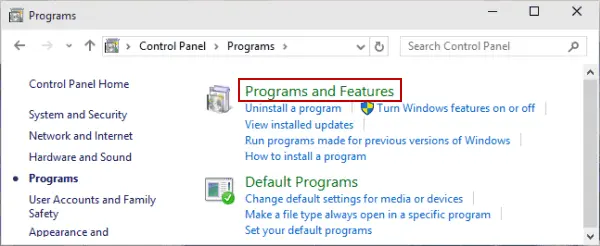
  • Select Programs and Features.
Programs and Features
  • Click Uninstall a Program (this step will only open the program list and will not uninstallanything).
uninstall or change a program
  • From the left-hand side, choose Turn Windows features on or off.
  • Scroll down the list and find .NET Framework.
  • Make sure that .NET Framework 4.5 (or any newer version) and .NET Framework 3.5 SP1 are both checked or enabled.

Note: The same troubleshooting process applies to .NET Framework versions 4.5, 4.6, 4.7, and 4.8.

Check NET Framework 4.5 (or later)

If the .NET Framework 4.5 (or a newer version) checkbox is not selected:

  • Check the box to enable .NET Framework 4.5 (or later).
  • Click OK to apply the changes.
  • Restart your computer to complete the process.

If the .NET Framework 4.5 (or later) checkbox is already selected:

  • Uncheck the box to disable .NET Framework 4.5 (or later). Do not enable it again at this stage.
  • Click OK to confirm the changes.
  • Restart your computer.
  • After signing back into Windows, repeat the previous steps to enable .NET Framework 4.5 again.

Check NET Framework 3.5 SP1

If the .NET Framework 3.5 SP1 checkbox is not selected:

  • Check the box to enable .NET Framework 3.5 SP1.
  • Click OK to apply the changes.
  • Restart your computer to complete the update.

If the .NET Framework 3.5 SP1 checkbox is already selected:

  • Uncheck the box to disable .NET Framework 3.5 SP1. Do not enable it again immediately.
  • Click OK to save the changes.
  • Restart your computer.
  • After signing back into Windows, repeat the steps to enable .NET Framework 3.5 SP1 again.

Note: If an error appears while enabling or disabling the .NET Framework, consider contacting an IT professional or Microsoft support. The problem might be related to your Windows operating system rather than QuickBooks.

b. Repair Microsoft MSXML

Registering the MSXML DLL files can help resolve installation issues that occur when the Microsoft XML Core Services files are not properly configured in the Windows system. Follow the steps below based on whether your computer is running a 64-bit or 32-bit version of Windows.

For a 64-bit Windows operating system:

  • Open the Windows Start menu and type cmd in the search bar.
  • Right-click Command Prompt and select Run as administrator.
run as administrator
  • When the C: prompt appears, type cd\windows\syswow64 and press Enter.
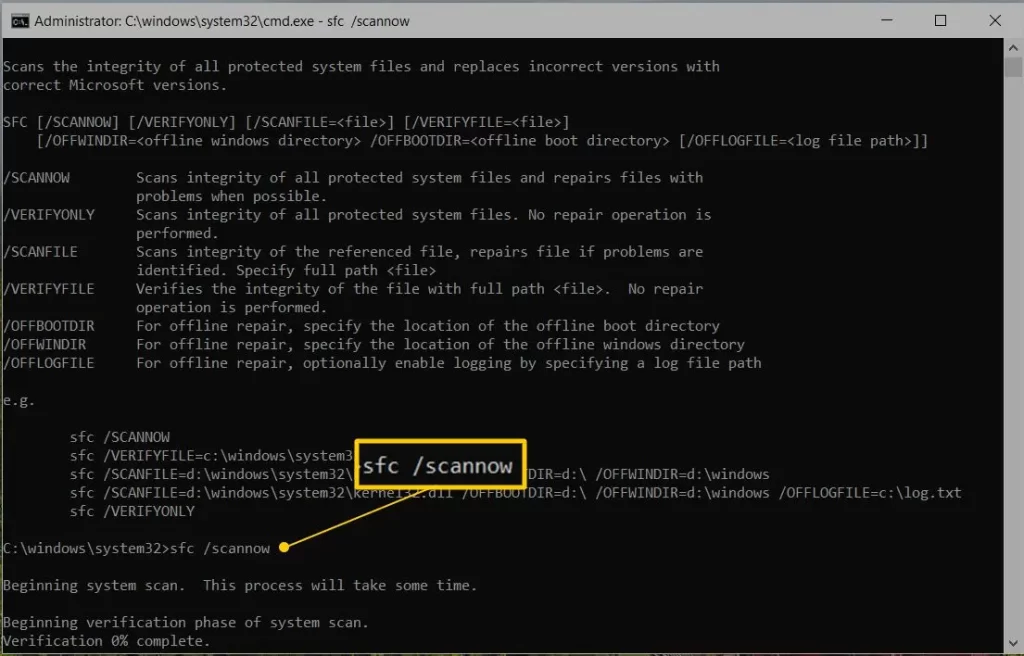
  • Next, type regsvr32 MSXML6.dll and press Enter to register the file.
  • After completing the process, proceed with installing QuickBooks Desktop.

For a 32-bit Windows operating system:

  • Press Windows + R on your keyboard to open the Run dialog box.
  • Type cmd and press Enter to open the Command Prompt.
  • Enter regsvr32 MSXML6.dll and press Enter to register the DLL file.
  • Once done, install QuickBooks Desktop again.

If the problem continues after performing these steps, consider reaching out to an IT professional for further assistance.

4. Clean install QuickBooks Desktop

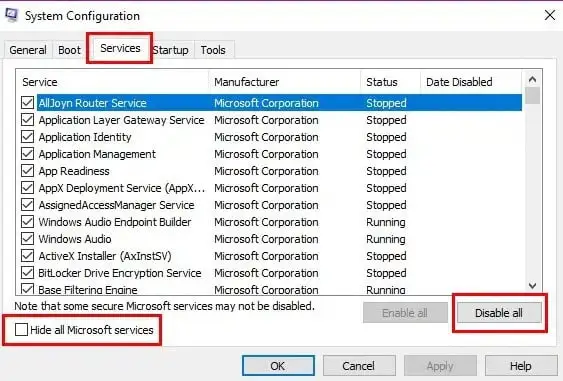
Sometimes error 1723 occurs because background programs or Windows services interfere with the installation process. Using Selective Startup starts Windows with only essential services, which prevents third-party applications from blocking or interrupting the installer.

When you clean install QuickBooks Desktop, Windows loads minimal drivers and services. This clean environment allows the installer to properly access required system files and Windows components, which often resolves Error Code 1723 that appears when installation scripts fail to run or required permissions are blocked. 

Conclusion 

Not only installation, but other important QuickBooks processes can also be affected if system components like the Windows Installer are not working properly. Through this guide, you learned the possible causes of QuickBooks error 1723 and the solutions that can help repair Windows components and complete the installation successfully.

However, if the error persists or you need expert assistance while performing the troubleshooting steps, it is best to consult a QuickBooks ProAdvisor. Dial +1(866)500-0076 to connect with a certified professional and get immediate help resolving the issue.

Frequently Asked Questions 

What is QuickBooks Error 1723?

QuickBooks error 1723 is a Windows Installer error that appears when installing or uninstalling QuickBooks. It usually indicates that there is a problem with the Windows Installer package or a damaged system file required to run the installation process.

How to fix error 1723 in QuickBooks?

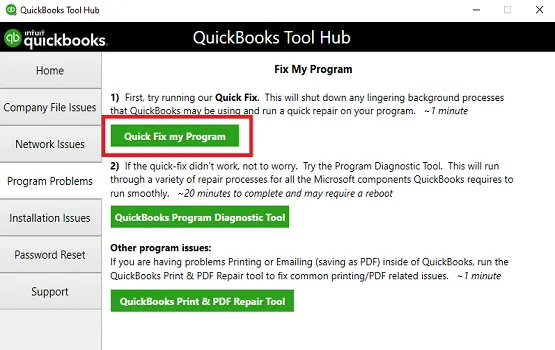
QuickBooks error 1723 occurs during installation/update due to Windows Temp folder permission issues or damaged installation files. Fix it by granting full control permissions to the %temp% folder, running the QuickBooks Tool Hub’s Install Diagnostic Tool, or repairing the Microsoft .NET Framework. 

Can Windows updates fix QuickBooks Error 1723?

Yes, installing the latest Windows updates can resolve compatibility issues and repair missing system components that may cause error 1723 during QuickBooks installation.

Is error code 1723 a Windows-related issue?

Yes, in most cases, it is related to the Windows Installer or system permissions, not QuickBooks itself. Fixing Windows components usually resolves the problem.

About The Author

Lana Creston

Lana Creston is an experienced technical and accounting writer with a total of 9 years of experience. She currently works on QuickBooks accounting and technical guides at QuickBookSupportNet. Lana has a passion for reading and writing about various technical topics, especially exploring new accounting methods and software, while continuously expanding her expertise in the ever-evolving field of finance and technology.

Quick, clear, and hassle-free QuickBooks assistance.

Get a Free Consultation with Our QB Tax Experts
Connect with Our Certified QuickBooks Professionals - Dial Tollfree: +1(866)500-0076