Syncing QuickBooks POS with QuickBooks Desktop helps ensure that daily transactions are automatically recorded without manual entry, reducing the chances of errors. However, the process requires proper admin rights and correctly configured software settings. If these requirements are not met, you may encounter QuickBooks error 140014, which occurs when the software cannot access or sync with the QuickBooks Desktop company file.
This error can also be caused by connectivity issues or incorrect user permissions. In this guide, we’ll explore the common causes of this error and the steps you can take to fix it.
What Causes QuickBooks Point of Sale Error 140014?
Let’s explore why you get QuickBooks error 140014 when trying to sync your company file with QuickBooks Point of Sale:
Corrupted or damaged QuickBooks POS installation
User Account Control (UAC) restrictions are blocking QuickBooks POS or QuickBooks Desktop processes.
Insufficient user permissions in Windows
Corrupted or misconfigured Windows user profile
Sales Tax feature disabled in QuickBooks Desktop
Inventory or Sales Tax preferences are not enabled in QuickBooks
QuickBooks Desktop does not run with administrative privileges
Troubleshoot QuickBooks Error 140014 When Syncing with Data File
To fix QuickBooks error 140014 and restore smooth data synchronization in QuickBooks, follow the troubleshooting steps outlined below:
1. Repair QuickBooks POS
Let’s make sure the synchronization isn’t interrupted by a damaged or incorrect installation of QuickBooks POS:
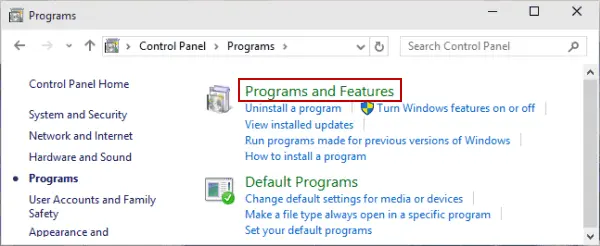
Press the Windows+R keys to open the Run prompt.
In the Run command, type Control Panel and press Enter.
Go to Programs and Features.
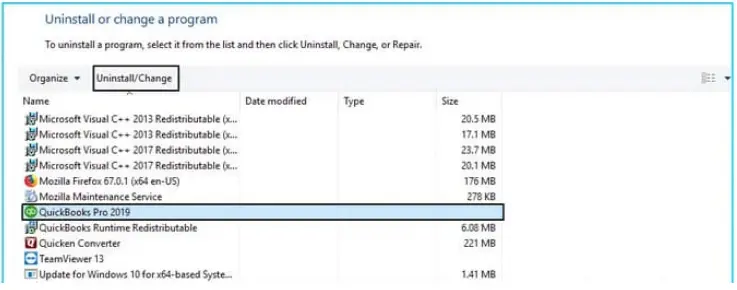
Now, choose QuickBooks Point of Sale from the list of programs.
Click on Uninstall/Change.
Choose Repair to repair the QuickBooks POS.
2. Disable User Account Control (UAC) preferences
Disabling User Account Control (UAC) removes the Windows permission restrictions that block essential payment processing functions, scheduled reports, or file access.
Press the Windows+R keys to open the Run window.
In the Run field, type ControlPanel and click OK.
Choose User Accounts, then User Accounts (Classic View).
Click on Change user account control settings.
(Note: if you are prompted by UAC, click Yes to continue).
Move the slider.
Set to Never Notify and click OK to disable UAC
Set to Always Notify and click OK to enable UAC (Note: Click Yes when prompted by UAC to continue.)
Finally, restart your computer.
3. Create a new Windows user
Create a new Windows user to fix corrupt user profile settings or permissions issues:
Press the Windows logo key.
In the Windows search, type Control Panel and press Enter.
Now, choose User Accounts.
Click on Manage accounts.
As a user type, choose Admin.
Restart your computer.
Set UAC to Never Notify and click OK.
When done, try to run the QuickBooks financial exchange again.
4. Enabling Sales Tax feature
Enabling the sales tax feature allows QuickBooks POS to ensure that sales tax collected in POS is correctly recognized, categorized, and recorded as a liability in the accounting software.
Go to Edit in the top menu bar.
Select Preferences.
Choose Sales Tax in the Preferences window.
Move to the Company Preferences tab.
Click Yes to enable the sales tax in the Do you charge sales tax section.
5. Run QuickBooks File Doctor
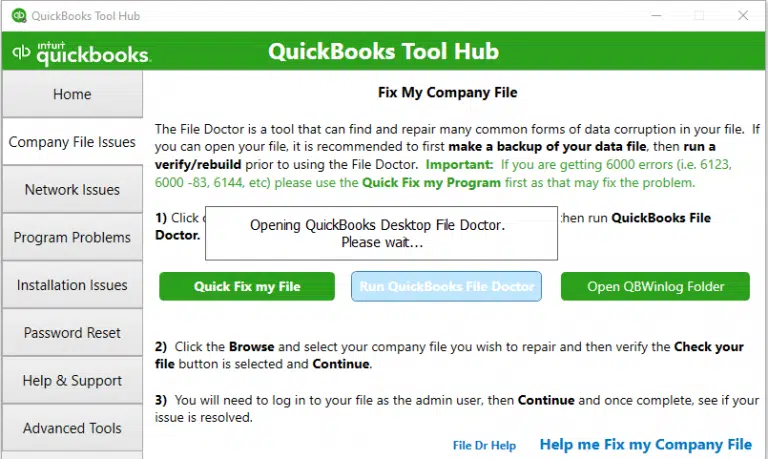
QuickBooks File Doctor checks the company file for potential data damage and network connectivity problems. If any issues are found, it performs a quick repair to resolve them.
In QB File Doctor, choose your company file from the dropdown menu. If you don’t see the company file, click Browse, then search for and locate it.
Select Check your file (the middle option only), then Continue.
Enter the QuickBooks admin password to allow access and click Next.
The scan time usually depends on your company file size and may even take up to 10-15 minutes. The scan time may even say it’s unsuccessful even after fixing the issues. When done, open QuickBooks Desktop and then your company file.
6. Edit QuickBooks Desktop preferences
Here’s how to adjust the preference settings to ensure proper data flow, mapping accounts, and updating tax rates:
Launch QuickBooks Desktop.
Press F2 to check the company file location.
In case you have opened the wrong file, go to Files, then Browse & Open the correct company file.
a. Verify Inventory & sales tax is checked in the company preferences
Launch QuickBooks Desktop.
Go to the Edit menu and choose Preferences.
Open the sales tax invoice and then choose Company preferences.
Select the Sales Tax option.
Follow the same steps for Inventory: go to Items &Inventory, then select the checkbox next to Inventory and Purchase Orders.
b. Double-check if access to company files is allowed on the QuickBooks Desktop
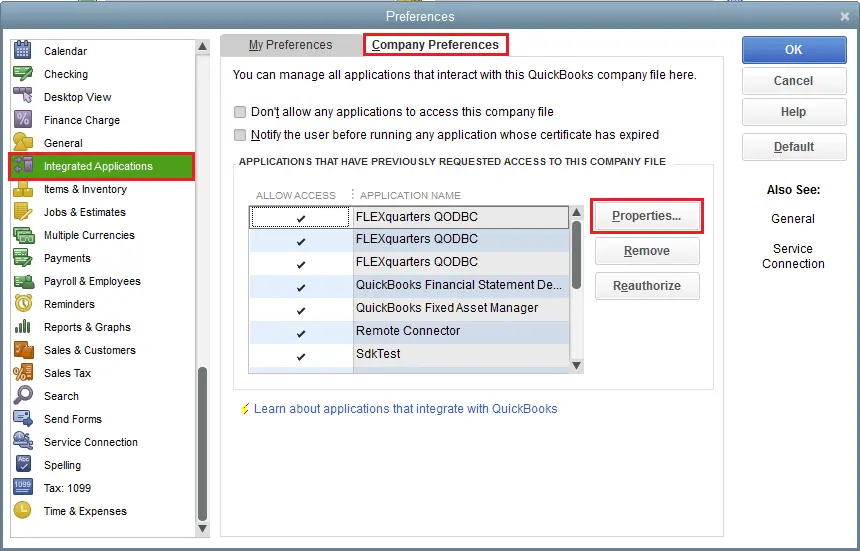
Open QuickBooks Desktop as an admin.
Go to Edit at the top menu bar.
Click on Preferences.
Move to the Integrated applications option.
Select the Company preferences option.
Make sure the correct options are selected to ensure an uninterrupted connection to QuickBooks POS.
Conclusion
With this detailed guide, you will learn how to configure company preferences or enable the sales tax feature to allow QuickBooks POS to sync with your QuickBooks Desktop company file. It will also help you resolve QuickBooks Error 140014 and ensure that the automated sync works without any interruption.
For further assistance, we recommend consulting QuickBooks ProAdvisors who can guide you with the best solutions. Dial (866) 500-0076 to talk to a certified professional right away.
Frequently Asked Questions
How to fix the QuickBooks POS invalid product number?
To fix a QuickBooks POS invalid product number, first delete the damaged Entitlement Client folder contents to force re-registration and ensure to run the POS with the proper Windows admin rights. If nothing works, try installing QuickBooks POS again as a Windows admin user.
Is QuickBooks POS no longer supported?
Yes, Intuit has officially discontinued QuickBooks Point of Sale on October 3, 2023. All the support, security patches, integrated payment services or technical support for the latest POS version 19 are no longer provided. While the software may still open, Intuit does not offer support any longer.
What is QuickBooks error 140014?
QuickBooks error 140014 is a sync error that occurs when the QuickBooks POS system fails to connect or access the QB Desktop company file. It typically indicates a failure in the financial exchange process, often caused by damaged files, incorrect configurations, or network issues.
How do I fix POS error 140014 in QuickBooks?
To fix POS error 140014 in QuickBooks, repair QuickBooks POS, and ensure the company file is synced with the proper admin rights and configured settings for both QuickBooks and POS. Moreover, try syncing the company file again with the sales tax feature enabled and ensure the company file is allowed in QuickBooks.
About The Author
Lana Creston is an experienced technical and accounting writer with a total of 9 years of experience. She currently works on QuickBooks accounting and technical guides at QuickBookSupportNet. Lana has a passion for reading and writing about various technical topics, especially exploring new accounting methods and software, while continuously expanding her expertise in the ever-evolving field of finance and technology.
Effortlessly handle data tasks or get expert assistance with: