Install and Set Up QuickBooks Desktop: Learn with this Guide

Dec 30, 2025

Admin |

Estimated Read Time : 5 MIN

Are you looking for a complete guide to install and set up QuickBooks Desktop? You are in the right place. This guide lets you quickly install QuickBooks on a non-network or dedicated server network.

Installing QuickBooks can sometimes be a tedious and complicated process, depending on the type of installation and whether you are using a PC or a server. By considering all the options, we have ensured you get a comprehensive roadmap for QuickBooks installation. 

Windows System Requirements for QuickBooks

Check if your system meets the requirements. For QuickBooks to work smoothly, in the first step, you need to check and confirm if your PC meets the software requirements. Otherwise, it would hang, and the QuickBooks application would not be able to operate properly. 

Install QuickBooks on One Computer with No Network

Apply these steps to install on one computer for the first time

Note:- If you are looking to install or move QuickBooks Desktop to another computer, we will use the migrator tool. 

  • From the Intuit’s official, you need to download QuickBooks software
  • Start the QuickBooks installation process on an active internet connection.
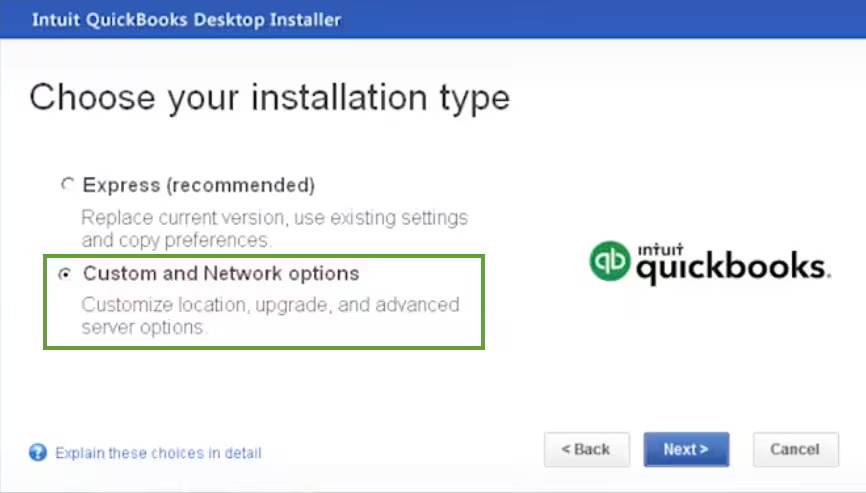
  • Open the File QuickBooks.exe and select either Express Install or Custom and Network Options. 
  • Express Install:- This will save all preferences and install the current version of QuickBooks. If you want to reinstall your previous version to access it, you will need to choose Custom Installation. 
  • Custom and Network Options: This will allow you to install an entirely new version of QuickBooks alongside an active existing version, as well as in a different location.
installation type
  • Finally, click on Next > Install.
  • Once the installation is finished, click on Open QuickBooks.

On a dedicated server or workstations

If you want to install QuickBooks on a dedicated server or on your own PC that has access to the data on your server, follow the steps below.

  • Ensure to operate on a stable internet connection.  
  • Open the file QuickBooks.exe and click on Custom and Network Options, and click on Next. 
  • Select any one among the three options:
  • To install the QuickBooks application on a workstation, “I’ll be using QuickBooks Desktop on this computer”.
  • To install QuickBooks on host files and on a server and on the same computer, “I’ll be using QuickBooks Desktop on this computer AND I’ll be storing our company file here so it can be shared over our network”. 
  • To install the QuickBooks Database Manager on a server to host files, “I will NOT be using QuickBooks on this computer. I will be storing our company file here so it can be shared over our network”.
  • Finally, click “Next” and select “Next” again to begin the installation.
  • If you want to change the installation location, click “Change Install Location.” Then, browse to the location where you want to place your QuickBooks folder.
  • When complete, click “Open QuickBooks.”

Open your company file.

Now, you need to set up a folder where you create or store your company files. If your data is being shared through a server, you’ll need to set up a shared folder. To do this, you require administrator rights to the server where your company files are stored.

On one computer with no network

You would need to either:

  • Create a new company file from the beginning.
  • Launch QuickBooks Desktop.
  • Click on Create A New Company, or click on the File and choose New Company.
  • Click on Express Start and follow the on-screen instructions.
  • Update your company files to the most recent version of QuickBooks Desktop. 

On a network with multiple computers

Now, you need to set up a folder to keep your company’s files in. If you’re using a server to share data, you will need to set up a shared folder on the server.

Set up multi-user hosting:

  • Launch QuickBooks Desktop on your server.
  • Click on the File and select Utilities.
  • Ensure that you have an option “Stop Hosting Multi-user Access”.
  • Scan your company files if you only have the QuickBooks Database Server Manager installed.
  • Configure internet security and firewall settings.
  • Now, you need to map a network drive to the shared folder on your server.
  • Launch QuickBooks Desktop.

Learn to install and set up QuickBooks Desktop Mac

a: Ensure QuickBooks Desktop for Mac will run on your PC

Check if your Mac system meets the requirements

b: Find your product and license numbers

  • If you downloaded a digital copy, You must have received your license and product number in the email confirmation when you purchased the product. In case you do not have that email, locate your licensee number. 
  • If you bought a physical copy: Find a scratch-off label on the package and scratch off the label. Scratch with soft hands and you will get your license and product number behind the scratch.

c: Install QuickBooks Desktop for Mac

  • Either use the CD installer if purchased from a retailer, or you can download your QuickBooks Desktop for Mac version.
  • Exit from all the running applications.
  • Now, insert the disc into the Mac CD drive or open the installer. The QuickBooks installation window opens automatically.
  • The Applications folder opens automatically when you drag the QuickBooks icon to the Applications folder. 
  • Click on the QuickBooks icon and launch it.

d: Upgrade your company file

In case you have upgraded your QuickBooks Desktop from a previous version for Mac, you are required to update the QuickBooks company file to start your work in the newer version. 

  • In the newer version, open your company file.
  • Click on Upgrade when QuickBooks prompts you to update your company file. 
  • Click on OK if you receive a prompt message.
  • Now, you can check your reports, accounts, and balances to ensure you updated your company file successfully. 

Learn how to activate QuickBooks Desktop after you install it.

Once the installation process is completed, you will see a prompt to activate the QuickBooks desktop. Use the steps below to activate the QuickBooks application manually. 

To activate QuickBooks:

  • Launch QuickBooks software.
  • Select Activate QuickBooks Desktop from the Help menu.
  • Continue with the on-screen steps to verify your details.

Conclusion

Thanks for being with us so far! We hope you have successfully installed and set up the QuickBooks desktop application. After receiving thousands of questions about the installation guide, we have made sure you have all the information in one place.

For more information, contact our senior QuickBooks specialist at **************.

Frequently Asked Questions

How can I install the QuickBooks desktop application?

  • Download the QuickBooks software file.
  • Then run the installer. 
  • Follow the installation steps using www.quickbooksupportnet.com.
  • Complete the installation and finally activate QuickBooks. 

Is it possible to uninstall and reinstall QuickBooks Desktop?

Yes, you can uninstall the QuickBooks desktop application and then simply reinstall it for your fresh use.

How to download and install QuickBooks Desktop?

Apply these steps to download and install the QuickBooks Desktop application:

  • Download the QuickBooks application file from Intuit’s official site.
  • Install the QuickBooks desktop application using quickbooksupportnet.com
  • Then complete the installation process following the guide.
  • Finally, activate your QuickBooks application. 

How to activate the QuickBooks Desktop application?

To activate the QuickBooks Desktop application: 

  • Open the QuickBooks Desktop application.
  • Click the Help menu at the top.
  • Select Activate QuickBooks Desktop from the drop-down menu.
  • Follow the prompts in the activation window to verify your information. This will likely involve entering your license and product numbers. 

How can I set up QuickBooks Desktop?

Open QuickBooks: After installation, open the application. A window will appear titled “No Company Open”.

  • Choose to create a new company:
  • Select Create a new company.
  • Select your setup option:
  • Express Install: If you want a quick setup, continue using Express Start. You will need to enter basic information like your business name, industry, and type.
  • Custom Install: If you want to enter more detailed information from the start, proceed with the custom installation.
  • Enter your information: Follow the on-screen steps to enter your business’s information.
  • Complete the setup: Once the company file is created, you can begin adding more details like customers, vendors, and setting up payroll. 

What is the difference between Express and Custom install in QuickBooks? 

  • The main difference is that the Express installation is for single-user, standard installations. The Express installation is the fastest and simplest option, recommended for first-time users on a single computer.  
  • While the Custom installation allows for more flexibility, such as changing the installation location or setting up a multi-user network. The Custom and Network options are required for more complex setups, such as hosting company files on a server or having multiple users.

About The Author

Lana Creston

Lana Creston is an experienced technical and accounting writer with a total of 9 years of experience. She currently works on QuickBooks accounting and technical guides at QuickBookSupportNet. Lana has a passion for reading and writing about various technical topics, especially exploring new accounting methods and software, while continuously expanding her expertise in the ever-evolving field of finance and technology.

Quick, clear, and hassle-free QuickBooks assistance.

Get a Free Consultation with Our QB Tax Experts
Connnect with Our Certified QuickBooks Professionals - Dial Tollfree: +1(866)500-0076