Integrate QuickBooks Time and QuickBooks Desktop using Web Connector
Sep 9, 2025
Admin |
Estimated Read Time : 5 MIN
Managing employee work hours, shifts, and project costs can quickly get complicated, especially for businesses with remote staff and field workers. That is where QuickBooks Time comes in. It is one of the most trusted time-tracking and staff management tools available in the market today.
It is built to seamlessly integrate with QuickBooks Desktop and QuickBooks Online. In this guide, we will cover how to integrate QuickBooks Time and QuickBooks Desktop using Web Connector.
QuickBooks Time is a cloud-based and mobile app to help businesses track employees’ working hours, manage schedules, and pull data for payroll and invoicing.
Over the years, QuickBooks Time tracking setup for Desktop version has added more advanced features, and time tracking is its main feature. This feature has been improved and enhanced multiple times with the addition of new tools.
Ensure to stay with your computer to sync QuickBooks Time to QuickBooks Desktop payroll integration. The sync can only be processed in one location. Open your company file to integrate it with the QuickBooks Time application and sign in as an admin in single-user mode.
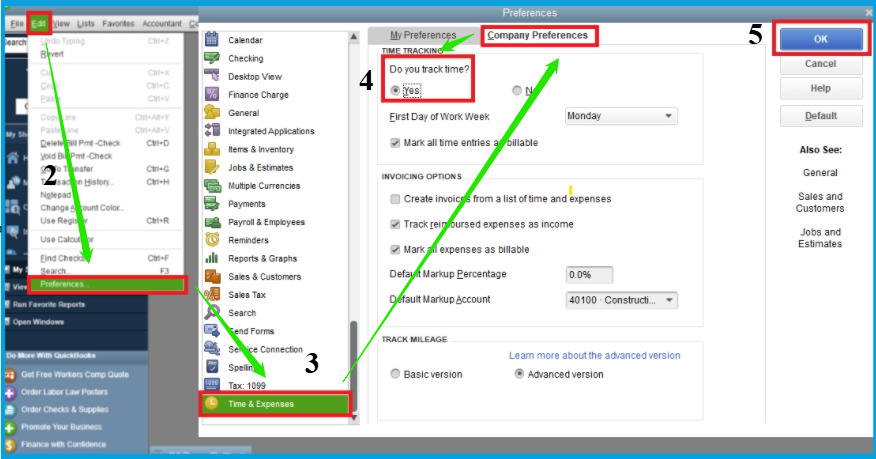
Turn ON the time-tracking:
Click on Edit and select Preferences.
Now, choose Time and Expenses.
Click on Company Preferences and select Yes.
Finally, click on OK.
Turn ON payroll preference:
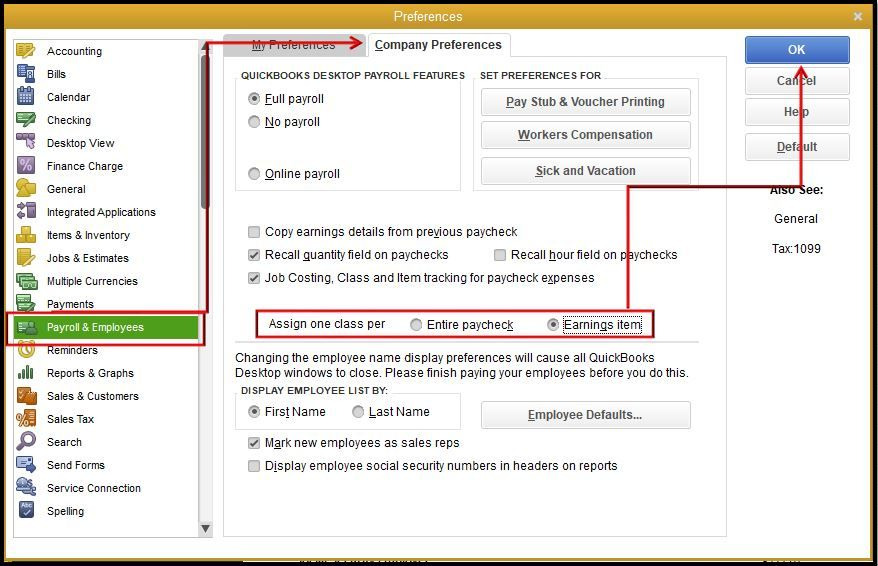
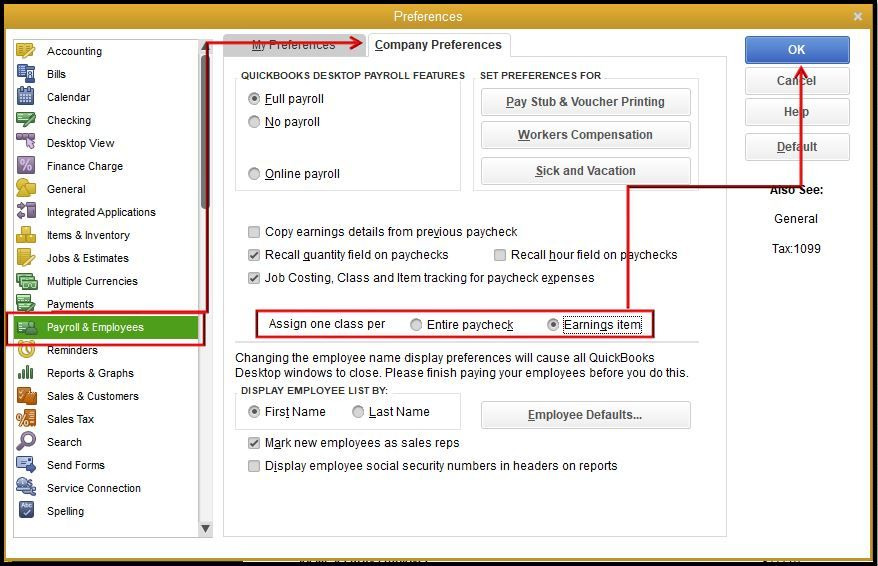
Click on Edit > Preferences and choose Payroll & Employees.
Click on Company Preferences and select Full Payroll.
Finally, hit OK.
Ensure that the week start date matches in QuickBooks Time and QuickBooks Desktop
Click on Edit and select Preferences in QuickBooks Desktop.
Click on Time and Expenses and select Company Preferences.
Now, choose the correct start day for the First Day of Work Week.
Click OK and then click on Company Settings > Payroll & Overtime.
Ensure that your Week Start matches QuickBooks Desktop and then click on Save.
You need to add all the employees and vendors in QuickBooks Desktop that are required to export to QuickBooks.
Now, set up your employee payroll Info:
Click on Employees.
Choose Employee Center and select an employee.
Click on Edit and choose Payroll Info.
Click on the checkbox in the Earnings section next to Use time data to create paychecks.
You need to assign a minimum of 1 payroll item to your employee.
Repeat the above steps for each employee.
Set up your company employee to default:
Click on Edit and select Preferences.
Now, choose Payroll & Employees.
Click on Company Preferences and choose Employee Defaults.
Click on Use time data to create paychecks.
Hit OK.
Set up your vendor list correctly:
Select Vendors.
Click on Vendor Center.
Now, select a vendor and click on Edit.
Ensure they have their first and last name.
The above steps are based on the assumption that you are integrating your QuickBooks Desktop with an existing QuickBooks time account.
Set up the Integration.
Step 1: Install an add-on
Log in to your QuickBooks time as an admin.
Click on Feature Add-ons.
Choose Manage Add-ons.
Click on Install next to the option QuickBooks Desktop Integration.
Step 2: Select Options
Note: Remember that the imports from QuickBooks Desktop, including employees and vendors, customers or jobs, payroll items, and more, are required to be managed in your QuickBooks Desktop application.
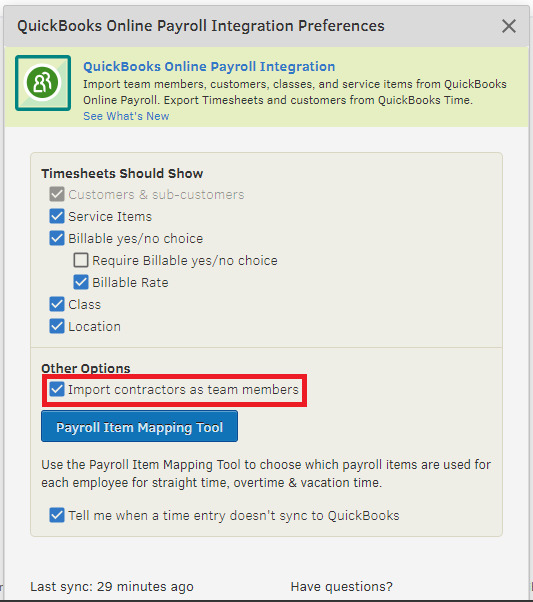
You are required to make selections for the information you want to bring via the QuickBooks Desktop Integration Preferences window. There is an option to change it later.
Delete Team members: In case QuickBooks Time already has employees in the list, they would not be able to link with the QuickBooks account. You can archive them for the first sync.
Share Customers and Jobs from QuickBooks: You can import all the active customers and their jobs into the QuickBooks Time account.
Show Service Items: You can bring the Service Item list, considering it as a list of employees.
Show Billable: The application provides them with the option to know whether the time they are tracking is billable or not. The billable rate is visible in the weekly time sheet when exported to QuickBooks Desktop.
Show Class: You can bring the class list and use it as an employee list when tracking their time.
Import Vendors as team members: In case vendors or contractors are willing to track time, you have a choice to import them.
Only Important 1099 Vendors: Those vendors who are eligible for 1099 have the option of importing into QuickBooks Desktop.
If you have added any jobs or customers before the integration, they will be removed during the first sync. There will be no item deleted in the QuickBooks Time account, and if the warning windows appear on the screen, read them and if you are willing to continue, hit Next and type Delete.
Step 3: Set up Web Connector
You can set up Web Connector via Advanced/Manual Setup
Repeat the step Employees > Enter Time and then Activate QuickBooks Time.
Hit Try it free now, and let the first-time sync complete between QuickBooks Time and QuickBooks Desktop.
After completion of integration, click on Set upand use the integration.
You can customize your settings.
Conclusion
We have covered the important query of QuickBooks users on how to integrateQuickBooks Online and QuickBooks Desktop using web connector. Still if are unable to integrate it, talk to our senior QuickBooks Specialist at +1(866)500-0076.
Frequently Asked Questions
1. What is QuickBooks Time? QuickBooks Time is a cloud-based application with a mobile version to track employees’ working hours, shifts, project tracking, and more.
2. Is QuickBooks Time Tracking Good? The time tracking is almost an effective feature in the application, with its reliability and add-ons with advanced features.
3. What are the features of QuickBooks Time? There are many features that make users rely on the QuickBooks Time login:
Clocking in and out.
GPS Tracking
Time Kiosk
Scheduling Employees
Tracking jobs and projects
Tracking employees to see if they are working or not.
4. What is QuickBooks Web Connector?
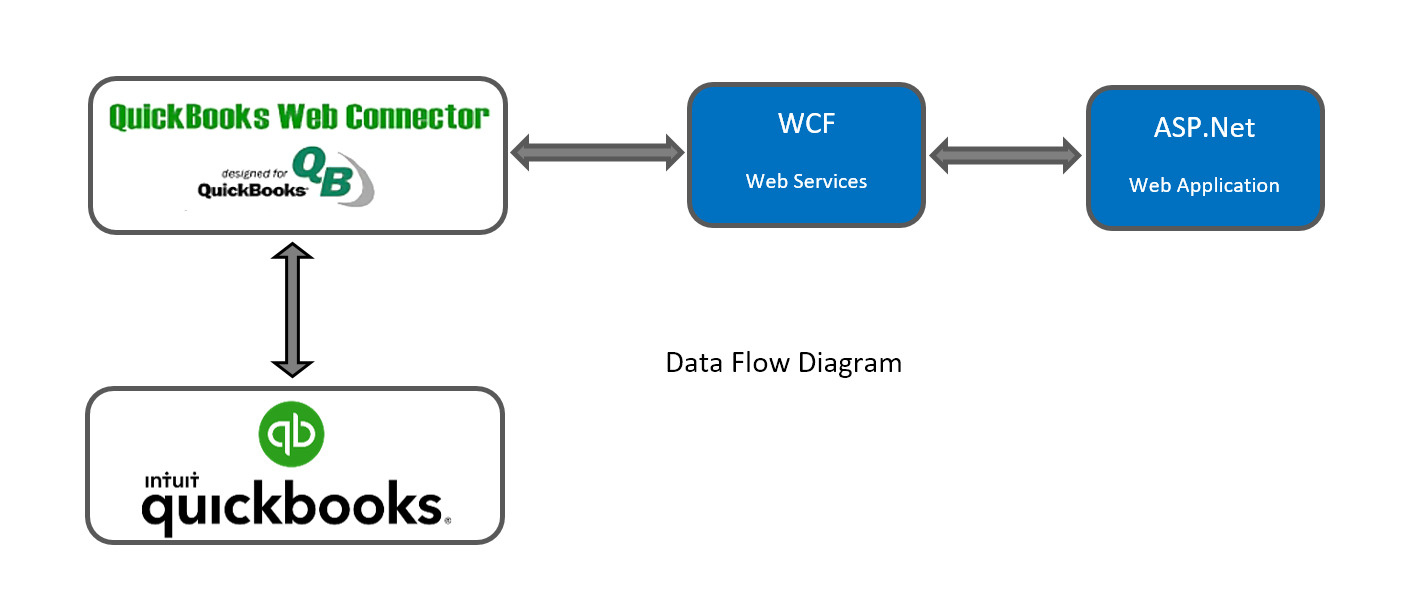
The Web Connector in QuickBooks is a Microsoft Windows application that helps in exchanging data with QuickBooks Desktop products. It enables web-based applications to exchange data with QuickBooks Financial software and QuickBooks Point of Sale.
5. What are the QuickBooks products that Web Connector supports?
Any QuickBooks Desktop can use QuickBooks Web Connector 2.1.0.30 and older versions. It also includes QuickBooks Enterprise Solutions, QuickBooks Premier 2002 or later, QuickBooks Simple Start 2006 or later, and more.
About The Author
Lana Creston is an experienced technical and accounting writer with a total of 9 years of experience. She currently works on QuickBooks accounting and technical guides at QuickBookSupportNet. Lana has a passion for reading and writing about various technical topics, especially exploring new accounting methods and software, while continuously expanding her expertise in the ever-evolving field of finance and technology.
Effortlessly handle data tasks or get expert assistance with: