A Detailed Guide to Troubleshoot QuickBooks Error PS107

Feb 10, 2026

Admin |

Estimated Read Time : 5 MIN

Is QuickBooks failing to update payroll and showing error code PS107? Don’t panic—this issue can disrupt tax table updates and lead to inaccurate payroll calculations. If left unresolved, it may even result in compliance issues and penalties.

QuickBooks error PS107 is one of the PSXXX series errors that interrupts the payroll updates, resulting in inaccurate tax calculation, compliance with legal regulations and tax obligations, and any delays in taxes can result in tax penalties. 

In this guide, we’ll explain why QuickBooks fails to update payroll and walk you through step-by-step solutions to ensure smooth, accurate tax table updates.

What Causes QuickBooks Payroll Update Error PS107? 

There’s no single factor that interrupts your payroll updates in QuickBooks. Let’s see all the possible reasons why you see QuickBooks payroll error PS107: 

  • Not having an active payroll subscription 
  • QuickBooks Desktop might not be registered or activated yet
  • QuickBooks background process might be interrupting the update 
  • Microsoft Defender may be blocking
  • Damaged or corrupted CPS folder
  • Incorrect settings of Windows Firewall 

Learn How to Fix QuickBooks Error PS107 When You Download Payroll Updates

In this section, we will walk through step-by-step solutions to address the root causes discussed above. Be sure to try each method to successfully fix QuickBooks error code PS107 and ensure smooth, uninterrupted payroll updates.

1. Check your payroll service subscription

An active payroll subscription to have access to the current or latest updates and install them and resolve QB error PS107: 

  • Exit all your QuickBooks company files. 
  • Restart your computer. 
  • Launch QuickBooks Desktop. 
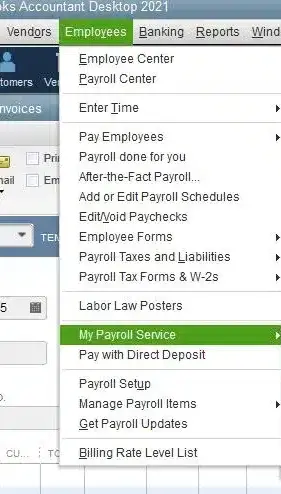
  • Go to Employees and choose My Payroll Service.
My payroll Service
  • Click on Manage Service Key.
  • Verify the Service Name and Status and it shows as Active.
  • Select Edit and then verify the service key number. If these are incorrect, enter the accurate service key. 
  • Click Next and clear the checkbox for Open Payroll Setup box.
  • Now, select Finish
  • This will download the payroll updates entirely. 

2. Register and update your QuickBooks Desktop

It’s important to have the latest security and software improvements. Here’s how to check if your software is registered:

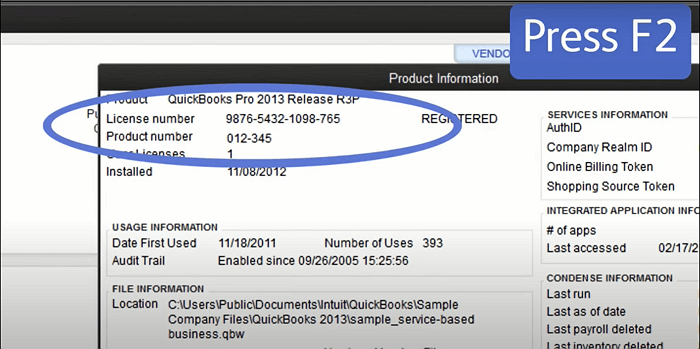
  • Press F2 on your keyboard to open Product Information.
License Information and a product key
  • Beside the license number, check if it says Activated.
  • After you register QuickBooks Desktop, update it to the latest release.

3. Update the payroll tax table 

An up-to-date version of payroll tax table is crucial to process the payroll or direct deposit or else getting the server is quite common. Here’s how you can update the payroll services:

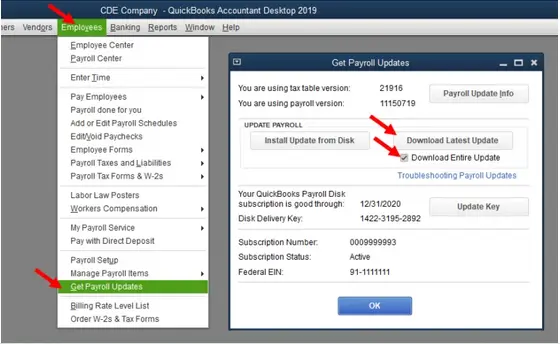
  • Go to the Employees menu. 
  • Choose Get Payroll Updates.
Get payroll updates
  • To find out the version you already use:
    • See the number next to You are using tax table version:.
    • To see if you use the correct version, check the latest payroll news and updates.
    • To get more details on the tax table version, choose Payroll Update Info.
  • To get the latest payroll tax table: 
    • Click on Download Entire Update.
    • Choose Update. An informational window will appear once the download is complete.

4. Repair QuickBooks Desktop

Let’s repair the incorrect installation of QuickBooks and repair the damaged program files using different tools in the QuickBooks Tool Hub: 

Important Note: Make sure to download and install QuickBooks Tool Hub (1.6.0.8) and use the Windows 11 operating system.

a. Run Quick Fix my Program 

The Quick Fix my Program will shut down the processes that QuickBooks uses and then runs a quick repair to your program. 

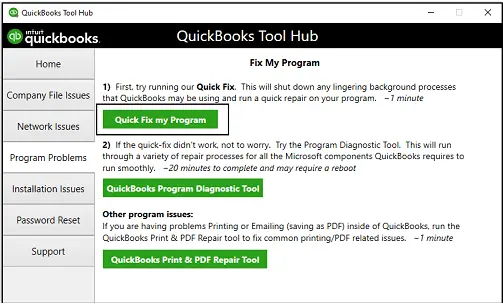
  • Launch the QuickBooks Tool Hub. 
  • Go to Program Problems in the left menu bar. 
  • Click on Quick Fix my Program.
Fix My program
  • Launch QuickBooks Desktop and then open your company file. 

b. Run the QuickBooks Install Diagnostic tool 

If there was an issue during the QuickBooks installation, it might cause problems when using the program. To resolve common installation errors, use the QuickBooks Install Diagnostic Tool.

QuickBooks Install Diagnostic Tool
  • Once the tool completes, restart your computer, open QuickBooks Desktop, and access your data file.
  • Make sure to update QuickBooks to the latest version to ensure you have the latest fixes and security updates.

5. Add Defender exclusion

Let’s make sure Windows Defender isn’t blocking the QuickBooks software either due to incorrect settings and ensure QB error code PS107 is resolved: 

  • Press the Windows logo key. 
  • In the Windows Start menu, type Settings and press Enter
  • Go to Update & Security
  • Select Windows Security > Virus & threat protection.
  • In the left menu bar, choose Manage settings > Exclusion > Add or remove exclusions.
  • Now, click on Add an exclusion and choose between the options: File, Folder, file types, and process.
  • Add the following QuickBooks processes: 
Executable filesLocation
AutoBackupExe.exeC:\Program Files\Intuit\QUICKBOOKS YEAR
Dbmlsync.exeC:\Program Files\Intuit\QUICKBOOKS YEAR
DBManagerExe.exeC:\Program Files\Intuit\QUICKBOOKS YEAR
FileManagement.exeC:\Program Files\Intuit\QUICKBOOKS YEAR
FileMovementExe.exeC:\Program Files\Intuit\QUICKBOOKS YEAR
QuickBooksMessaging.exeC:\Program Files\Intuit\QUICKBOOKS YEAR
QBW32.exeC:\Program Files\Intuit\QUICKBOOKS YEAR
QBDBMgrN.exeC:\Program Files\Intuit\QUICKBOOKS YEAR
QBServerUtilityMgr.exeC:\Program Files\Common Files\Intuit\QuickBooks
QBCFMonitorService.exeC:\Program Files\Common Files\Intuit\QuickBooks
QBLaunch.exeC:\Program Files\Common Files\Intuit\QuickBooks
QBUpdate.exeC:\Program Files\Common Files\Intuit\QuickBooks\QBUpdate
IntuitSyncManager.exeC:\Program Files\Common Files\Intuit\Sync
OnlineBackup.exeC:\Program Files\QuickBooks Online Backup
  • When done, try to update the payroll services again.  

6. Rename the CPS folder

The CPS folder stores payroll tax table updates, subscription data, and related payroll files. Any damage to this folder means the payroll data is damaged and the process can’t be completed. Let’s rename the folder to replace it with the new one and resolve the associated issues: 

  • Open File Explorer by pressing the Windows + E keys.
  • Select This PC.
  • Go to the Local Disk C:.
  • Choose Run Program Files (x86), then the Intuit folder.
  • Locate the QuickBooks Desktop folder for the version you use. 
  • Navigate to Components, then Payroll folder.
  • Right-click on the CPS folder and then select Rename.
  • Now, enter a new folder name and then press Enter to successfully rename it. 

7. Configure the Windows Firewall settings

Windows Firewall is a system security application that controls the incoming and outgoing ports to protect your computer from virus or malware attacks. If detected anything wrong, it blocks the source and all the processes related to that program. To make sure it isn’t blocked due to incorrect settings, you must configure Windows Firewall for QuickBooks Desktop and allow access.

Conclusion 

We all know how crucial payroll updates are for compliance, accurate and on-time direct deposit, and more, but QuickBooks error PS107 must be making it challenging. By following the method above, such as updating QuickBooks, repairing an incorrect installation, and other steps, the error might be resolved.

If error PS107 persists or you need further assistance, we recommend consulting certified professionals at QuickBookSupportNet. Dial +1(866)500-0076 to talk to a QB ProAdvisor now! 

Frequently Asked Questions 

What is error code PS107 in QuickBooks?

Error code PS107 in QuickBooks is one of the PSXXX series that occurs when trying to get the payroll or QuickBooks updates. You may also see a warning message stating, ‘You’ve retrieved the latest payroll update and need to validate your Payroll subscription.

How to fix QuickBooks error PS077?

To fix QuickBooks error PS077, update QuickBooks Desktop, make sure QB is registered and the new releases are available, repair the software, and make Windows Firewall is not blocking the software updates. 

What is QuickBooks Desktop error PSXXX? 

QuickBooks Desktop error PSXXX (e.g., PS032, PS077) indicates a series of payroll update failures, preventing the software from downloading tax tables or validating subscription data.

Why is my payroll service not working in QuickBooks?

QuickBooks payroll issues often stem from an inactive subscription, outdated tax tables, internet connectivity errors, or, for desktop users, trying to run payroll in multi-user mode. 

How to update the payroll tax table services?

To update payroll tax tables in QuickBooks Desktop, ensure you have an active payroll subscription, then navigate to the Employees menu, select Get Payroll Updates, and choose Download Entire Update. Finally, click Update to install the latest federal and state tax rates and calculations

About The Author

Lana Creston

Lana Creston is an experienced technical and accounting writer with a total of 9 years of experience. She currently works on QuickBooks accounting and technical guides at QuickBookSupportNet. Lana has a passion for reading and writing about various technical topics, especially exploring new accounting methods and software, while continuously expanding her expertise in the ever-evolving field of finance and technology.

Quick, clear, and hassle-free QuickBooks assistance.

Get a Free Consultation with Our QB Tax Experts
Connect with Our Certified QuickBooks Professionals - Dial Tollfree: +1(866)500-0076