QuickBooks Error 1926: Causes and Easy Fixes Guide Steps
Mar 10, 2026
Admin |
Estimated Read Time : 5 MIN
When deploying or updating QuickBooks Desktop in a Windows environment, administrators may encounter QuickBooks error 1926:
“You do not have sufficient permissions for the specific folder.”
This error is typically triggered during the installation, upgrade, or repair process and indicates a failure in the Windows Installer service to write to or modify protected directories.
In this article, we will examine the technical causes behind error code 1926 and outline structured troubleshooting methods to restore proper access control and complete the installation process successfully.
Several system-level and configuration-related factors can trigger QuickBooks error 1926, primarily due to restricted folder access and permission conflicts within the Windows environment. Let’s explore each one-by-one:
QuickBooks is not running with administrative privileges.
Corrupted or damaged company file (.QBW).
The company file is stored in a restricted or non-default directory.
Incorrect NTFS folder permissions are preventing file read/write access.
User Account Control (UAC) or Windows security settings are blocking access.
Multi-user configuration issues or improper folder sharing setup.
Security software or antivirus software is interfering with file operations.
Inherited permission conflicts within the folder structure.
Windows profile-related access restrictions.
How to Fix QuickBooks Error 1926 When Trying to Open a Company File?
Resolving QuickBooks error 1926 requires addressing permission conflicts, file location issues, and potential damage to the company file within the Windows environment. Follow the structured troubleshooting methods below to restore proper access and open your company file successfully in QuickBooks Desktop:
1. Run QuickBooks File Doctor
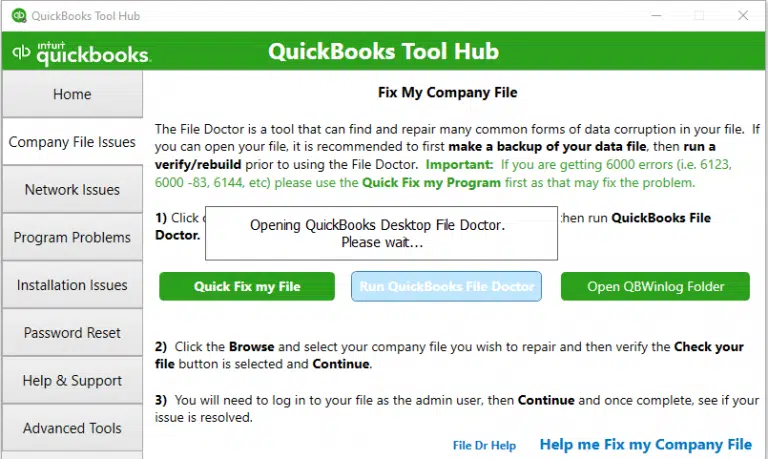
The QB File Doctor diagnoses file integrity and repairs damaged file structures within the QuickBooks Tool Hub.
Once the process finishes, select OK, then reopen QuickBooks.
b. Run QuickBooks File Doctor
In the Tool Hub, go to Company File Issues.
Click on Run QuickBooks File Doctor. It may take up to a minute to launch.
Note: If it doesn’t open automatically, search for QuickBooks Desktop File Doctor on your computer and open it directly.
When QuickBooks File Doctor opens, choose your company file from the dropdown list. If it’s not listed, select Browse and locate the file manually.
Select Check your file (the middle option), then click Continue.
Enter your QuickBooks admin password and choose Next.
The scan duration varies based on the size of your file and may take 10–15 minutes. Even if the tool reports that the scan was unsuccessful, it may still resolve the issue. After the scan completes, reopen QuickBooks and access your company file.
2. Set QuickBooks to “Run as Administrator.”
Running QuickBooks as an administrator fixes error 1926 by bypassing Windows restrictions that prevent the application from writing to, modifying, or saving company files in secured folders.
Exit QuickBooks Desktop.
Right-click the QuickBooksDesktop shortcut and choose Properties.
Open the Compatibility tab and check the box for Run this program as an administrator.
Click Apply, then select OK to save the changes.
3. Move the company file to the default location
Moving the company file to the original location organizes files, ensures better backup compatibility, and simplifies access for multi-user setups.
Close QuickBooks Desktop.
Navigate to the folder where your company file is stored.
Right-click the company file (.qbw) and choose Copy.
Go to the default folder, right-click inside it, and select Paste.
Creating a new folder and moving your company file helps fix issues by bypassing corrupted file paths, resolving Windows permission conflicts, and eliminating interference from faulty supporting files.
Create a new folder in the same location.
Copy your company files into this new folder.
Make sure to configure the folder permissions so the company files can be shared.
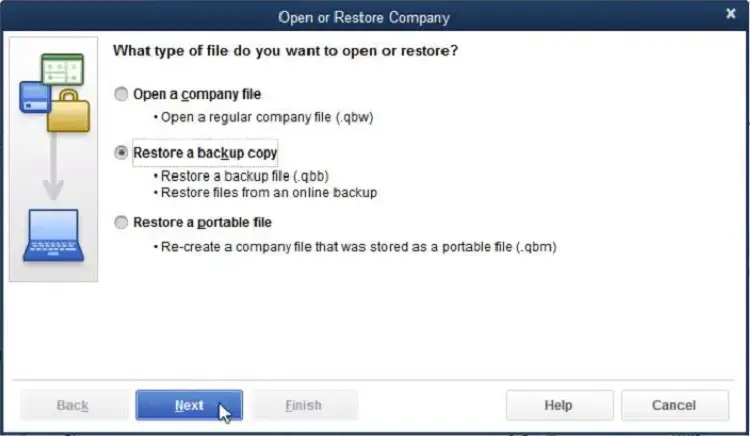
In QuickBooks, go to the File menu and choose Open or Restore Company.
Select Open a company file, then click Next.
Browse to the newly created folder and choose the appropriate company file.
Click Open.
5. Test and set folder permissions
Ensures that the Windows user account, and specifically the QuickBooks database service user (QBDataServiceUserXX), has the necessary “Full Control” rights to read, write, and modify company files (.qbw).
Launch Microsoft Word or Notepad.
Type the word “Test.”
Save the file in the same folder where your company file is stored.
If the file saves successfully, the folder permissions are set correctly. If you receive an error message, update the folder permissions to allow access for shared company files.
Conclusion
Finally, we conclude this guide on QuickBooks error 1926 and the common causes behind permission-related installation failures. By applying the troubleshooting methods discussed above, you can successfully complete the installation or update process and avoid further disruptions.
If the problem continues, consider contacting a certified ProAdvisor or reaching out to Intuit support for prompt and reliable assistance. Dial +1 (866) 500-0076 now!
Frequently Asked Questions
How do I fix error code 1926 in QuickBooks?
Fix error code 1926 by running QuickBooks as an administrator, ensuring the folder containing your company file has “Full Control” permissions, or moving the file to the default Public Documents folder.
Why do I fail when opening the QuickBooks company file?
Failed QuickBooks company file openings (often causing Error 6000) are typically caused by file corruption, damaged network files (.ND/.TLG), incorrect folder permissions, or, in multi-user mode, broken server connections.
What is the company file in use error in QuickBooks?
The “Company File in Use” error in QuickBooks Desktop indicates that the company file (.qbw) is currently locked because another user or process is accessing it, often in Single User mode. It commonly arises from network issues, incorrect multi-user setup, or when the file is stored in a read-only folder.
How to repair a QuickBooks company file?
To repair a QuickBooks company file, use the built-in Rebuild Data utility for minor issues (File > Utilities > Rebuild Data) or the QuickBooks Tool Hub (specifically the “Company File Issues” tab) to run the QuickBooks File Doctor for more severe corruption.
About The Author
Lana Creston is an experienced technical and accounting writer with a total of 9 years of experience. She currently works on QuickBooks accounting and technical guides at QuickBookSupportNet. Lana has a passion for reading and writing about various technical topics, especially exploring new accounting methods and software, while continuously expanding her expertise in the ever-evolving field of finance and technology.
Effortlessly handle data tasks or get expert assistance with: