How to Connect Your Amazon Business Account to QuickBooks Online

Apr 20, 2026

Admin |

Estimated Read Time : 5 MIN

Managing business expenses shouldn’t feel like a chore—especially when you’re already making regular purchases on Amazon. By connecting your Amazon Business account to QuickBooks Online, you can simplify the way you track and organize your expenses without the need for manual data entry.

With the Amazon Business Purchases app, all your purchase details are automatically imported into QuickBooks, giving you a clear and accurate view of your spending. From there, QuickBooks helps categorize transactions and match them to your bank or credit card records, saving you time and reducing errors. All that’s left for you to do is review and approve—making your accounting workflow faster, smarter, and far more efficient.

Why Connect an Amazon Business Account to QuickBooks Online? 

Connecting your Amazon Business account to QuickBooks Online helps simplify your accounting process. It automatically imports and categorizes transactions, reducing manual data entry and errors.

This integration also gives you clear visibility into your business spending, making budgeting and expense tracking easier. It saves time, improves accuracy, and keeps your financial records organized—especially useful during tax preparation and audits.

Overall, it helps you manage finances more efficiently and make better business decisions.

How to Integrate Your Amazon Business Account to QuickBooks Online?

Integrating your Amazon Business account with QuickBooks Online is a straightforward process:

  • Log in to your QuickBooks Online account.
  • Go to the Apps section from the left menu.
  • Search for Amazon Business Purchases.
  • Click Get App Now and follow the prompts to sign in to your Amazon Business account.
  • Grant the necessary permissions and choose your preferences for importing and categorizing transactions.
  • Once connected, your purchases will automatically sync with QuickBooks.

Once your accounts are connected, you’ll start seeing your Amazon transactions flow directly into QuickBooks, helping you stay organized with minimal effort.

More help reconnecting my app

Note: Before you start, make sure to first review all the Amazon Business transactions in App transactions. Once you reconnect, it will reflect or show the previous transactions in the reviewed list. To find previous transactions, go to Expenses.

To reconnect your app:

  • If required, begin the reconnection steps.
  • Click Next.
  • Then, click Continue.
  • When asked to pick a date, choose March 13, 2023, only, to prevent duplicate transactions from being imported. Since the default is set to one year prior to today, make sure to update it.
  • Next, approve the sharing of product details between QuickBooks and Amazon Business by selecting Agree.
  • Enter your Amazon Business login information and click Sign in.
  • Finally, select Check it out to complete the process.

Note: This integration does not support connecting a personal Amazon.com account or an Amazon Seller account to QuickBooks.

Set up the connection

  • Log in to your QuickBooks account with admin access.
  • Navigate to the Amazon Business Purchases app page.
  • Click Get app now.
  • When asked, log in to your Amazon Business account using the primary administrator credentials.
  • Choose the start date for importing transactions. All purchases made on or after this date will be synced with QuickBooks for review, and this selection cannot be modified later.
  • Click Finish to complete the setup.

The app will begin importing your Amazon Business purchase data into QuickBooks, which may take a short time. After the initial import, it automatically checks your Amazon Business account daily and updates QuickBooks with any new transactions.

Review your Amazon Business purchases

Once your Amazon Business transactions show up in QuickBooks, you can start reviewing and recording them in your books:

  • Open all apps, then go to Accounting, and select Integration transactions.
  • Click on the For review tab. Here, you’ll see your Amazon Business purchases and returns listed, along with details such as product descriptions, quantities, prices, and fee breakdowns.
  • For each transaction, choose the appropriate action based on its status:
    • Add or Match: The transaction is ready to be recorded. If your bank or credit card account is already connected, you can match it with an existing entry.
    • Review: QuickBooks doesn’t recognize the payment account yet. You can either confirm an existing account or create a new one in your Chart of Accounts.

Handling returns:

Returns are also imported into QuickBooks for review. When recording them, ensure they’re assigned the same category as the original purchase to keep your financial records accurate.

Confirm or add an account for a payment method

When the app brings in your Amazon Business purchases, it also captures information about the payment methods used. QuickBooks relies on this data to identify the corresponding bank or credit card accounts already set up in your Chart of Accounts, ensuring expenses are recorded accurately. If you’ve linked a bank or credit card account, QuickBooks may also attempt to match these purchases with existing transactions downloaded from your bank.

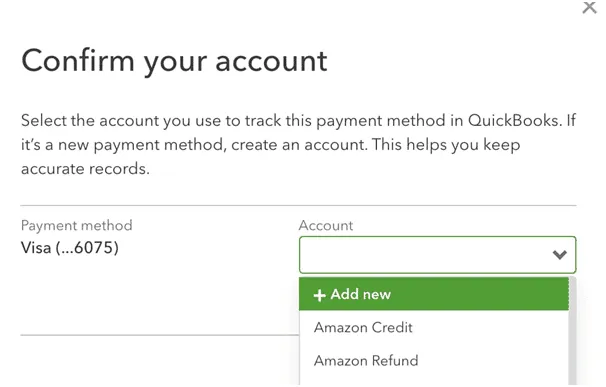
The first time a particular payment method appears, QuickBooks will prompt you to verify that it has matched it to the correct account. If no matching account is found, you’ll have the option to create a new one right away.

  • In the Integration transactions tab, click Confirm accounts when prompted.
  • For the displayed payment method, choose the appropriate account from the dropdown if it already exists in QuickBooks. If not, click +Add New and enter the required details to create one.
confirm your account
  • Once done, click Save and Close. QuickBooks will use this account for that payment method going forward.

If you want to change the QuickBooks account associated with a payment method:

  • Go to All apps, then Accounting, and select Integration transactions.
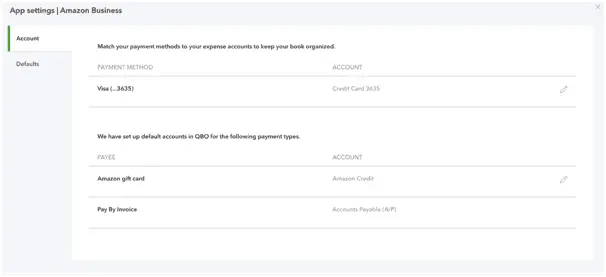
  • Click App settings, then choose Account.
App Settings Amazon Business
  • Find the payment method you want to modify and click Edit.
  • Select a different existing account or create a new one.
  • Click Save & Close to apply the changes.

Change the default settings

Change the default category

QuickBooks automatically assigns your Amazon Business purchases to the “Office Supplies & Software” category. If you’d like to update this default category:

  • Go to All apps, then Accounting, and select Integration transactions.
  • Click App settings, then choose Defaults.
  • Select Edit, and pick the category you want QuickBooks to apply to purchases.
  • Click Save & Close.

Change the default payee

QuickBooks also sets the payee as “Amazon Business” by default. To modify this:

  • Go to All apps, then Accounting, and select Integration transactions.
  • Select App settings, then Defaults.
  • Click Edit, and choose the payee you want QuickBooks to use.
  • Click Save & Close.

Disconnect the app

If you decide to stop using the Amazon Business Purchases app with QuickBooks, you can disconnect it from either platform. Any transactions you’ve already reviewed and added will remain محفوظ in your QuickBooks records.

From your QuickBooks account:

  • Go to All apps, then Accounting, and select Integration transactions.
  • Click App Settings.
  • Select Disconnect Amazon.

From your Amazon account:

  • Go to Your Account.
  • Select Login with Amazon.
  • Locate the Intuit QuickBooks connection and click Remove.

Issues with connections to app transactions

If you connect an app that generates a large number of transactions each day, QuickBooks may slow down or freeze. To avoid or resolve this, update the app’s sync settings so it imports a daily summary instead of pulling in each individual transaction.

Conclusion 

In conclusion, connecting your Amazon Business account to QuickBooks Online is a smart step toward streamlining your financial management and saving valuable time. By integrating the two platforms, you can automate expense tracking, improve accuracy, and gain better visibility into your business spending.

Whether you’re setting up the connection for the first time or optimizing an existing integration, following the right steps ensures a seamless experience. If you run into any issues or need further assistance, don’t hesitate to reach out to a QuickBooks ProAdvisor for expert guidance and to make the most of your accounting workflow. Dial (866) 500-0076 now!

Frequently Asked Questions 

How to link an Amazon Business account to QuickBooks Online?

    You can connect your QuickBooks Online with your Amazon Business account by installing the Amazon Business Purchases app from the Apps section in QuickBooks. After signing in to your Amazon Business admin account and selecting a start date, your purchases will automatically sync.

    Can QuickBooks integrate with Amazon?

      Yes, QuickBooks Online integrates directly with Amazon Business to import and track purchases. However, it does not integrate with regular Amazon accounts or seller accounts without third-party tools.

      How to get 40% off Amazon Business?

        There is no fixed 40% discount on Amazon Business. Discounts vary through Business Prime offers, bulk pricing, and limited-time promotions, which may sometimes provide significant savings.

        Is my Amazon account a business account?

          Your account is an Amazon Business account if you see business-specific features like GST invoices, business pricing, and multi-user access. If these are missing, it’s a regular Amazon account.

          What is the difference between an Amazon Business account and a regular Amazon account?

            Amazon Business is designed for companies, offering bulk discounts, GST billing, multi-user access, and accounting integrations like QuickBooks Online, while a regular Amazon account is meant for personal shopping without these business features.

            How often do Amazon Business transactions sync with QuickBooks Online?

              After the initial setup, the Amazon Business Purchases app automatically checks your Amazon Business account once a day and imports the latest transactions into QuickBooks Online. This ensures your records stay up to date with minimal manual effort.

              Can I edit or categorize Amazon transactions in QuickBooks Online?

                Yes, you can review, edit, and categorize all imported Amazon Business transactions in QuickBooks Online. Before adding them to your books, you can assign categories, match them with bank or credit card transactions, and make any necessary adjustments to ensure accurate financial records.

                About The Author

                Lana Creston

                Lana Creston is an experienced technical and accounting writer with a total of 9 years of experience. She currently works on QuickBooks accounting and technical guides at QuickBookSupportNet. Lana has a passion for reading and writing about various technical topics, especially exploring new accounting methods and software, while continuously expanding her expertise in the ever-evolving field of finance and technology.

                Quick, clear, and hassle-free QuickBooks assistance.

                Get a Free Consultation with Our QB Tax Experts
                Connect with Our Certified QuickBooks Professionals - Dial Tollfree: +1(866)500-0076