Top 8 Solutions to QuickBooks Error 9000 When Sending Payroll Data 

Feb 10, 2026

Admin |

Estimated Read Time : 5 MIN

Failure to send payroll data—such as direct deposit details or payroll submissions—occurs when QuickBooks is unable to establish successful communication with Intuit’s payroll servers.

This communication failure triggers QuickBooks error 9000, which typically appears during payroll processing or while transmitting payroll data online. This service-related server error is commonly caused by factors such as firewall or security software restrictions, outdated QuickBooks or payroll tax table versions, incorrect hosting or multi-user configuration settings, and other issues discussed below.

In this detailed guide, we will identify the root causes behind unsent payroll data and outline effective steps to successfully retransmit it.

What Causes QuickBooks Payroll Error 9000? 

Here’s a list of multiple factors that hamper the payroll connection and cause server error 9000 in QuickBooks Desktop: 

  • Invalid security certificate
  • Sending in multi-user mode
  • A network timeout that prevents the program from accessing the server
  • General Internet connection issues
  • Internet security and personal firewall software settings
  • Incorrect system date and time properties

How to Fix QuickBooks Error 9000 When Sending Payroll Data? 

Can’t send or submit your payroll data? Now that you understand why the QuickBooks payroll connection server error 9000 occurs, let’s walk you through the detailed troubleshooting steps to help you submit your data easily.

1. Restart your computer 

Restarting your computer closes all running programs, clears the RAM (memory), and resets system processes, giving it a fresh start to improve performance, fix glitches, apply updates, and resolve issues like sluggishness or connectivity problems, helping you resolve QuickBooks error code 9000.

2. Update QuickBooks Desktop

Often, outdated software features can hamper the server connection to Intuit. This can cause failure when sending your payroll data or direct deposit. Make sure to update your QuickBooks Desktop to the latest release to ensure you use the latest features and security patches. 

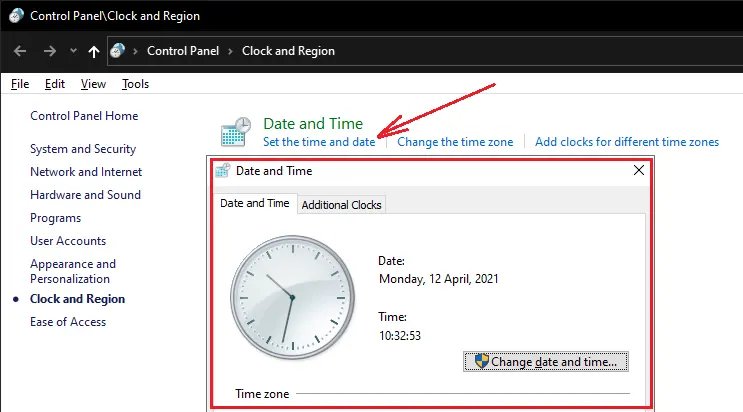
3. Correct your system’s date and time

Make sure your system’s date and time are accurate to verify licenses, security certificates, and secure connections when sending payroll data or direct deposit. 

  • Launch the Windows Start menu by pressing the Windows logo key. 
  • Go to Settings in the left pane. 
  • Select Time & language  > Date & time.
Check data and time settings
  • In the prompted Time & language > Date & time window:
    • If you want the system to update the date and time on its own, turn Set time automatically on.
    • If you prefer to adjust the date and time yourself, turn Set time automatically off, then click Change next to Set the date and time. In the window that appears, enter the correct date and time and confirm by selecting Change.

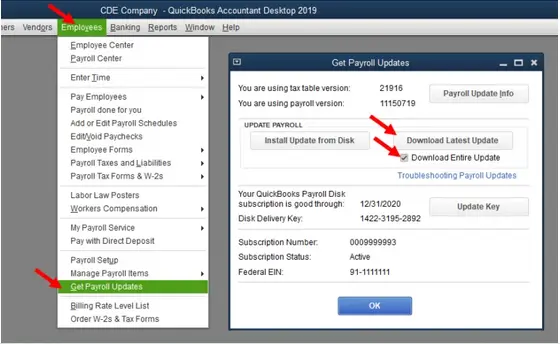
4. Get the payroll tax table update

An up-to-date version of payroll tax table is crucial to process the payroll or direct deposit or else getting the server is quite common. Here’s how you can update the payroll services and avoid error code 9000 again when submitting payroll:

  • Go to the Employees menu. 
  • Choose Get Payroll Updates.
Get payroll updates
  • To find out the version you already use:
    • See the number next to You are using tax table version:.
    • To see if you use the correct version, check the latest payroll news and updates.
    • To get more details on the tax table version, choose Payroll Update Info.
  • To get the latest payroll tax table: 
    • Click on Download Entire Update.
    • Choose Update. An informational window will appear once the download is complete.

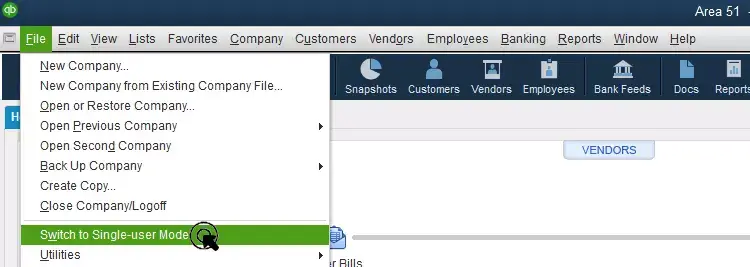
5. Switch to single-user mode when submitting payroll data 

You must submit your payroll data or direct deposit only in the single-user mode to ensure data integrity and prevent QB error 9000. 

  • Go to File at the top.
  • Choose Switch to Single-user Mode.
Switch-to-Single-user-Mode
  • Click Yes and QuickBooks will run in the single-user mode. 

6. Run QuickBooks File Doctor 

The QuickBooks File Doctor verifies the company file for possible data damage and network connection and repairs them quickly. Proceed below to learn how to run the File Doctor: 

Note: Make sure to download and install QuickBooks Tool Hub (1.6.0.8) to the latest release. 

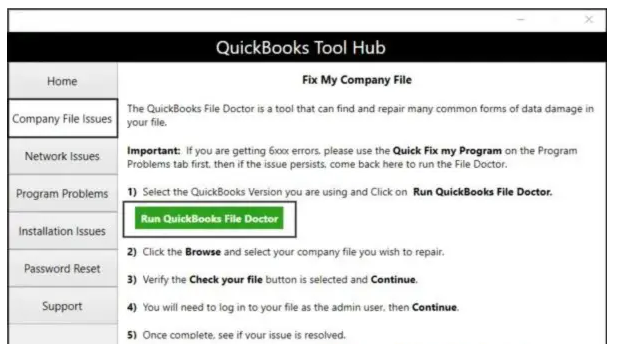
  • Launch the QuickBooks Tool Hub. 
  • In the left menu bar, choose Company File Issues
  • Click on Run QuickBooks File Doctor. The tool might take up to one minute to open; wait until then. 
Run QuickBooks File Doctor

Note: If you fail to open the QuickBooks File Doctor, search for QuickBooks Desktop File Doc and open it manually. 

  • Choose your company file from the dropdown menu in QuickBooks File Doctor. If you don’t find the company file, click Browse and search to find your file.
  • Select the middle option check your file and then continue.
  • Enter the QuickBooks admin password to allow the access and click Next. 

The scan time usually depends on the company file size and may take as long as 10–15 minutes. It report failure even when it successfully resolves your problem. After the scan completes, open QuickBooks and your company file.

7. Configure the Windows Firewall settings

Windows Firewall is a built-in security tool that monitors and regulates the flow of incoming and outgoing data through your system. If it identifies suspicious activity or blocks a required connection, it can restrict programs from functioning properly and may trigger QuickBooks error 900. To fix this issue, ensure that Windows Firewall settings are correctly configured to allow QuickBooks to communicate without restrictions.

8. Flush the DNS cache

Clearing outdated or corrupted network address data stored on your computer, allowing it to re-establish a fresh, correct connection to Intuit’s payroll servers and resolve error code 9000 in QuickBooks Desktop:

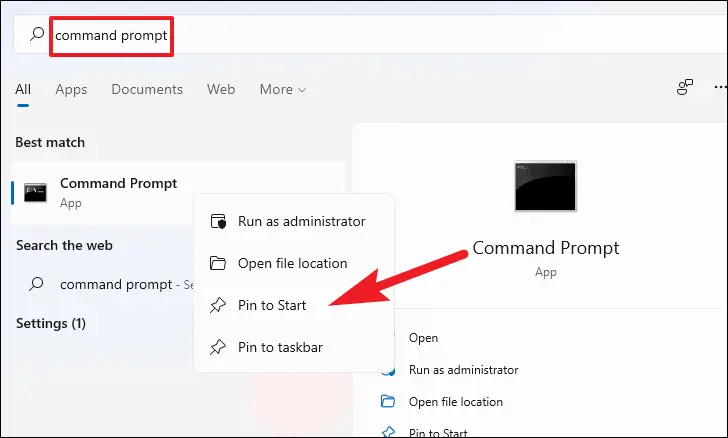
  • Launch the Run command by pressing the Windows + R keys. 
  • In the Run command, type cmd and right-click on it. 
  • Select Run as Administrator
run as administrator
  • In the Command Prompt window, type ipconfig /flushdns.
  • Now, press Enter. 

When the command completes successfully, the system displays this message:

“Windows IP configuration successfully flushed the DNS Resolver Cache”.

Conclusion 

So finally, we are ending this blog here, covering a list of possible causes why you failed to send payroll data or submit direct deposit and are receiving QuickBooks error 9000. With the methods above, such as restarting your computer, updating QuickBooks, and other solutions, the error might be resolved.

For further assistance, we recommend you consult a certified professional at QuickBooksSupportNet. Dial the +1(866)500-0076 to talk to a QuickBooks ProAdvisor now!

Frequently Asked Questions 

What is QB error code 9000?

Error code 9000 is a QuickBooks payroll error that occurs when the software cannot connect to Intuit’s payroll servers to verify or submit payroll data.

How to change QuickBooks from multi-user to single-user?

Log in as the admin, open the File menu, and select Switch to Single-user Mode, which is required for certain payroll and maintenance tasks.

Why am I getting error code 9000 when submitting payroll? 

This error appears when QuickBooks cannot securely connect to the payroll service while submitting required tax withholdings, which employers must process correctly to avoid penalties.

Why is my QuickBooks not connecting to the server?

QuickBooks may fail to connect due to internet issues, blocked network access, incorrect system settings, or server authentication problems.

How to fix the QuickBooks payroll service server error?

Update QuickBooks, confirm your payroll subscription, switch to single-user mode, and ensure internet access so payroll taxes can be calculated, withheld, and submitted automatically as required.

About The Author

Lana Creston

Lana Creston is an experienced technical and accounting writer with a total of 9 years of experience. She currently works on QuickBooks accounting and technical guides at QuickBookSupportNet. Lana has a passion for reading and writing about various technical topics, especially exploring new accounting methods and software, while continuously expanding her expertise in the ever-evolving field of finance and technology.

Quick, clear, and hassle-free QuickBooks assistance.

Get a Free Consultation with Our QB Tax Experts
Connect with Our Certified QuickBooks Professionals - Dial Tollfree: +1(866)500-0076