QuickBooks Error 12045 | Fixing the QuickBooks Update Error
Feb 23, 2026
Admin |
Estimated Read Time : 5 MIN
QuickBooks error 12045 is one of the 12XXX series errors that appears when trying to download payroll or QuickBooks Desktop updates.
This failure to receive software or payroll updates generally occurs when QuickBooks Desktop cannot connect to the internet, which prevents updates. This may be because incorrect browser or security settings are in place, or because an application, such as an antivirus or firewall program, is interfering with the update.
Let’s walk you through this detailed guide to learn why you cannot download the payroll or QuickBooks desktop update and the suitable troubleshooting methods.
QuickBooks update error 12045 usually occurs when QuickBooks Desktop is unable to connect to the internet to download updates. This error is typically related to network connectivity or to security settings that block QuickBooks from accessing update servers.
Here are the most common causes:
Incorrect date and time on your system
Incorrectly configured internet connection settings
Windows Firewall, antivirus, or other security applications might be blocking the updates
Automatic update might not be working
Third-party applications or processes may hamper the software updates
Methods to Troubleshoot QuickBooks Error 12045 When Updating QB or Payroll
Here are proven and effective troubleshooting steps to help you quickly resolve QuickBooks error 12045 and restore your update functionality.
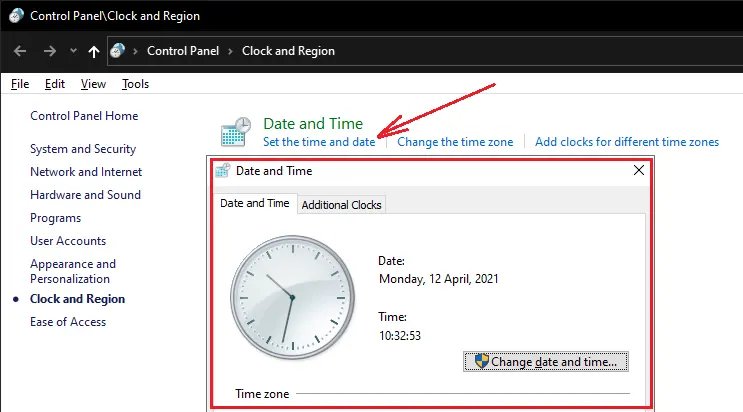
1. Check the system date and time on the computer
If your computer’s date or time is wrong, it can disrupt the update process.
To verify and correct your system date and time:
Right-click the clock on your desktop, then choose Adjust Date/Time.
Click Change date and time, then enter the correct current date and time.
Problems with your internet connection may be preventing the update from completing.
To check whether your connection is secure, open a web browser and go to the Chase banking website. If the page doesn’t load, QuickBooks won’t be able to download updates. Reach out to your internet service provider (ISP) for assistance.
If the website opens without issue, launch QuickBooks Desktop and follow these steps:
Go to the Help menu and choose Internet Connection Setup.
Select Use my computer’s Internet connection settings to establish a connection when this application accesses the Internet.
Click Next.
Choose Advanced Connection Settings.
Open the Advanced tab and click Restore Advanced Settings.
Click OK.
Select Done.
Try updating QuickBooks Desktop again.
Keep the following in mind: Download managers or accelerators may disrupt the update process. Turn them off before attempting to download any updates. If you need assistance, reach out to your Internet Service Provider (ISP). If you’re connecting through dial-up, make sure your connection speed is at least 28.8 Kb/s.If you’re using America Online (AOL), try signing in with the main account username and confirm that Parental Controls are turned off. Visit AOL’s support resources for additional guidance.
3. Internet security or personal firewall application settings
Internet security programs and personal firewall settings can sometimes block or disrupt updates.
Check your antivirus and firewall configurations to ensure they allow proper access. Make sure that ports 80 and 443 are open, and that the following QuickBooks-related files are permitted through the firewall:
In the rare case that ports 80 and 443 are already in use by other applications, the QuickBooks Database Server will automatically switch to an alternate port, 56719.
Warning: Due to the wide variety and complexity of firewall software, Intuit does not offer direct assistance for individual firewall configuration issues. If you need help, contact your network or system administrator, your firewall software provider, the manufacturer’s support resources, or a qualified IT professional.
4. Download and install a manual update
Sometimes, automatic updates may not work due to internet connectivity issues or incorrect setup. Try getting the updates manually by following the steps below:
a. For Windows
If you cannot update the software, download the specific update file from the Intuit website.
Close your QuickBooks Desktop.
Go to the Downloads & Updates page.
Select the standard setup.
Choose your Country, Product, and Version (Year).
Click on Search.
Hit on Get the latest updates.
Locate and open the downloaded file to install it.
When the installation finishes, restart your computer.
Note: To update your server manager, refer to Install, Update, and Set up the QuickBooks Database Server Manager.
b. For Mac
Use this method if the in-product update fails or does not advance the release number.
Reinstalling QuickBooks in Selective Startup resolves error 12045 by isolating the installation process from third-party applications or security software that often block update files.
Make sure you securely store a backup of your QuickBooks Desktop product details and license information.
a. Switch to Selective startup
To make sure no other apps get in your way, switch to Selective startup. If you’re uncomfortable doing the steps, consult your computer’s manufacturer or a Windows expert.
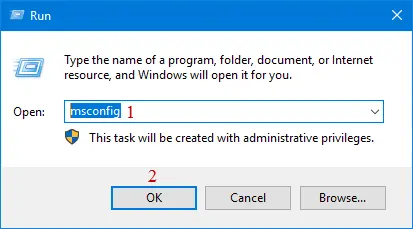
Launch the Run command by pressing Windows+R on your keyboard.
In the Run field, type msconfig, then select OK.
Move to the General tab.
Choose Selective startup and Load system services.
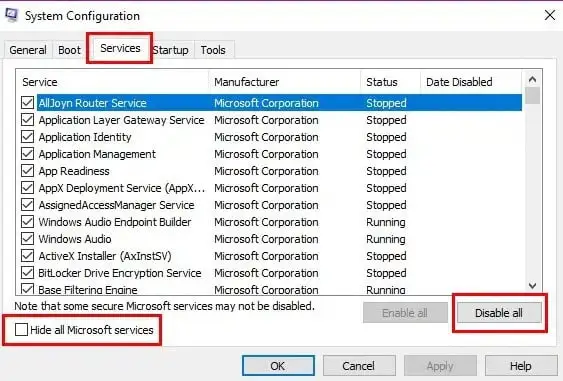
Go to the Services tab.
Mark the Hide all Microsoft Services checkbox.
Hit on Disable all.
Clear the checkbox for Hide all Microsoft services.
From the list of services, choose Windows Installer.
Click OK.
Select Restart on the System Configuration window.
Conclusion
Finally, we are ending this detailed guide covering a list of possible causes and suitable troubleshooting methods for QuickBooks error 12045 when trying to update your payroll services or the tax table. The information above will ensure you can receive those updates without errors or interruptions.
If you need further assistance, you must consult a QuickBooks ProAdvisor. Dial +1 (866) 500-0076 and talk to a certified expert now!
Frequently Asked Questions
What is error 12045 in the QuickBooks update?
QuickBooks error 12045 occurs during software updates when the program cannot securely connect to the internet, often caused by incorrect system date/time, misconfigured internet settings, or firewall restrictions.
How to fix an error in QuickBooks Desktop?
Fixing errors in QuickBooks Desktop generally involves using the built-in QuickBooks Tool Hub, repairing the company file, or updating the software.
What is error code 12000 in QuickBooks?
QuickBooks error code 12000 (part of the 12xxx series) is a connectivity issue that occurs during software or payroll updates, usually signaling that firewall, antivirus, or incorrect Internet Explorer settings are preventing QuickBooks from accessing the server.
How do I fix a QuickBooks registration error?
Fixing a QuickBooks registration error typically involves verifying your license information, using the QuickBooks Tool Hub to run diagnostic tools, or clearing cached registration data.
About The Author
Lana Creston is an experienced technical and accounting writer with a total of 9 years of experience. She currently works on QuickBooks accounting and technical guides at QuickBookSupportNet. Lana has a passion for reading and writing about various technical topics, especially exploring new accounting methods and software, while continuously expanding her expertise in the ever-evolving field of finance and technology.
Effortlessly handle data tasks or get expert assistance with: