How to Register or Activate QuickBooks Desktop for Windows?

Jan 13, 2026

Admin |

Estimated Read Time : 5 MIN

If you recently installed QuickBooks Desktop for Windows or Mac, one of the first things you will need to do is register or activate your QuickBooks Desktop license. Activating ensures your copy is genuine, links it to your account, and unlocks all features. 

Why QuickBooks Desktop Activation Matters? 

  • Activation verifies that your product is genuine with no copyright issues and gives you access to updates, support, and online features.
  • If you do not activate your QuickBooks Desktop, you may be able to use only limited features of the application, which would not be productive beyond a certain limit. 

Register or Activate Using Your Intuit Account

You are required to use your Intuit account if you want to register or activate the QuickBooks Desktop License.  

Steps:

  • When prompted during installation or launching QuickBooks for the first time, choose to log in with your Intuit Account or create a new one. 
  • If using an existing account, you need to enter your user ID and password. If you do not have one, simply fill out the required information to create a new account. 
  • Once signed in, continue with the on-screen instructions to link your license and complete activation. 

You can rely on this method for both Windows and Mac versions, making it convenient if you use QuickBooks across multiple systems.

How to Register or Activate QuickBooks Desktop for Windows?

If you are using QuickBooks Desktop on Windows, we have shared steps on how to activate or manually re-activate your license

Steps:

  • Launch your QuickBooks application.
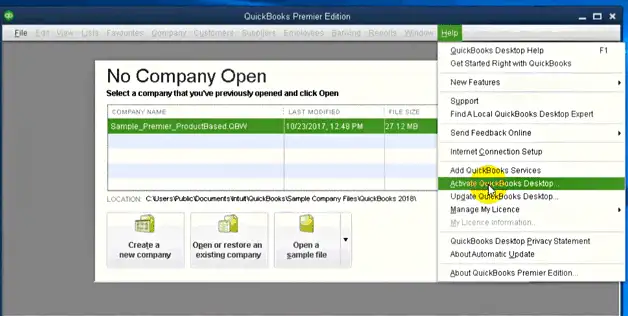
  • Click on the Help menu.
  • Select Activate QuickBooks Desktop.
Activate-QuickBooks-desktop
  • Now, continue with the on-screen instructions.
  • Simply verify your information and complete the activation process.
  • Once the activation is completed, it is ready to use.

Usually, QuickBooks will prompt activation after installation, but you can run the manual activation anytime via the Help menu. 

Register or Activate QuickBooks Desktop for Mac

If you are on a Mac, the process is slightly different. 

Steps to register/activate on Mac:

  • Launch QuickBooks.
  • From the QuickBooks menu, select Register QuickBooks
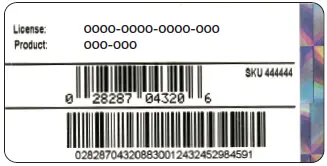
  • Enter your License Number and Product Number, then click Next
QuickBooks License Number and Product code
  • Choose how you want to register:
  • Register by phone
    • Call the number shown.
    • Get a validation code, enter it. 
    • Then, click Next
  • Register online
  • Set up a payment method or add a new one if your license requires a subscription. 
  • Review the confirmation. Now, you can print or save a PDF of your product info for future reference, then click “Start using QuickBooks.” 

After that, your QuickBooks Desktop license will be registered and activated for use on your Mac. 

Using Older Version of QuickBooks Desktop

If you are using an older version of QuickBooks Desktop, for example, 2015 or earlier, registration or activation may not be possible or may require contacting support directly. 

In such cases:

  • If it is the first time you are trying to register that version, self-registration might be blocked due to discontinued support. 
  • If you are reinstalling on a new computer and it was previously registered, support might still help you re-activate, but you will likely need to contact their support to obtain a validation code or license re-assignment. 

Tips & Best Practices

  • Always keep your License Number and Product Number handy; these came with your purchase, either via email, physical packaging, or receipt. 
  • If you register via your Intuit Account, make sure to use the same account credentials you used when purchasing, or create a new account if it is your first time. 
  • After activation, make a note of your registration/activation date. If you reinstall QuickBooks on a different computer, you will need to re-activate or re-register.
  • If something goes wrong, e.g., you get a “validation code invalid” error, double-check your license/product numbers, and if needed, contact QuickBooks Support for assistance. 

Conclusion

How to register or activate QuickBooks Desktop? Whether on Windows or Mac, Register or activate QuickBooks Desktop is a simple but essential step to get your accounting up and running. You ensure full access, updates, and support when you link your license to your Intuit Account or use license/product numbers directly. At last, we want to thank you for trusting us, and promise to consistently provide you with the best solutions to fix your QuickBooks-related issues. 

If you need any assistance related to accounting and/or QuickBooks, dial +1(866)500-0076

Frequently Asked Questions 

1. How to activate or register QuickBooks Desktop after installing it?

QuickBooks License will be registered and activated when you follow the below steps to:

  • Press F2 or press Ctrl + 1.
  • If it is showing Not Registered, close the window.
  • Now, navigate to the Help menu.
  • Click on “Activate QuickBooks Desktop” and continue with the on-screen prompts.
  • Enter your license and product number.
  • Finally, confirm the activation.

2. Where do I find my QuickBooks Desktop license and product number?

  • If you have bought the product as a physical purchase, you will find the product packaging. 
  • For a digital purchase, you will find the license and product number in your email confirmation.
  • In your Intuit Account under the “Products & Services” section.
  • On the installation CD sleeve (older versions).

3. Why is QuickBooks Desktop not letting me activate my license?

Sometimes QuickBooks users face certain issues:

  • Incorrect license or product number.
  • Internet connection issues.
  • The firewall or antivirus is blocking the activation server.
  • Using a retired or unsupported QuickBooks version.
  • Fixing these usually involves verifying your numbers, rebooting, and ensuring your internet connection is stable.

4. Can I register or activate QuickBooks Desktop with your Intuit account on more than one computer?

Yes, you can if your purchase version allows you to. For example, a single-user license allows activation on one computer. A multi-user license can be activated on multiple devices according to the number of seats purchased.

5. What should I do if QuickBooks says my validation code is incorrect?

You need to ensure the following guidelines are followed:

  • You are entering the code for the correct QuickBooks version and year.
  • There are no extra spaces or typos.
  • If the problem continues, you may need to sign in to your Intuit Account or contact the concerned support to have your license details verified.

6. How do I re-activate QuickBooks Desktop after reinstalling Windows or moving to a new computer?

You will need to reinstall QuickBooks, then take your cursor to the Help menu and click on Activate QuickBooks Desktop. Now, enter your license details. If QuickBooks detects that the activation limit has been reached, you may need to reset or transfer the license through your Intuit Account.

7. Does QuickBooks Desktop require reactivation each year?

QuickBooks Desktop does not require annual reactivation, but major upgrades (e.g., from 2022 to 2024) do. Subscription-based versions like QuickBooks Desktop Plus may also ask you for reactivation if your subscription has expired or when switching computers.

About The Author

Lana Creston

Lana Creston is an experienced technical and accounting writer with a total of 9 years of experience. She currently works on QuickBooks accounting and technical guides at QuickBookSupportNet. Lana has a passion for reading and writing about various technical topics, especially exploring new accounting methods and software, while continuously expanding her expertise in the ever-evolving field of finance and technology.

Quick, clear, and hassle-free QuickBooks assistance.

Get a Free Consultation with Our QB Tax Experts
Connnect with Our Certified QuickBooks Professionals - Dial Tollfree: +1(866)500-0076