Fix QuickBooks Error 1935 and Know Its Causes

Oct 27, 2025

Admin |

Estimated Read Time : 5 MIN

QuickBooks error 1935 is a technical error that requires fixing the .NET Framework files to install QuickBooks. It is a software installation issue, and you may see an error message “An error occurred during the installation of the assembly”. It indicates that one of the critical components of QuickBooks could not be installed. 

QuickBooks error message 1935

We have covered every important aspect that would result in fixing the QuickBooks Install Error 1935 in this dedicated guide. Walk through this guide and have an in-depth understanding of the overall functioning of the QuickBooks application and its error 1935.

Common Causes behind the QuickBooks Desktop Error 1935

When you are installing QuickBooks or Microsoft .NET Framework, you may receive either of these errors:

Your software setup requires .NET Framework.
During the installation of the assembly, this error may pop up.
Another installation is using Microsoft .NET Framework system files.
Third-party applications, such as Anti-virus software, may prevent the installation of the software.
The .NET Framework file may be corrupt, or a program may be preventing the installation.

We have shared a trending standard solution to fix the QB error code 1935.

  • Restart your PC & proceed with reinstallation.
  • If you have anti-virus software, temporarily disable it and start the installation again. 
  • Try to install QuickBooks in Selective Startup for detailed instructions.
  • If the QuickBooks error 1935 Windows 10 continues to occur, repair or reinstall Microsoft .NET Framework. And start the installation again.

Learn to troubleshoot QuickBooks Error 1935

Step 1: Switch to Selective startup

You need to ensure that no other programs are interrupting your way. For this, you need to switch to Selective Startup. If you find it difficult or complicated to perform these steps, we recommend that you contact your PC manufacturer or a Windows expert. 

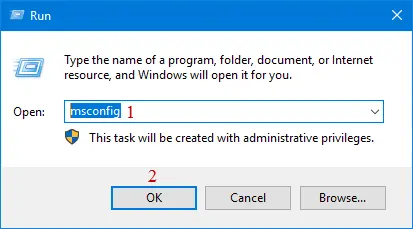
  • Press Windows+R
  • Open the Run command.
  • Enter msconfig and click OK.
  • Select the Selective startup and Load system services in the General tab.
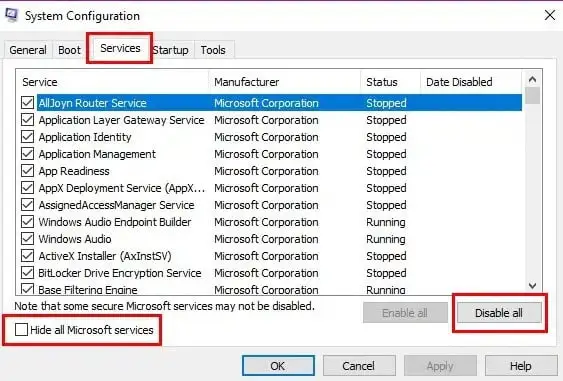
  • Click on the Services and select Hide all Microsoft Services
Hide-all-Microsoft-services
  • Click on Disable all.
  • Unmark the option Hide all Microsoft services.
  • From the list of services, select Windows Installer
  • Click OK.
  • On the System Configuration window, click on Restart.

Step 2: Uninstall or install QuickBooks Desktop

  • Install QuickBooks Desktop again.
  • Press Windows+R and open the Run command.
  • Type msconfig, and click on OK.
msconfig
  • In the General tab, select Normal startup and click on OK.
  • Click on Restart on the System Configuration window.

Windows 10 and newer

  • Close all open programs and open the Windows Start menu.
  • Type Control Panel in the search field and open Control Panel.
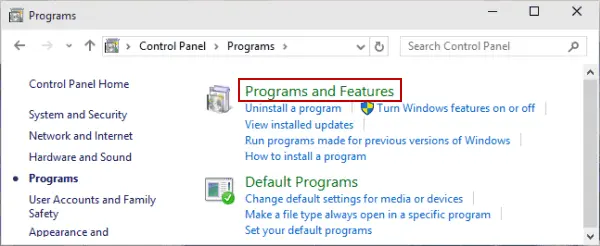
  • Go to Programs and Features and click on Uninstall a Program
Programs and Features

Note:- You do not need to worry since we are not uninstalling anything.

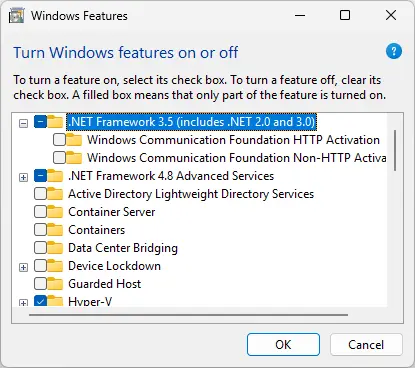
  • Select Turn Windows features ON or OFF.
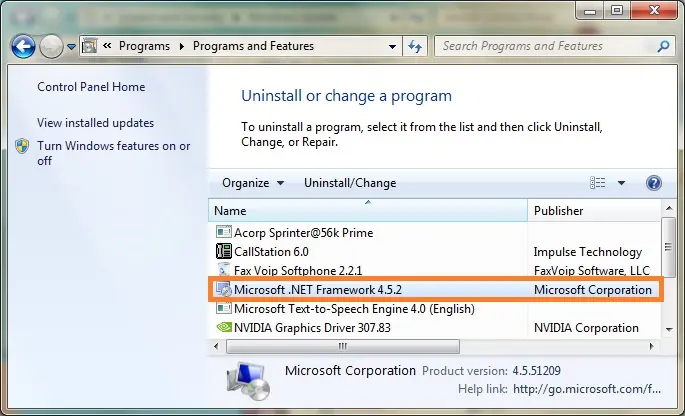
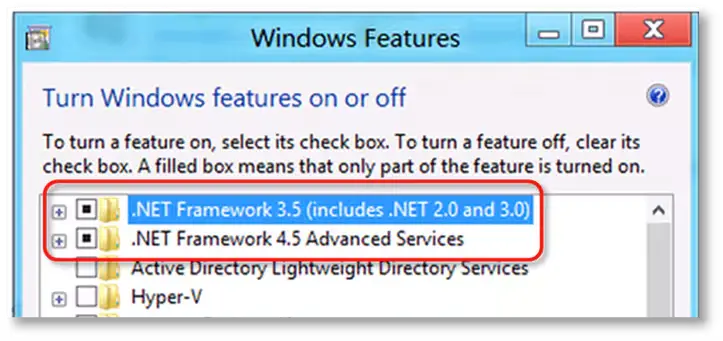
  • Find .NET Framework on the list.

Note:- Confirm and verify the settings for both:

  • .NET Framework 4.5 and .NET Framework 3.5 SP1. 
  • We recommend that you follow the same steps to fix .NET. Framework 4.5, 4.6, 4.7, and 4.8.
  • Check NET Framework 4.5.

If the .NET Framework 4.5 checkbox is not marked as checked:

  • Tick the checkbox to turn ON .NET Framework 4.5.
  • Click on OK and save your changes.
  • Restart your PC.

If the .NET Framework 4.5 checkbox is already marked as checked:

  • Click on the checkbox to turn off .NET Framework 4.5. 
Microsoft .NET Framework

Note:- Do not turn it back ON.

  • Click on OK and save your changes.
  • Now, restart your PC.
  • When you are signed back into Windows, you need to follow the steps to turn ON .NET Framework 4.5 again.
checkbox for .NET Framework 3.5 SP1
  • Check NET Framework 3.5 SP1

If the .NET Framework 3.5 SP1 checkbox is not checked:

  • Click on the checkbox and turn it ON .NET Framework 3.5 SP1. 
  • Click on OK and save your changes.
  • Restart your PC.
Windows Features

If the .NET Framework 3.5 SP1 checkbox is already checked:

  • Click on the checkbox to turn OFF .NET Framework 3.5 SP1. Make sure to keep it in the OFF mode. 
  • Click OK and save your changes.
  • Restart your computer.
  • When you need to sign back in to your Windows, simply follow the steps to turn .NET Framework 3.5 SP1 on again. 

Note:- In case you see any error while turning the .NET Framework ON or OFF, you need to reach out to an IT professional or Microsoft support. This is not a QuickBooks issue; rather, it is a Windows issue. 

Step 3: Run File Doctor 

  • Download and Install the QuickBooks Tool Hub.
  • Close the QuickBooks application.
  • Download the latest version (1.6.0.8) of the QuickBooks Tool Hub
  • You should save this downloaded file to an easy-to-reach location. 
  • Open the QuickBooksToolHub.exe file that you downloaded.
  • Follow the on-screen steps and install the application.
  • Agree to their terms and conditions.
  • Once you have finished the installation, click twice on the QB tool hub icon to launch it.

Run QuickBooks File Doctor

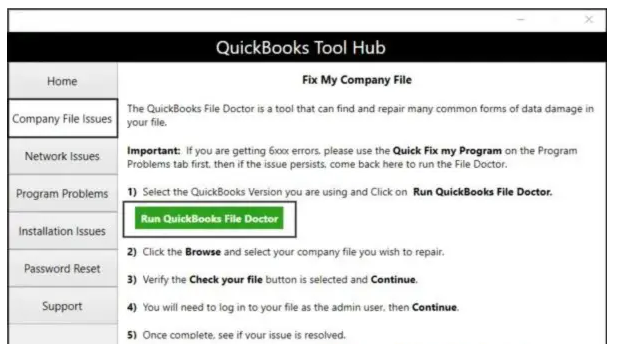
  • Within the QuickBooks Tool Hub, click on Company File Issues.
  • Click on Run QuickBooks File Doctor.
Run QuickBooks File Doctor
  • In the application of File Doctor, choose your company file from the drop-down menu. In case you do not find any file, use the Browse and search option to get the file.
  • Click on Check your file and hit Continue.
  • Log in to the QuickBooks application and click Next.

Step 4: Run QuickBooks Install Diagnostic Tool

  • Exit from the QuickBooks application.
  • Since you have already installed the QuickBooks Tool Hub, click on Installation issues.
  • Select the QuickBooks Install Diagnostic Tool.
QuickBooks Install Diagnostic Tool
  • Now, the tool has started its repairing process and may take 15 minutes to complete the process.
  • Finally, restart your workstation and try to install the QuickBooks application again. 

Step 5: Update Windows Operating System

With this step, we ensure that all the components of Windows are up-to-date and confirm the compatibility alignment. 

  • Click on the Windows Start menu.
  • In the search box, type Update.
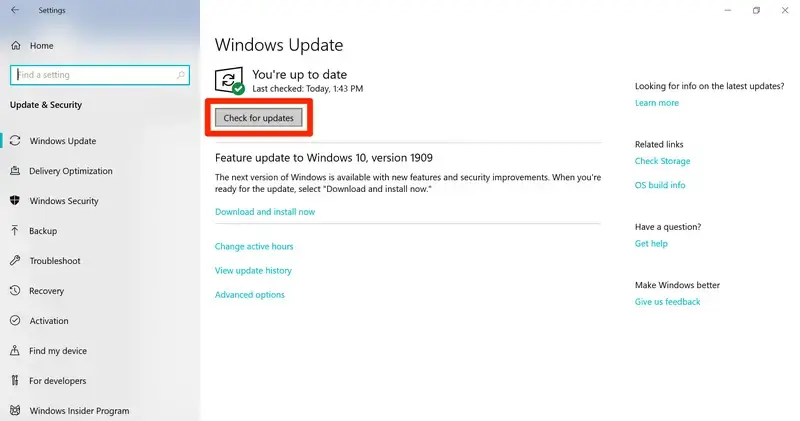
  • Hit Enter and open the Windows Update.
Windows update
  • Confirm and click on Install Update if you find any available updates pending. 

Step 6: Repair the Registry Entries

  • Click on the Windows Start menu.
  • Type a command in the Run window.
  • Press Ctrl + Shift + Enter and the User Account Permission window prompt will open, which will ask for your admin password. 
  • If you are already the admin, click on Yes
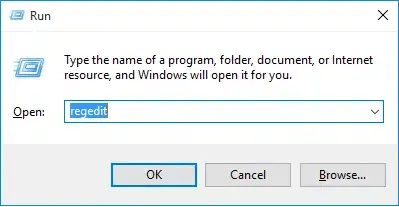
  • In the prompt, type regedit and hit Enter.
type-regedit-on-run-window
  • Now, find any link with the QuickBooks error 1935 code in the Registry Editor.
  • Click on the File and then click on Export
  • Select an easy-to-reach location to back up your company file and name the file. 
  • Click on the Selected branch in the Export range section.
  • Hit on Save and complete the backup process of the file with a .reg extension

Conclusion

We hope the QuickBooks error 1935 is fixed. However, if not, then the error requires an advanced technical solution to fix it. We tried to cover everything in this blog, but for advanced technical solutions, reach out to our senior QuickBooks specialist at +1(866)500-0076.

Frequently Asked Questions 

What is QuickBooks Error 1935 on Windows 11?

Error 1935 is a software installation issue that pops up when there is a failure in the installation of important QuickBooks components. 

What are the causes behind the error 1935 in QuickBooks?

The reason behind the error 1935 includes damaged or improper installation, a damaged Windows .NET Framework, or any third-party interference. 

How do I fix error 1935?

There are multiple ways to fix the QuickBooks error 1935 on Windows 11, depending on your system compatibility and the QuickBooks issue. To give you an overview, you can repair or reinstall the Microsoft .NET Framework, or you can temporarily disable anti-virus software. Click on the link and get a complete guide to fix the error.

Where should I contact if the error 1935 is not fixed?

If you have tried 2-3 attempts or if you do not want this headache and are looking for a quick fix, simply reach out to a senior QuickBooks specialist at +1(866)500-0076.

Can I uninstall QuickBooks and start over?

If you are looking for a clean installation of QuickBooks, we would suggest that you first try other quick-fixes rather than uninstalling QuickBooks.

About The Author

Lana Creston

Lana Creston is an experienced technical and accounting writer with a total of 9 years of experience. She currently works on QuickBooks accounting and technical guides at QuickBookSupportNet. Lana has a passion for reading and writing about various technical topics, especially exploring new accounting methods and software, while continuously expanding her expertise in the ever-evolving field of finance and technology.

Quick, clear, and hassle-free QuickBooks assistance.

Get a Free Consultation with Our QB Tax Experts
Connnect with Our Certified QuickBooks Professionals - Dial Tollfree: +1(866)500-0076