How to Track Customer Transaction Workflow in QuickBooks Desktop?
Nov 15, 2022
Admin |
Estimated Read Time : 5 MIN
Are you looking for the steps you need to follow to start the customer transaction workflow in QuickBooks Desktop? If yes, then this blog post will guide you in this direction. Here, you will find the steps you need to follow while starting off the customer transaction workflows and even different ways to track the transaction. This workflow can help in organizing cash flow, tracking sales and receivables. However, if you need further assistance, you can reach out to QuickBooks Desktop support to offer the best support service.
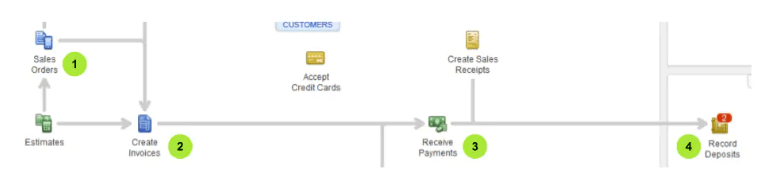
Workflow 1 – Invoice -Payment Deposit
You must follow this workflow when provided with a product or service, and your customer plans to pay later. Once your customer has paid, you can easily record QuickBooks’ payment to close the customer’s invoice or even reduce the balance.
The first user should create an invoice
Then you need to record the invoice payment
At last, deposit the customer’s payment
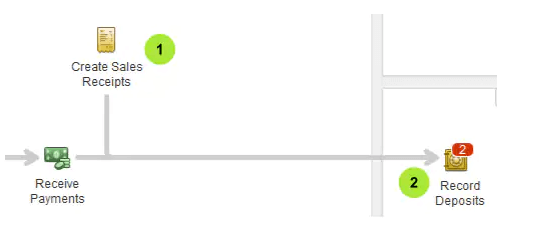
Workflow 2 – Sales Receipt Deposit
You should go for this workflow when your customer pays you on the spot for any product or service.
You need to follow this workflow, also called progress invoicing, when working on projects or jobs for the customers. You can use an estimate like the quote, bid, or proposal to track the materials, labor, and additional expenses used in the project. After that, you can invoice your customer once the project is completed.
Here, you need to create and send the project estimate to the customers
After that, you should create an invoice from the estimates
Also, record the invoice payment
At last, you need to deposit the customer’s payment
You should follow this workflow when the customers order an item that is not there in your stock at the moment. This way, you will know what products you have to buy from your vendors to complete the customer’s order on time.
You first need to create a sales order for the items that are on the backorder
Then you have to create an invoice from the sales order
You need to record the invoice payment
At last, you need to deposit the customer’s payment
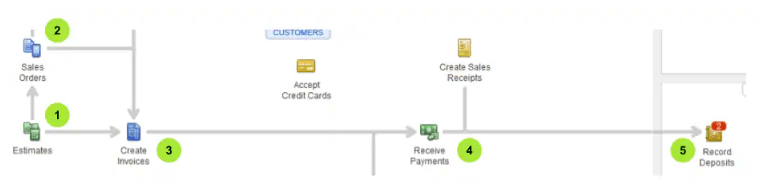
You need to follow this workflow when you need to complete a project but don’t have complete materials on your hand yet. You can create the sales order from the estimate for tracking the items on backorder. Then, create an invoice from the estimate after the completion of the project.
You first need to create and send a project estimate to your customer
Then create a sales order from that estimate
After that, you have to create an invoice using the sales order
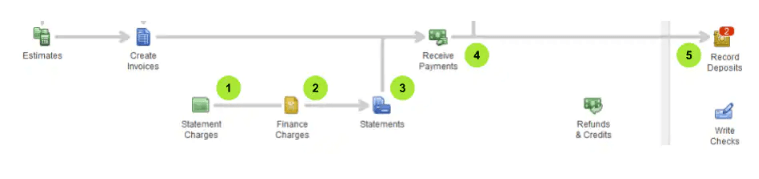
You must go with this workflow when you regularly charge your customer for items but are invoicing them periodically. You can skip creating the invoice for each charge, and then your customer can pay their accumulated charges in a total amount.
You need first to create your customer’s statement charges
Then you have to assess the finance charges
After that, create and send the billing statement to the customer
Then you must record the payment that is received
At last, deposit customer’s payment
If you find it challenging to understand this Transaction Workflow in QuickBooks, then you don’t need to think twice before calling QuickBooks technical support to avail their help. You can avail the expert’s guidance of a technical professional to resolve the query faced by QuickBooks users.
Lana Creston is an experienced technical and accounting writer with a total of 9 years of experience. She currently works on QuickBooks accounting and technical guides at QuickBookSupportNet. Lana has a passion for reading and writing about various technical topics, especially exploring new accounting methods and software, while continuously expanding her expertise in the ever-evolving field of finance and technology.
Effortlessly handle data tasks or get expert assistance with: