Oct 22, 2025
Admin |
Estimated Read Time : 5 MIN
Are you a new user and wondering “how to setup the QuickBooks Desktop for the first time” to get started with financial management?
Setting up the QuickBooks software offers robust features, automation, direct deposit, and advanced inventory management, making it ideal for businesses with complex needs, especially those in manufacturing or construction, and scalability for multi-user and multiple companies.
Learn how to set up QuickBooks Desktop as a new user in this detailed guide to manage the financial data conveniently.
Table of Contents
ToggleSetting up QuickBooks Desktop from scratch involves configuring various features for payroll automation and other tasks, including adding customers or vendors, employees, and setting up payroll. See how to set up the QuickBooks Desktop for the first time below:
Add your customers and vendors to QuickBooks Desktop with the steps below:
Read More – How to Get a QuickBooks Payroll Tax Table Update
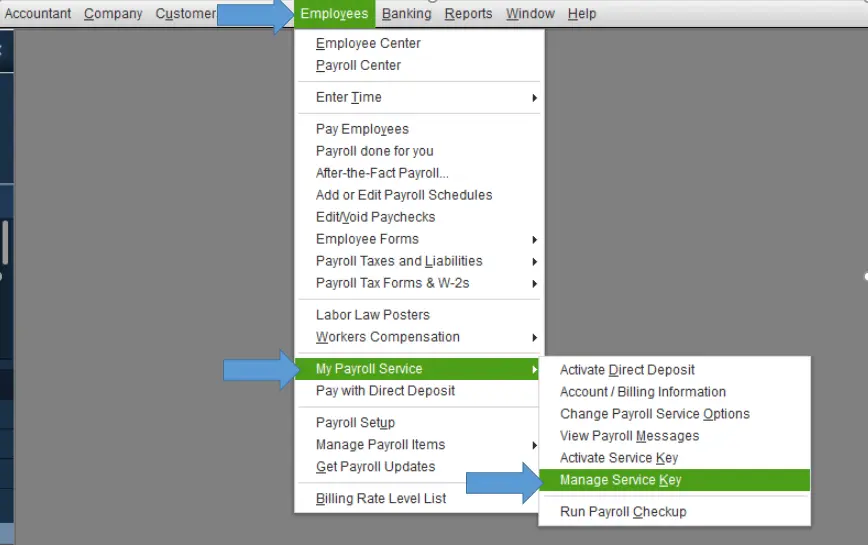
Before setting up, you must activate the payroll services as mentioned below. Explore QuickBookSupportNet to learn how to set up payroll’s various features, including direct deposit, tracking, and more.

Don’t know if you can add employees to QuickBooks Desktop? See how you can add your employees for time tracking and automated pay:
Learn More – How to Set Up and Process QuickBooks Payroll Direct Deposit
Learn how you can set up items that you buy or sell for your business to keep track of the inventory:
Read Also – How to Download QuickBooks Desktop for Windows and Mac
For the Direct-connect, you will need a password or PIN. Once you set up the account, you can download your electronic statements to your Bank Feeds. When you download transactions for the very first time, QuickBooks will automatically set up an account for Bank Feeds.
Before starting, look for your bank and see if the service is free or if there’s a fee.
Bank-provided credentials
For the direct connect, your bank provided the Customer ID and password (or PIN) for online banking setup.
You may also need these:
| Account Type at FI | Account type in QB |
| Checking | Bank |
| Savings | Bank |
| Money Market | Bank |
| Line of Credit | Bank |
| Credit Card | Credit Card |
| Line of Credit | Other current liability |
If you are a new user or enrolling for the first time, select the Enrollment Site link. You will need to apply for Direct Connect. For the application approval from your bank’s end, contact the support team. Ask them if you will require special sign-in credentials.
After enrollment:
Also Read – QuickBooks Desktop 2024
Enter the opening balance before you start recording your transactions. When done, go to your account register and make sure all the information is correct. Your Opening Balance Equity account should not have any remaining balance.
If the account balance isn’t 0.00, don’t worry. Note down the remaining balance and run a Balance Sheet Report for last year.
Finally, compare the last year’s Retained Earnings balance with the remaining balance in your Opening Balance Equity account.
Also See – Learn to Fix QuickBooks Payroll Update Error
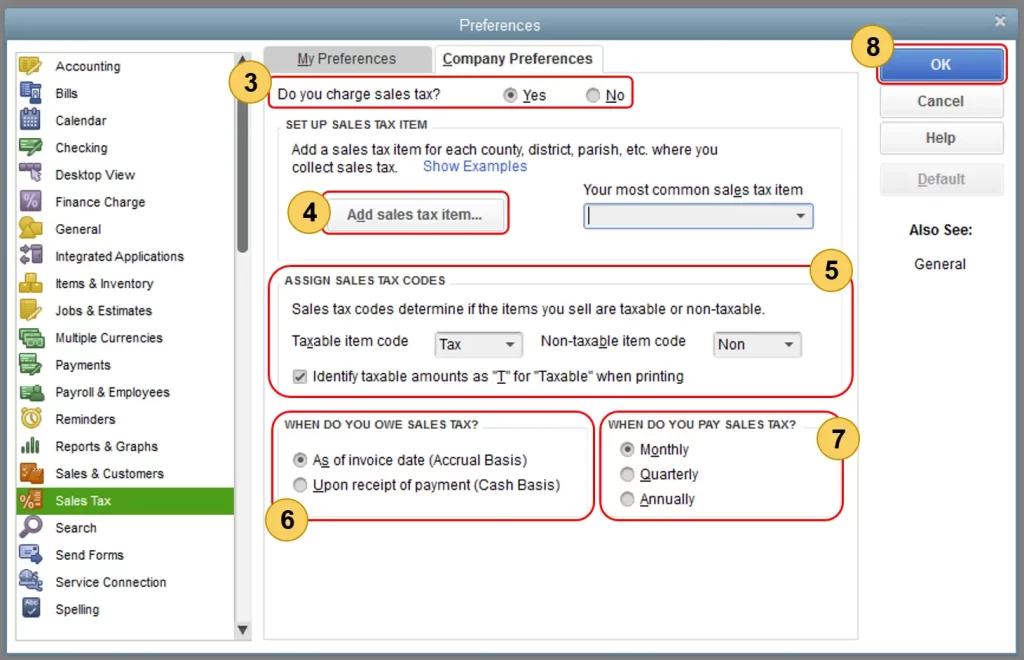
Learn how to set up sales tax information in QuickBooks Desktop:

In conclusion, this guide covers everything you need to know to setup the QuickBooks Desktop for the first time, helping you manage your business finances and accounting in one place. While the process may seem daunting, this guide simplifies it.
If you need additional help or prefer someone to set it up for you, feel free to call a QuickBooks ProAdvisor at +1(866)500-0076 for assistance.
You can try downloading QuickBooks Desktop. The only official way is by downloading the 30-day free trial of QuickBooks Desktop Enterprise. For QuickBooks Online, you can try the risk-free sample company, which is a good way to see how the two platforms differ.
To get started with QuickBooks, you need to create an account, choose a plan, and set up your company’s profile by entering basic information and connecting your bank accounts.
Once the initial setup is complete, you can begin entering customers, vendors, and products/services, and then start using QuickBooks to manage invoices, expenses, and financial reports.
To start a new QuickBooks company file, click Create a new company from the No Company Open window or go to File > New Company. You can then choose between Express Start for a quick setup or Detailed Start for more control, and follow the on-screen prompts to enter your business information.
Lana Creston is an experienced technical and accounting writer with a total of 9 years of experience. She currently works on QuickBooks accounting and technical guides at QuickBookSupportNet. Lana has a passion for reading and writing about various technical topics, especially exploring new accounting methods and software, while continuously expanding her expertise in the ever-evolving field of finance and technology.
Quick, clear, and hassle-free QuickBooks assistance.