Upgrade QuickBooks Desktop to 2022 for Windows and Mac

Jan 27, 2026

Admin |

Estimated Read Time : 5 MIN

Upgrading QuickBooks Desktop is not rocket science. It simply requires you to upgrade QuickBooks using the steps shared in this blog. With no cost, you can upgrade QuickBooks to 2022 QB Desktop Pro Plus, Premier Plus, Enterprise, or Mac Plus.

When you upgrade your QB application, you can use the latest features, services, and security updates to manage your business workflow.

Guidelines to follow before you proceed with the upgrade of QuickBooks Desktop

  • Back up your company file.
  • Keep your license info handy.
  • You must have sufficient permissions.
  • Ensure to sign in to Windows as an admin.
  • Know all the system requirements.

System Requirements to Upgrade QuickBooks Desktop to 2022

Processor2.4 GHz minimum
RAM (workstation)For a workstation minimum RAM required is 8 GB minimum but the recommended is 16 GB. 
RAM (server)1-5 QuickBooks Users: 8 GB
10 QuickBooks Users: 12 GB
15 QuickBooks Users: 16 GB
20+ QuickBooks users: 20+ GB
Disk Space• Your PC must have free disk space of 2.5 GB (additional space required for data files). Additional software:
• Microsoft .NET 4.8 Runtime – 60 MB, provided with the installation files.
• Minimum RAM requirement is 4.0GB.

Note: Store your QuickBooks data file on a solid-state drive (SSD) for the best performance.
Windows• North American version of Windows.
• Your window must support regional settings when set to English.
• You must have Admin rights for the server computer when hosting multi-user access.
Optical driveFor physical CD installations, a 4X DVD-ROM drive is required.
Screen resolutionScreen resolution • Your PC’s Display must have 1280 x 1024 resolution.• Best optimized for the default DPI setting for a given computer.

Minimum System Requirements for QuickBooks in Mac Plus 2022

  • You must operate on a system at least Mac OS X v12.0 (Monterey).
  • Ensure you have iOS 12.0 or later for iPhone-related features.
  • Supports either Intel or Apple CPU hardware.
  • An internet connection is a must.
  • Multi-user Server: To run a sever, ensure you have Intel Core 2 Duo or higher processor to run a server.
  • The minimum requirement of RAM is 2 GB, but recommended to have 4 GB RAM.
  • The PC must have at least 250 MB of available storage.

Learn how to upgrade your QuickBooks Desktop for Windows and Mac.

You will get a prompt for a new version of QuickBooks when you launch the application.

  • Launch QuickBooks Desktop.
  • Click on Upgrade Now.
  • You can click on Keep old version on my computer, if you are interested in continuing with your old version.
  • Click Let’s go.
  • Or, do not select anything and select Let’s go.
  • Click on Open QuickBooks once the upgrade is finished.

Restore all one-time messages to upgrade QuickBooks

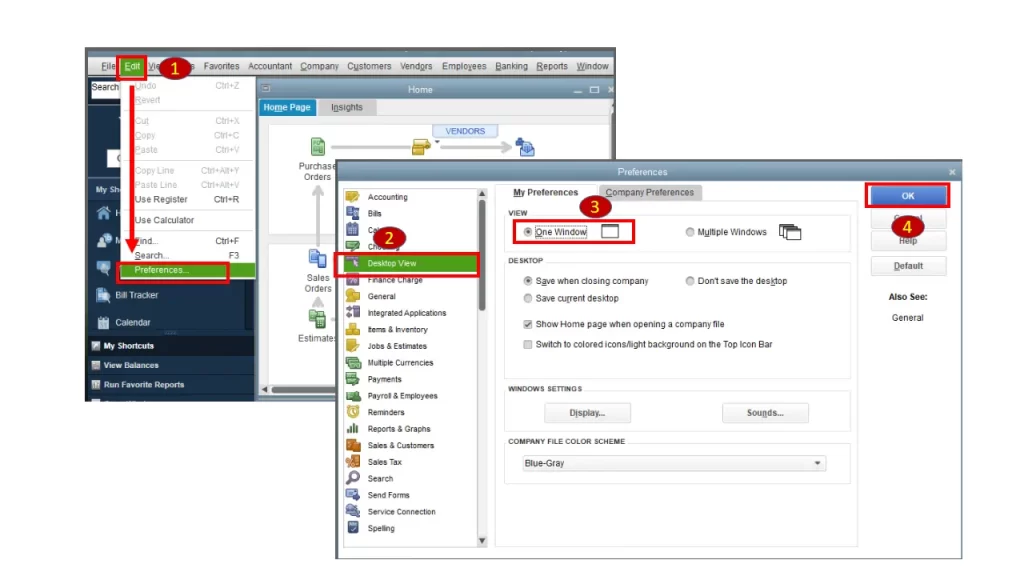
  • Click on Edit and choose Preferences.
view preferences in QuickBooks
  • Select the tab General, and choose My Preferences.
  • Click on Bring back all one-time messages and hit OK.
  • Now, close your QuickBooks application and re-launch it.
  • A prompt to upgrade the QuickBooks application will appear on the screen.

Use your QuickBooks license info to upgrade QuickBooks manually

  • Log in to your Intuit account and find your license info.
  • To upgrade the QuickBooks Desktop, use QuickBooks Desktop Manager.
  • If it is required, enter your license info.
  • Now, follow the on-screen prompts and finish the upgrade process.

Use the Discovery Hub to upgrade QuickBooks 

  • Click on DISCOVERY HUB and select Upgrade to QuickBooks 2022.
  • Click on Proceed and choose Upgrade Now.
  • If you still want to keep your current QuickBooks version, click on Keep old version on my computer.
  • Now, click on Let’s go or leave it as it is and select Let’s go.
  • Once you are done with the upgrade, click on Open QuickBooks.

Use Rightworks to upgrade QuickBooks Desktop for Mac Plus

  • Launch QuickBooks Desktop.
  • Click on Upgrade for Free.
  • Click on Let’s go, and it will begin downloading and installing the recent version of QuickBooks. 
  • Open the QuickBooks application after the upgrade finishes.
  • Now, you need to activate or register the new QuickBooks.

Use the Help menu to upgrade QB Desktop for Mac Plus

Ensure to switch to a single-user mode before proceeding with these steps.

  • Launch the QuickBooks application.
  • Click on Upgrade for Free and select Let’s go.
  • This will start downloading and installing the recent version of QuickBooks.
  • Once you are done with the upgrade, click on Open QuickBooks.
  • Now, you are required to activate or register QuickBooks’ new version.

Conclusion

Thanks for being with us so far! We are a team of QuickBooks specialists and your well-wishers. To provide you with valuable content enriched with solution-oriented information, we believe in sharing everything that would require you to upgrade QuickBooks Desktop to 2022.

Talk to our senior QuickBookSupportnet at +1(866)500-0076 for more information. 

Frequently Asked Questions

What is QuickBooks Desktop 2022?

QuickBooks Desktop 2022 is one of the latest versions of QuickBooks Desktop for users using older versions than 2022.

How can I upgrade my QuickBooks Desktop to the 2022 version?

If you are looking for a complete upgrade guide, click on the link to the website below and follow the guide to upgrade your QuickBooks Desktop for Windows or Mac.

Can I keep my previous QuickBooks version while using the new QuickBooks version?

Yes, you can also keep your current version of QuickBooks while you upgrade to the new version of QuickBooks.

About The Author

Lana Creston

Lana Creston is an experienced technical and accounting writer with a total of 9 years of experience. She currently works on QuickBooks accounting and technical guides at QuickBookSupportNet. Lana has a passion for reading and writing about various technical topics, especially exploring new accounting methods and software, while continuously expanding her expertise in the ever-evolving field of finance and technology.

Quick, clear, and hassle-free QuickBooks assistance.

Get a Free Consultation with Our QB Tax Experts
Connect with Our Certified QuickBooks Professionals - Dial Tollfree: +1(866)500-0076