Let’s Create and Record Checks in QuickBooks Online & Desktop

Jan 6, 2026

Admin |

Estimated Read Time : 5 MIN

A cheque is preferred for better bookkeeping and a reliable paper trail, lower transaction fees, better cash flow management, and to accommodate vendors who may not accept digital payments.

If you are wondering how to create and record checks in QuickBooks Online & Desktop, this guide is all you need. With detailed steps, you can easily create and record, and print and even print checks from the print queue.

Explore this comprehensive guide on how to create and record checks online and get a printed copy of your cheques right away!

Learn How You Can Create and Record Checks in QuickBooks Online 

In QuickBooks Online, creating a cheque simplifies payment and lets you pay your employees and contractors by paper check or electronically. Meanwhile, recording checks ensures all payment data is stored in QB without risk of loss.

Learn how to record and print checks in QuickBooks Online using the steps below. 

How to write a check in QuickBooks Online and record it 

If you want to record a handwritten cheque in QuickBooks Desktop, follow the steps below. These steps will also help you create and print a brand-new cheque to hand to your employees or contractors. 

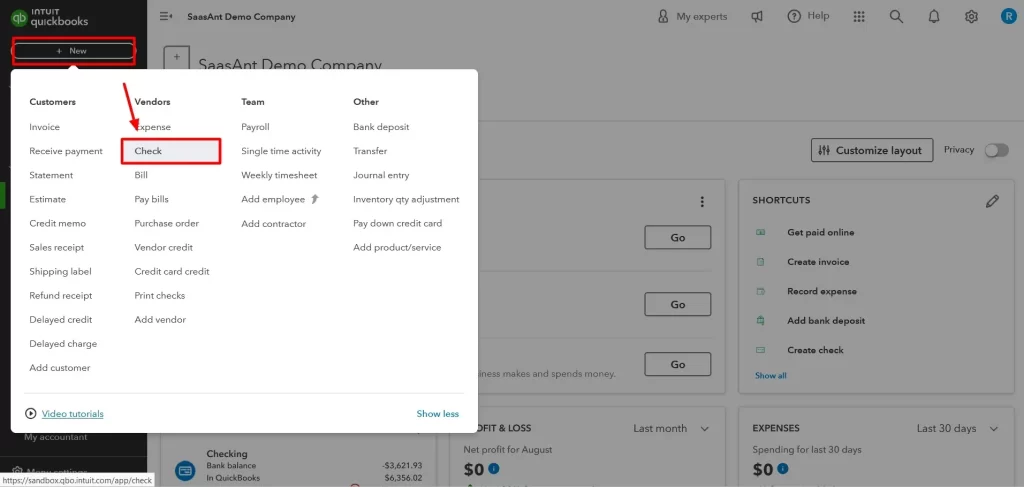
  • Select + New or + Create.
  • Choose your Cheque.
createchecks
  • Select Payee in the drop-down menu. 
  • From the Bank account drop-down, choose the bank account the cheques withdraw money from. 
  • Complete the required cheque fields.
  • Click on the Print option.
  • Click Save and close to close the cheque window. Or Save and new if you want to create a new cheque. 

Note: you choose a save option, the cheque will be added to your bank register. 

How to print your cheque

When you simply record a handwritten check in QuickBooks Desktop, saving the cheque completes the task. Everything will already appear within QuickBooks.

If you choose the Print option, your cheque is ready for printing.

Note: You may print using your own checks, provided those checks are formatted for use in QuickBooks.

Print checks from the print queue

If you have multiple checks in the print queue, the following steps will help you get a printed copy of each: 

a. Prerequisites

Before printing, make sure the printer is aligned with your check and with one or more checks in the print line.

Follow this link to complete the steps in the product

  • Click on Print checks
  • Open the print you wish to print. 
  • Now, select Print later or Print check
  • This will change the Check no. to “To print.”
  • Select the check type: Voucher or Standard. Regular checks provide three checks per sheet, whereas voucher checks offer one with stubs included.
  • Now, click on Yes, I’m finished with setup.

b. Print a cheque 

Follow the steps below to print one or more checks from your print queue.

Follow this link to complete the steps in the product

  • Open the first check you wish to print from the queue. 
  • Click on Print Check.
  • Choose the correct account from the drop-down menu. 
  • Enter the number of your first check in the printer from the starting check number
  • Mark the checkbox for each check you wish to print. 
  • Hit on Preview and print.
  • If the preview looks fine, select Print
  • If any checks get printed incorrectly, click on Some checks need reprinting. First, enter the check number you need to fix. If not, click Yes, they all printed correctly
  • Finally, click Done.

How to Create, Modify, and Print Checks in QuickBooks Desktop? 

This section explains how to manage checks in QuickBooks Desktop, including how to create and write new checks, as well as how to modify, void, delete, and print them. 

Write a check

You have two options for writing checks: regular checks and check forms. Learn how to find checks to be printed in QuickBooks Desktop, delete, void and more: 

Regular checks 

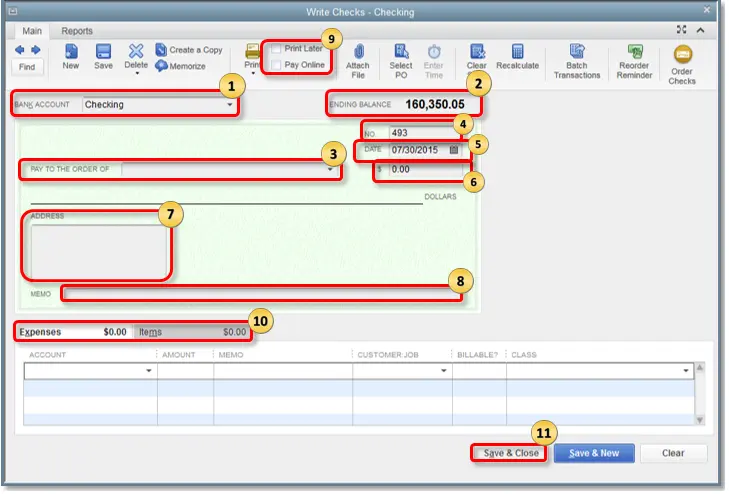
For your fixed deposit/asset payment, inventory and non-inventory part, service, other charges, and any expense you track, use regular checks in QuickBooks Desktop. You can also use the check form to put money into a petty cash account to pay your credit card dues. Go to the Banking menu and select Write Checks to write your checks.

Write a check
  • Bank Account: The bank from which the withdrawal shall proceed or the money will be taken out. 
  • Ending Balance: The balance of the given account as of the date you write checks. 
  • Pay to the Order of: The Payee Name will come here or whoever the check is issued for. 
  • No.: QuickBooks assigns a number depending on the check number preference you choose. 
  • Date: Enter the date when you issue a check to someone. 
  • Amount: The check amount shall be in numbers. In the field below, to Pay to the order will automatically show the Dollar amount in words.
  • Address: Once the payee name is set up, the payee address will be auto-populated.

Memo: You can leave this field empty as it is mostly used to write an unofficial note for additional details like the account information, the period, and what the payment is for.

  • Print Later or Pay Online: Mark the checkbox for Print Later if you want to print the check later any time or select the Pay Online checkbox to process any online payment. 
  • Expenses or Items tab
    • Go to the Expense tab. Here, enter the shipping charges, liability (in cases of payments for liabilities/loans), and other expenses that may not be associated with any item in QuickBooks.
    • Go to the Item tab. Here, choose any appropriate item on the drop-down list.
  • Finally, click Save & Close.

Other checks forms 

  • Bill Payment Check: When you select Pay Bills option in QuickBooks Desktop, the Bill Payment Check will be generated. 
  • Sales Tax Checks: Create Sales tax checks to pay your sales tax liabilities.
  • Paycheck: A check is issued to an employee in form/payment of salary or wages. 
  • Payroll Liability Checks: Checks issued to pay payroll taxes withheld from employees or any amounts your company owes due to payroll. This includes 401(k) contributions, health insurance premiums, union dues, and child support garnishments.

Delete or void a check

Understand the difference between deleting and voiding a check before you start.

Note: When you void a check, the amount is changed to $0.00. VOID is added to the Memo field. You can always re-enter a voided check. You can do this to keep a record of the check in QuickBooks. However, deleting a check removes the transaction record from QuickBooks. It will be like it never happened. You can’t undo this the way you can with a voided check, but you can re-enter it. 

a. Void a written check

  • Go to the Banking menu. 
  • Select Use Register.
  • Choose the account you use to write a check from the drop-down menu. 
  • Select your check in the Bank Register
  • Go to the Edit menu and choose Void Check
  • Click on Record

b. Void a blank check

  • Create a check and keep the amount of $0.00.
  • Type a payee name, and assign your account in the Expenses section.
  • Now, go to the Edit menu.
  • Select Void Check.

c. Delete a check

  • Navigate to the Banking menu. 
  • Choose Use Register.
  • Select the account you wrote the check for from the drop-down. 
  • In the Bank Register, choose your check.
  • Go to the QuickBooks Edit menu.
  • Click on Delete Check.
  • Finally, select Record.

Print checks

  • From the Write Checks window, select the Print icon, then select:
    • Cheque: To print a single check. When you choose this option, you will be prompted to enter a Printed Check Number.
    • Batch: To print multiple checks that are marked for Print Later. When you select the option, QuickBooks will redirect you to the Select Checks to Print window. Put a check mark to select the checks you wish to print and click OK
  • In the Print Checks window:
    • Choose the Printer name and Printer type
    • In the Check Style section, select the checks to print as a Voucher, Standard, or Wallet.
    • When your pre-printed checks already include your business name and address, clear the option to print the business name and address.
    • Check mark and ensure all other settings are correct. 
  • Click on Print.
  • Secure checks compatible with QuickBooks are available on Intuit Marketplace.
  • QuickBooks currently doesn’t support printing MICR fonts on checks. Check the Intuit Marketplace for third-party software to print MICR font.

Memorize a check

  • Select Memorize or press Ctrl+M in the Check window.
  • Choose the reminder option.
  • In the ‘How Often’ field, select the frequency such as monthly, weekly, daily, etc.
  • In the ‘Next Date’ field, choose the date of your next payment. 
  • Now, enter the number of payments you want the program to enter in the ‘Number Remaining’ field. 
  • In the “Days In Advance To Enter” field, enter the number of days in advance your program needs to record the transaction or reminds you to enter. Choose 0 to post on the day of your choice. 
  • Click OK to memorize your transaction. This will redirect you to the ‘Write Checks’ window.
  • If the check is set to auto-pay, uncheck Print Later

Remember: If a check is tagged to be printed later, it will show up in the Print Check queue on the day it gets recorded.

  • (Optional) For auto-pay, change its number to Autopayment or Epay. Then, choose Save & Close.

Depending on the reminder setting you selected, you will either get a prompt to create the check or to print it when the next occurrence comes due.

Conclusion 

In conclusion, when you create and record checks in QuickBooks Online, it keeps the business finances organized, ensuring timely payments to employees, contractors, and vendors, especially for those who don’t accept digital payments.

If you need further assistance, consider consulting with experts at QuickBookSupportNet. Speak with a QuickBooks ProAdvisor today to get personalized guidance for your business.

Frequently Asked Questions 

What is a check & how does it work in QuickBooks? 

In QuickBooks, a ‘check’ is a record of a payment made from a bank account used for expenses, payroll, or other payments.

To work with checks, you create a new check transaction, enter details such as the payee and bank account, categorize the expense, and then either print the check onto pre-printed stock or save the transaction to record the expense.

Why should you create check records in QuickBooks Online? 

Creating check records in QuickBooks Online helps you keep financial records organized, accurately track expenses and cash flow, and simplify tasks like tax preparation and bank reconciliation.

How do I create a check in QuickBooks Online? 

To make a check in QuickBooks Online, select +New > Cheque. Choose Payee from the drop-down, then select the account the cheque withdraws money from under Bank account. Enter the required info and click Print. Select Save and close to close the cheque window. 

How to record handwritten checks in QuickBooks Online? 

To record a handwritten check in QuickBooks Online, go to + New, select Cheque, and enter the payee, bank account, and date. Enter the physical check number in the “Check no.” field, categorize the expense, and enter the amount. 

How to record a handwritten check in QuickBooks Desktop?

To record a handwritten check in QuickBooks Desktop, go to Banking > Write a Check, enter the details including the payee, date, check number, and amount. Select the bank account the check is from and choose the correct expense account for the payment. Uncheck the “Print Later” box to enable manual entry of the check number, then Save and Close.

About The Author

Lana Creston

Lana Creston is an experienced technical and accounting writer with a total of 9 years of experience. She currently works on QuickBooks accounting and technical guides at QuickBookSupportNet. Lana has a passion for reading and writing about various technical topics, especially exploring new accounting methods and software, while continuously expanding her expertise in the ever-evolving field of finance and technology.

Quick, clear, and hassle-free QuickBooks assistance.

Get a Free Consultation with Our QB Tax Experts
Connnect with Our Certified QuickBooks Professionals - Dial Tollfree: +1(866)500-0076