How to Install QuickBooks Database Server Manager?

Oct 28, 2025

Admin |

Estimated Read Time : 5 MIN

Did you face an issue in accessing the same company file with your colleagues? It could happen due to a settings issue or because Windows Firewall blocks the company file. QuickBooks Database Server Manager is a tool for QuickBooks Desktop that allows multiple users to access the same company file on a network.

The guide to Install QuickBooks Database Server Manager covers everything a QuickBooks user needs to know. Considering the standard requirements of users facing issues, we crafted this informative blog. Walk through this guide, and you can bookmark it for further use.

Learn to set up the QuickBooks Database Server Manager in QuickBooks Desktop. 

Solution 1: Install the Database Server Manager and configure it. 

Using QB Database Server Manager, you can share your company files with other PC on the same network.

Step 1: Download QuickBooks Database Server Manager

  • You need to know that the QuickBooks Database Server Manager is an essential component of the QuickBooks Desktop.
  • Click Download and Update QuickBooks Desktop, and it will automatically update the Intuit Database Server Manager. 

Step 2: Install QuickBooks Database Server Manager

  • You need to close all the programs that are open, including QuickBooks.
  • Open the downloaded QB database server manager file. The file is called Setup_QuickBooks.exe.
  • Continue with the on-screen instructions and keep your product and license numbers handy. 
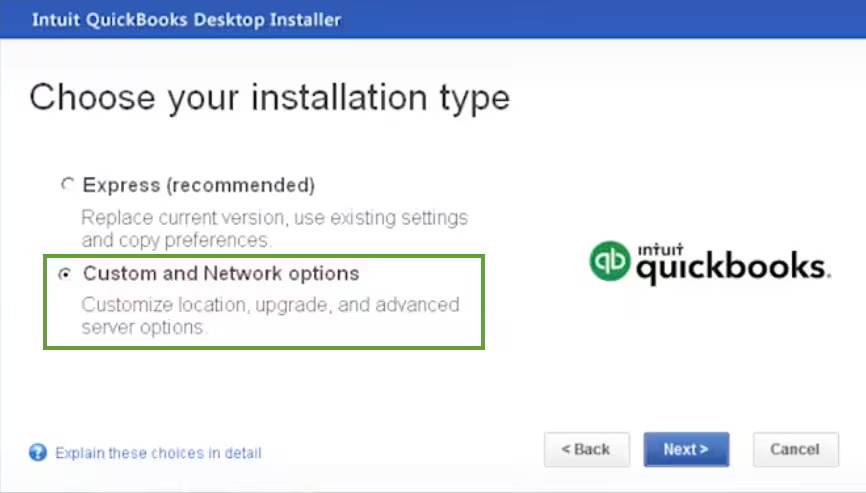
  • Click on Custom and Network Options when QuickBooks asks you to choose an installation type.
installation type
  • Click Next, and make sure you don’t select Express

Note:– If you choose the Express option, it will install the new QuickBooks Desktop over your previous version. If it happens, you won’t be able to compare or troubleshoot the necessary items. 

  • Now, you can choose the option to set up your network, then click Next
  • You can select any, since both options would install the Intuit Database Server Manager. If you find that QuickBooks Desktop is already in use on your server computer, it will not overwrite any existing company data.  
  • If you want Database Server Manager and QuickBooks Desktop on your server computer, select I’ll be using QuickBooks Desktop on this computer, AND I’ll be storing our company file here so it can be shared over our network. We strongly recommend this option.
  • If you only want Database Server Manager on your server computer, select I will NOT be using QuickBooks Desktop on this computer.

Step 3: Configure Database Server Manager

  • Click on the Windows Start menu.
  • In the search box, type Services and open it.
  • Choose QuickBooksDBXX (where XX is the version number) and open it. 
  • Navigate to the General tab and find the option Service Status.
  • Click on Stop if it is started or running.
  • Click on Automatic from the Startup type.
  • Navigate to Logon and choose Local System account.
  • Go to the Recovery tab and choose the option Restart the Service from each of the options:
    • First Failure
    • Second Failure
    • Subsequent Failure
  • Go back to the General tab and click on Start menu.
  • Relaunch the Database Server Manager.

Step 4: Run File Doctor 

  • Close your QuickBooks accounting software.
  • Download QuickBooks Tool Hub version 1.6.0.8. 
  • You should save this downloaded file to an easy-to-reach location. 
  • Open the QuickBooksToolHub.exe file that you downloaded.
  • Follow the on-screen steps to install the application, and agree to its terms and conditions.
  • Once you have finished the installation, double-click on the QB Tool Hub’s icon to launch it. 
qb tool hub

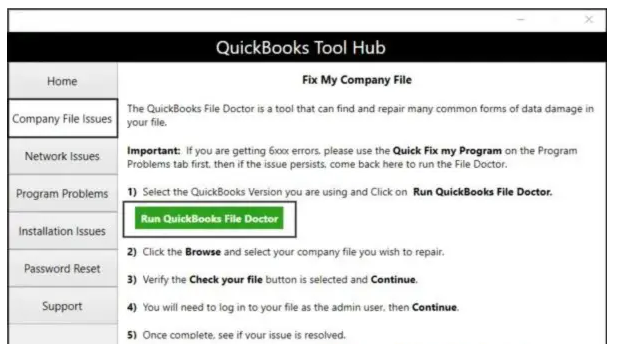
Step 5: Run QuickBooks File Doctor

Run QuickBooks File Doctor
  • In the application of File Doctor, choose your company file from the drop-down menu. 
  • In case you do not find any file, continue with the Browse and search option to get the file.
  • Click on Check your file and hit Continue.
  • Enter your QuickBooks login credentials and click on Next.

Solution 2: Configuring Windows Firewall Settings

Windows Firewall is a must and a basic requirement for the smooth functioning of QuickBooks. 

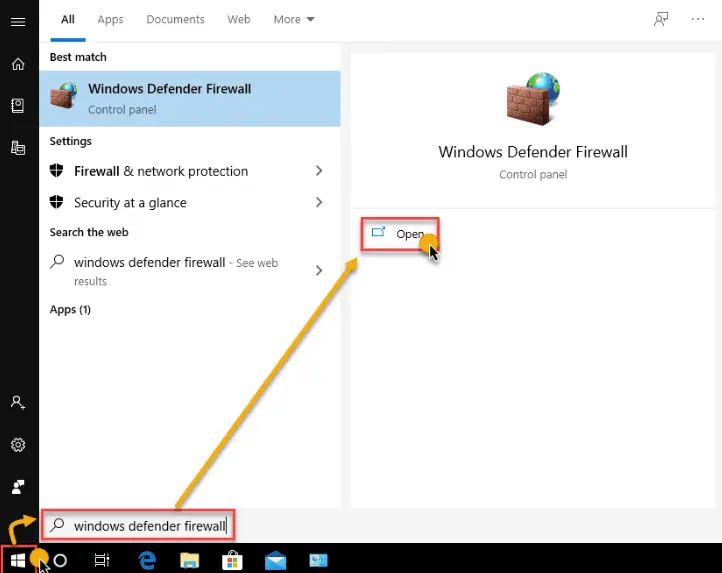
  • Type “Firewall” in the search box.
Configure Your Windows Firewall Settings
  • Open the “Windows Firewall” and click on “Settings”.
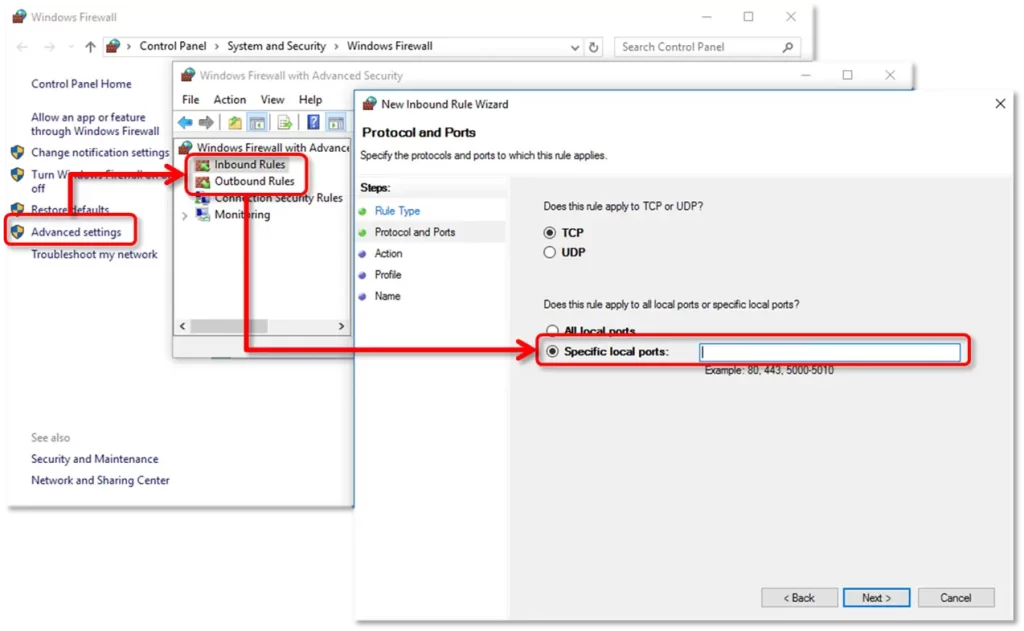
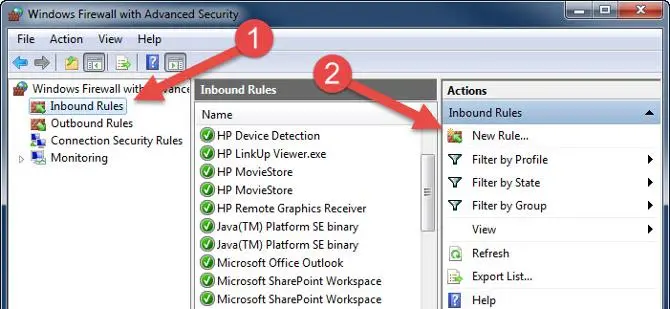
  • Click on “Advanced Settings” to create inbound and outbound rules.
  • For Creating Inbound rules:
    • Right-click on Inbound rules and choose “New Rule”. 
    • In the drop-down menu, click on “Program > Next”.
    • Choose “This Program Path”.
    • Now browse “QuickBooks executable file (qbw32.exe or QBDBMgrN.exe)” 
    • Select the file and click “Next”.
    • Proceed with the “Allow the connection” and make sure all profiles are checked.
  • Then, click “Next” and name the rule with format QBFirewallException_qbw32.exe and “Finish” it.
  • To create an outbound rule: Follow the same steps mentioned above and just click on “Outbound Rules” this time. 
  • Add Port Exceptions:
    • The first step is to right-click on Inbound or Outbound Rules
windows Firewall and Security Software
  • Now choose “New Rule” and click on “Port > Next”.
  • Click on the “TCP” section and enter the port numbers aligned with the QuickBooks version you are using. It could be 56728, 55378, or 8019
  • If you are using QuickBooks 2023 or a later version, you need to use the “Dynamic Port” along with 8019. Follow the further on-screen instructions and finally click on “Allow the connection”.
  • Follow the same steps for other QuickBooks executable files and ports. Now, you can restart the PC.

Get your dynamic port number

  • Click on Next after you enter the port number.
  • Click on Allow the connection and hit Next.
  • Again, click on Next when prompted and ensure that all profiles are marked as checked. 
  • Now, create a new rule and give it a name in the format QBPorts(Year).
  • Once you are done, click on Finish

Conclusion

Thanks for trusting us! This blog on Install QuickBooks Database Server Manager has covered the top-rated solutions to configure the QuickBooks Database Server Manager. We hope that you successfully configured the server manager. In case it is not set up properly, contact our senior QuickBooks specialist at +1(866)500-0076

Frequently Asked Questions

What is QuickBooks Database Server Manager?

The database server manager is an application that enables you to operate QuickBooks to access the company file in a multi-user environment. 

What do I need to download the QuickBooks database server manager? 

There are multiple uses of the database server manager that include scanning of QuickBooks files on your host computer, creating .ND files and allowing multiple users on different workstations to access the same company file simultaneously. 

How do I install the QuickBooks Database Server Manager on my computer? 

You can install the QuickBooks database server manager using these steps:

  • First, download the database server manager from Intuit’s official website. 
  • Open the downloaded file of the database server manager. The file is called Setup_QuickBooks.exe.
  • Continue with the on-screen instructions.
  • Make sure to keep handy your product and license number.
  • Click on Custom or Network Options when QuickBooks asks you to choose an installation type.
  • Click on Next and make sure not to select Express.

About The Author

Lana Creston is an experienced technical and accounting writer with a total of 9 years of experience. She currently works on QuickBooks accounting and technical guides at QuickBookSupportNet. Lana has a passion for reading and writing about various technical topics, especially exploring new accounting methods and software, while continuously expanding her expertise in the ever-evolving field of finance and technology.

Quick, clear, and hassle-free QuickBooks assistance.

Get a Free Consultation with Our QB Tax Experts
Connnect with Our Certified QuickBooks Professionals - Dial Tollfree: +1(866)500-0076