Learn to fix QuickBooks Error 1335

Feb 3, 2026

Admin |

Estimated Read Time : 5 MIN

Running into QuickBooks Error 1335 while installing or updating the software can instantly disrupt your workflow. This error usually appears when Windows fails to read an essential cabinet (.cab) file required during the installation process. Damaged files, missing components, or system conflicts can trigger error 1335 in QuickBooks. 

You may receive error messages with the statement:

“Error 1335: The cabinet file [data1.cab] required for this installation is corrupt and cannot be used.”
“Error 1335: The cabinet file required for this installation cannot be used.”

QuickBooks Error Code 1335 can be fixed using the correct steps. Understanding the reason behind the error makes troubleshooting much easier and prevents similar issues in the future. In this guide, we will walk you through the expected reasons behind the error and share the solutions that you can use to fix it.

Causes behind the Error Code 1335 in QuickBooks

  • Damaged or missing installation files
  • Insufficient Disk Space
  • Outdated QuickBooks application
  • Third-party interference
  • Missing Windows components

How to Fix QuickBooks Error 1335?

QuickBooks Error Code 1335 is an installation error that requires your attention along with sufficient system requirements. The solution varies depending on your system requirements and QuickBooks version. 

Solution 1: Run QuickBooks Install Diagnostic Tool

Step 1: Learn to download and install the QuickBooks Tool Hub

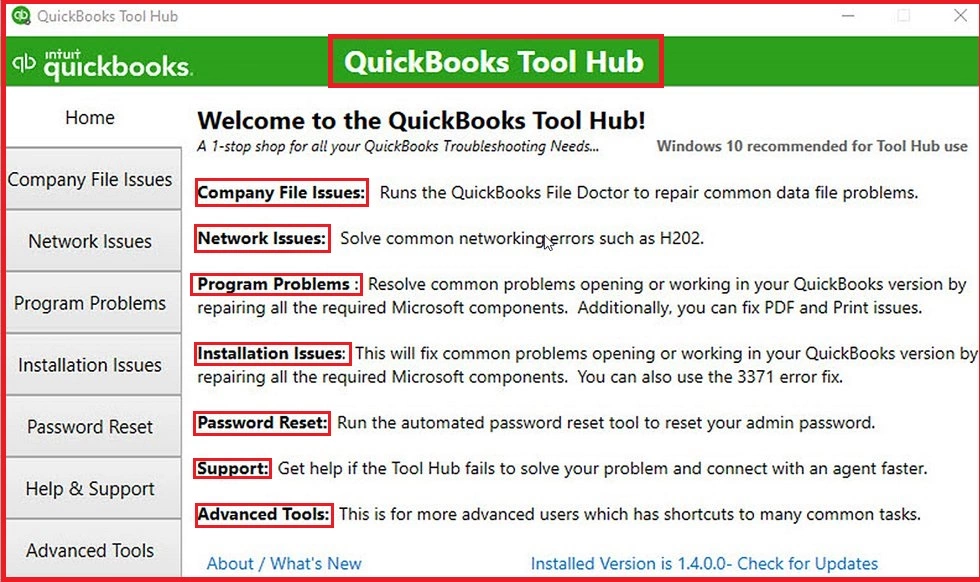
QuickBooks Tool Hub is a separate software that resolves the QuickBooks accounting application’s basic errors and issues. These error and issues includes error of series 6XXX and H-series errors or network errors. 

Note:- In case you are already using the QuickBooks Tool Hub, confirm the version of the software. To check, click on the Home tab, and you will find the version at the bottom.

QuickBooks Tool Hub Download 
  • Open the file QuickBooksToolHub.exe.
  • Continue with the on-screen instructions and finish the installation.
  • Agree to their terms and conditions. 
  • After you have completed the installation, double-click on the Tool Hub’s icon on your Windows desktop to launch the application. 
qb tool hub

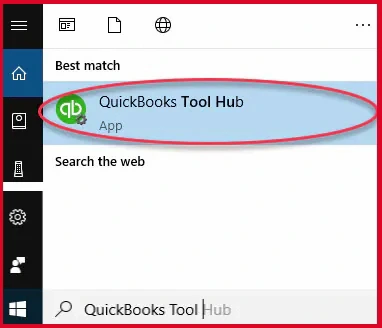
Note:- If there is no icon on your desktop, click on the Windows Start menu and type QuickBooks Tool Hub. Select and open the program.

QuickBooks Tool Hub

Step 2: Run the QuickBooks Install Diagnostic Tool 

QuickBooks Install Diagnostic Tool
  • Once the tool finishes its process, restart your PC.
  • Launch QuickBooks Desktop.
  • Open your data file. 
  • Update the QuickBooks application to the latest version. 

Note:- This would help you in getting the latest fixes and up-to-date security updates. 

Solution 2: Update your Windows and Fix Installation Error

  • Click on the Windows Start button.
  • Type Control Panel and open the program.
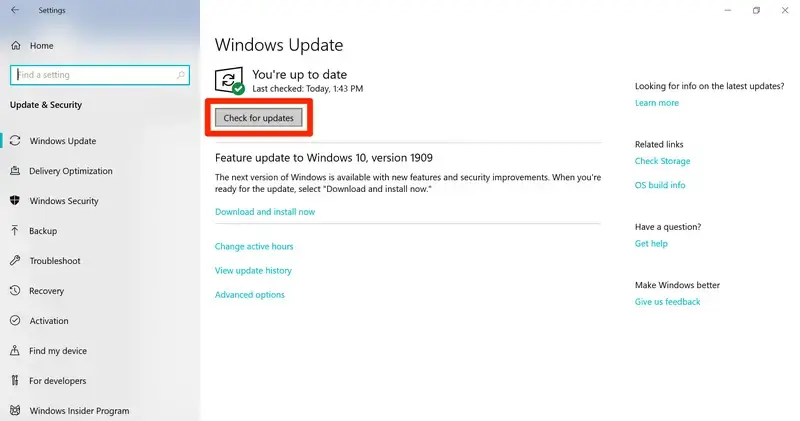
  • Click on Windows Update
Windows update
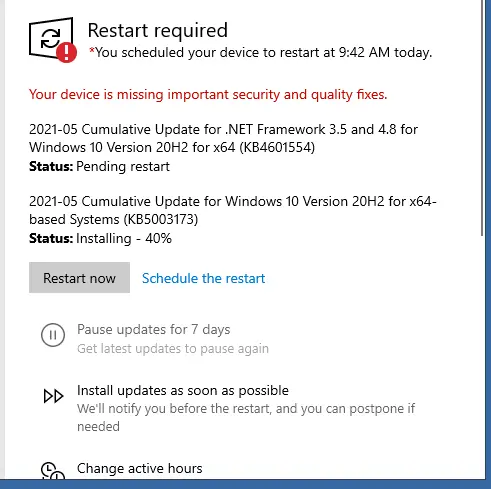
  • If you find any installation pending, click on Install.
  • Once the installation is finished, click on Restart PC.
Restart
  • Now, launch QuickBooks.

Confirm if the QuickBooks Error code 1335 is fixed or if it still requires another solution to get it fixed. In case you are still struggling with it, continue to solution 3.

Solution 3: Repair the MSXML DLL Files

You may need to repair your PC’s Windows components, that is, MSXML DLL files. We are sharing both types of bit operating system steps:

64-Bit Operating System

  • Click on the Windows Start menu.
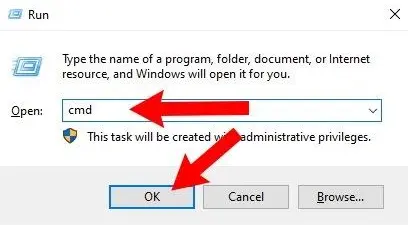
  • Type CMD in the search box and click on Enter.
run window
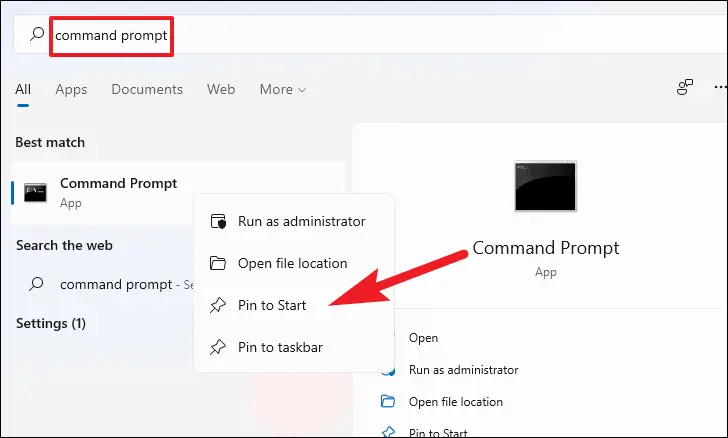
  • Right-click on the CMD and choose Run as Administrator.
run as administrator
  • At the C: prompt, enter cd\windows\syswow64.
  • Type regsvr32 MSXML6.dll and hit Enter.
  • Install QuickBooks Desktop. 

32-bit Operating System

  • Press the Windows + R key.
  • Type CMD in the search box. 
  • Hit Enter on your keyboard.
  • Type regsvr32 MSXML6.dll and press Enter.
  • Install QuickBooks Desktop. 

Solution 4: Switch to the Selective Startup Mode on your PC

  • Press Windows + R key 
  • Open the Run command.
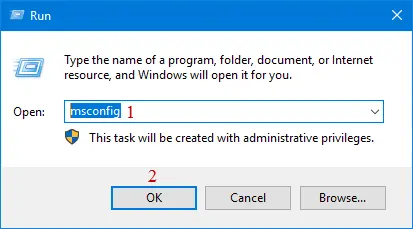
  • Enter msconfig and click on OK.
msconfig
  • Click on Selective startup and Load system services in the General tab.
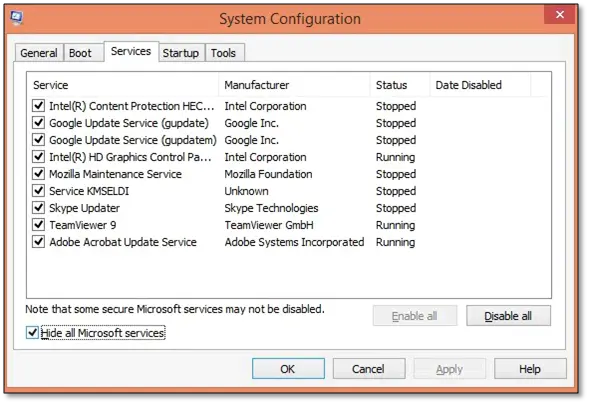
  • Navigate to the Services tab.
  • Choose Hide all Microsoft Services.
System Configuration window
  • Click on Disable all.
  • Unmark Hide all Microsoft services.
  • Click on Windows Installer from the list of services and hit OK.
  • Click on Restart on the System Configuration window.

Solution 5: Repair the Microsoft .NET Framework

Windows 10 and newer

  • Close all the running programs.
  • Click on the Windows Start menu.
  • Type Control Panel in the search box.
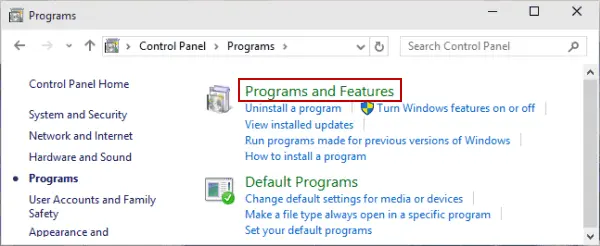
  • Open the Control Panel and click on Programs and Features.
Programs and Features
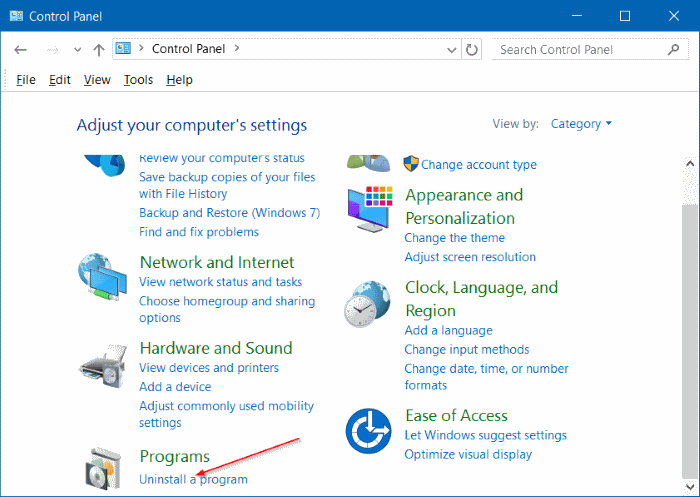
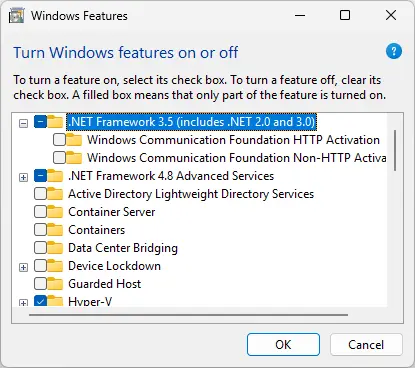
  • Click on Uninstall a Program and select Turn Windows ON or OFF.
control-panel-uninstall-program
  • Find .NET Framework on the list. 
  • Check NET Framework 4.5 

If the .NET Framework 4.5 checkbox is not checked:

  • Click on the check box to turn ON .NET Framework 4.5.
  • Click on OK and save the changes.
  • Restart your PC. 
  • Sign in to your Windows and continue with the steps to turn ON .NET Framework 4.5 again.
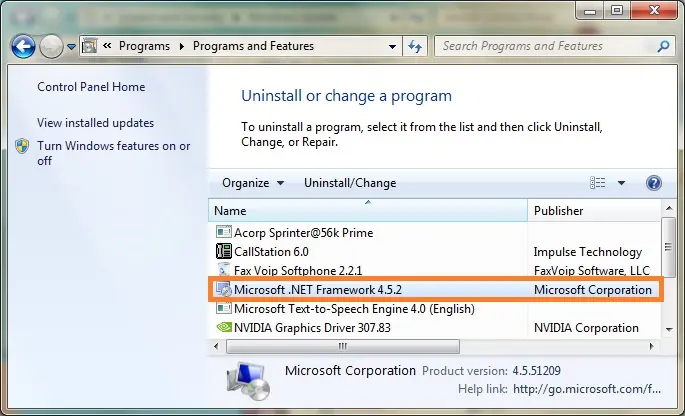
Microsoft .NET Framework

Check NET Framework 3.5 SP1

  • If the .NET Framework 3.5 SPP1 checkbox is not checked.
  • Click on the checkbox to turn on .NET Framework 3.5 SP1 and click OK.
checkbox for .NET Framework 3.5 SP1
  • This will save your changes, and now you can restart your PC.
  • If the .NET Framework 3.5 SP1 is already checked:
  • Click on the checkbox to turn OFF .NET Framework 3.5 SP1
  • Now, click OK, and it will save the changes.
  • Restart your PC.
  • Sign in again to your Windows and continue with the steps to turn ON .NET Framework 3.5 SP1 again. 

Conclusion

QuickBooks Error 1335 is an installation-related issue that requires attention and pushes for the correct configuration of settings and/or updating your accounting software. In most cases, repairing Windows components, running diagnostic tools, or ensuring that your system meets QuickBooks’ installation requirements can solve the issue.

The solutions shared in this guide have been proven effective for the majority of users and are designed to address both software and system-level causes, fixing Error Code 1335 in QuickBooks Desktop. Seeking help from a QuickBooks expert is the safest and most efficient approach. For professional assistance, contact QuickBookSupportNet at (866) 500-0076.

Frequently Asked Questions

What does QuickBooks Error 1335 indicate?

QuickBooks Error 1335 indicates a problem during installation or update when Windows cannot access or verify a required cabinet file. This usually points to file corruption or missing installation components.

Can insufficient disk space trigger QuickBooks Error 1335?

If your system does not have enough free disk space, QuickBooks may fail to extract or read installation files properly, resulting in Error 1335.

Does QuickBooks Error 1335 occur on all Windows versions?

The error can occur on multiple Windows versions, especially if essential components like MSXML, .NET Framework, or Windows Installer services are outdated or damaged.

Is it safe to reinstall QuickBooks to fix Error 1335?

Reinstalling QuickBooks can help, but it should be done only after repairing Windows components and ensuring the installation files are intact. Reinstalling without fixing the root cause may lead to the same error again.

Can antivirus or firewall software cause QuickBooks Error 1335 Windows 11?

Some third-party security applications may block or interrupt the installation process, preventing QuickBooks from accessing required files. Temporarily disabling them during installation can help.

How can I prevent Error 1335 QuickBooks Desktop in the future?

To avoid the 1335 Error Code in QuickBooks, follow the points below as a checklist: 

  • From the Intuit’s official site, download QuickBooks.
  • Ensure to use updated Windows and QuickBooks.
  • Your computer must have enough disk space.
  • Avoid system interruptions during installation.

About The Author

Lana Creston

Lana Creston is an experienced technical and accounting writer with a total of 9 years of experience. She currently works on QuickBooks accounting and technical guides at QuickBookSupportNet. Lana has a passion for reading and writing about various technical topics, especially exploring new accounting methods and software, while continuously expanding her expertise in the ever-evolving field of finance and technology.

Quick, clear, and hassle-free QuickBooks assistance.

Get a Free Consultation with Our QB Tax Experts
Connect with Our Certified QuickBooks Professionals - Dial Tollfree: +1(866)500-0076