Nov 7, 2025
Admin |
Estimated Read Time : 5 MIN
Bookkeeping or reconciliation is easier if bank transactions are automatically uploaded to the software. Connecting an American Express account or credit card directly to QuickBooks saves time and reduces the risk of errors or duplicate entries, simplifying bookkeeping, expense tracking, and account reconciliation. However, you may experience the QuickBooks American Express not syncing issue due to browser issues, connection failures, and more, which we will cover in detail below. From covering the detailed steps to resolve the AMEX connection in QuickBooks Desktop & Online to the manual method for uploading the transaction, we will cover everything.
Table of Contents
ToggleIf QuickBooks American Express not syncing, it’s usually caused by connection issues between QuickBooks and the AMEX bank feed. The problem can happen in both QuickBooks Online (QBO) and QuickBooks Desktop. Below are the most common reasons and how to fix them quickly:
Here’s a quick guide to fix QuickBooks not syncing with American Express in both QuickBooks Desktop & Online— this is a common issue, and most of the time it’s easy to resolve.
If your American Express (Amex) transactions aren’t syncing with QuickBooks Online (QBO), the issue is usually related to a broken connection, authentication error, or system update. Follow these steps to quickly resolve the problem.
Disconnecting or reconnecting the American Express business account to QuickBooks Online refreshes the connection and resolves connectivity issues, memory leaks, and more.
| Note: Before disconnecting, check the “for review” tab for any remaining transactions and note the date of the last downloaded transaction. This will help prevent duplicate downloads when you reconnect your account. |
Follow this link to complete the steps in product
If you want to connect to a different bank, choose the account to connect to from the list of existing accounts.
Notifications on your bank’s website can stop QuickBooks from downloading transactions if the site is under maintenance or facing issues. Visit your bank’s website to check for messages, alerts, or updates, and verify that there are no display problems.
If you’ve updated any bank details, such as your account number, username, or password, make sure to update them in QuickBooks as well. Failing to do so can cause connection errors. Also, ensure your QuickBooks program is updated to the latest version.
Here’s how to update your bank information in QuickBooks:
After reviewing updates, alerts, or notifications, confirm that you can connect American Express to QuickBooks Desktop successfully. If the problem continues, move on to the next troubleshooting step.
To prevent using cached files that might be damaged, outdated, or corrupted and cause sync issues, sign in to QBO using your AMEX account through a private browser window.
Follow the steps below to open a private window in your preferred browser:
a. Google Chrome
Windows: Press Ctrl + Shift + N.
Mac: Press Command + Shift + N.
b. Mozilla Firefox
Windows: Press Ctrl + Shift + P.
Mac: Press Command + Shift + P.
c. Microsoft Edge
Windows: Press Ctrl + Shift + P.
Mac: Press Command + Shift + P.
d. Safari
Mac: Press Command + Shift + N.
After that, try syncing American Express with QuickBooks again. If the problem continues, proceed to the next troubleshooting method.
In QuickBooks Online, clearing the browser’s cache and cookies will remove the expired or outdated files and folders to improve the temporary glitches, internet issues, website preferences, and more. Doing this will help you secure the AMEX Connect with QuickBooks Online.
Intuit recommends using Google Chrome to access QuickBooks for the best experience and smooth integration. However, if you face browser-related issues, you can use other supported browsers to sync QuickBooks and American Express transactions. Follow the steps below using another compatible browser on your device.
| Note: QuickBooks generally supports the latest and two previous versions of any browser. Make sure you are using an updated version, as older versions may not be supported. Also, Intuit no longer supports Internet Explorer. |
Both mobile and desktop versions work with the browsers listed below:
Note: On Mac OS, the Firefox PDF plugin is required to preview and print forms.
Here’s how you can upload the AMEX transactions manually in a CSV format:
To avoid entering duplicates, you need to know the date of the oldest existing transaction currently in the account:
Note: Usually, the oldest transaction is the opening balance.
| Tip: Your bank might also offer a few file formats. If possible, only choose the QuickBooks Online data (QBO) format, as this format is specifically for QuickBooks Online. However, other file formats are also supported, including CSV files. |
Review the file you are downloading and make sure it’s in the correct format before uploading it to QuickBooks Online. Below are a few things to check to avoid the errors:
Note: QuickBooks has a file size limit of 350 KB. If the file size is too big, shorten the data range and download transactions in smaller batches.
CSV file formats
If you’re uploading a CSV file to QuickBooks, keep it in a 3-column or 4-column format.
| CSV format | Description |
| 3-column format | Has a Date, Description, and Amount column. |
| 4-column format | Has a Date, Description, Credit, and Debit column. |
Note: If you haven’t connected your bank to online banking, click on Upload transactions.
Note: If you are a new user to QuickBooks, you might not have an account to upload the transactions into. If you don’t see one, click on + Add new from the drop-down to create a new bank account.
Note: QuickBooks Online has a line limit of 1,000 per upload.
Now that your transactions are in QuickBooks, it’s time to match and categorise them. The transactions go into your accounts after you review them.
QuickBooks Online also enters certain details automatically if you set up any banking rules, or if it recognises transaction descriptions.
You should also reconcile the transactions you uploaded to ensure that all transactions are recorded correctly in QuickBooks. Once done, you can utilize all your bank transaction data for different business projects seamlessly.
Look at the steps below to resolve the issues why QuickBooks American Express not syncing and get your transactions automatically on your program:
Refresh the connection of the AMEX bank with your QuickBooks to resolve the general connectivity issues and “Maximum connection retries exceeded.”
Make sure to use an up-to-date version of QuickBooks Desktop and create a backup of your company file.
Note: Create an Intuit account if you haven’t yet or recover using your user ID and password.
Before updating the Bank Feeds connection, disconnect all the related accounts to make sure you don’t have any discrepancies. When done, we will set them up in the next step.
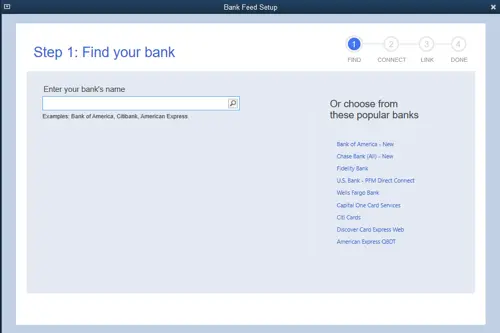
You must set your bank account to download the bank transactions in QuickBooks:

Note: Chase will require authentication and may open an external browser. Once you’ve signed in, return to QuickBooks.
Everything is set. Next time you use the bank feeds, the latest transactions will be downloaded automatically.
Note: Once the setup is complete, you might see transactions from the previous day that need to be reviewed and categorized. Don’t forget to remove the duplicate transactions.

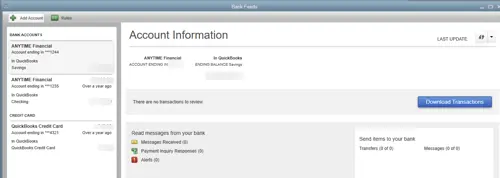
Note: You can select the Add Account drop-down (v), then Manage accounts to view any connection/bank errors.
| The existing Fidelity account connections in QuickBooks Desktop will be discontinued after July 2022, and you will not even be able to add new ones. However, you will still be able to connect the Fidelity accounts to QuickBooks Online. |
Ensure the Financial Directory contains accurate, current, and relevant financial data. Let’s see how you can update the financial directory both automatically and manually:
Before getting started:
a. Automatic update
QuickBooks will automatically process the financial directory update for you.
b. Manual update
To manually update your bank, ensure you update each file location for every QuickBooks version you use.
| Product | File Location |
| Enterprise | C:\ProgramData\Intuit\QuickBooks Enterprise Solutions XXXX\Components\OLB\branding\filist |
| Pro/Premier | C:\ProgramData\Intuit\QuickBooks XXXX\Components\OLB\branding\filist |
The Financial Institution list is now up-to-date.
If QuickBooks fails to access the bank’s server or if the server is down, it means your ‘QuickBooks American Express not syncing 2025.’ To resolve this, make sure the financial institution’s website is accurate by following the steps below:
You must check the bank’s URL to verify the proper connection and link your bank account seamlessly.
Once the account is linked, move to the next step.
Check for pending notifications, announcements, security requirements, and more with the steps below.
Now, proceed to the next step below.
As the final step, refresh your bank feeds in QuickBooks Desktop by following these steps—
In conclusion, linking American Express with QuickBooks automatically downloads transactions and streamlines reconciliation. If “QuickBooks American Express not syncing,” you may need to perform a manual update. However, these steps will help you resolve the issue and restore the connection.
For additional support, it is advised to contact QuickBookSupportNet professionals at +1(866)500-0076. Speak to an expert today!
Yes, you can sync QuickBooks with American Express. For this, a stable connection between QuickBooks and the bank is necessary to retrieve your transactions automatically. If you fail to connect AMEX to QuickBooks, you must use the manual method to upload your transactions.
QuickBooks may fail to sync with AMEX due to general connection issues, security updates on the bank’s end, an incorrect financial institution, an incompatible browser with QuickBooks Online, and other reasons that vary between Desktop and Online.
After a secure connection of QuickBooks with AMEX, your transaction will automatically upload to QuickBooks. However, if the AMEX transactions are not showing, it could be stuck, or due to delayed processing, merchant settlement delays, or a technical glitch.
To sync American Express to QuickBooks Online, select Connect, choose the American Express user type, and sign in using the American Express user ID and password. Select the account you want to connect with and choose the account type from the drop-down. Finally, click Connect to sync your account.
To fix American Express not connecting to QuickBooks Online, try refreshing the connection by disconnecting and reconnecting the bank, clearing your cache and cookies, or using a different, compatible browser. Also, check the bank updates, notifications, or a private window. As a workaround, you can also manually upload the transactions.
Lana Creston is an experienced technical and accounting writer with a total of 9 years of experience. She currently works on QuickBooks accounting and technical guides at QuickBookSupportNet. Lana has a passion for reading and writing about various technical topics, especially exploring new accounting methods and software, while continuously expanding her expertise in the ever-evolving field of finance and technology.
Quick, clear, and hassle-free QuickBooks assistance.