Connect bank and credit card accounts to QuickBooks Online

Jan 6, 2026

Admin |

Estimated Read Time : 5 MIN

Connecting your bank and credit card accounts to QuickBooks Online is one of the biggest time-savers you can set up in your bookkeeping. Once your bank is linked, QuickBooks pulls in recent transactions so you can review, match, and add them to the right accounts in just a few clicks.

If you get stuck during setup, see error messages, or your bank is not behaving the way you expect
(Bank connection error 350), this is exactly where a dedicated QuickBookSupportNet team can save you hours. In this guide, you will learn how bank and credit card connections work in QuickBooks Online, common connection options, and more.

How to connect your bank and credit card?

Before you start: Keep handy the sign-in credentials that you use to sign in to your bank’s website.You are required to reconnect your bank and credit card accounts in QuickBooks Online if you previously used bank feeds in QuickBooks Desktop.

Connect an account

  • Click on the All apps icon and select Accounting.
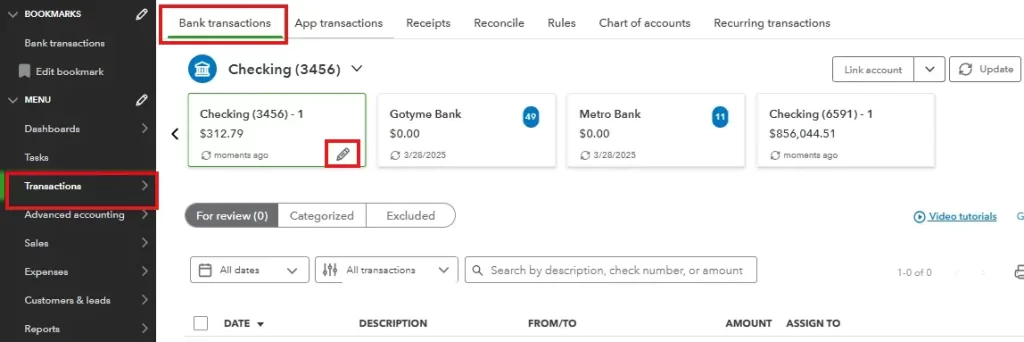
  • Select Bank Transactions.
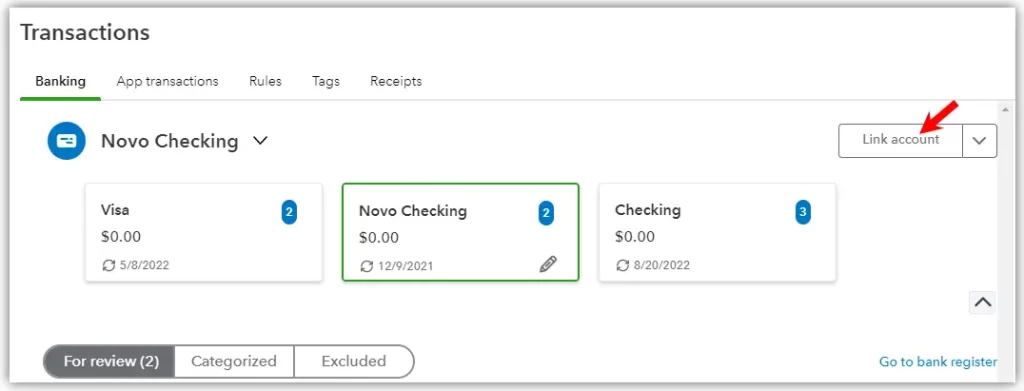
  • Click on Link Account.
Click on Link Account
  • Now, you can search for your bank by its name.
Select Bank Transactions

Note:- If you are unable to find the bank, but you have the login credentials to sign in to its website, click on Can’t find your bank? 

  • Click on Continue and enter the user ID and password
  • Continue with the on-screen prompts. You can go through with the additional security checks.
  • Choose the concerned bank accounts, such as credit cards, savings, or checking.
  • You can choose the range from when to the date you want to download the transactions.
  • Some banks provide the option to download for the last 90 days and up to 24 months. It depends on the bank.
  • Click on Connect and hit Done.
  • Click on Update from the Bank Transactions to download recent transactions automatically.

Important: There are no limits to connect a number of bank or credit card accounts.If you have Chase or TD Bank accounts, you can connect from one account to multiple QuickBooks Online accounts. 

Connect an online bank or credit card account for QuickBooks Self-Employed

On a web browser

  • Click on the profile ⚙ icon and select the Bank accounts.
  • Enter the name or URL of your bank in the search box.
  • Click on Continue if you are already connected to an account.
  • Select Connect another.
  • Fill in the sign-in info using your bank’s login credentials.
  • Finally, click on Connect securely.

QuickBooks Self-Employed Sign in on Iphone or iPad (iOS)

  • Click on the profile icon and select Settings.
  • Now, select your Bank accounts.
  • Click on the Plus (+) icon.
  • Search for the required bank by using its name or URL link.
  • Enter your sign-in info required to log in to your bank.
  • Finally, click on Sign-in.

Log in on a phone or tablet with Android for QuickBooks Self-Employed

  • Click on the menu icon and choose Settings.
  • Now, select Bank accounts and click on the Plus (+) icon.
  • Search the name of your bank or use the URL link.
  • Fill in your sign-in details and select Sign in.

After you successfully sign in to your QuickBooks Self-Employed, the bank transactions will download automatically.

Remember: Before you can connect your account, some banks require additional security. Steps to verify the additional security are unique for each bank. Reach out to our team of QuickBooks experts at +1(866)500-0076 if you need help connecting your bank account.

Set up a bank and credit card sub-account

If you require any help to manage your chart of accounts, you can partner with QuickBookSupportNet and stay relaxed. We are sharing fixed steps with you to set up a bank or credit card with multiple sub-accounts. Doing so would help you to easily connect it with your bank. In addition to this, you can easily reconcile downloaded transactions in QuickBooks Online.

Set up the parent and sub-accounts in QuickBooks Online

In the first step, you need to create a parent account since this is the most common way to set up a bank account or credit account. After the parent account setup, we will proceed to set up individual account(s) associated with it as sub accounts.

The parent and sub-accounts look like this in the Chart of Accounts:

parent account setup

In case you have an additional account that handles transactions such as payments, you are required to add one more sub-account.

parent account setup 1

Connect the accounts to Online Banking

  • Connect only to the parent account if the transactions download to one account. You need to connect the parent account only if the transactions download to one account.
  • On the other hand, you need to connect the sub-accounts, and not the parent account, if the transactions download to the individual accounts.
  • The opening balance transaction may download to all sub-accounts when initially connecting your account. Also, it could happen that at each sub-account level, some banks may show the overall bank balance.

You need to understand that the bank shows the static balance of the entire account and not the balance at each sub-account level. 

Reconcile the Account

During the reconciliation, you only need to reconcile your parent account. It happens so because all transactions results to roll up into the sub-accounts. 

Conclusion

Once you connect your bank account, QuickBooks automatically downloads your latest transactions. You can then click on Bank transactions and then review, categorize, and add them to your books. 

If you are seeing connection errors, missing transactions, or you are simply not sure you have configured everything properly, you do not have to troubleshoot alone. The support professionals at +1(866)500-0076 QuickBookSupportNet can walk you through the full process from checking your bank’s connectivity options to configuring Bank feeds, resolving sync errors, and cleaning up downloaded transactions.

Frequently Asked Questions on Connecting Bank Accounts to QuickBooks Online.

How to connect bank and credit card accounts to QuickBooks Online?

If you are connecting the bank and credit card accounts to QBO for the first time, click on Connect account.

  • Now, search for your bank name.
  • Log in to your bank’s website using your username and password.
  • Continue with the on-screen instructions to connect.

How does connecting bank and credit card accounts to QuickBooks Online make them more secure?

QuickBooks Online uses bank-level security measures. Security ensures the privacy and integrity of your data. Once you verified your login credentials, you need to authorize the connection between your bank or credit card account and QBO.

Why might a business benefit from connecting a credit card account to QuickBooks?

Credit card usage with QuickBooks provides significant benefits, including time savings, real-time financial data, and improved accuracy. Doing so reduces manual data entry, bank reconciliation, simplifies expense tracking, and automatically downloads transactions. It results in tracking cash flow, and you can make informed decisions.

Can credit cards be connected using the bank feed feature in QBO?

  • Click on the Banking/ Transactions menu.
  • Now, connect your bank or credit card account.

Can QuickBooks sync with a credit card?

Yes, you can easily sync a credit card with QuickBooks. The condition is to stay up to date while synchronizing with QuickBooks.

About The Author

Lana Creston

Lana Creston is an experienced technical and accounting writer with a total of 9 years of experience. She currently works on QuickBooks accounting and technical guides at QuickBookSupportNet. Lana has a passion for reading and writing about various technical topics, especially exploring new accounting methods and software, while continuously expanding her expertise in the ever-evolving field of finance and technology.

Quick, clear, and hassle-free QuickBooks assistance.

Get a Free Consultation with Our QB Tax Experts
Connnect with Our Certified QuickBooks Professionals - Dial Tollfree: +1(866)500-0076