Fix QuickBooks Error 2002 When Running Payroll or Sending Data

Jan 13, 2026

Admin |

Estimated Read Time : 5 MIN

QuickBooks Error 2002 is a payroll-related issue that can occur in various situations, including:

  • Sending data in multi-user mode
  • A failed bank connection to payroll services
  • Inability to log into QuickBooks Payroll

Several factors, such as problems with your online banking setup or incorrect login credentials, can trigger this error. To resolve it, you may need to verify or re-enter your PIN, reconfigure your bank account, or address other potential issues. In this guide, we’ll walk you through the necessary steps to fix Error 2002 in QuickBooks.

What Causes Payroll Error 2002 in QuickBooks? 

Here’s why you encounter error code 2002 in QuickBooks when running payroll or signing in to the service:  

  • Using an invalid security certificate
  • Corrupted QuickBooks data 
  • Outdated payroll tax table 
  • Incorrect date and time on your computer 
  • Outdated State Unemployment Insurance (SUI) rate

Learn How to Troubleshoot QuickBooks Error 2002 in Payroll 

Below are the troubleshooting steps to resolve the root causes of the QuickBooks error 2002 and let you run the payroll-related operations seamlessly: 

1. Update Payroll Tax Table

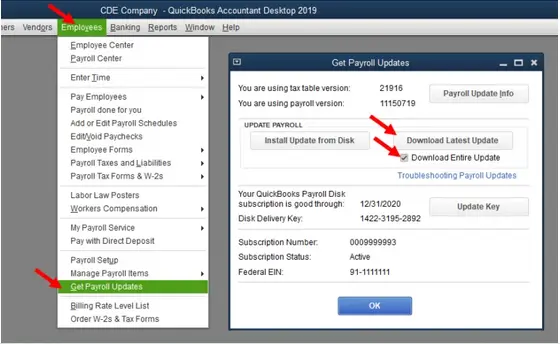
Update your QuickBooks payroll tax table

  • Go to Employees at the top. 
  • Hit on Get Payroll Updates.
Get payroll updates
  • To see which tax table version you use:  
    • See the tax number next to You are using tax table version:
    • To see if it’s the correct version, check the latest payroll news and updates.
    • Select Payroll Update Info to get the details on your tax table version.
  • To check the latest tax table: 
    • Hit on Download Entire Update.
    • Select Update
    • An informational window will appear when the download finishes.  

2. Correct System’s Date & time

Your computer’s incorrect date and time can affect time-based services, such as payroll. Let’s correct the settings: 

  • Open the Windows Start menu.
  • Type Settings and press Enter
  • Click on Time & language > Date & time.
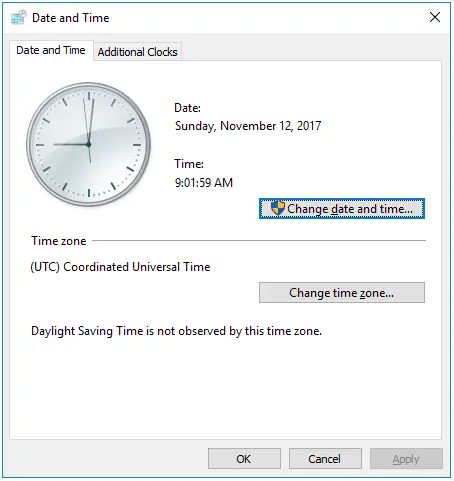
Date and Time

OR 

Choose the following Time & language > Date & time shortcut.

  • In the prompted Time & language > Date & time window:
    • To set the date and time automatically, make sure to select Set time automatically is switched on.
    • To set the date and time manually, select the Set time automatically is switched Off option, and click the Change button next to Set the date and time. Manually set the Date and Time in the Change date and time window, open, then click the Change button.

3. Update QuickBooks Desktop as Administrator 

Admin rights are necessary to make the required changes to your computer when running the payroll services and to resolve QuickBooks error 2002.  

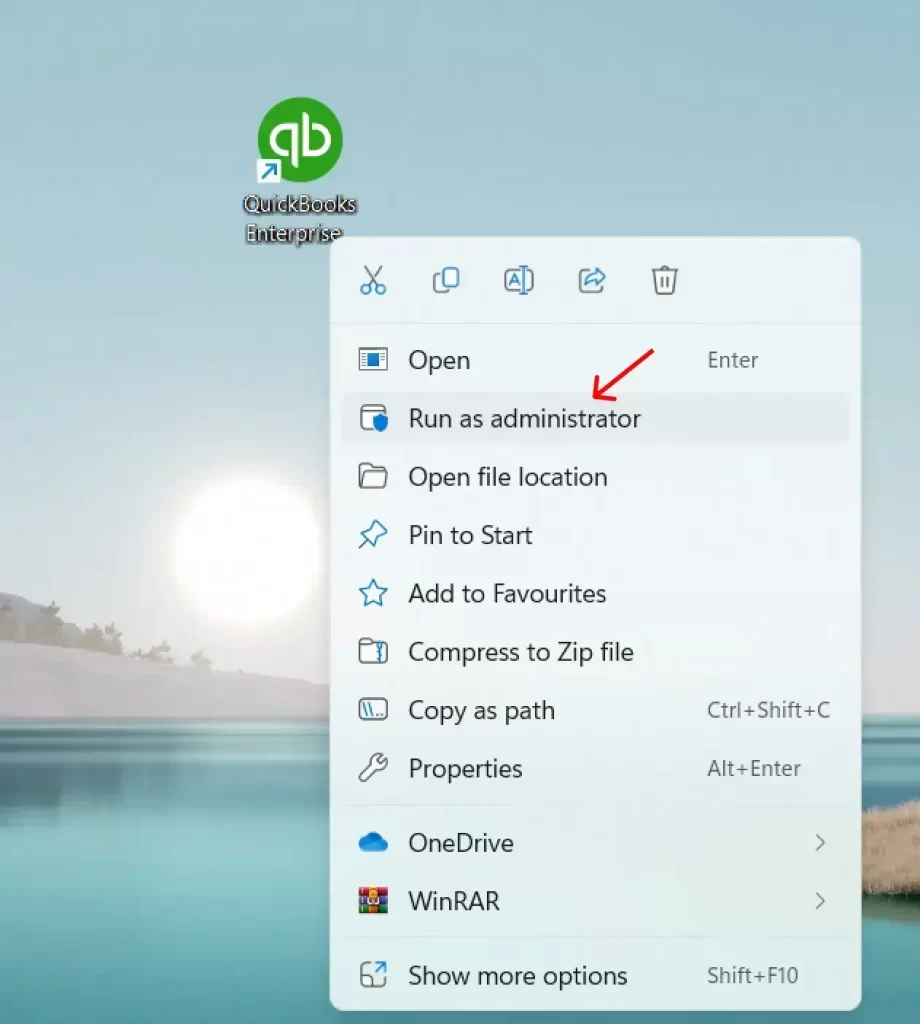
  • Look for the QB Desktop icon on your screen.
  • Right-click on it and select Run as administrator.
run as administrator
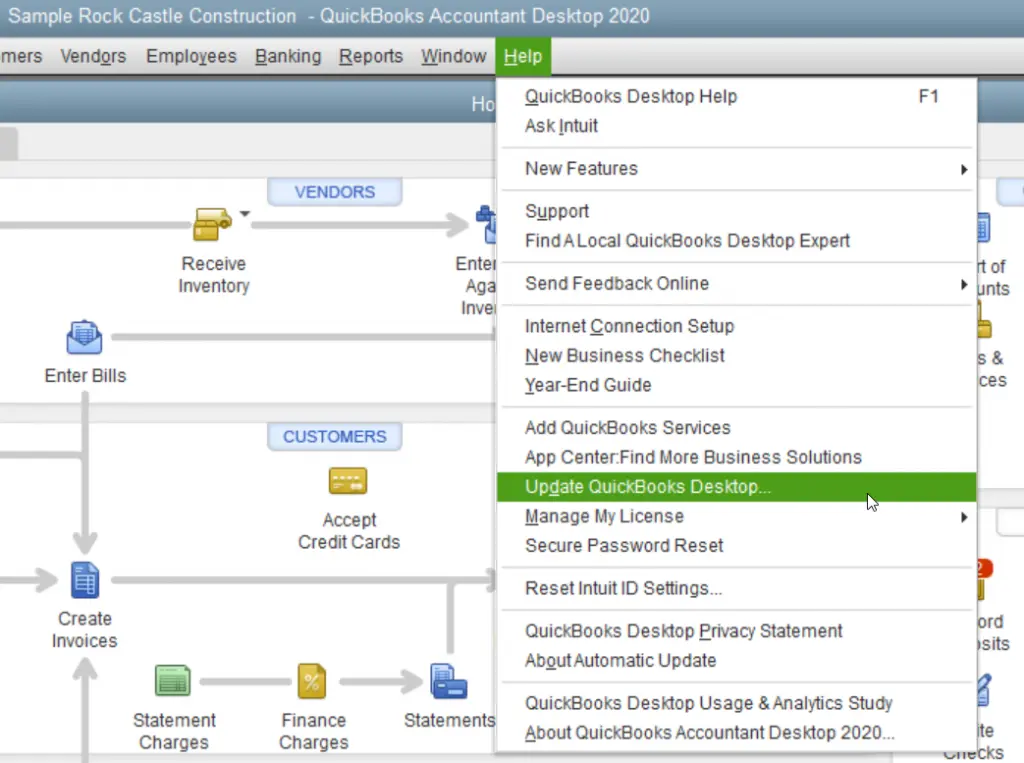
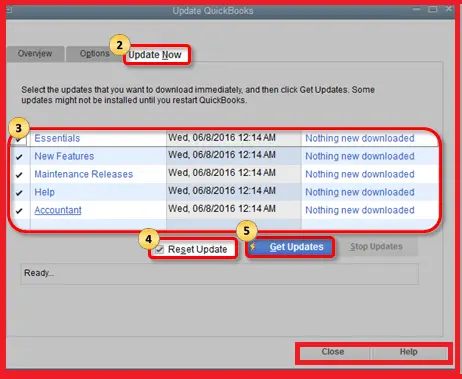
Update QuickBooks Desktop
  • Select Update Now > Get Updates.
Choose Get updates
  • Close and reopen QuickBooks to install the updates. 

4. Update the State Unemployment Insurance (SUI) rate

The SUI isn’t part of the normal payroll update in QuickBooks Desktop Payroll, and you must update it manually.

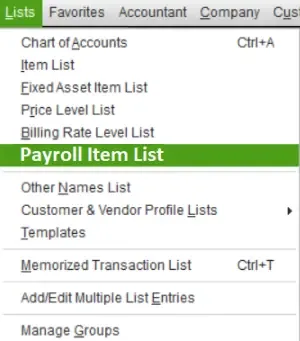
  • Go to Lists at the top. 
  • Choose Payroll Item List.
  • Double-click on [state abbreviation] – Unemployment Company.
  • Click Next until you see the Company tax rates window.
  • Enter the correct tax rates for each quarter. 
  • Click Next > Finish.

If you have surcharges or assessments

If you have a surcharge or assessment for state unemployment, you will need to update additional rates in QuickBooks.

  • Go to Lists at the top. 
  • Hit on Payroll Item List.
Payroll Item List
  • Double-click on the State Surcharge item.
  • Click Next and follow the steps on your screen. 
  • Enter the rate as a percentage on the Company Tax Rate page.

5. Install the Digital Signature certificate 

Install the digital signature certificate to ensure authenticity and integrity.

  • Navigate to C:\Program Files\Intuit\QuickBooks.
  • Right-click on QBW32.exe
  • Select Properties.
  • Choose Digital Signature
  • Make sure Intuit is selected in the signature list.
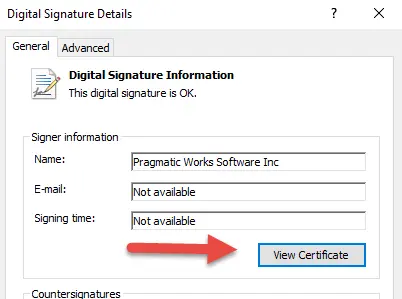
  • Click on Details.
  • Select View Certificate in the Digital Signature Details window.
Digital Signature Certificate
  • Select Install Certificate in the Certificate window. 
  • Click Next until Finish displays, then Finish.
  • Restart your computer.
  • Open QuickBooks Desktop. 
  • Now, try to run payroll services again. 

6. Verify and Rebuild QuickBooks data

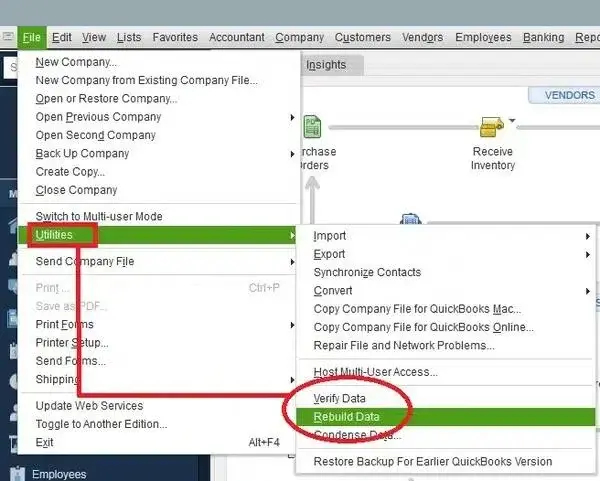
Repair the corrupted company file by using the Verify and Rebuild Data utility: 

a. Verify the company file

  • Go to Windows
  • Select Close All
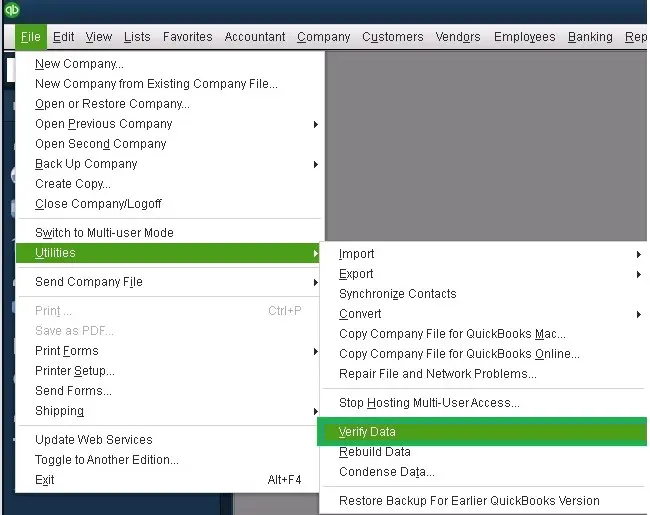
  • Navigate to File
  • Click on Utilities.
verify and rebuild company file data
  • Choose Verify Data. If you see:
    • QuickBooks detected no problems with your data—your data is clean, and you don’t need to do anything else. 
    • An error message—for any error message, see the reference on our website.
    • Your data has lost integrity—data damage is found. You must rebuild it.  

b. Rebuild the data damages 

  • Go to File > Utilities, then select Rebuild Data.
Rebuild Data
  • You will be asked to create a backup before rebuilding. Click OK. A backup is necessary before rebuilding. 
  • Choose the location to save the backup and click OK.
  • Make sure not to replace the already existing backup file. 
  • Type a new name in the File name and click Save
  • When you see that Rebuild has completed, click OK

Conclusion 

By following these detailed steps, you can effectively resolve QuickBooks error 3030 and ensure the smooth operation of your payroll services. Identifying the root causes and taking preventive measures will help you avoid encountering this error in the future.

For additional assistance or technical support, don’t hesitate to contact a QuickBooks ProAdvisor.  Dial +1(866)500-0076 and speak to an expert now!

Frequently Asked Questions 

What is error code 2002 in QuickBooks?

QuickBooks error 2002 is primarily a company file or payroll error that typically appears when you enter an incorrect PIN or password, which can lead to the deactivation of your online banking account.

Why is the QuickBooks file not reading correctly? 

A QuickBooks file may not be read correctly due to file corruption, the wrong file type, insufficient folder permissions, outdated QuickBooks software, or problems with external integration.

How to fix the different payroll errors in QuickBooks? 

To resolve common QuickBooks payroll errors, update your QuickBooks software and tax tables, ensure you’re sending payroll data in multi-user mode, troubleshoot using the QuickBooks Tool Hub or by running the program as an administrator, and verify that your payroll subscription is active.

About The Author

Lana Creston

Lana Creston is an experienced technical and accounting writer with a total of 9 years of experience. She currently works on QuickBooks accounting and technical guides at QuickBookSupportNet. Lana has a passion for reading and writing about various technical topics, especially exploring new accounting methods and software, while continuously expanding her expertise in the ever-evolving field of finance and technology.

Quick, clear, and hassle-free QuickBooks assistance.

Get a Free Consultation with Our QB Tax Experts
Connnect with Our Certified QuickBooks Professionals - Dial Tollfree: +1(866)500-0076