Mar 13, 2026
Admin |
Estimated Read Time : 5 MIN
Does your QuickBooks crash when opening the company file? If yes, why does the program close suddenly, even though the data seems fine? We’re here to address all your queries and help you fix the issue quickly.
QuickBooks may fail to open the company file due to data damage, corruption, or other issues. However, frequent crashing often indicates software or operating system incompatibility. Such problems can even cause permanent data loss. Let’s explore the root causes and the best solutions to ensure the error is resolved and your company file opens smoothly without any crashes.
Table of Contents
ToggleBelow is a list of possible reasons why QuickBooks might crash when opening a company file. Let’s take a look at them one by one:
You must apply the methods that can help resolve the issues discussed above. This will help you fix the root cause of QuickBooks crashes when opening the company file, ensuring a smooth, uninterrupted experience.
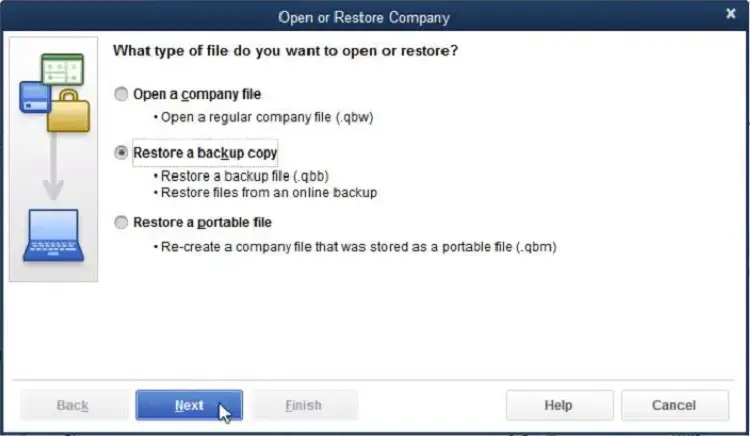
Use a compatible version of QuickBooks Desktop and ensure the file type is correct to avoid incompatibility, which may cause the software to crash.
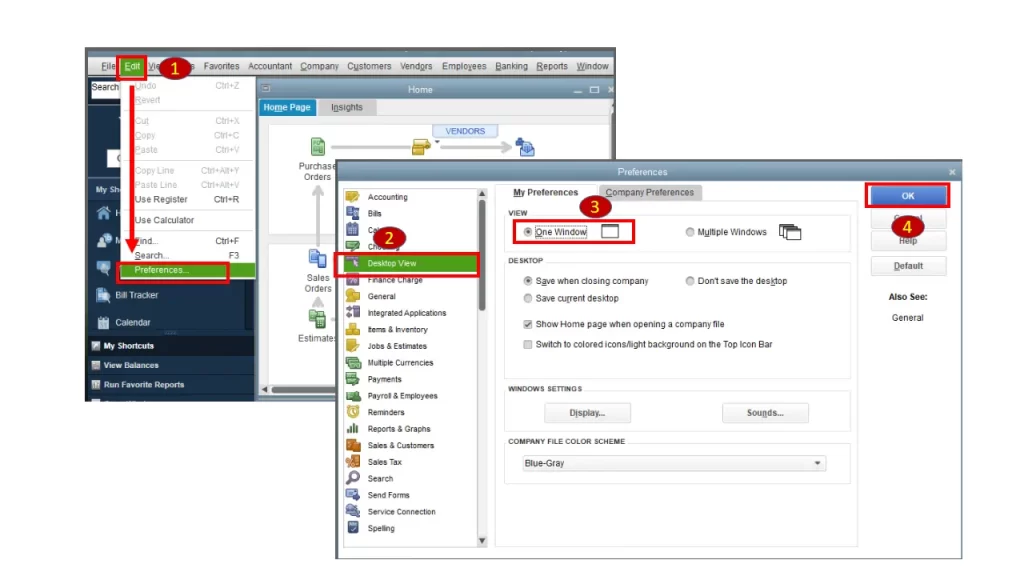
When closing the company file, QuickBooks might reopen any windows left open in the background. If you use a large report that opens several windows automatically, QuickBooks can freeze or crash when starting up, leading to the failure of the company file as well.
Open the company file without saved windows:

If the company file opens successfully, disable the Save the desktop when closing preference.

If you host the company file on the network, make sure to turn off Host Multi-User Access on your workstations, as only the server computer should host the file.
To disable the hosting on your workstations:
After checking each workstation, move to the next server computer. This is the main computer that hosts your company file.
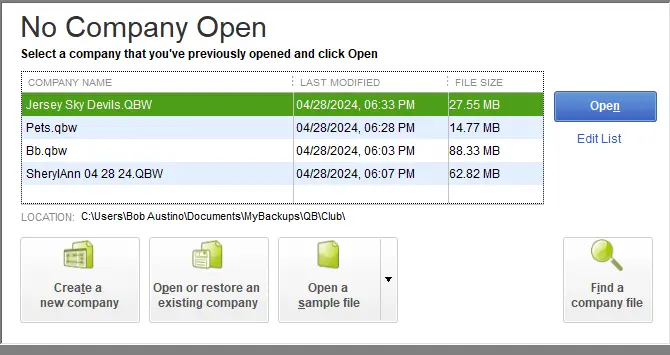
Try opening a sample company file to see if the problem is with the company file or QuickBooks Desktop.
If QuickBooks or the sample file doesn’t open or you see an error, the program is the issue. Here’s how to fix QuickBooks if it doesn’t open.
If the sample file opens normally, continue to the next solution.
There can be issues with your company file location. To fix this, move the file to your desktop and try opening it from there.
If you share the company file over the network, make sure everyone is signed out, and continue following the steps below.

If you can open the company file from your desktop, it means the default location is the issue. You must move the company file to a new folder. If you are sharing the file over the network, you must share the new folder with your team.
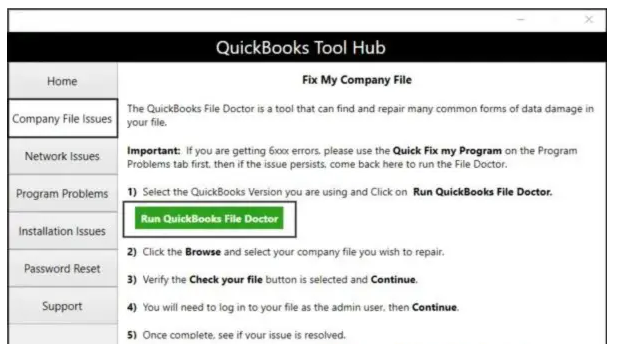
The QuickBooks File Doctor checks the data file and network connectivity, performs a quick repair, and helps resolve QuickBooks crashing when opening the company file.
Note – Download and install the latest release of QuickBooks Tool Hub (1.6.0.8). For the best experience, we recommend using Tool Hub on Windows 11 (64-bit).

Note: If the QuickBooks File Doctor doesn’t open, look for QuickBooks Desktop File Doctor and open it manually.
The scan time depends on your company file size and may take up to 10-15 minutes. The scan may still report it as unsuccessful even after the issue is fixed. When done, open QuickBooks and the company file.
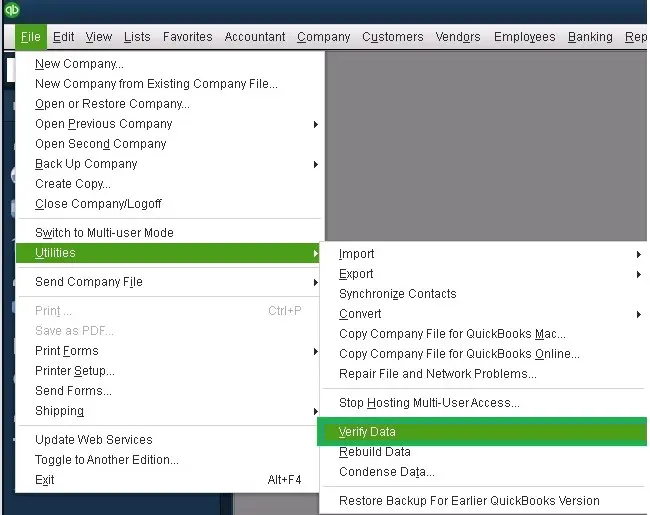
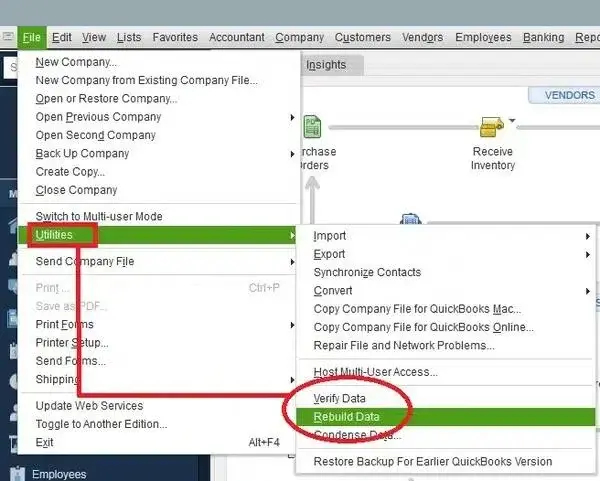
The Verify and Rebuild Data tool verifies company files for potential damage and runs a rebuild to fix them quickly. Learn how to run the tool to repair data damage:
a. Verify your company data

b. Rebuild your company file data

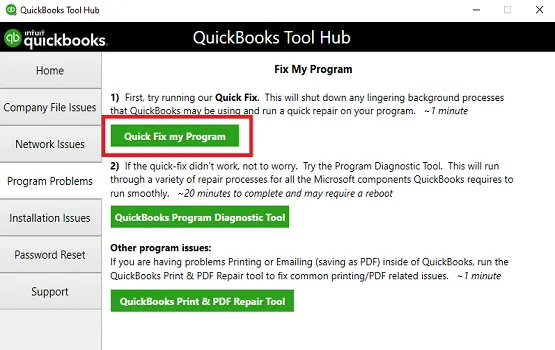
QuickBooks Tool Hub lets you access different tools such as Quick Fix my Program and QuickBooks Install Diagnostic tool to resolve common installation or program files-related issues. Here’s how to use these tools:
a. Run Quick Fix my Program
The Quick Fix my Program tool closes the QB processes running in the background and runs a quick repair to your program.

b. Run the QuickBooks Install Diagnostic tool
The QuickBooks Install Diagnostic Tool is an automated utility that fixes issues with QuickBooks Desktop installation by diagnosing and repairing problems with essential Microsoft components such as the .NET Framework, MSXML, and C++.
Reinstalling QuickBooks Desktop removes all existing program files and folders related to the software but does not delete your company files or financial data. This process replaces corrupted or missing components by downloading and installing new program files, ensuring the software runs smoothly. Before reinstalling, it’s recommended to back up your company files to prevent data loss and ensure a smooth transition after the re-installation is complete.
A company file holds all your financial and accounting data, allowing you to save, manage, and even share it as per your business needs. Following the above steps must have helped you resolve the issues, which is why QuickBooks crashes when opening the company file.
If the file still does not open or you seek professional assistance, we recommend consulting with QuickBooks ProAdvisors at +1 (866) 500-0076. Talk to an expert now!
Why does QuickBooks crash when opening a company file?
QuickBooks crashes when opening a company file due to a corrupted or damaged file, a damaged or outdated installation, a problematic Windows operating system, or conflicts with other software, like antivirus programs.
Why does QuickBooks close unexpectedly?
QuickBooks may unexpectedly close due to an outdated or corrupted installation, a damaged company file, a conflicting third-party application, or issues with the operating system.
How to fix a company file in QuickBooks?
To fix a QuickBooks company file, you should first use the Verify Data and Rebuild Data tools, accessible under File > Utilities. If this doesn’t work, download and run the QuickBooks Tool Hub and use the Quick Fix my File or Company File Issues tools.
How to run a QuickBooks repair?
To run a QuickBooks repair, first use the QuickBooks Tool Hub to run Quick Fix my Program for general program issues, or the Program Problems and Quick Fix my File tools for company file issues.
Lana Creston is an experienced technical and accounting writer with a total of 9 years of experience. She currently works on QuickBooks accounting and technical guides at QuickBookSupportNet. Lana has a passion for reading and writing about various technical topics, especially exploring new accounting methods and software, while continuously expanding her expertise in the ever-evolving field of finance and technology.
Quick, clear, and hassle-free QuickBooks assistance.
How to Troubleshoot QuickBooks Error 1920 Instantly?
Mar 11, 2026