Fix the QuickBooks CefSharp.BrowserSubprocess Issue: Complete Guide (2025)

Apr 1, 2026

Admin |

Estimated Read Time : 5 MIN

QuickBooks Desktop is one of the most trusted accounting tools for businesses, but like any complex software, it can run into issues. QuickBooks CefSharp.BrowserSubprocess may be due to a CPU performance issue or excessive usage of your computer memory. This error can interrupt tasks, freeze QuickBooks, or prevent you from accessing essential online features such as payroll, bank feeds, or Intuit sign-in screens. 

If you have seen messages like:

  • “CefSharp.BrowserSubprocess.exe has stopped working.”
  • “QuickBooks cannot load web content.”
  • “Script error or blank window when signing in to Intuit

Then this guide is for you.

In this blog, we will break down what the CefSharp component does, the major causes behind the issue, and proven step-by-step solutions you can apply even if you are not very technical.

What Does CefSharp.BrowserSubprocess.exe Do in QuickBooks?

To understand the error, it helps to understand what the component does. QuickBooks Desktop uses an embedded browser inside the software to display:

  • Intuit login windows
  • Payroll subscription pages
  • Account management tools
  • Bank feeds and connected services
  • Secure online content

This embedded browser is powered by CefSharp, which is a .NET-based wrapper for the Chromium Embedded Framework (CEF). In simple terms, it allows QuickBooks to show web pages inside the program without opening an external browser like Chrome or Edge.

The CefSharp.BrowserSubprocess.exe file is one of the most important processes that makes this embedded browser work. When it fails, QuickBooks can’t display online content correctly.

Common Reasons for the CefSharp Error

Most users experience one or more of the following problems:

1. Pop-up Errors

  • CefSharp.BrowserSubprocess.exe has stopped working.”
  • QuickBooks could not load web content.”

2. Freezes and Performance Issues

  • The program stops responding while logging in to Intuit
  • QuickBooks becomes slow when opening payroll or bank feeds

3. Blank or Partially Loaded Windows

  • Login screens fail to load
  • White/blank window inside QuickBooks

4. Crashes

These issues can disrupt productivity, especially during payroll processing or reconciliations.

Why Does the CefSharp.BrowserSubprocess Issue Occur?

The error can be triggered by several underlying causes. Understanding them helps you identify the best fix.

1. Corrupted Browser Cache Inside QuickBooks

QuickBooks stores cache files that may get damaged or outdated, just like regular browsers.

2. Damaged QuickBooks Program Files

Web content may fail to load, if essential components like.ND and .TLG files are missing or damaged

3. Outdated or Corrupt Microsoft .NET Framework

.NET is crucial for CefSharp to function, and if it is outdated or broken, QuickBooks will struggle to load embedded web pages.

4. Antivirus Blocking the Subprocess

Security software sometimes flags CefSharp.BrowserSubprocess.exe as suspicious and prevents it from running.

5. Windows User Profile Corruption

It could happen that the Windows user profile got damaged, which is required by the QuickBooks desktop application to operate. 

6. Incomplete QuickBooks Updates

The update you must have tried may have failed and may leave partial or corrupt versions of web components.

How to Fix the QuickBooks CefSharp.BrowserSubprocess Issue

Below are the most reliable, tested fixes. You do not have to try all of them; start from the top and work your way down until the issue is resolved.

Method 1: Use QuickBooks Tool Hub to Repair the Program

The QuickBooks Tool Hub is Intuit’s official repair utility. It can fix issues related to installation, program files, and common crashes, especially those caused by damaged components like CefSharp.

Below are the steps we have shared to ensure QuickBooks Tool Hub repairs the program:

If the error is cefsharp.browsersubprocess QuickBooks Desktop still appears:

This tool repairs C++ components, .NET Framework, and other dependencies.

Method 2: Reset QuickBooks Internal Browser Data

QuickBooks stores cache for its embedded browser. When this cache becomes corrupted, CefSharp fails to load properly.

How to reset:

  • Open QuickBooks Desktop and select Edit.
  • Choose Preferences and go to General.
  • Click Reset App Data.
  • Now, you can restart QuickBooks.

This simple reset resolves the CefSharp.browsersubprocess quickbooks issue for many users.

Method 3: Update QuickBooks Desktop to the Newest Release

CefSharp components are updated when QuickBooks updates itself. If you are using an older or unsupported version, you’re more likely to encounter issues.

To update QuickBooks:

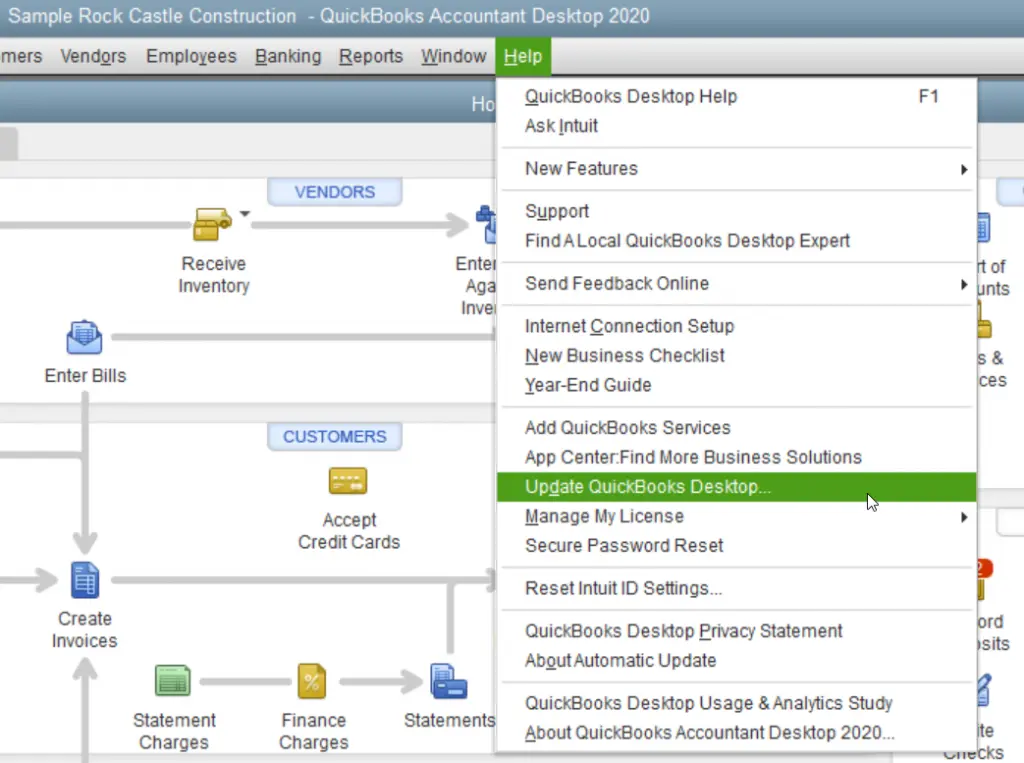
  • Open QuickBooks and go to the Help menu.
  • Click on the Update QuickBooks Desktop.
Update QuickBooks Desktop
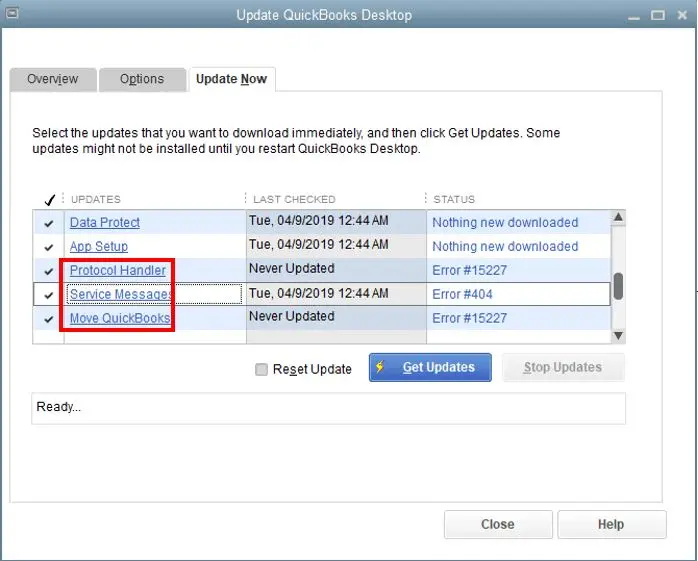
  • Click on Update Now and then check Reset Update
  • Finally, select Get Updates.
Get Payroll Updates

Restart QuickBooks once updates are installed and check if the CefSharp.BrowserSubprocess.exe Runtime Error is still active or fixed. 

Method 4: Reinstall or Repair Microsoft .NET Framework

The CefSharp engine depends heavily on .NET. If your .NET installation is broken, outdated, or missing components, then QuickBooks will struggle to load embedded web views.

We have shared steps to fix the error:

  • Open the Control Panel and go to Programs.
  • Turn Windows features on or off.
  • Ensure the following are enabled:
    • .NET Framework 4.8 (or latest)
    • .NET Framework 3.5
  • Apply changes and click on Save.
  • Now, restart your computer.

If the framework is visibly damaged, download the latest .NET installer from Microsoft and choose Repair.

Method 5: Add QuickBooks and CefSharp to Antivirus Exceptions

It has been observed that antivirus tools such as Norton, McAfee, Bitdefender, and corporate endpoint solutions can block CefSharp processes as they resemble browser automation.

Go to the QuickBooks folder:

  • C:\Program Files\Intuit\QuickBooks\

Select executable files and add them as exceptions:

  • QBW32.exe
  • CefSharp.BrowserSubprocess.exe

After adding exceptions, reboot your system and open the QuickBooks application again.

Method 6: Create a New Windows Admin User Profile

Sometimes the issue has nothing to do with QuickBooks; it is caused by a corrupt Windows profile. We have shared that the causes behind a corrupt user profile may include:

  • Slow program loading
  • Permission errors
  • Random freezes

Creating a new profile can fix these conflicts. Below, we have shared the concrete steps that will help you fix the error: 

  • Open Windows Settings.
  • Go to Accounts.
  • Click Add Account and choose Local Account.
  • Create a new administrator-level user.
  • Log in to the new account.
  • Launch QuickBooks and confirm if the error is fixed.

If QuickBooks works fine in the new profile, your old Windows account is the issue.

Method 7: Perform a Clean Install of QuickBooks Desktop

If none of the above solutions work, the installation might be severely damaged. A clean install removes all QuickBooks components and reinstalls them fresh.

Steps for a clean install:

  • Uninstall QuickBooks from the Control Panel.
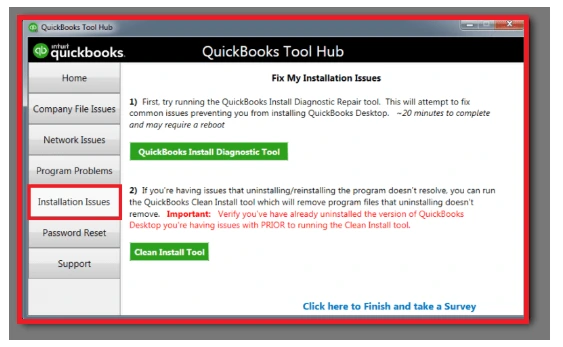
  • Launch QuickBooks Tool Hub.
  • Click on the Installation Issues and run the Clean Install Tool.
Installation Issues
Installation Issues

This solution is recognized as the most used and efficient solution to fix multiple QuickBooks errors. 

Conclusion

The QuickBooks CefSharp.BrowserSubprocess issue can seem complicated, but it is usually caused by damaged browser components, outdated frameworks, program corruption, or interference from antivirus software. 

However, if the issue is still not resolved, it means the error requires advance technical solution to fix it. Contact our senior QuickBooks ProAdvisor at (866) 500-0076 immediately to protect your important data. 

Check out other blogs: How to Download QuickBooks Desktop for Windows and Mac?, QuickBooks Payroll Calculator: Paycheck, Taxes, and More and When Is QuickBooks Desktop 2023 Being Discontinued?

Frequently Asked Questions on CefSharp.BrowserSubprocess 

What is cefSharp.BrowserSubprocess?

CefSharp is a tool that allows embedding a Chromium-based web browser into the QuickBooks Desktop application and other applications. 

Why cefSharp.BrowserSubprocess issue may occur?

There are multiple and various causes behind the error cefSharp.BrowserSubprocess. We have shared some reasons below:

  • The program may excessively use CPU or memory resources.
  • Malware disguising itself as CefSharp.BrowserSubprocess.exe.
  • The application creates them dynamically. 

What is the function of CefSharp.BrowserSubprocess.exe? 

CefSharp is a component of the CefSharp project that renders web content within the main application. CefSharp acts as a browser for applications like QuickBooks, Turbox, and others. It helps QuickBooks in displaying web pages, forms, or other online content.

About The Author

Lana Creston

Lana Creston is an experienced technical and accounting writer with a total of 9 years of experience. She currently works on QuickBooks accounting and technical guides at QuickBookSupportNet. Lana has a passion for reading and writing about various technical topics, especially exploring new accounting methods and software, while continuously expanding her expertise in the ever-evolving field of finance and technology.

Quick, clear, and hassle-free QuickBooks assistance.

Get a Free Consultation with Our QB Tax Experts
Connect with Our Certified QuickBooks Professionals - Dial Tollfree: +1(866)500-0076