
Stuck at ‘Installing ABS PDF Driver…’? Steps to Fix It 

Jul 8, 2026

Admin |

Estimated Read Time : 5 MIN

Does the QuickBooks Desktop installer freeze, stop responding, or get stuck on the “Installing ABS PDF Driver…” screen?

The ABS PDF Driver is a key component of QuickBooks Desktop, used when creating invoices, reports, and other documents. However, it can sometimes conflict with the QuickBooks installer, causing errors or crashes. This can be frustrating and cause delays in important QuickBooks tasks.

In this blog post, we’ll explore common issues, their potential causes, and troubleshooting tips to help you resolve QuickBooks Desktop installation problems related to the ABS PDF driver, so you can get back to managing your business seamlessly.

What Causes ABS PDF Driver Issues in QuickBooks?

Here’s a list of possible reasons why your QuickBooks installation is stuck at ‘Installing ABS PDF Driver…’:

  • Sudden system failure or poor internet connection 
  • Damaged or corrupted PDF reader 
  • Malware, virus, or third-party interference
  • Not having file access permission
  • Incorrect file name or extensions
  • Background services might be hampering the installation 
  • OS or Windows components may be causing issues 

How to Fix ‘Installing ABS PDF Driver…’ When Installing QuickBooks Desktop? 

Get to know what is hampering the QuickBooks software installation? Check the detailed troubleshooting steps and ensure the QuickBooks software installation without any interruptions:

1. Manually resolve the ABS PDF installer

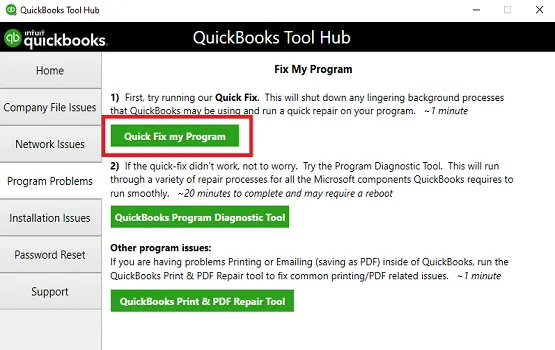
Running the Quick Fix my Program will close the ABS PDF installer process running in the background, then run a quick repair to the program. Here’s how to run the utility: 

Note: Before getting started, you must download and install QuickBooks Tool Hub (1.6.0.8) to the latest release. Make sure to close QuickBooks when running the tool, and run it on Windows 11 (64-bit) for best results. 

  • Launch QuickBooks Tool Hub. 
  • Go to Program Problems from the left pane. 
  • Hit on Quick Fix my Program.
Quick Fix my Program
  • Launch the Run command by pressing Windows+R
  • In the Run field, type %TEMP%, then press Enter.
  • Choose the Temp folder. 
  • Locate the Prx_usXXrX or Enterprise_usXXrX folder.

Note: The X’s on this folder are the version, year, and release of your QuickBooks. For example, QuickBooks Pro 2018 R7 will show Pro_us28r7.

  • Locate the Third Party folder and open it. Then, select ABS.
  • Double-click on ABSPDF412Setup to run the file. 
  • Once the installation finishes, launch QuickBooks Desktop and register your license.

Note: If the ABS PDF installer still freezes or stops responding, consult an IT specialist to check your system.

2. Run QuickBooks Install Diagnostic tool 

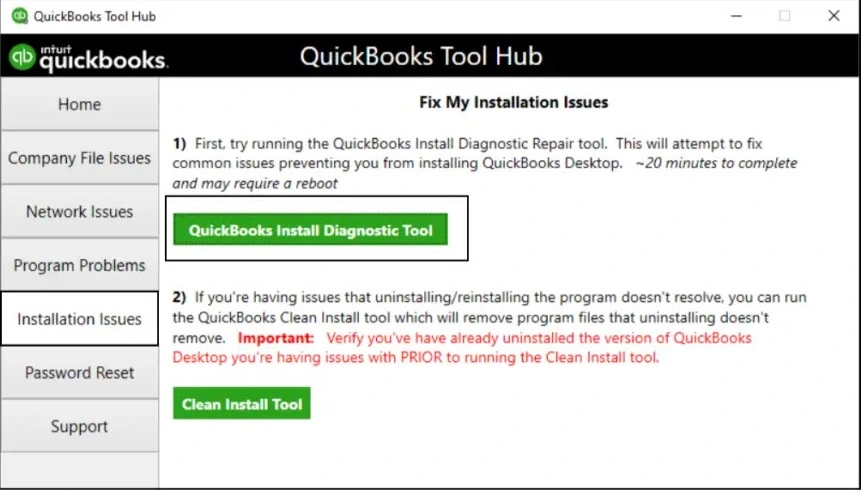
If something went wrong during the QuickBooks install, it could cause problems when you try to use it. Run the QuickBooks Install Diagnostic Tool to fix common install issues.

  • Launch QuickBooks Tool Hub. 
  • In the left menu bar, select Installation Issues.
  • Hit on QuickBooks Install Diagnostic Tool. Let the utility run until the process finishes. The tool might take up to 20 minutes. 
QuickBooks Install Diagnostic Tool
  • Once the tool finishes, restart your computer and open QuickBooks Desktop and then open your company file. 
  • Now, update QuickBooks Desktop to the latest release to ensures you use the most recent fixes and the security patches. 

3. Clean Install QuickBooks Desktop 

Clean installing QuickBooks Desktop fixes ABS PDF errors by completely removing corrupted driver files, old settings, and pending updates, allowing a fresh, uncorrupted installation of the virtual printer driver that enables PDF creation. Often, this requires using a dedicated cleaner tool and restarting the PC before reinstalling from scratch.

4. Manually fix Windows Components 

Often, issues Windows components such as Microsoft .NET Framework and Microsoft MSXML hamper processes QuickBooks installation and cause it to get stuck at ‘Installing ABS PDF Driver…’

Let’s resolve them by following these steps:

a. Repair or reinstall Microsoft .NET Framework

  • Exit all the open programs.
  • Launch the Windows Start menu. 
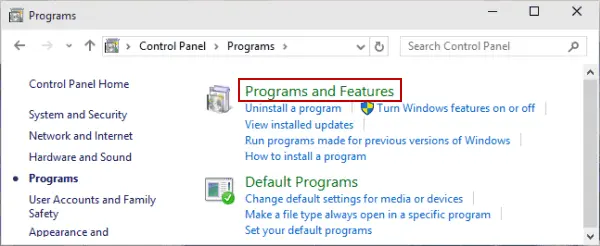
  • In the search, type Control Panel and press Enter to open Control Panel. 
  • Click on Programs and Features.
Programs and Features
  • Choose Uninstall a Program. Don’t worry, you aren’t uninstalling anything.
  • Hit on Turn Windows features on or off.
  • Look for .NET Framework on the list.
  • Check the settings for both .NET Framework 4.5 (or later) and .NET Framework 3.5 SP1.

Note: The steps to fix .NET. Framework 4.5, 4.6, 4.7, and 4.8 are the same.

i. Check NET Framework 4.5 (or later)

If the .NET Framework 4.5 (or later) checkbox isn’t checked:

  • Mark the checkbox for .NET Framework 4.5 (or later) to enable it. 
  • Click OK to save the changes.
  • Restart your computer.

If the .NET Framework 4.5 (or later) checkbox is already checked:

  • Select the checkbox for .NET Framework 4.5 (or later) to disable it. Do not turn it back on.
  • Click OK to save the change. 
  • Restart your computer.
  • Once signed back into Windows, follow the same steps to turn on .NET Framework 4.5 again.

ii. Check NET Framework 3.5 SP1

If the .NET Framework 3.5 SP1 box is not selected:

  • Check the box to enable .NET Framework 3.5 SP1.
  • Click OK to apply your changes.
  • Restart your system.

If the .NET Framework 3.5 SP1 box is already selected:

  • Uncheck the box to disable .NET Framework 3.5 SP1. Do not re-enable it yet.
  • Click OK to apply your changes.
  • Restart your system.
  • After signing back into Windows, follow the steps to enable .NET Framework 3.5 SP1 again.

If an error appears while enabling or disabling .NET Framework, contact an IT professional or Microsoft. The problem may be related to your operating system, not QuickBooks.

b. Repair Microsoft MSXML

Register MSXML if you use 64-Bit operating system:

  • Launch the Windows Start menu. 
  • In the search, type cmd and press Enter
  • Right-click on cmd and choose Run as Administrator.
  • Type cd\windows\syswow64 in the C: prompt.
  • Type regsvr32 MSXML6.dll and press the Enter key.
  • Install your QuickBooks Desktop.

Register MSXML if you use 32-Bit operating system:

  • Press Windows+R to open the Run command
  • In the Run, type cmd and press Enter.
  • Type regsvr32 MSXML6.dll, then press Enter.
  • Install your QuickBooks Desktop.

If the issue persists, reach out to IT professional or dial TFN for assistance.

Conclusion 

Finally, we are at the end of this blog covering a detailed guide how to fix with ABS PDF Driver issues so you can process PDF related processes without any issues. However, it is possible to get stuck somewhere or you might require professional assistance. 

In that case, you must contact QuickBookSupportNet at (866) 500-0076 to consult your issues with QuickBooks ProAdvisors

Frequently Asked Questions 

Do I need ABS PDF install on my computer?

Yes, you will need the ABS PDF installed on your computer only if you use QuickBooks or Atlas products, but for specific editions. For those programs, the ABS PDF install works as a virtual printer for creating PDFs.

What is an ABS PDF installer?

An ABS PDF installer is a specific tool related to QuickBooks Desktop and other Atlas Business Solutions that lets you install a virtual PDF printer driver. It allows users to create, save, or email reports and documents as PDF files. 

What is the latest version of ABS PDF install?

The ABS PDF driver comes bundled with QuickBooks Desktop. As part of this bundle, it automatically updates with the latest QuickBooks Desktop updates and ensures compatibility with QuickBooks 2024. You can install it from the QB Tool Hub or directly from the Intuit website.

What are the system requirements of ABS PDF Install? 

ABS PDF Installer is not a standalone product; it is a component of QuickBooks Desktop. Therefore, the system requirements for ABS PDF are the same as those for QuickBooks, including the latest version of Windows, a compatible browser, an active internet connection, and more.

Can I use ABS PDF Install on Mac? 

Yes, you can use QuickBooks on a Mac, but “ABS PDF Install” is a Windows-specific component for creating PDFs in QuickBooks Desktop (QBDT), so it won’t install directly on a Mac; instead, Macs use built-in PDF features or virtualization to run QBDT for Windows.

About The Author

Lana Creston

Lana Creston is an experienced technical and accounting writer with a total of 9 years of experience. She currently works on QuickBooks accounting and technical guides at QuickBookSupportNet. Lana has a passion for reading and writing about various technical topics, especially exploring new accounting methods and software, while continuously expanding her expertise in the ever-evolving field of finance and technology.

QuickBooks Desktop 2023 is ending — Upgrade QuickBooks Desktop 2023 to 2024 for continued performance and support.

Get a Free Consultation with Our QB Tax Experts