
Wondering why QuickBooks Activation does not proceed successfully? Users have been reported to face such issues while activating their accounting application. Behind the QuickBooks Activation Errors, there are multiple reasons that we will discuss further in this guide.
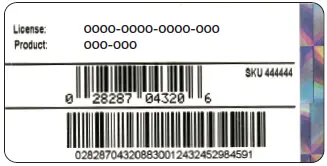
We want you to walk through this guide and bookmark it for your future use. In this guide, we have covered solutions that would fix the error due to license number, product number or any other related issue.
Common Causes behind the QuickBooks Desktop Activation Issue
- Corrupted installation or system files: An interrupted installation or a corrupted Windows system file can lead to activation issues.
- Corrupted license file: QuickBooks relies on a license file like EntitlementDataStore.ecml or QBregistration.dat to verify your license. If this file is damaged, activation will fail.
- Damaged company file: Though less directly related to initial activation, a damaged company file can lead to various errors that might seem like activation problems.
Now, we are proceeding to resolve QuickBooks activation issues. After that, you would be able to continue with your business workflow.
Learn to find QuickBooks Desktop license info.
Find your QuickBooks license number, product number, version, and new release. QuickBooks Desktop -Pro, Premier, or Enterprise.
- Launch QuickBooks Desktop.
- Press the F2 key on your keyboard.
- You can see your product name, product number, and license number in the Product information window.
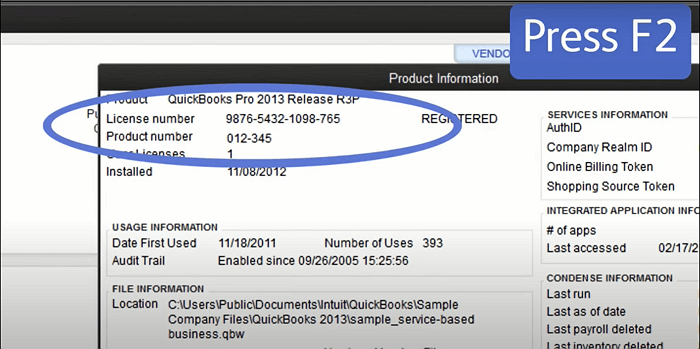
- Confirm the release at the end of the product name.
Solution 1: Run the QuickBooks File Doctor from the QuickBooks Tool Hub
- Close your QuickBooks application.
- Download QuickBooks Tool Hub’s most recent version.
- QuickBooks Tool Hub 1.6.0.8 is the latest version.
- You need to save your downloaded file (QuickBooksToolHub.exe) to a short file path location.
Note:- If you are already using the QuickBooks Tool Hub application, check its version. For this, simply click on the Home tab and look at the bottom of the menu.
- Open the QuickBooksToolHub.exe file and continue with the on-screen instructions.
- Click on Agree to their terms and conditions.
- After the installation is finished, click on the QuickBooks Tool Hub’s shortcut icon on your Windows desktop.
Note: Sometimes, the short icon does not appear on your desktop. If it happens, click on the Windows Start menu and search for QuickBooks Tool Hub and open it.
Step 2: Run Quick Fix my File
- Click on Company File Issues and then Quick Fix my File.
- Click on OK when it completes.
- Launch your QuickBooks application.
Check and confirm if the QuickBooks Desktop activation problem is fixed or if it requires another solution to get fixed.
Solution 2: From the QuickBooks Tool Hub, run the 3371 error
- Close the QuickBooks application.
- Click on Installation Issues in the QuickBooks Tool Hub.
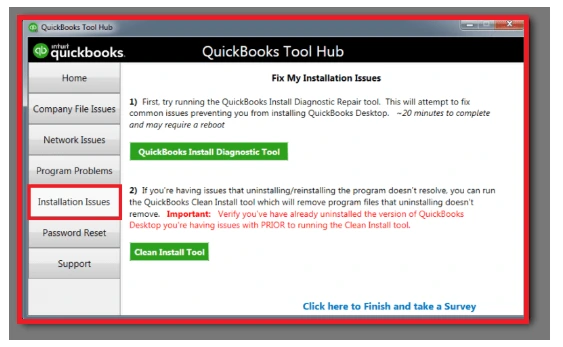
- Click on 3371 Error fix and hit OK.
- Launch QuickBooks and open your data file.
Solution 3: Run the QuickBooks Install Diagnostic Tool
- Click on the Installation Issues and launch QuickBooks Tool Hub.
- Click on the QuickBooks Install Diagnostic tool.

- Let the tool start the process.
- Once the tool finishes its work, restart your PC.
- Launch QuickBooks Desktop and open your data file.
- Now, activate the QuickBooks application.
If the activation is successful, you are good to go. If QuickBooks Activation Fails, proceed with the next solution.
Solution 4: Create a new Windows admin
- You need to add a Windows user with admin rights.
- Sign out of Windows and sign back in as the new user after you create the new user.
Solution 5: Install QuickBooks Desktop again
Completely remove the QuickBooks Desktop application and then install it.
Step 1: Remove QuickBooks
- Click on the Windows Start menu.
- Search for Control Panel and open the Control Panel.
- Click on Programs and Features/Uninstall a Program.
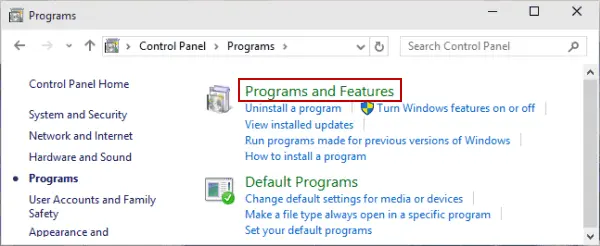
- Select the latest version of QuickBooks Desktop that you would want to remove from the list of programs.
- Click on Uninstall/Change, Remove > Next.
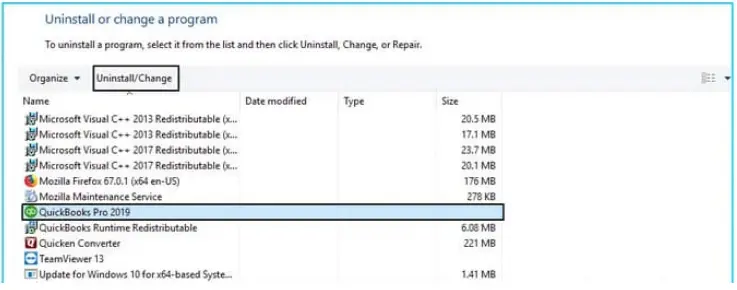
- In case you do find these options, sign in and sign back into your Windows as an admin.
Step 2: Again, Install the QuickBooks Desktop
Once you are done with Step 1, install QuickBooks Desktop software. When you proceed with the installation, QuickBooks will automatically install the new folders and rename the old ones.
Solution 6: Manually uninstall the QuickBooks application and rename the installation folders.
- Remove your QuickBooks application again.
- Click on the Windows Start menu.
- In the search field, look for File Explorer and open it.
- Fetch the folder that has your company files. This must be your QuickBooks folder.
- C:\ ProgramData\ Intuit\ QuickBooks (year)
- C:\ Users\(current user)\ AppData\ Local\ Intuit\ QuickBooks (year)
- C:\ Program Files\ Intuit\ QuickBooks (year)
- 64 bit version C:\Program Files (x86)\Intuit\QuickBooks (year)
- Right-click on the company file folder and rename it.
- Add the extension .old at the end of the folder name.
- Doing so would prevent QuickBooks from opening the folder when you reinstall the application.
- Now, you can reinstall QuickBooks Desktop software.
While renaming the folder, if you get an access error message:
- Click on the Windows Taskbar and open the Task Manager.
- Click on the Processes tab.
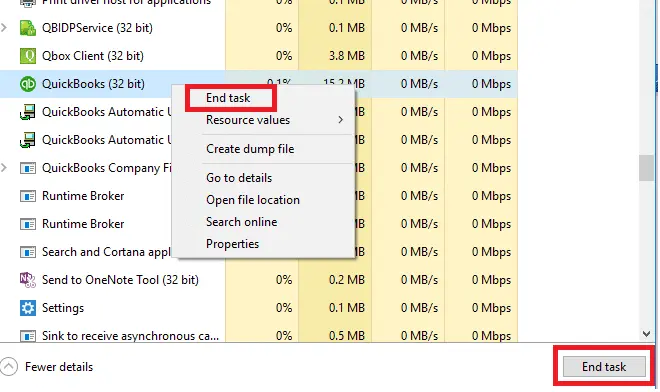
- Now, to sort the list, select the Name column header.
- Select the following processes and click on End Process for each:
- QBDBMgrN.exe,
- QBDBMgr.exe,
- QBCFMonitorService.exe,
- Qbw32.exe.
If a message appears with the phrase, “WARNING: Terminating a process can cause undesired results…“, click on Yes.
Still QuickBooks activation not working? Continue with the next solution.
Solution 7: Reactivate MSXML DLL Files
You may need to repair your PC’s Windows components, that is, MSXML DLL files. We are sharing both types of bit operating system steps:
64-Bit Operating System
- Click on the Windows Start menu.
- Type CMD in the search box and click on Enter.
- Right-click on the CMD and choose Run as Administrator.
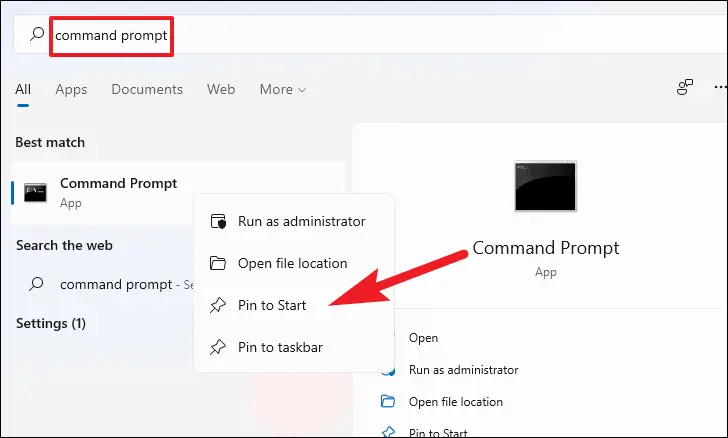
- At the C: prompt, enter cd\windows\syswow64.
- Type regsvr32 MSXML6.dll and hit Enter.
- Install QuickBooks Desktop.
32-bit Operating System
- Press the Windows + R key.
- Type CMD in the search box.
- Hit Enter on your keyboard.
- Type regsvr32 MSXML6.dll and press Enter.
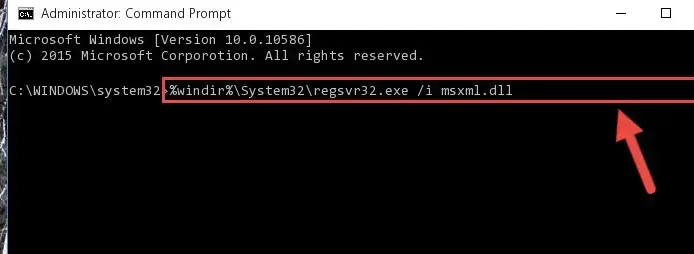
- Install QuickBooks Desktop.
Fix Error: The validation code is incorrect or This service is temporarily unavailable
Solution 1: Close your QuickBooks Desktop
- Close your QuickBooks Desktop.
- On the Windows taskbar, right-click on the time display and then select Adjust Date/Time.
- Confirm if your date and time settings are correct.
- If everything is good to go, move on to the next solution.
- If not, continue with steps 6 to 11.
- Click on the Date & Time tab.
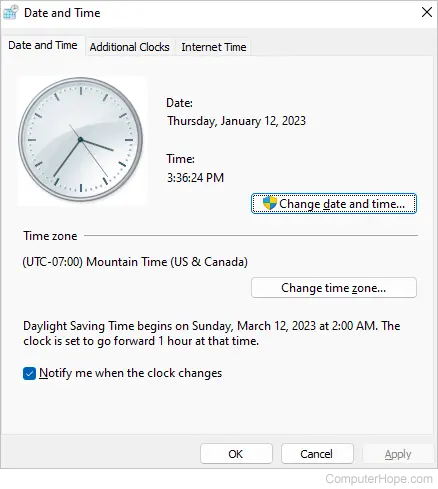
- Now, set the date for the current year.
- Click on Apply and hit OK.
- Launch QuickBooks and go to Help.
- Click on Activate QuickBooks and then Begin Registration.
- Enter the validation code and hit Next.
Solution 2: Manage your QuickBooks license.
Step 1: Find your license number.
Step 2: Activate QuickBooks
- Navigate to the Help menu and select Manage my license.
- Now, click on Change my license number.
- Enter the license number at the required field.
- Now, click on Next.
- Do not enter the validation code and then click on Finish.
- Navigate to the Help menu and select Manage my license.
- Now, click on Change my license number.
- Enter the License number and hit Next.
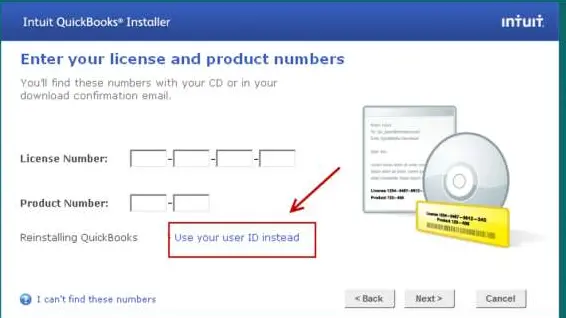
- Finally, click on Finish.
Conclusion
We hope that you have successfully resolved the QuickBooks activation errors. This is not the case every time, and users may still face trouble in fixing it. If you are still facing the error, dial our senior QuickBooks specialist at +1(866)500-0076.
Frequently Asked Questions
1. What is a QuickBooks activation error?
The activation error reports when QuickBooks fail to validate or register the software with Intuit’s server. It becomes a barrier in preventing the program from being full functional.
2. What are common activation error codes in QuickBooks?
Common codes include:
- 3371- Failed to initialize licensing component
- 136, 1334, 15223 – Internet connectivity/SSL issue during activation
- 1702 – silent install/repair issues
- 6210 – license validation problems
Some codes vary by edition and update.
3. How can I fix QuickBooks activation error 3371?
Ensure Internet connectivity, run QuickBooks as Administrator, disable antivirus/firewall temporarily, re-register the licensing components QBCFMON.DLL, qbregistration.dat, and reinstall the licensing components if needed.
4. I receive activation error 15223. What should I do?
This usually indicates a problem with SSL or the internet connection. However, if you have tried fixing the error and it did not work, contact our senior QuickBooks specialist from QuickBook support net at +1(866)500-0076.
5. Can activation errors be caused by a corrupted company file?
Activation issues are typically licensing-related rather than tied to a single company file, but corrupted data can hinder sign-in or product verification. Try a clean activation on a new file if needed.