
May 8, 2026
Admin |
Estimated Read Time : 5 MIN
QuickBooks Workforce is an Intuit application that integrates with both QuickBooks Online and QuickBooks Desktop. It allows business owners to invite employees to access important payroll documents, including pay stubs, W-2s and W-3s, and more.
However, you might encounter the ‘We weren’t able to show payroll info’ error in QuickBooks Online, which is often due to common browser or system issues. Whether you’re an employee or an employer, this problem can make it difficult to access essential payroll information.
This guide explores the reasons you may be unable to view payroll information and provides solutions to resolve the issue quickly.
Table of Contents
ToggleBelow is a list of multiple reasons why QuickBooks Workforce is unable to show payroll info to employees:
Learn More – System Requirements for QuickBooks Workforce
Let’s take the necessary steps to resolve the issues mentioned above and ensure that you, as an employee, can access your payroll information in QuickBooks Workforce:
Restarting your computer can resolve common issues such as RAM glitches. In QuickBooks, it helps by refreshing system resources, closing unnecessary background processes, and clearing temporary files, which can resolve slow performance, crashes, or errors, ensuring smoother operation.
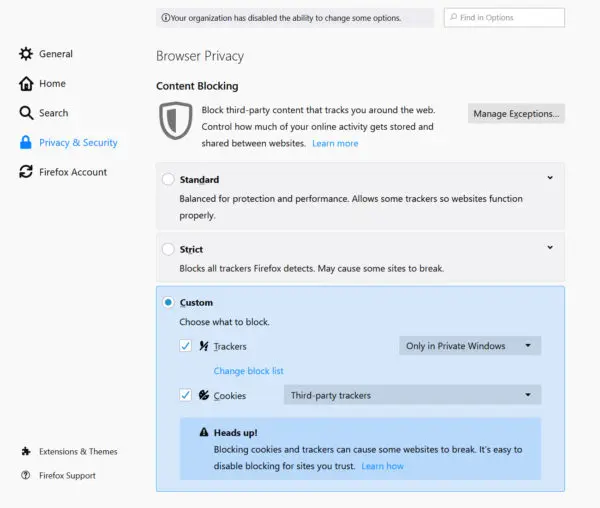
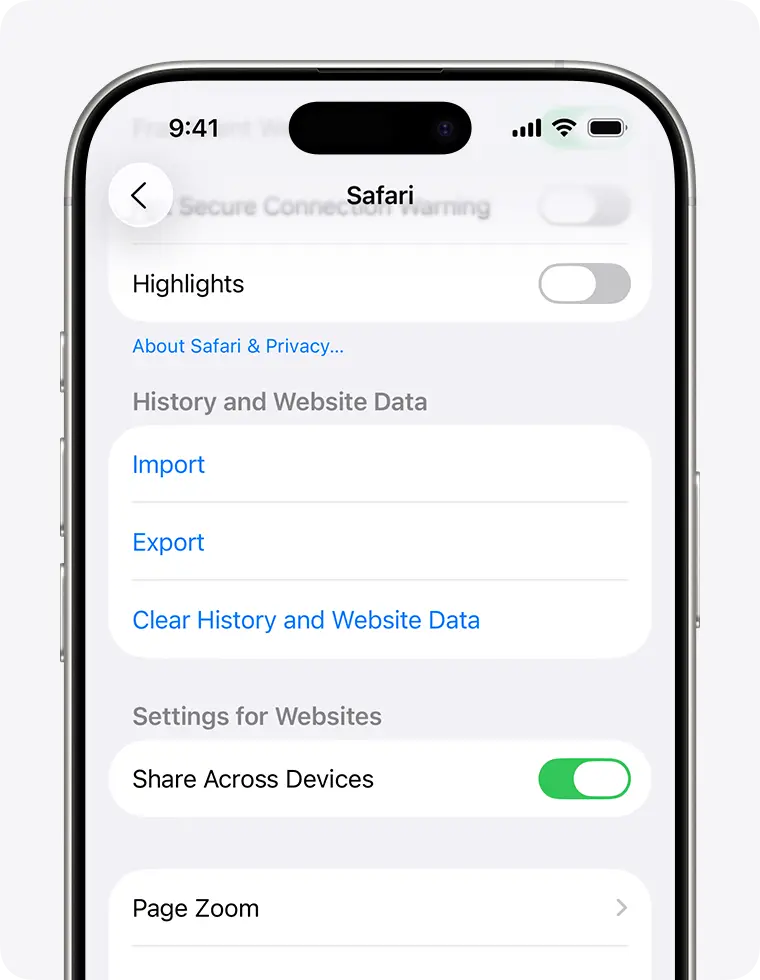
If cookies and caches are stored excessively or have expired, it will impact all software or processes running in the browser. Here’s how to clear this data in different browsers:

This will open the clear browsing data and cookies dialog.
If you are clearing cookies when signed in to Chrome, Chrome will automatically refresh the Google cookies that keep you signed in. This ensures that Chrome continues to work as you expected. To delete those cookies as well, sign out of Chrome first.

Confirm the timeframe you’d like to clear, then tap Clear History. This won’t affect your AutoFill data. If the button is gray, there may be no data to clear, or you may need to review your web content restrictions in Screen Time.
For example, you should clear browsing history and cookies while retaining passwords and form autofill data.
Once done, restart your computer.
If clearing cookies and caches does not resolve ‘We weren’t able to show your payroll info in Workforce,’ try using a private window to access payroll information in QuickBooks Workforce.
Make sure you use a recent, compatible, and supported version of the browser:
A QuickBooks Online subscription is required because QuickBooks Workforce is an integrated service that allows your employees to access payroll information.
Sign in to QuickBooks Online as a primary admin.
Active, past due, or canceled, with the next billing date and plan details.
Can’t even log in to QuickBooks Workforce? Reset the user password with the steps below and access your payroll info:
If nothing resolves the “We weren’t able to show your payroll info error, try sending your employee a new invitation in QuickBooks Workforce to set up their account again.
In conclusion, an employee may encounter the ‘we weren’t able to show payroll information’ issue due to an incorrect password, common browser or OS problems, and more. Following this detailed guide will help you resolve these problems promptly, ensuring employees can access their info.
If you need further help, get in touch with QuickBooks ProAdvisors at 866-500-0076. Talk to an expert now!
As an employee, you may encounter issues accessing direct deposit information in QuickBooks Workforce due to common system or browser problems, or if you are using an outdated or unsupported browser. Additionally, incorrect password entry or a malfunctioning invitation link can also prevent access to payroll information in QB Workforce.
An employee might not be appearing in QuickBooks Payroll because they are on the wrong pay schedule, have a termination date, or have been marked as inactive.
You may be unable to access direct deposit in QuickBooks Workforce due to technical issues, such as incorrect bank information, an inactive or expired payroll subscription, or a poor internet connection.
Other reasons could include delays in payroll submissions, insufficient funds in the company’s payroll account, or problems with the bank.
Lana Creston is an experienced technical and accounting writer with a total of 9 years of experience. She currently works on QuickBooks accounting and technical guides at QuickBookSupportNet. Lana has a passion for reading and writing about various technical topics, especially exploring new accounting methods and software, while continuously expanding her expertise in the ever-evolving field of finance and technology.
How to Fix QuickBooks Error 15311 During Updates
Oct 22, 2026