Steps to Create An Invoice in QuickBooks Desktop & Online 

Jan 5, 2026

Admin |

Estimated Read Time : 5 MIN

When it comes to managing your business finances, QuickBooks offers powerful tools to help streamline your accounting process. One of the most essential tasks for small business owners and freelancers is knowing how to create an invoice in QuickBooks, whether you’re using QuickBooks Time, QuickBooks Online, or the QuickBooks desktop version. 

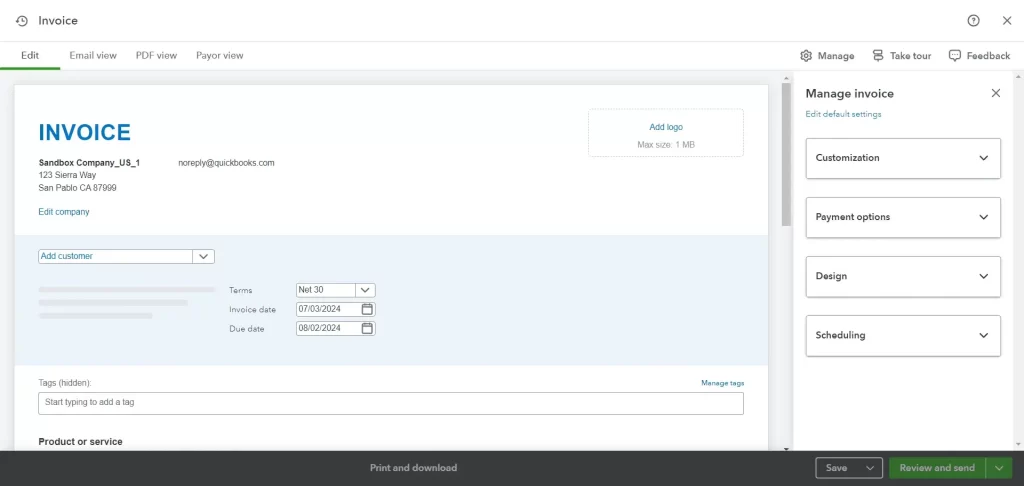
Create an Invoice in QuickBooks

However, while the platform is user-friendly, you might run into a few roadblocks along the way. In this blog, we’ll walk you through the step-by-step process of creating an invoice in QuickBooks across all versions and highlight some of the common issues users face. Let’s dive in!

How to Create an Invoice in QuickBooks Desktop? 

QuickBooks Desktop allows you to create invoices using three methods: Scratch, Sales Order, and Estimate. Let’s walk you through the detailed steps to create an invoice using different methods:

Create an Invoice from Scratch

When your company doesn’t require making sales orders or estimates, your A/R process begins by creating the invoice.

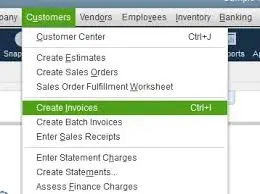
  • Go to the Customers menu from the home screen. Then, click on Create Invoices.
Create Invoices tab
  • Under the Customer: Job dropdown, choose a customer or the customer’s job. If your customer or job isn’t listed yet, click on Add New
  • Enter the required information at the top of your form, such as Date Invoice #, Bill to/Sold to, and Terms.
  • Choose the items in the detail area. 

Note: When selecting or adding an item, it will automatically populate the description and amount based on the description and unit cost you have entered when setting up. It allows you delete or modify this when creating invoices.

  • If you have a discount to apply, you are required to create a discount item first (Optional). Create a discount item with these steps: 
    • Navigate to the Lists menu from the Home screen. 
    • Choose your Item List.
    • Now, right-click anywhere on the screen and choose New.
    • Select the Type dropdown, then click on Discount
    • Enter an Item Name/Number you are creating and a brief description.
    • Enter the discount amount or percentage in the Amount or % field. In case the discount amount isn’t specific and varies, you might need to leave the Amount or % field blank and enter the amount directly on your sales forms. 
    • Now, choose the income account you wish to track the discounts you are giving to your customers from the Account dropdown. 
    • Select or add an appropriate Tax Code for the item. 
    • Click OK.
    • Finally, select Save & Close.

Create an Invoice for a Sales Order

If you’ve created and fulfilled a sales order, you’ll need to generate an invoice. There are two ways to do this:

a. From the Sales Orders window

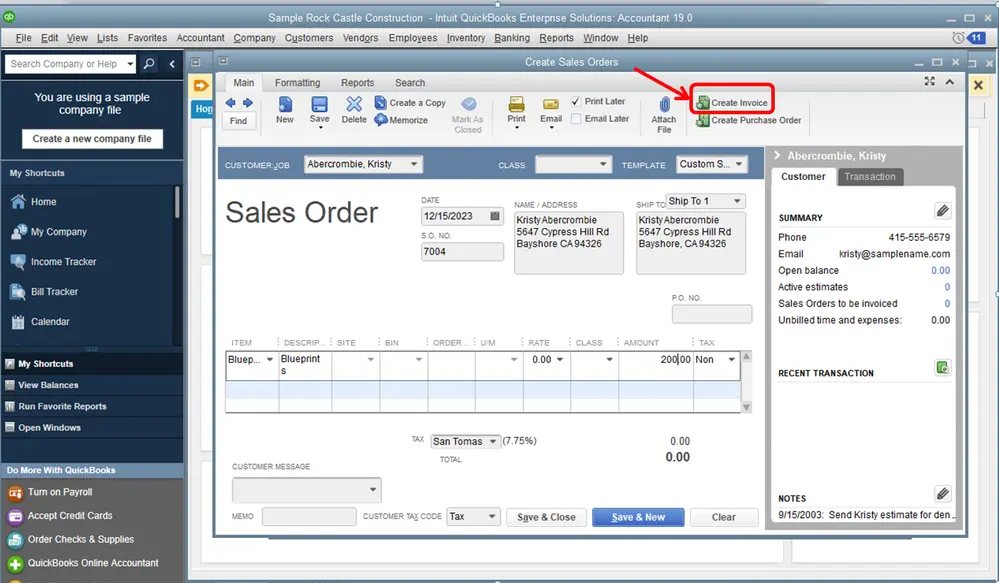
  • Select Create Invoice button on the Sales Orders Main window.
Create Invoice option
  • Choose the following on the prompt that appears: 
    • Click on Create invoice for all of the sales order(s). This way you will add all items from the sales order to the invoice. 
    • Click on Create invoice for selected items to put only some of the items on your invoice. 
  • Make the required changes to your invoice.

Note: In the list of items, enter a specific quantity in the To Invoice (Or Invoiced) column for each of your items. If you are not invoicing any of the listed items, enter 0 (zero) as the quantity.

  • Finally, click on Save & Close.

b. From the Invoice window

  • Go to the QuickBooks Home or Customers screen. 
  • Select Create Invoices
  • Under the Customer: Job dropdown, choose your customer or the customer’s job. This will open the Sales Order window on the screen.
  • Choose one or more sales orders if there are items you wish to include in the invoice when creating. 
  • Make the required changes in the invoice.

Note: Enter a specific quantity in the To Invoice (Or Invoiced) column for each item in the list of items. In case you don’t want to invoice any of the listed items, simply enter 0 (zero) as the quantity. 

  • Finally, click on Save & Close

Create an Invoice for an Estimate

Once your client has approved the estimate and agreed to pay a set price instead of actual time and expenses, you can convert the full estimate into an invoice document.

a. From the Estimate window

  • Locate the correct estimate and open it. 
  • On the top of the Estimate form, select Create Invoice
  • If you have enabled the progress invoicing option, you might see a prompt on the screen asking what items and quantities to put on the invoice. Here, ensure to specify what needs to be included as prompted.
  • In case the invoice is non-progressing, you will see a pop-up on the screen with the option to mark the estimate as inactive.
  • Finally, click on Save & Close

b. From the Invoice window

  • Open the QuickBooks Home or Customers
  • Select Create Invoices.
  • Select a customer or the customer’s job under the Customer: Job dropdown. This will open the Available Estimates window.
  • Choose the estimate you want to include in the invoice that you are creating. Remember that QuickBooks allows you to choose only one estimate for the invoice. 

Note: If you have progress invoicing turned on, you may get a prompt asking what you want to have on the invoice. You can simply specify what to include as prompted.

  • Edit the information as required on the invoice that appears on your screen. 
  • Finally, click on Save & Close

How to Create an Invoice in QuickBooks Online? 

Let’s learn how to create an invoice in QuickBooks Online—see the steps below for detailed guidance on navigating and completing the invoicing process.

  • Click on + Create.
  • Select Invoice.
  • Under the Add Customer dropdown, choose a customer you are creating an invoice for. 
  • Verify that all the information is accurate, especially their email address.
  • Now, review the information from your end, Invoice date, Due date, and Terms. Enter the new dates or terms, if required. 

Tip: In the Terms field on the screen, Net refers to the number of days until the payment is due. 

  • Choose a product or service from the dropdown for each line item on your invoice. In case you wish to add additional line items, choose Add product or service.
  • Select how you wish to calculate the charge amount – flat rate, by hour, or by item. Enter the specific quantity and rate, only if required. 
  • To customize the invoice design or the information, choose Manager.
  • Choose the options from the side pane. QuickBooks keeps the record of your choices and applies them to all the invoices you are creating or will create in the future. 
  • Click on Save and close. To send it to the customer, select Send and save, then follow the prompts on your screen. 

How to Create an Invoice in QuickBooks Time? 

Let’s explore invoicing in QuickBooks Time—refer to the instructions below to understand how to navigate the platform and complete the process efficiently.

Notes: Invoicing in QuickBooks Time is only available if your account isn’t integrated with QuickBooks, ADP Run, Xero, or Gusto. QuickBooks Time containing the hours to be billed must be submitted and approved before invoicing.

a. Install invoicing

  • Navigate to All Apps
  • Select Time, then Overview (Take me there).
  • Go to Feature Add-ons, then choose Manage Add-ons.
  • Navigate to Invoicing and choose Install
  • On the prompted Invoicing Preferences window, enter the information you wish 
  • On the Invoicing Preferences window, enter the information you want to appear on the printed invoices, and select Save.

b. Set billable rates

  • Navigate to Jobs
  • Select Edit next to the job. 
  • Choose Billable and enter a per-hour amount, then click Save.

Note: If sub-jobs exist, unless a billable rate is specified, it will use the parent job’s billable rate by default.

c. Create invoices

  • Open Invoice
  • In the Generate Invoice window, choose your options:
    • Select a client and sub-job (if needed).
    • (Optional) Select a start and end date.

If no dates are selected, all uninvoiced time is included.

  • Choose an Invoice Type:
    • Detailed: shows team member, notes, and hours per timesheet
    • Grouped: total hours grouped by job
    • Simple: shows only the amount due per job with a quantity of “1.”

(Optional) Include previously invoiced time.

  • Using a date range is recommended.
  • Helpful when invoicing the same project more than once.
  • Select Preview Invoice.
  • Select Add Invoice To Info to add billing name and address, then click Save.
  • If everything looks correct, select Finalize Invoice & Generate PDF.

Note: This locks the related timesheets. To unlock them, go to Time Entries> Timesheets and click the lock icon.

  • Select View Invoice PDF to open the PDF in a new tab for saving or printing.

d. Uninstall invoicing

  • Choose Feature Add-ons, then Manage Add-ons.
  • Go to Invoicing and click on Uninstall
  • The billable option will no longer appear in the job editor window here.
  • If invoicing is installed again, jobs will keep their old billable rates saved. 

How to Edit an Invoice Template in QuickBooks Online?

Editing an invoice template in QuickBooks Online is simple—follow the steps outlined below to navigate the settings and customize your invoice layout.

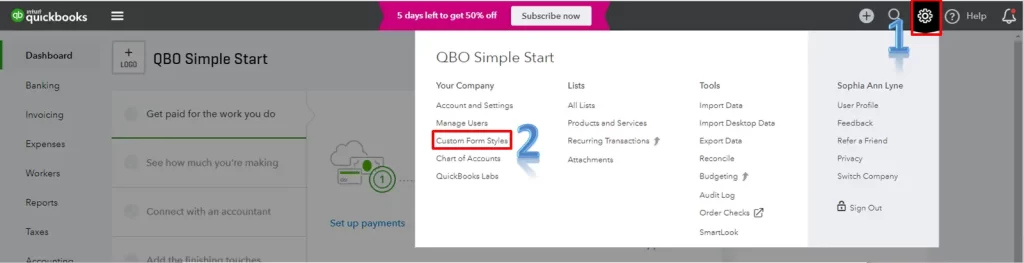
  • Select the Gear (Settings) icon. 
  • Click on Custom Form Styles under Your Company.
  • To create a new template, select the New Style button from the upper-right corner. 
  • Choose Invoice
  • Go to the Design tab to make changes to the template name, logo, color, font, and margins. 
  • Move to the Content tab to customize the header, body, and footer of the invoice template.
  • When done, click Done
Edit Invoice Template in QuickBooks Online
Edit Invoice Template in QuickBooks

Common Issues & Troubleshooting When Invoicing 

Below are some common invoicing issues in QuickBooks, along with explanations of their causes and clear guidance on how to resolve them effectively.

a. Correct invoices without VAT

Why this happens

You might have forgotten to add VAT to the invoice, leading to inaccurate financial records and common tax discrepancies. 

How to fix it

Follow this link to complete the steps in the product.

  • Type Transaction list by Date in the search field.
  • Hit on Customise. (If you don’t see the Customize button, choose Switch to classic view.)
  • Select the accurate date range from the Report period dropdown.
  • From the Rows/Columns dropdown, select Change columns, then tick VAT Amount.
  • Click on Run report.
  • Choose each of your invoices with no VAT then select Save

b. Fix inconsistencies in due date and invoice date

Why this happens

If the payment terms are incorrect, it can cause confusion for the customer and may lead to delayed payments.

How to fix it

Follow this link to complete the steps in the product.

  • Choose the affected invoice, then click Edit invoice
  • Note down the used Payment terms, then close the invoice. 
  • Navigate to Settings and select All lists.
  • Select Terms and look for the term used on the invoice. 
  • Under the Action column, select Edit from the dropdown. 
  • Set the Due in fixed number of days to 0.
  • Click Save.
  • Reselect the term on the invoice to apply the correction. 

(If the issue continues to appear, check for a similar term but with a slightly different name in the Terms list and edit it as needed.)

c. Fix payments applied to the wrong invoice

Why this happens

You may have accidentally paid the wrong invoice, which could create discrepancies in your financial records and cause confusion for the customer.

How to fix it

Step 1: Create a journal entry

  • Follow the on-screen steps to create a journal entry
  • Now, enter the following on the first line: 
    • Account: Debtors
    • Debits: Amount of payment to transfer
    • Name: Customer you’re transferring payment from
  • On the second line: 
    • Account: Debtors
    • Credits: Amount of payment to transfer
    • Name: Customer you’re transferring payment to
  • Click on Save and close.

Step 2: Apply the payment to the correct invoice

  • Select + New > Receive payment.
  • Choose your customer’s name. 
  • Now, make sure the journal entry number and open balance amount are listed and checked in the Credits section. 
  • Click Save and close.

d. Fix the ‘Delivery Server Down’ error

Read More – QuickBooks Delivery Server Down Error

Why this happens

This problem arises because of problems with email addresses or invoice formatting, blocking successful delivery completely.

ActionSteps to fix
Verify your company and customer-facing email addressesNavigate to Settings > Account and Settings. Click on Company. Select Contact info, then verify your Company email and Customer-facing email
Check the references below: 
Correct: mycompany@mycompany.com Incorrect: email:mycompany@mycompany.com
Verify the location’s email address (for businesses using location tracking)Note: The Location Tracking feature is not available in QuickBooks Sole Trader. 
Go to Settings and click on All lists. Choose Locations, then look for the location used on the invoice. Under the Action column, choose Edit from the dropdown. Verify the email address in the “This location has a different email address for communicating with customers” field and make the changes if required. Click Save and try sending the sales form again. 
Check your invoice formatOpen the invoice you attempted to send and confirm it does not contain special characters (! @ # $ % ^ & * ( ) _ – = +: “) within the following fields: Description, Attachment name, Message, Email address, and Custom form templates.
Check your sales form email optionNavigate to Settings and then Account and Settings. Move to the Sales tab. Choose Online delivery, then tick or untick the PDF Attached checkbox. Select Save, then try to send the sales form again.
Check print and PDF settingsMake sure the attached file is not in ZIP format and is smaller than 25 MB. Also, remove any special characters from the file name.
Check your Adobe Acrobat or Reader settingsWindows users should configure the following print settings in Adobe Acrobat or Reader:
Size: Actual size Orientation: Automatic Choose paper source by PDF page size: On
Check your browser’s PDF settingsChrome: Follow Google’s guide on changing default PDF download settings. Firefox: Follow Mozilla’s guide on setting Adobe Reader as the default PDF viewer.
After verifying these settings, try sending your sales form again.

Conclusion 

Finally, we’ve reached the end of this comprehensive guide on how to create an invoice in QuickBooks. By now, you should feel confident about generating accurate and professional invoices, whether you’re billing clients for products, services, or tracked time.

However, if you encounter any challenges while you create an invoice in QuickBooks or need personalised assistance with setup, formatting, or troubleshooting, don’t hesitate to get support. Dial Call Us : +1(866)500-0076 to talk to a QuickBooks ProAdvisor now!

Frequently Asked Questions 

How to write off an invoice in QuickBooks Online? 

To write off an invoice in QuickBooks Online, you are first required to create a Credit Memo for the uncollectible amount, then link it to the original invoice. When done, post it to a designated Bad Debt Expense Account.

How to apply credit to an invoice in QuickBooks Online? 

To apply credit to an invoice in QuickBooks Online, create a Credit Memo for your customer the locate the specific invoice and click on Receive Payment. Now, QBO will automatically link the credit to the invoice. Verify the amount, which shall be $0, and the credit/invoice match, then Save to zero out the invoice balance. 

How to edit an invoice template in QuickBooks Desktop? 

To edit an invoice template in QuickBooks Desktop, go to the Lists menu >Templates and double-click the invoice you want, use Print Preview > Basic Customization to add logos/info, and then use the Layout Designer or Additional Customization to drag, drop, add/remove fields (like PO numbers, terms) for a truly custom look.

How do I generate my own invoice? 

To generate an invoice in QuickBooks, click on Create > choose a customer > fill the required information with quantities and rates, customize details like shipping or discounts, then save and send or close the invoice, using options to email it directly or save as a PDF. 

Does QuickBooks take a fee for invoices?

No, QuickBooks doesn’t charge you to send an invoice; however, fees apply when your customers pay you through an online payment link (QuickBooks Payments).

How do you mark an invoice as paid in QuickBooks?

To mark an invoice as paid in QuickBooks, find the invoice under your Sales/Invoices list and use the “Receive Payment” button, or click the dropdown in the Action column to select “Mark as paid,” then enter payment details like amount, method, and deposit account, and save to update its status and track the payment. 

About The Author

Lana Creston

Lana Creston is an experienced technical and accounting writer with a total of 9 years of experience. She currently works on QuickBooks accounting and technical guides at QuickBookSupportNet. Lana has a passion for reading and writing about various technical topics, especially exploring new accounting methods and software, while continuously expanding her expertise in the ever-evolving field of finance and technology.

Quick, clear, and hassle-free QuickBooks assistance.

Get a Free Consultation with Our QB Tax Experts
Connect with Our Certified QuickBooks Professionals - Dial Tollfree: +1(866)500-0076