Fix QuickBooks Error 2277 When Backup Failed in IDP

Jan 23, 2026

Admin |

Estimated Read Time : 5 MIN

Intuit Data Protect allows you to create secure backups of your company file to safeguard it during critical situations such as system crashes, software issues, third-party disruptions, or antivirus/malware attacks. You can manually perform backups or schedule them at regular intervals. However, if the tool encounters issues or is blocked by Windows Firewall, it may trigger QuickBooks error 2277 – Backup Data error.

While the exact cause of this issue is unclear, we’ve identified several potential factors. In this guide, we’ll walk you through the possible reasons and expert-recommended steps to help ensure a smooth and secure data backup process.

What Causes QuickBooks Error 2277 in IDP?  

Whether it’s an outdated version or an interruption caused by a firewall, there could be multiple reasons you see QuickBooks backup error 2277. Let’s explore each of them one by one: 

  • Intuit Data Protect might not be up-to-date 
  • General problems with IDP 
  • Incorrect Windows Firewall settings 
  • The Intuit Data Protect portals might not be added as Trusted Sites
  • IbuEngHost.exe might not be running as a Windows user 
  • Insufficient space in Intuit Data Protect

Top 7 Solutions to Fix Intuit Data Protect Error 2277 Instantly 

Once the cause of the QuickBooks data backup error 2277 in IDP is identified, follow the troubleshooting steps below to resolve the error and securely create a backup copy of your data.

1. Update IDP 

An outdated version of Intuit Data Protect (IDP) can directly cause company file backup failures, errors, and authentication issues. Keep the tool up-to-date for a secure backup: 

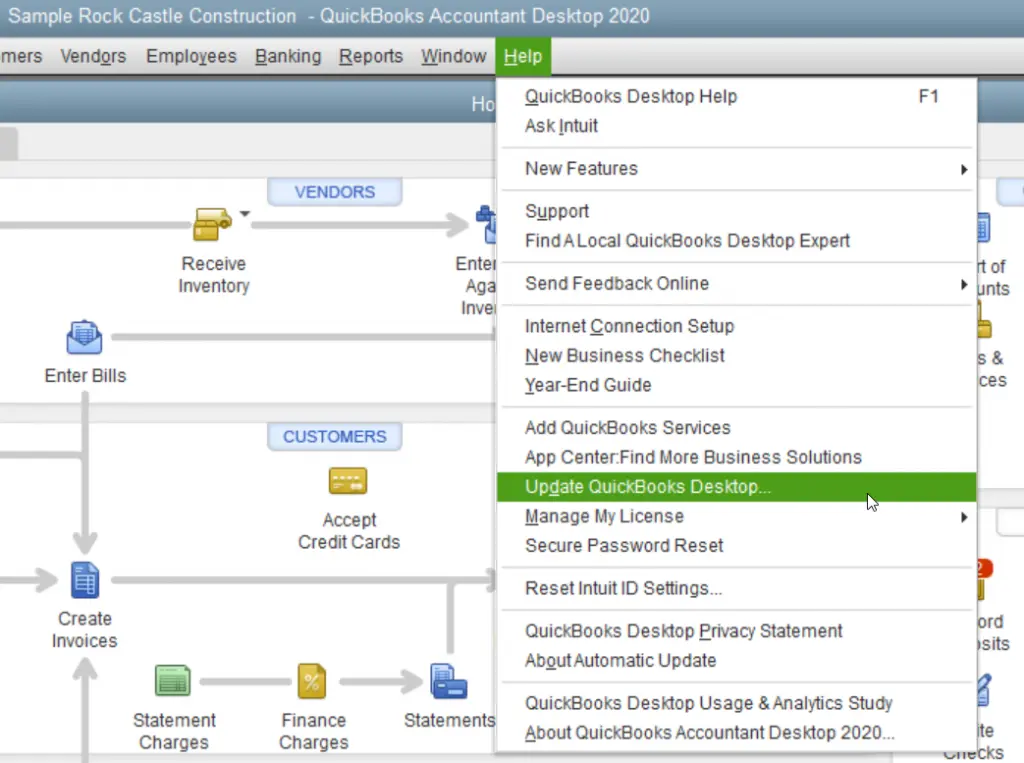
a. Download the latest update for Intuit Data Protect

Update QuickBooks Desktop
  • Go to the Update Now tab.
  • Choose Data Protect from the list, then click on Get Updates. 

b. Install the update

  • From your desktop toolbar, choose the up arrow ^. You will find it on the lower-right corner near the system clock. 
  • Right-click on the Intuit Data Protect icon and choose About Intuit Data Protect. The IDP icon looks like a green padlock. 
  • Now, click Update.
  • When done, select OK.

2. Run IDP Diagnostic tool 

The IDP Diagnostic tool runs a scan to identify the common problems with Intuit Data Protect, runs a quick repair. Let’s see how to run the tool: 

  • Right-click on the Intuit Data Protect (green padlock) icon in the Windows System Tray, then choose About Intuit Data Protect.
  • Press Ctrl+F2 on your keyboard to open the Intuit Data Protect Diagnostics Tool.
  • Click on Run Diagnostics. If the Diagnostics Tool finds a problem with your firewall or security software, you’ll need to adjust the settings to allow access to Intuit Data Protect files. Visit the website of your security software or hardware manufacturer for instructions, and make sure to add these files to the exception list:
    • C:\Program Files(X86)\Common Files\Intuit\Data Protect\IntuitDataProtect.exe
    • C:\Program Files(X86)\Common Files\Intuit\Data Protect\IbuEnghost.exe
    • C:\Program Files(X86)\Common Files\Intuit\Data Protect\QBIDPServices.exe

3. Add Windows Firewall ports 

Windows Firewall ports used by Intuit Data Protect might be blocked. Add these IDP ports as an exception with the following steps: 

  • Launch the Windows Start menu. 
  • In the search, type Control Panel and press Enter. 
  • Navigate to System and Security. 
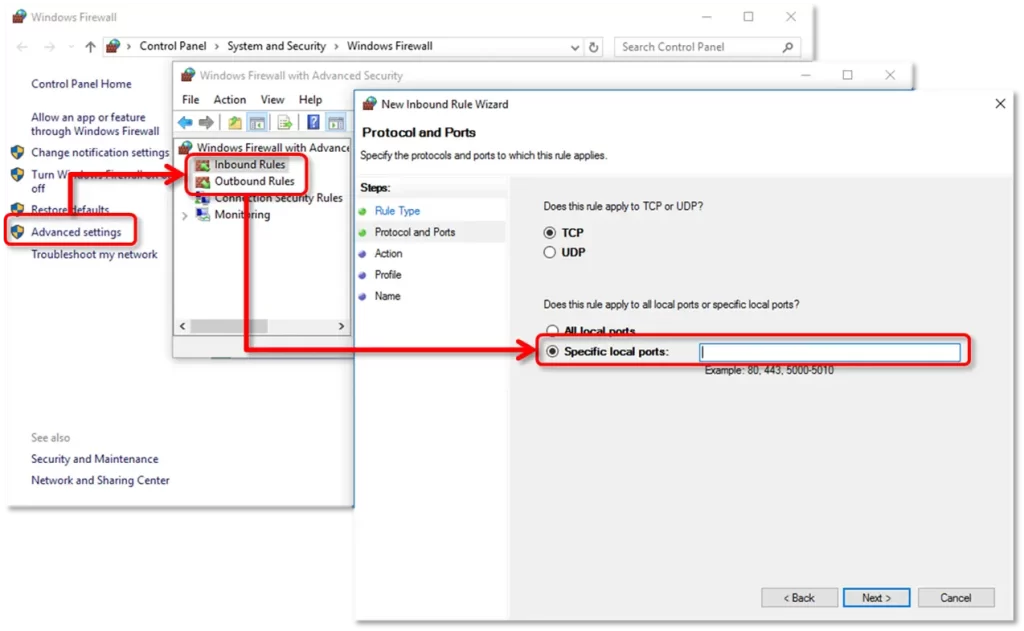
  • Choose Windows Firewall from the options and click on Advanced Settings.
Windows firewall
  • In the left of prompted Advanced Settings window, select Inbound Rules. Select New Rule from the right side of the same window. 
  • Now, enter the ports and click Next. 
    • Incoming Port: 80
    • Outgoing Ports: 443, 16841

Note: Intuit Data Protect uses HTTP ports 80 and 443 to connect to the internet. If you are browsing the internet and can log in to secure websites, Intuit Data Protect must work. 

  • Follow the prompts on your screen. 
  • Now, follow the same steps 1-4 for Outbound Rules. 

4. Add Trusted sites

Adding Intuit as a trusted site primarily prevents your browser or firewall from blocking Intuit Data Protect’s functionality, ensuring seamless automatic backups and access to your data.

  • Launch Internet Explorer. 
  • Navigate to Tools and select Internet Options.
  • Move to the Security tab and clear the checkbox for Enable Protected Mode.
  • Choose Trusted sites and then Sites.
  • Clear the Require server verification ( https: ) for all sites in this zone checkbox.
  • Now, add the following programs: *.backup.com, *.intuit.com, and *.intuit.net and select Close.
  • Select Sites from the Privacy tab.
  • In the Address of Website box, add the following websites: *.quickbooks.com and *.intuit.com.
  • Select Allow each time you add the web addresses.
  • Finally, click OK.

5. Make sure IBuEngHost.exe isn’t running as a Windows user

The file IBuEngHost.exe must run as a System user for Intuit Data Protect to function correctly and ensure proper operation.

a. Check to see if the file is running as System

  • Right-click your Windows taskbar, then select Start Task Manager.
  • Select the Details tab. Look for IBuEngHost.exe. Make sure it has the User name as System next to it and the Status is running.

b. If IBuEngHost.exe isn’t running as System, follow these steps

Note: Save the file where you can easily find it.

  • Go to the location where you saved the installer.
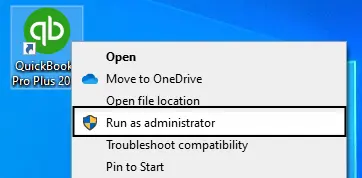
  • Right-click the installer, then select Run as Administrator.
Run as Administrator
  • Proceed with the re-installation.
  • After the install, look for IBuEngHost.exe in Task Manager again. Make sure the status is running and the User name is System.
  • Try to back up with Intuit Data Protect. If it’s still not working, continue to the next step.

6. Free up space in Intuit Data Protect

You might have reached the IDP storage limit, which is why you may fail when backing up the data. 

a. Update IDP 

Before you clear/free up the space, make sure Intuit Data Protect is up-to-date. 

b. Delete backup folders 

Note: When you delete the backup files, they won’t be recovered. As a safe move, download them first. Intuit Data Protect won’t alter your data or computer. 

  • Go to the bottom right of your Desktop screen, right-click on the Data Protect icon and choose Open Intuit Data Protect. 
  • Press the Ctrl + R keys on the keyboard. This will open the screen where you can delete the previously backed-up files. 
  • Data Protect will automatically compute the size of each folder. 
  • When done, select Delete. 
  • Click Yes to confirm the deletion of the backup folder permanently. 
  • Select OK to finish. 

c. Reduce backup file size

To avoid getting stuck with Data Protect’s storage limit, remove the files you don’t need to back up.

  • Right-click on the Data Protect icon from the bottom right of your Desktop screen, then choose Open Intuit Data Protect.
  • Choose Change Backup Settings.
  • Clear the checkbox for any files and folders you don’t need to back up. 
  • Click Continue until the exit Backup Settings.
  • Now, try again to back up. 

Conclusion 

A company file backup ensures data safety and prevents sudden data loss or corruption. With this guide, you can identify the causes of QuickBooks error 2277 and follow detailed steps to troubleshoot it. This will help you ensure IDP works well nd your data is well protected.

Have further queries? Contact QuickBookSupportNet at +1(866)500-0076 for a free 24/7 consultation.

Frequently Asked Questions 

How to fix backup issues in Intuit Data Protect?

To fix backup issues in Intuit Data Protect, update the tool to the latest release, run the IDP Diagnostic tool, open the firewall ports IDP uses, and free up space in Intuit Data Protect. If that doesn’t help, make sure IBuEngHost.exe isn’t running under a Windows user account.

Is my data safe when backup fails suddenly? 

Yes, your data is generally safe even if Intuit Data Protect fails suddenly, as the tool is designed for data protection. Still, a failed backup means that you don’t have the latest copy or backup in the cloud, so you must immediately fix the issue using tools like the QuickBooks Tool Hub.

How do I back up data with Intuit Data Protect?

To back up the data with Intuit Data Protect, open the System icon tray and right-click on IDP. Choose Back up now > Browse, then select the files and folders you would like to back up. Then, click Backup Now > OK to prompt IDP to back up all the files and folders you selected.

About The Author

Lana Creston

Lana Creston is an experienced technical and accounting writer with a total of 9 years of experience. She currently works on QuickBooks accounting and technical guides at QuickBookSupportNet. Lana has a passion for reading and writing about various technical topics, especially exploring new accounting methods and software, while continuously expanding her expertise in the ever-evolving field of finance and technology.

Quick, clear, and hassle-free QuickBooks assistance.

Get a Free Consultation with Our QB Tax Experts
Connect with Our Certified QuickBooks Professionals - Dial Tollfree: +1(866)500-0076