Is QuickBooks Online Down or Not Working? Here’s What to Do

Jan 7, 2026

Admin |

Estimated Read Time : 5 MIN

Is QuickBooks Online down or not working? If you’re facing issues accessing or using QuickBooks Online, you’re not alone. 

From login problems to glitches with invoicing or accounting features, downtime can disrupt your business operations. In this blog, we’ll explore common causes of QuickBooks Online outages, how to check if it’s down, and steps you can take to troubleshoot the problem. Whether it’s a server issue, maintenance update, or a local connection problem, we’ve got you covered with solutions to get you back on track.

Why is QuickBooks Online Down? 

Here’s a list of possible reasons why you might see the “Is QuickBooks Online down at the moment” error on your screen: 

  • General computer issues 
  • Excessively stored cookies and caches in the browser
  • Common browser-specific problem
  • Browser extensions might be blocking access
  • Using an unsupported or outdated browser 
  • Intuit might not be a trusted site 

Learn How to Fix the QuickBooks Online Login Problems

In this section, you’ll learn easy and effective ways to quickly fix common QuickBooks Online login problems, such as when QuickBooks Online is down. Be careful when performing the detailed steps: 

1. Restart your computer

Sometimes, the ‘Is QuickBooks Online currently down’ issue can be caused by temporary glitches or conflicts with your system’s memory or browser. Restarting your device can clear up these issues, refresh your session, and help establish a better connection to QuickBooks Online. After rebooting, try logging in again to see if the problem persists.

2. Open QuickBooks Online using Incognito mode

Open your browser in private or incognito with these steps:

  • Mozilla Firefox: CTRL + Shift + P
  • Microsoft Edge: CTRL + Shift + N
  • Google Chrome: CTRL + Shift + N
  • Safari: Command + Shift + N

3. Use a supported and up-to-date browser 

An updated browser improves performance, prevents glitches, and helps QuickBooks Online function smoothly without unexpected errors.

  • Google Chrome: Version 78 or newer
  • Mozilla Firefox: Version 76 or newer. 

Note: To preview and print forms on Mac OS, you’ll also need the Firefox PDF plugin.

  • Microsoft Edge: version 75 or newer
  • Safari: version 12 or newer (Mac only)

4. Add Intuit as a trusted site 

Adding Intuit as a trusted site allows your browser to load QuickBooks Online without security blocks, helping prevent login and access issues.

Add Intuit: Google Chrome

  • Go to Customise and control Google Chrome ⋮ icon. 
  • Choose Settings
  • In the left menu bar, choose Privacy and security > Site settings.
  • Hit on Third-party cookies.
  • Scroll down to the “Allowed to use third-party cookies” section, then click Add.
  • Type *.intuit.com, then click Add to save.

Add Intuit: Safari

  • Open Safari.
  • Type *intuit.com and press Enter
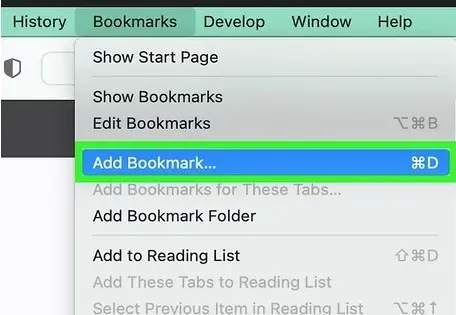
  • Select Bookmarks, then click Add Bookmark…
Add bookmark
  • Scroll down to Add this page to: and select Favourites from the dropdown. 
  • Finally, click Add.

Add Intuit: Microsoft Edge

  • Tap the menu icon, then select Settings.  
  • In the left menu bar, choose Cookies and site permissions.
  • Click on Manage and delete cookies and site data.
Microsoft Edge
  • Go to the Allow section and click Add
  • Type *.intuit.com, then select Add to save.

5. Clear Cache and Cookies

Clearing cache and cookies removes stored data that can cause loading errors, login failures, or performance issues in QuickBooks Online.

1. Clear your browser’s cache

Removing cached files fixes loading errors by eliminating outdated or corrupted data.

a. Firefox

  • Select the menu button. 
  • Go to Settings.
  • Select the Privacy & Security panel.
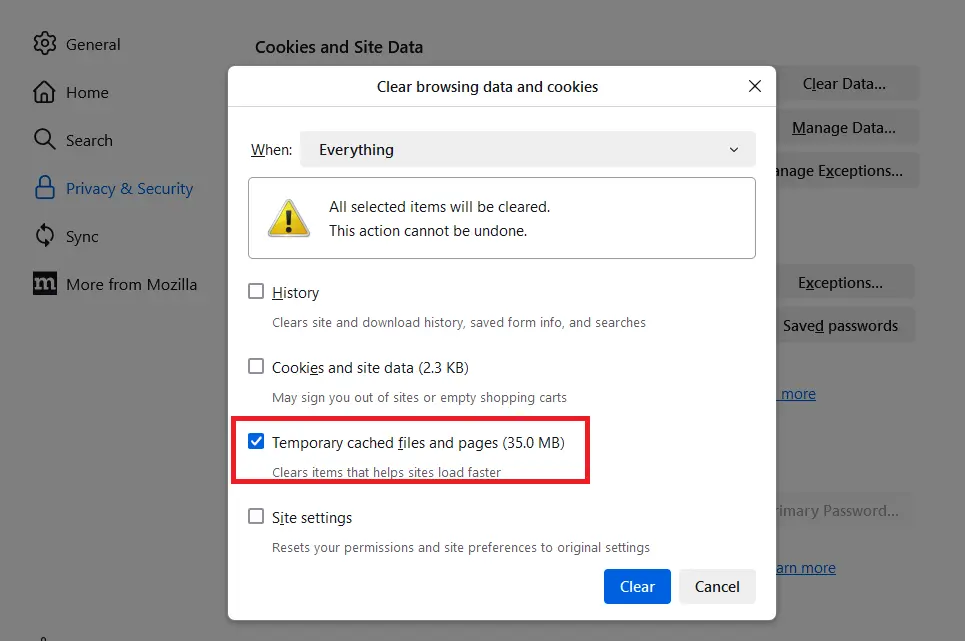
  • In the Cookies and Site Data section, click Clear Data.
  • Choose Everything from the dropdown next to When:. Make sure to mark the Temporary cached files and pages option.
  • Select the Clear button. 
  • Exit the Settings page. Any changes you have made will be saved automatically. 

b. Google Chrome

  • Open Google Chrome on your computer. 
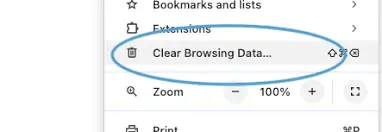
  • Select More at the top right and click on Delete browsing data.
Clear browsing data and cookies
  • Choose a specific time range, such as Last hour or All time.
  • Select the type of information you wish to clear.
  • Click on Delete Data

If you remove cookies while signed into Chrome, it will refresh the Google cookies that keep you logged in. This ensures Chrome keeps working as you expect. To delete Google cookies, make sure to sign out of Chrome first.

c. Safari for Mac

  • Open the Safari app on your Mac. 
  • Go to History > Clear History, then click the pop-up menu.  
  • Select how far you wish to clear the browsing history you wish to clear. 

d. Safari for iPad and iPhone

  • Go to the Settings menu. 
  • Choose Apps and then Safari
  • Scroll down below and select Clear History and Website Data.

Note: Confirm the time period you want to delete before tapping Clear History. This action will not affect your Auto Fill data. If the button is grayed out, it either means there’s no data to clear or that you might need to check your web content restrictions under Screen Time settings.

e. Microsoft Edge

  • Select Settings and more
  • Choose Settings > Privacy, search, and services.
  • Click on Clear browsing data, then select Choose what to clear next to Clear browsing data now.
click Delete Clear browsing data
  • Select a specific time range from the Time range drop-down menu.
  • Choose the type of browsing data you wish to clear. For example, you might wish to clear the browsing history and cookies while keeping passwords and form-fill data. 
  • Finally, click on Clear now

2. Clear Intuit-specific cookies from your browser

Deleting Intuit cookies resets saved sessions and resolves login or authentication issues.

a. Google Chrome

  • Select the More⋮ icon from the top. 
  • Go to Settings
  • Click on Privacy and security.
  • Now, choose Cookies and other site data.
  • Select See all cookies and site data.
  • In the search bar, type “Intuit” to find the Intuit-specific cookies. 
  • Click on the Remove all shown or the trash can icon.
  • Restart Google Chrome to apply the changes. 

b. Mozilla Firefox

  • Select the Menu ☰ icon from the top right corner. 
  • Go to Settings.
  • Choose Privacy & Security.
  • Under Cookies and Site Data, select Manage Data.
  • Type “intuit” in the search field.
  • Press Enter to find the Intuit-specific cookies.  
  • Click on Remove All Shown.
  • Select Save Changes.
  • Restart Mozilla Firefox for the changes to take effect.

c. Safari 

  • Open Safari
  • Choose Safari beside the Apple icon in the top left.
  • Click on Preferences or Settings.
  • Select Privacy > Manage Website Data.
  • In the search field, type “Intuit” in the search bar to find Intuit cookies.
  • Select Remove All > Remove Now.
  • Click on Done.
  • Restart Safari for the changes to take effect.

6. Disable the browser extensions

You can either permanently remove a browser extension or temporarily turn it off until the QuickBooks Online process finishes. 

a. Uninstall an extension 

  • Open Google Chrome. 
  • Go to More and select More Tools
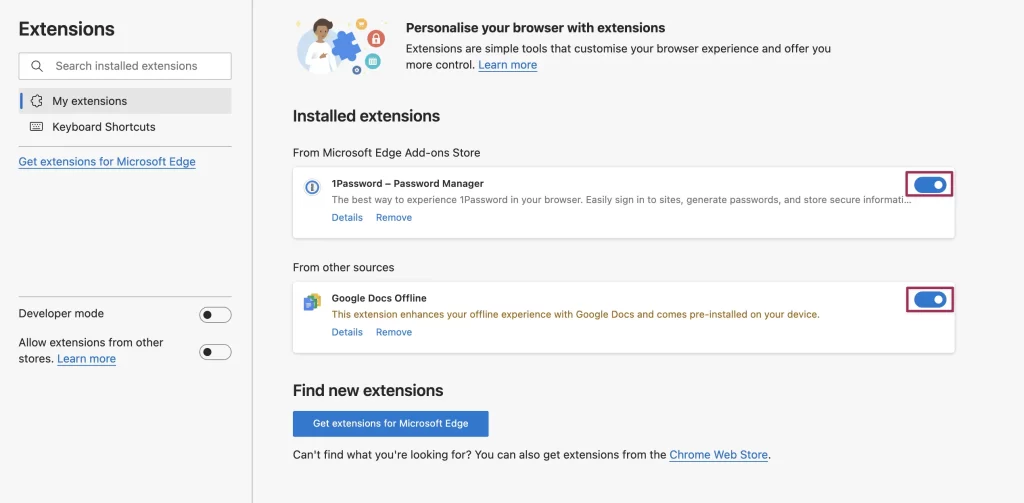
  • Click on Extensions.
  • Select Remove next to the extension you wish to remove. 
  • Click Remove again for the confirmation. 

Tip: To delete an extension that’s a toolbar button, right-click the button and choose Remove from Chrome.

b. Disable an extension

To temporarily stop using the browser extension: 

  • Open Google Chrome
  • Go to More
  • Select More tools and then click on Extensions.
  • Turn off the extension you wish to disable. 

Conclusion 

In conclusion, if you’re facing issues with QuickBooks Online, most problems can be resolved with simple fixes like clearing your cache, using incognito mode, or updating your browser. If problems persist, check Intuit’s status or reach out to their support team.

Is QuickBooks Online down? If you’re still having trouble, contact QuickBooksSupportNet experts today! Dial the Intuit account recovery phone number, Call Us : +1(866)500-0076, for quick assistance.

Frequently Asked Questions 

Is QuickBooks Online down today?

As of late December 2025, user reports and status trackers generally show QuickBooks Online is up and running, with no widespread major issues reported, though some users experience slowness, which can often be resolved by clearing browser cache, using an incognito window, or checking their own internet connection, as service interruptions can happen locally

Why is the QuickBooks Online app not working?

The QuickBooks Online app might not work due to poor internet, an outdated app/device, corrupted cache/data, or account issues such as an inactive subscription.

Why can’t I log in to my QuickBooks Online?

You can’t log in to QuickBooks Online (QBO) usually due to browser issues (cache/cookies), incorrect login info, multi-factor authentication (MFA) problems, or temporary Intuit server issues; try clearing browser data, using Incognito/Private mode, resetting your password, checking your email for verification codes, ensuring a stable internet connection, or trying another browser like Chrome/Firefox/Edge. 

Why is my QuickBooks Online service not working? 

If your QuickBooks Online (QBO) service isn’t working, it’s usually due to your internet connection, browser issues (cache/cookies), device problems, or temporary QBO server/maintenance, solvable by checking your internet, clearing browser data, using a compatible browser (Chrome), restarting your computer, or checking the Intuit status page for outages. 

About The Author

Lana Creston

Lana Creston is an experienced technical and accounting writer with a total of 9 years of experience. She currently works on QuickBooks accounting and technical guides at QuickBookSupportNet. Lana has a passion for reading and writing about various technical topics, especially exploring new accounting methods and software, while continuously expanding her expertise in the ever-evolving field of finance and technology.

Quick, clear, and hassle-free QuickBooks assistance.

Get a Free Consultation with Our QB Tax Experts
Connnect with Our Certified QuickBooks Professionals - Dial Tollfree: +1(866)500-0076